New google ads custom view: how to create your own overview dashboard and optimize ppc performance
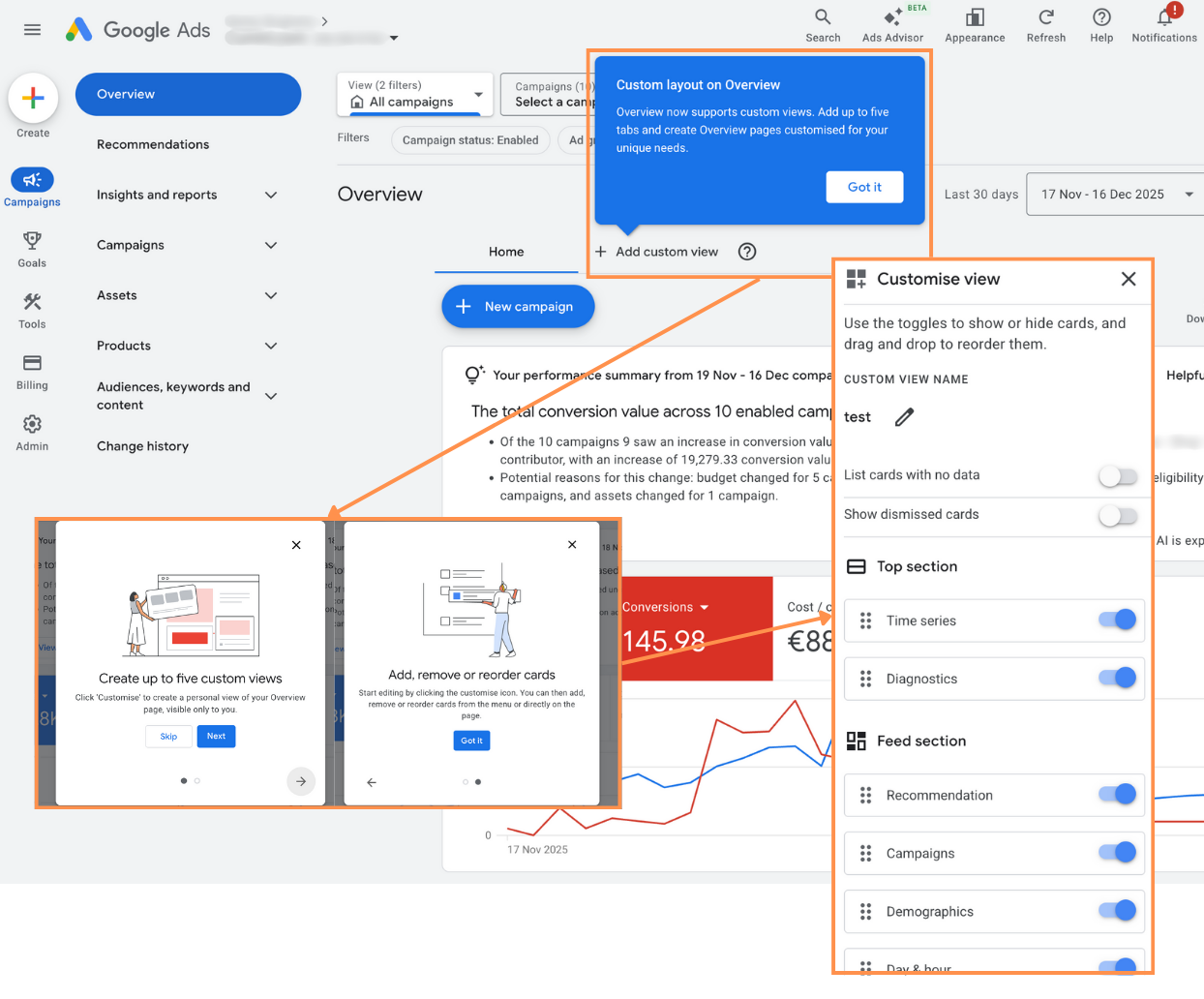
As a Google Ads manager, the first thing you see when you open the platform matters. Your overview should help you make faster, better decisions – not slow you down with noise, irrelevant cards and cluttered data.
With the new Custom View feature on the Google Ads Overview page, you can finally design your own dashboard and turn the default overview into a true PPC command center tailored to your workflow.
In this article, I’ll walk you through what’s new, why it matters for performance marketers, and how I personally recommend setting up your custom overview for maximum clarity and speed.
What is the new Google Ads Custom Overview?
Google has introduced a new “Custom View” setting directly in the Overview section of the Google Ads interface. Instead of being stuck with the standard cards and layout, you can now:
• Create multiple custom overview tabs
• Turn individual cards on or off with a single toggle
• Reorder cards via drag-and-drop
• Save up to 5 different overview configurations
In other words: you decide what you see when you log in.
For performance-focused PPC managers, this is a big step toward making Google Ads feel less like a generic reporting tool and more like a personalized control room.
Why this update matters for Google Ads managers
If you manage multiple accounts or large budgets, you know the pain:
• You open Google Ads and are greeted with cards you never use.
• Key metrics are hidden below the fold or split across multiple pages.
• You waste time jumping between tabs, segments and reports just to answer basic questions.
The Custom Overview solves exactly that. It allows you to:
• Focus only on the metrics and dimensions that drive decisions
• Reduce cognitive overload by removing irrelevant data
• Build different views for different workflows (e.g. performance, reporting, optimization)
• Spot trends and issues faster, without digging through endless menus
The result: more time spent optimizing, less time spent searching.
Key features of the Custom Overview
1. Create your own overview tabs
You’re no longer limited to a single overview layout. With Custom Views you can create separate tabs based on your needs.
Examples:
• Performance – for daily monitoring of core KPIs
• Reporting – for top-level metrics you share with clients or stakeholders
• Optimization – for surfacing insights that suggest actions
• Testing – focused on experiments, A/B tests and new campaigns
You can name these tabs however you like: “Performance”, “Report”, “Optimize” – whatever matches your workflow and mental model.
This structure helps you separate “what I need to see every day” from “what I need to see when I’m planning changes” or “what I show in meetings”.
2. Turn cards on or off with one toggle
Not every card on the Overview is useful for every account.
Some examples:
• Day & Hour performance might not matter if your campaigns already have strict schedules.
• Device breakdowns might be irrelevant if you’re already using automated bidding with little room for manual device adjustments.
• Some recommendation or insight cards may be distracting instead of helpful.
With Custom Views, you can simply toggle off the cards that don’t add value and keep the ones that support your decisions.
This is especially powerful if you manage many accounts: you can standardize a clean, focused overview that surfaces only what truly matters.
3. Reorder everything with drag & drop
Once you’ve selected your cards, you can drag and drop them into the perfect order.
Best practice: Place the most critical metrics at the top so you can answer these questions within seconds of opening Google Ads:
• Are we hitting our main KPIs (conversions, CPA, ROAS, revenue)?
• Are there any sudden drops or spikes in performance?
• Which campaigns or networks need attention right now?
• Are costs under control compared to targets and budgets?
You can then place supporting or “diagnostic” cards further down:
• Search terms, queries and categories
• Devices, locations, audiences
• Time-of-day or day-of-week performance
• Insights that help explain changes
This way, your eyes naturally move from “What is happening?” at the top to “Why is this happening?” further below.
4. Save multiple configurations (up to 5 new views)
You can create and save up to five different custom overview views.
Some examples of how to use this:
• Daily Performance View
Focused on key KPIs, cost, conversions, ROAS, and any alerts or anomalies.
• Optimization View
Highlights search terms, audiences, placements, segments and insights that suggest actions (e.g. negative keywords, bid adjustments, creative changes).
• Client/Stakeholder View
Clean, high-level metrics and charts you can quickly reference in calls or screenshares.
• Testing & Experiments View
Focused on experiment performance, new campaign tests, new assets and incremental lift.
• Account Audit View
Useful for new accounts or monthly reviews: structure, top campaigns, wasted spend areas, search terms, placements and quality issues.
Instead of constantly reconfiguring your overview, you simply switch between these saved views depending on your task.
How to set up a high-performance Google Ads custom overview
Here’s a simple approach you can use as a starting point.
Step 1: Define your primary goals
Before you customize anything, be clear about what you optimize for:
• Lead generation: conversions, cost per conversion, lead quality signals
• E‑commerce: revenue, ROAS, conversion value, average order value
• Brand: impressions, share of voice, brand search volume, engagement
Your overview should make it obvious within seconds whether you’re moving toward or away from these goals.
Step 2: Choose the right cards
Select cards that help you:
• Monitor: Core metrics, trends, and alerts
• Diagnose: Where performance is good or bad (campaigns, devices, locations, audiences)
• Act: Insights that suggest clear next steps
Remove everything that is “nice to know” but doesn’t influence your decisions.
Step 3: Order by importance
At the top:
• Overall performance KPIs
• Budget and spend vs targets
• Major changes or anomalies
In the middle:
• Campaign and ad group performance
• Network, device and location breakdowns
• Search terms and queries
At the bottom:
• Insights, recommendations you actually use
• Supporting data for deeper analysis
Step 4: Create separate views for separate workflows
Don’t try to put everything into one overview. Instead:
• One view for monitoring
• One for optimization work
• One for reporting and communication
This keeps each view clean and focused.
How this helps with agency workflows and client management
For agencies and in-house teams, the Custom Overview can improve both efficiency and communication:
• Faster daily checks: Open your “Performance” view and know in 30 seconds if anything needs urgent action.
• Clearer client calls: Use a clean “Reporting” view as a visual guide instead of jumping around the interface.
• Better team alignment: Standardize views across accounts so everyone looks at the same structure and KPIs.
• Less training overhead: New team members can quickly understand what matters by looking at the custom overview tabs.
This is not just a UX improvement. Done right, it becomes a process improvement.
My take on the Custom Overview update
I love this update because it moves Google Ads closer to how professionals actually work:
• Less noise, more signal
• Less generic data, more personalized dashboards
• Less time clicking, more time optimizing
As Google Ads becomes more automated and more complex at the same time, having a clear, custom overview is critical. It’s how you stay in control, spot issues early and make smart decisions fast.
If you manage Google Ads accounts and haven’t tried the new Custom View on your Overview yet, now is the time to set it up and turn your default dashboard into a true PPC command center.
Want to stay ahead of new Google Ads updates?
My followers are always the first to know about new Google Ads features, updates and practical workflows to use them.
If you want to stay up to date and get actionable insights you can apply to your own accounts, follow me on LinkedIn: Thomas Eccel and hit the notification bell so you don’t miss the next update.

As a Google Ads expert, I bring proven expertise in optimizing advertising campaigns to maximize ROI.
I specialize in sharing advanced strategies and targeted tips to refine Google Ads campaign management.
Committed to staying ahead of the latest trends and algorithms, I ensure that my clients receive cutting-edge solutions.
My passion for digital marketing and my ability to interpret data for strategic insights enable me to offer high-level consulting that aims to exceed expectations.
Google Partner Agency
We're a certified Google Partner Agency, which means we don’t guess — we optimize withGoogle’s full toolkit and insider support.
Your campaigns get pro-level execution, backed by real expertise (not theory).
4.9 out of 5 from 670+ reviews on Fiverr.
That’s not luck, that’s performance.
Highly recommend Matteo to set up your server side tracking. He has a deep understanding of e-commerce tracking and will go above and beyond to make sure everything is set up correctly and working 100%. If you are scaling your store this set up is non-negotiable in my opinion and there isn't many people who have this much knowledge or put the effort in to get it right. Thanks again!
avorodesign.com
I can only recommend Matteo! He was very patient, professional and very knowledgeable about GA4, Consent Mode v2, and GDPR compliance. Communication was clear, and the setup was done professionally and efficiently. Highly recommend him for anyone needing reliable tracking implementation.

www.natureiki.life
Matteo shines in the realm of online professionals. His work is not only deep in data but also complemented by his proactive communication and cooperation, setting a new standard for freelancers. If you want someone who truly exceeds expectations, look no further. Highly recommended!

www.omanbeverlysmyth.com
Exceptional Service Beyond Expectations - Outstanding Service Impeccable depth, flawless delivery, and exceptional language fluency—this service exceeded all expectations. Highly recommended. Matteo truly ROCKS!!!

ium-paris.com
Top-notch, always highly value working with Matteo. An absolute Google Ads Genius. This is approximately the 8th time I have hired him and he's helped us get 6-7 ROAS. We are excited in continuing to improve our lead flow. Hire this guy if you need Google Ads help. Thanks Matteo!
www.dleeventgroup.com
I finally found the guy who can setup server side tracking and all the ecosystem properly. I definitely recommend Matteo. He is very responsive, kind and wants to dig into things. He configured GA4, Meta, Google Ads, Outbrain and google consent v2 with Cookiebot. Thanks Matteo.
inomega.fr
MB Adv delivered exceptional work with outstanding professionalism and lots of patience, taking time to see effects of changes made and not just do the work and submit it. The proactive communication and video summaries of the work completed made working with Matteo a pleasure, as he consistently went above and beyond. Highly recommended for web analytics projects! We are already working on another project.

www.withnellsensors.co.uk
Working with Matteo on my Google Ads was a game-changer. He's not just a strategist, he's a true partner. He understood my goals and tailored a campaign that perfectly reached my target audience. I'm grateful for his expertise and dedication.
dccargo.com
Click-driven mind
with plastic-brick obsession.
We build Google Ads campaigns with the same mindset we use to build tiny brick worlds: strategy, patience, and zero tolerance for wasted pieces.
Data is our blueprint. Growth is the only acceptable outcome.