
Debugging Merchant Center Feed Errors & Disapprovals (2026)
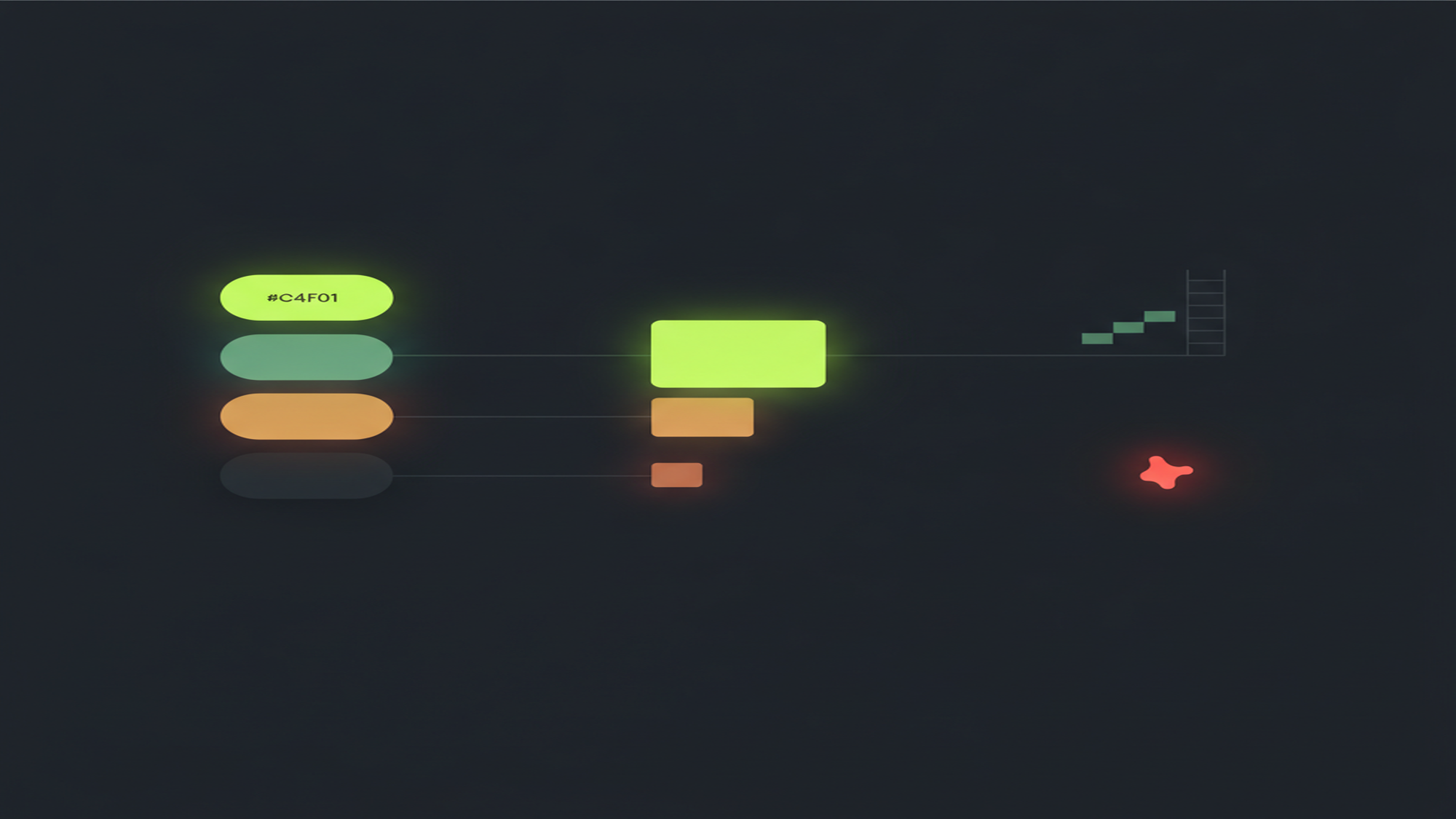
Merchant Center Next — Disapproval Playbook 2026
Immediate
A price or availability mismatch fires Preemptive Item Disapproval (PID) with zero grace period — no warning, no window to fix first
PID manual review: up to 7 business days · Account reinstatement: 3–7 business days · Misrepresentation: immediate account suspension · The Diagnostics tab is gone — entry point is Products → Needs attention
Products → Needs Attention: The Merchant Center Next Diagnostic Entry Point
If you are following a troubleshooting guide that says “click Diagnostics,” you are in the wrong place. In Merchant Center Next — the rebuilt product all retailers were migrated to by September 2024 — the classic Diagnostics tab no longer exists. The current entry point for product-level issues is Products → Needs attention, which shows three high-impact issue cards at the top, ranked by click potential: High / Medium / Low, followed by the full product list and a “View history” link for trend data. Account-level issues (warnings and full suspensions) appear separately from the item-level cards. Source: Google Merchant Center — Issues in Merchant Center.
The second change that trips up merchants reading older guides is the status vocabulary. The labels Active, Pending, Disapproved, and Expiring are legacy Merchant Center Classic terms — they do not exist in Merchant Center Next. The current product status set is five labels: Approved, Limited, Not Approved, Under Review, and Processing. The most critical distinction is Limited: a Limited product is still serving on some surfaces or in some countries — it earns impressions and clicks — but a policy restriction or quality signal has excluded it from the full configured surface set. Diagnosing a Limited product and diagnosing a Not Approved product are different tasks with different fix paths; treating them the same leads to unnecessary changes that can create new issues. For a full explanation of product feed attributes and required fields, see what is a product feed in Google Merchant Center.
| Status (MC Next label) | What it means | Legacy label (now gone) | Serves on Shopping / free listings? | Immediate action |
|---|---|---|---|---|
| Approved | Product meets all requirements and is eligible for all configured surfaces and countries | Active | Yes — full eligibility | None — maintain data freshness and keep schema.org markup accurate |
| Limited | Product has a quality or policy issue that restricts some surfaces or countries but not all — still serving, just not at full coverage | — (new in MC Next) | Yes — partial eligibility (reduced reach) | Click through to see which surfaces or countries are excluded and which attribute triggers the limitation |
| Not Approved | Product is disapproved from all surfaces — does not serve on Shopping or free listings until fixed | Disapproved | No | Fix the identified issue, update the data source, and allow Google to recrawl; for PID, also submit a manual review request |
| Under Review | Google is actively reviewing the product — eligibility not yet confirmed; occurs after a fix is submitted or for certain product types | Pending (some overlap) | Varies — does not always serve during review | Wait for the review to complete; ensure the underlying issue is resolved before the review begins |
| Processing | Product was recently submitted or updated; Google has not yet determined eligibility — typically resolves within hours | Pending (some overlap) | Not yet — eligibility pending | Allow the processing cycle to complete before diagnosing as an error; a product stuck in Processing beyond 24 hours warrants investigation |
Drift trap: Active / Pending / Disapproved / Expiring are legacy Merchant Center Classic labels — they do not exist in Merchant Center Next. “Limited” is a Merchant Center Next addition absent from the old UI. Sources: support.google.com/merchants — Issues in Merchant Center (Products → Needs attention; click potential High / Medium / Low; item-level vs account-level issues; View history).
Reading Each Status: The Action for Every State
The five product statuses encode what is happening to a product right now and what action is required. Getting the read wrong costs merchants unnecessary effort and can create new issues by changing something that was working.
Approved is the only fully clean state. A product with Approved status is eligible for all configured Shopping ad surfaces and free listing placements in all enabled countries. The only action is maintenance: keep the feed data accurate, ensure the landing page price and availability stay in sync, and confirm that automatic item updates is on (Products → Automations) so minor data source drift does not trigger a Preemptive Item Disapproval. For best practices on feed data quality, see best practices for optimizing product feeds.
Limited is the status most often misread as a disapproval. A Limited product is actively serving on some surfaces or in some countries — it earns impressions and clicks — but a policy restriction or quality signal has excluded it from the full configured surface set. Common causes include a country-level policy restriction, a quality signal that reduces eligibility for a top-of-page Shopping placement, or a missing supplemental attribute that unlocks additional surfaces. The correct action is to click through to the product detail to see which surfaces are excluded and address only that specific issue. Treating a Limited product as fully disapproved and making broad feed changes can remove it from the surfaces where it was serving correctly.
Not Approved is a full disapproval: the product is ineligible for all surfaces until the issue is resolved. The disapproval reason is visible in the product detail. Note that price or availability mismatch disapprovals (PID) result in a Not Approved status but require a manual review request to reinstate — a feed fix alone does not restore serving. Google’s product data quality help page lists all fixable item-level issue types.
Under Review and Processing are transient states. Processing means the product was recently submitted or updated and eligibility has not yet been determined; it typically resolves within hours. Under Review means Google is actively reviewing the item — this occurs after a fix is submitted, after a manual review request is filed for a PID, or for certain product types that require human review before serving. Neither state requires action beyond waiting. Diagnosing a Processing product as an issue before the processing cycle finishes generates false positives that lead to unnecessary feed changes. The managing and automating product feeds guide covers how feed update frequency affects how quickly status changes propagate after a fix.
Common Google Merchant Center Disapproval Reasons and How to Fix Them
The Needs attention surface groups product issues by type and ranks them by click potential. Understanding which disapproval categories are immediate (the product stops serving the moment the issue is detected) versus which give a warning window changes the fix sequence entirely. Price and availability mismatch (PID) is the only disapproval type that is both item-level and immediate — all other item-level disapprovals typically carry a warning period of 7 or 28 calendar days before the product is pulled.
| Disapproval issue | Most common cause | Fix path | Type |
|---|---|---|---|
| ★ Price mismatch (PID) | Feed price differs from the visible landing page price OR the schema.org Offer price in server-rendered HTML | Fix the landing page price and the schema.org markup in the server-rendered HTML; verify automatic item updates is on (Products → Automations); then request manual review | PID — Immediate disapproval |
| ★ Availability mismatch (PID) | Feed says in_stock but landing page shows “Out of stock”; or schema.org Offer availability is out of sync with the feed | Update the feed availability attribute AND the landing page / schema markup simultaneously; submit review if automatic updates do not clear it within 24 hours | PID — Immediate disapproval |
| Missing or invalid GTIN | No GTIN submitted for a branded product that has one; or a check-digit-invalid GTIN | Add the correct manufacturer-assigned GTIN (UPC / EAN / JAN / ISBN / ITF-14). If the product genuinely has no identifier, set identifier_exists: no — but only if no GTIN exists | Warning → disapproval if unresolved |
| Image policy violation | Promotional overlay, text, or watermark on the image; placeholder image; image too small (below 100×100 non-apparel / 250×250 apparel; universal 500×500 enforced January 31, 2027) | Replace with a clean, product-only image on a white or neutral background; ensure the image_link URL returns a 200 status and meets the size requirement | Warning → disapproval if unresolved |
| Landing page not accessible | Product URL returns a 404, requires login to view, has too many redirects, or page content does not match the product in the feed | Fix the URL; ensure the landing page matches the product, price, and availability in the feed without a login wall or redirect chain | Warning → disapproval if unresolved |
| Missing required attribute | One of the 7 required attributes (id, title, description, link, image_link, availability, price) or brand (required for most physical products) is absent or blank | Add the missing attribute to the data source; for brand, submit the manufacturer name (or “Generic” / “Custom” only if the product genuinely has no brand) | Immediate disapproval |
| Title / description policy violation | Promotional text, ALL CAPS, competitor mentions, or HTML markup in the title or description | Remove promotional or ALL-CAPS content; use plain text; keep the title under 150 characters with brand and key attributes front-loaded | Warning → disapproval if unresolved |
| Policy violation (restricted / prohibited product) | Product falls into a prohibited or restricted category (e.g., prescription drugs, unverified healthcare claims, counterfeit goods) | Remove if prohibited outright; for restricted items, satisfy the platform requirement (e.g., LegitScript certification for pharmacy items) before resubmitting. See overview of Merchant Center policies | Immediate disapproval (counterfeit); warning → disapproval (restricted) |
★ PID rows are the highest priority: unlike most disapprovals, price and availability mismatch trigger an immediate Preemptive Item Disapproval with no grace period and require a manual review to reinstate — fix the landing page and schema markup first, then the feed. Sources: support.google.com/merchants — PID documentation (answer/9773429); product data quality violations (answer/13693497); product data spec — required attributes; image requirements; Shopping ads policies.
The preemptive disapproval model for price and availability mismatch is a design choice by Google, not a quirk: landing page accuracy is a core trust signal for Shopping. Many merchants optimize their feed but leave the schema.org Offer markup on the page incorrect — and Google reads the page, not just the feed. The overview of Google Merchant Center explains the relationship between the Merchant Center account, the data source, and the landing pages that Google crawls continuously.
Price and Availability Mismatch: Why PID Is Different from Every Other Disapproval
Every other disapproval category in Merchant Center gives you time to fix the issue before the product is pulled from serving. Price and availability mismatch does not. When Google’s continuous automated crawl detects a discrepancy between a product’s feed data and either the visible landing-page price or availability or the schema.org Offer structured data in the server-rendered HTML, it fires a Preemptive Item Disapproval (PID): the product stops serving immediately, with no warning and no grace period. Per Google’s PID help page, the six documented PID triggers are: (1) unsynced product data with the website; (2) misalignment with schema.org or structured data markup; (3) IP-based or geo-dynamic pricing not reflected in the feed; (4) multiple prices on the landing page without proper attribution; (5) minimum order quantities not reflected in the feed price; (6) product variant preselection showing a different variant’s price.
The schema.org distinction is the one most merchants miss. Google’s crawler reads the schema.org Offer structured data from the initial HTML response of the landing page — not from JavaScript-rendered markup. A product page built in a client-side framework with @type: "Offer" rendered by the browser rather than the server can have a perfectly accurate feed and a correct visible price, yet still fire a PID because the crawl sees the stale server-rendered HTML without executing the JavaScript. If your store runs client-side rendering, fix the schema.org Offer in the server-rendered HTML source first — then fix the feed attribute — then verify automatic item updates is enabled. The automatic item updates safety net reads the same structured data source, so a broken schema in the raw HTML means neither the feed fix nor the automation catches the discrepancy.
Once a PID fires, correcting the feed data alone does not self-clear it. You need to submit a manual review request. After fixing the landing page, schema markup, and feed attribute, click “I fixed the issue” or “Request review” in Merchant Center under the product detail in Products → Needs attention. Google’s PID help page states the review takes up to 7 business days. A failed review — one submitted before the underlying cause is actually fixed — triggers a 7-business-day cooldown before another review can be submitted. Submitting a PID review before the schema.org fix is live is the most common reason reviews fail and cooldowns stack up.
MB Adv Agency treats PID as the highest-priority error class in any Shopping feed audit. A live campaign with active PIDs generates zero impressions on the affected products — in a large catalog, this can silently eliminate a significant share of impression volume before the merchant notices the issue. Our Google Shopping feed management team monitors the Needs attention surface on an ongoing basis specifically because PID can fire on an already-correct feed when a site update changes the server-rendered schema without a corresponding feed refresh. The fastest resolution path: fix schema.org first, fix the feed second, verify automations third, then submit the review.
Automatic Item Updates: What They Fix, What They Cannot
Automatic item updates is one of the most misunderstood safety nets in Merchant Center Next. It is on by default for all accounts, lives under Products → Automations, and reads schema.org Offer structured data in the server-rendered HTML of each landing page to keep feed data in sync with the page. What it cannot do is self-clear a PID once issued, and it cannot read schema.org markup that is rendered by JavaScript rather than the server.
| Update type | Default state | Setting location (MC Next) | Data source Google reads | Key limitation |
|---|---|---|---|---|
| Price update | On by default | Products → Automations → Price updates | schema.org Offer — price property — in server-rendered HTML | Cannot self-clear a PID once issued; resolving PID requires a manual review request regardless of whether the data is corrected automatically |
| Availability update | On by default | Products → Automations → Availability updates | schema.org Offer — availability property — in server-rendered HTML | Cannot self-clear a PID; if the schema.org markup itself is wrong (client-side rendered), the automation reads the wrong data and does not correct the discrepancy |
| Condition update | On by default | Products → Automations → Condition updates | schema.org Offer — itemCondition property — in server-rendered HTML | Minor corrections only; does not override condition submitted in the feed if schema.org markup is absent or ambiguous |
Source: Google, “Allow Merchant Center to update product information automatically,” https://support.google.com/merchants/answer/12157888 (automatic item updates on by default; reads schema.org structured data from landing pages for price, availability, condition; setting location: Products → Automations; safety net for minor drift — does not self-clear a PID that requires manual review).
The operational rule: automatic item updates keeps the feed current between scheduled feed fetches, but it only reads what Google sees in the server-rendered page source. Feed freshness — scheduling daily data source fetches so the feed stays current with inventory and pricing — is the proactive layer that makes automatic item updates unnecessary for most data-drift scenarios. For feed scheduling and supplemental data source management, see managing and automating product feeds.
The Availability Attribute: Four Accepted Values and the Preorder vs Backorder Trap
The availability attribute accepts exactly four values: in_stock, out_of_stock, preorder, backorder. Google does not accept freeform strings. The most consequential error in this attribute is using preorder for a product that is temporarily out of stock — the correct value for a manufactured-but-OOS product is backorder, and the mix-up triggers unnecessary disapprovals every peak season.
| Value (exact string) | When to use it | availability_date required? | Drift trap / notes |
|---|---|---|---|
in_stock | Product is available to order and ship now; inventory is on hand or immediately fulfillable | No | Must match the landing page and the schema.org Offer availability in server-rendered HTML — discrepancy triggers a PID (immediate disapproval) |
out_of_stock | Product exists and is sold but is not currently available to order — no expected restock date or no option for the shopper to order ahead | No | Update to in_stock as soon as inventory is restored — stale out_of_stock reduces impressions on free listings |
preorder | Product has not yet been released — a new item that shoppers can order now to receive at a future date | Yes — required | ★ Common mistake: using preorder for a currently manufactured but temporarily OOS item. That is backorder. preorder = unreleased product only |
backorder | Product exists and is manufactured, is temporarily out of stock, and accepts orders for future shipment when restocked | Yes — required | The correct value for “sold out but coming back.” Submit an availability_date reflecting your estimated restock or ship date, even if approximate |
availability_date (companion attribute) | The date the product will be available for shipment or delivery (ISO 8601 format: YYYY-MM-DDThh:mm:ss+HH:MM) | Required when preorder or backorder | Missing availability_date when using preorder or backorder causes a product disapproval. Use your best estimated ship date if the exact date is unknown |
Sources: Google, product data specification — availability attribute (answer/13889434) (the four accepted values: in_stock, out_of_stock, preorder, backorder; availability_date format and requirement for preorder/backorder; web-verified 2026-06-30). Note: build_to_order is accepted for vehicle ads — outside scope for most retailers.
MB Adv Agency’s feed management team tracks the preorder/backorder split closely during peak season. The Q4 pattern repeats every year: a merchant marks sold-out products as preorder because “the customer is ordering before it comes back,” which is the semantic for backorder, not preorder. preorder in the spec means the product has not yet been manufactured or released. Using it for an OOS product triggers a policy flag. A correct backorder + availability_date keeps the product serving on free listings while the restock is pending. For the relationship between availability attribute values and feed data structure, see what is a product feed in Google Merchant Center.

Sale-Price Price-History Rules: How They Differ by Surface
The sale-price history rules exist to prevent merchants from inflating a “regular” price to create an artificial discount. They require that the price (the regular price the sale is discounted from) has been the actual price for a qualifying period before the sale_price takes effect. The qualifying period is not the same across all surfaces — it is stricter for free listings and Local Inventory Ads than for US Shopping ads. Qualifying for the “Sale” annotation on US Shopping ads does not mean the same product qualifies on non-US free listings.
| Surface | Price-history requirement (non-consecutive days at the regular price) | Notes |
|---|---|---|
| US Shopping ads | 5 days in the past 30 OR 15 days in the past 200 | Two qualifying thresholds — meeting either qualifies; the “Sale” annotation is not guaranteed even when the threshold is met |
| US free listings | No documented price history threshold — discount >5% and <90% required; both prices must appear on the landing page | ★ US free listings have no 30/200 history threshold. The 30-day rule applies to non-US free listings only |
| Non-US free listings + non-US Shopping ads | 30 days in the past 200 | Stricter than US Shopping ads — a product that qualifies on US Shopping does not automatically qualify on non-US free listings |
| Local Inventory Ads (LIA) — store-specific pages | 60 days in the past 200 | The strictest surface — in-store pricing history over a longer window reflects the physical retail pricing context |
| Member / loyalty pricing (since July 1, 2025) | Must use the loyalty_program attribute — NOT price or sale_price | ★ Breaking change (July 1, 2025): submitting a members-only price in the standard price or sale_price field now violates Google’s price-accuracy policy and triggers disapprovals or account-level warnings |
Sources: Google, “About sale price annotations,” https://support.google.com/merchants/answer/9017019 (price history thresholds by surface; non-consecutive-days note; discount floor >5% and ceiling <90%; landing page display requirements; US free listings = no history threshold documented; web-verified 2026-06-30); Google, “Sale price [sale_price],” answer/6324471 (30-day maximum sale_price duration per promotion period; sale_price_effective_date attribute). Note: all days are non-consecutive within the stated window — qualifying days do not need to be adjacent.
The additional cross-surface constraints apply to every surface: the discount must be greater than 5% and less than 90% of the regular price, and both the original price and the active sale price must be clearly displayed on the landing page (the sale price more prominent; the original price visually de-emphasized). A sale_price cannot run continuously for more than 30 days per promotion period; use the sale_price_effective_date attribute to specify the valid date range. And meeting the history threshold does not guarantee the “Sale” badge appears — Google applies editorial judgment on which annotations surface.
Account Suspension: Immediate vs Warning-Period Causes
Misrepresentation is the number one cause of Merchant Center account suspension — and it is always immediate. No warning email, no 7-day window, no chance to fix before the account is pulled. Most merchants who receive a suspension assume they are in the standard “warning then suspension” bucket. Misrepresentation and counterfeit goods are not. Understanding which bucket your suspension falls into determines whether you need days or weeks to fix it before submitting a review.
| Suspension type | Key examples | Warning before suspension? | Reinstatement path |
|---|---|---|---|
| ★ Misrepresentation (#1 cause) | Impersonating brands; hidden fees; fake health claims; promoting out-of-stock goods as available; undisclosed subscription billing; misleading pricing (bait-and-switch, hidden trials — added explicitly October 28, 2025 under “Dishonest Pricing Practices”) | No — immediate, no grace period. Google’s policy page states: “your Google accounts will be suspended upon detection and without prior warning.” The October 2025 Dishonest Pricing sub-policy carries a 7-day warning before suspension for that specific sub-type; core Misrepresentation categories remain immediate. | Fix ALL violations (often requires site, checkout, and policy restructuring) → Request review in Merchant Center → 3–7 business days. A failed review triggers a growing cool-down before resubmission. Identity documents are often required. |
| Counterfeit goods | Products infringing on a third party’s trademark, copyright, or patent; replica goods presented as authentic | No — immediate. Google: “we will suspend your Merchant Center account upon detection and without prior warning.” | Remove all infringing products; obtain brand authorization if applicable → Request review → 3–7 business days. Identity documents (passport + utility bill + company registration) are required. |
| Policy violations (most other types) | Prohibited product categories (not counterfeit); restricted products without meeting requirements; editorial or quality policy violations; contact or returns policy non-compliance | Warning period: 7 or 28 calendar days (Google’s documented language — the exact split between 7 and 28 days is not specified per violation type in current policy pages) | Fix all flagged violations within the warning window; if suspension has occurred: fix all → Request review → 3–7 business days |
Sources: Google, “Misrepresentation,” https://support.google.com/merchants/answer/6150127 (classified as egregious; “upon detection and without prior warning” verbatim; “7 or 28 calendar days” for most violations; Dishonest Pricing Practices update October 28, 2025); Google, “Counterfeit products,” answer/6149993 (immediate suspension verbatim); Google, “Fixing Merchant Center warnings and account suspensions,” answer/13693195 (review 3–7 business days; cool-down period after failed review). [Verify at publish: confirm the October 2025 Dishonest Pricing Practices enforcement model — graduated 7-day warning for that sub-policy vs immediate for core Misrepresentation categories — against the live answer/6150127 page.]
The key operational insight our ecommerce PPC audit team applies when a merchant arrives with a suspension: the first question is whether the suspension is Misrepresentation-class (needs a deep policy audit, site restructure, and possible checkout rebuild before submitting a review) or a warning-class violation that can be resolved in days. Confusing the two categories leads merchants to submit a review before fully fixing the underlying problem, which starts the growing cool-down timer and makes reinstatement harder, not faster. For the full taxonomy of prohibited and restricted product categories, see overview of Merchant Center policies.
Reinstatement After Suspension: The Exact Flow and the Cool-Down Trap
The reinstatement process is precise: fix every identified policy violation, then submit a Request review in Merchant Center, then wait 3–7 business days. The step that determines whether reinstatement succeeds or fails is the first one — “fix every violation” requires fixing all flagged issues, not just the most obvious one, before submitting. A rejected review starts a growing cool-down period: each failed resubmission extends the wait before the next Request review can be submitted, and the cool-down end date is visible in Merchant Center under Needs attention → View setup and Policy issues.
For account-level issues, the “Request review” button lives under the account-level issue section of Products → Needs attention, separate from item-level product disapprovals. After clicking, Google’s help page states the review typically completes within 3–7 business days. If the review is approved, the account reinstates and products return to serving. If denied, the growing cool-down begins. Identity documents (passport, utility bill, company registration) are frequently required for Misrepresentation and counterfeit suspensions; having these ready before submission prevents additional delays.
| Disapproval category | Typical click-potential ranking in Needs attention | Urgency | Fix sequence |
|---|---|---|---|
| ★ Price / availability mismatch (PID) | High | Fix immediately — 0 days, already fired | Fix schema.org first, then feed, then submit manual review. Do not submit the review until both the page and the feed are corrected. |
| Missing required attribute | High | Fix immediately — immediate disapproval | Add the missing attribute to the data source and trigger a re-fetch; no manual review required for attribute-level issues |
| Misrepresentation / account suspension | High (account-level) | Fix before submitting review — affects all products | Complete a full policy audit before submitting Request review; one failed review starts the growing cool-down |
| Image quality violation | Medium – High | Fix within 7 days (warning window: 7 or 28 calendar days) | Replace images in the data source and trigger a re-fetch; no manual review required |
| GTIN / identifier issues | Medium | Fix within warning window (7 or 28 calendar days) | Add or correct GTINs in the data source; set identifier_exists: no only for genuinely identifier-less products |
| Title / description violation | Medium | Fix within warning window | Remove promotional text, ALL-CAPS, HTML markup, and competitor mentions from the title and description in the data source |
| Landing page issues | Medium | Fix in parallel with feed-side corrections | Fix 404 URLs, redirect chains, login walls, and content mismatches; ensure the landing page product matches the feed attributes |
Sources: Google, “Issues in Merchant Center” (answer/12153802) (click-potential ranking: High / Medium / Low; issue cards sorted by serving-impression impact); Google, PID help page (answer/9773429) (PID = immediate disapproval, 0 days); Misrepresentation policy (answer/6150127) (“7 or 28 calendar days” for most violations; Google does not specify which violation types receive 7 vs 28 days). Web-verified 2026-06-30.
The triage rule MB Adv Agency applies to every feed audit: fix all 0-day issues (PID, missing required attributes, account-level suspensions) before touching anything else, because those products are already not serving. Warning-period issues (GTIN, image, title, landing page) have a window — begin fixing within 24 hours of the warning email, but the immediate items take priority. For the performance metrics that help you see which disapprovals are costing the most impression share, see our ecommerce PPC audit process, which maps feed errors to revenue impact before prioritizing the fix sequence.
How to Fix a Disapproved Product in Google Merchant Center
The fix-a-disapproved-product flow in Merchant Center Next differs depending on whether the disapproval is a PID (requires manual review) or a standard data quality issue (fixes automatically after a feed update and recrawl). The six steps below cover both paths.
- Go to Products → Needs attention and identify the disapproval. Click the product to see the specific issue code — price mismatch, missing attribute, image violation, policy issue. The issue detail shows the exact attribute or policy that triggered the Not Approved status. Note whether it is flagged as High, Medium, or Low click potential.
- Determine whether it is a PID (price or availability mismatch). If the issue code indicates a price or availability discrepancy, the fix must cover two things beyond the feed: the visible landing page AND the
schema.org Offerstructured data in the server-rendered HTML. A feed-only fix does not resolve a PID. - Fix the source. For PID: update the
schema.org Offermarkup in the server-rendered page HTML first, update the landing page price or availability, then correct the feed attribute. For image, title, description, GTIN, or landing page issues: fix at the data source level (the spreadsheet, feed file, or CMS field that generates the feed attribute). For policy violations: fix the underlying site or business practice before touching the feed. - Update the data source and trigger a re-fetch. After fixing the source, trigger a feed refresh (via scheduled fetch, file re-upload, SFTP update, or Merchant API). Allow up to 24–72 hours for Google to recrawl the products and update their status in Merchant Center.
- For PID or manual-review cases, click “Request review” or “I fixed the issue.” Google’s automated recrawl alone does not clear a PID — a manual review request is required. The PID review takes up to 7 business days. A failed review triggers a 7-business-day cooldown before another review can be submitted.
- Verify the product status returns to Approved (or Limited with the specific limitation addressed). Check Products → Needs attention for the updated status. A product that returns to Limited rather than Approved still has a surface-specific restriction — click through to see which surface is excluded and what attribute triggers the remaining limitation.
MB Adv Agency’s feed management process runs this checklist on every Needs attention flag before submitting any review request. The highest-risk step is step 5: merchants who submit a PID review before completing step 3 (fixing the schema.org markup) almost always receive a failed review and a 7-business-day cooldown. For proactive feed error prevention — catching title, image, and GTIN issues before Google flags them — see best practices for optimizing product feeds. For a full ecommerce feed and campaign audit, see our Google Shopping feed management service or the ecommerce PPC audit.
Feed Disapprovals Costing You Impressions?
Diagnosing PID, fixing suspension root causes, and clearing a Needs attention backlog requires auditing both the feed and the landing pages simultaneously
Our team surfaces the underlying data and policy gaps that Google flags, maps a fix sequence before the re-review clock starts, and manages the Needs attention surface on an ongoing basis so the same errors do not recur.
Ecommerce PPC audit →Shopping feed management →Three Misconceptions That Send Merchants in the Wrong Direction
The three most costly misconceptions in Merchant Center troubleshooting all share the same structure: a merchant follows an older guide that describes the wrong interface, the wrong status labels, or the wrong fix path for a PID, and loses days or weeks before finding the correct answer.
Misconception 1: “Diagnostics” is where I find disapprovals. The Diagnostics tab no longer exists in Merchant Center Next. Every troubleshooting guide published before September 2024 describes this tab. In Merchant Center Next, product-level issues appear under Products → Needs attention, ranked by click potential (High / Medium / Low), not by error count. Account-level issues appear separately. If a guide says “click Diagnostics,” the rest of the instructions describe a flow that no longer exists in the current UI.
Misconception 2: “A price mismatch gives me time to fix it.” Most error categories in Merchant Center give you a warning period of 7 or 28 calendar days before the product is pulled. Price and availability mismatch does not. A Preemptive Item Disapproval fires the moment the crawl detects the gap — the product stops serving before the merchant receives any notification. The fix path for PID is also different from a standard feed fix: correcting the feed attribute does not clear the disapproval. The schema.org Offer markup in the server-rendered HTML must also be correct, and a manual review request must be submitted. See the PID section above for the full resolution path.
Misconception 3: “A Limited product is disapproved.” Limited is the status most often misread as a full disapproval. A Limited product is actively serving — it earns impressions and clicks — but a specific surface or country is excluded by a policy restriction or quality signal. Not Approved is the full-disapproval status. Treating a Limited product as Not Approved and making broad feed changes risks removing it from the surfaces where it was serving correctly. The correct action is to click through to the product detail, see which specific surface is excluded, and address only that restriction. The overview of Merchant Center programs explains how free listings, Shopping ads, and other surfaces each have distinct eligibility requirements.
Google Merchant Center Disapprovals FAQ
Recurring Feed Errors or a Suspended Account?
The durable fix is a feed management process that catches price and availability drift before Google does
Most recurring Merchant Center disapprovals trace to the same root: data source updates that do not sync with landing pages fast enough. Our Shopping feed management team maintains data source hygiene and monitors Needs attention issues on an ongoing basis.
Google Shopping feed management →PPC services →Methodology
This pillar consolidates six absorbed Google Merchant Center pages: the primary debugging pillar (debugging-feed-disapprovals-and-errors-in-merchant-center), common-feed-errors-and-how-to-fix-them (261 GSC impressions at position 25.53 for “common feed errors” — the only absorbed-zombie signal in the batch), fixing-pricing-and-availability-discrepancies-in-merchant-center, managing-stock-status-with-the-availability-attribute, price-and-sale-price-guidelines-for-merchant-center, and resolving-account-suspension-issues-in-merchant-center. Every platform-mechanic figure (the five product statuses; the four availability values; the sale-price history thresholds by surface; the PID review timeline of up to 7 business days; the account suspension reinstatement timeline of 3–7 business days; the October 2025 Dishonest Pricing Practices policy update) is sourced to a named Google help page verified on 2026-06-30: answer/12153802 (Needs attention); answer/9773429 (PID); answer/12157888 (automatic item updates); answer/9017019 (sale price annotations); answer/13889434 (availability attribute); answer/13693195 (suspensions and reinstatement); answer/6150127 (Misrepresentation); answer/6149993 (Counterfeit products); answer/13693497 (product data quality violations). The warning-period 7-vs-28-day per-violation split is documented in Google’s own language as “7 or 28 calendar days” without specifying which violation types receive each track — this is a [Verify] item; use “7 or 28 calendar days” as the exact Google phrasing rather than asserting a rule. No mbadv client metrics appear in this article — all agency point of view is qualitative. Search demand context from ecommerce PPC agency data and Ahrefs, June 2026. GSC data: project 8261895 (mbadv.agency), 90-day window 2026-04-01 through 2026-06-30. Reviewed by MB Adv Agency, June 2026.
Debugging Feed Disapprovals and Errors in Merchant Center
In the world of e-commerce, ensuring that your products are displayed properly in Google Merchant Center is crucial for online success. However, many merchants face disapprovals and errors that can hinder product visibility, leading to lost sales opportunities. Understanding how to diagnose and resolve these issues is essential for maintaining a successful online store. This article will explore common feed issues, ways to fix disapproved items, and tools that can assist in debugging errors.

Common feed issues
When submitting product feeds to Google Merchant Center, it's common to encounter various issues that can lead to disapprovals. These can arise from a variety of factors, including incorrect data formatting, missing attributes, or failures to comply with Google's policies.
Some of the most common issues that sellers face include:
- Missing Required Attributes: Each product feed must include specific attributes such as title, description, link, and price. Omitting these can lead to disapproval.
- Incorrect Data Format: Data must be formatted according to Google's specifications. For instance, prices must be in numeric format, and URLs should be complete and functional.
- Policy Violations: Google has strict advertising guidelines. Violations, such as promoting prohibited products, can lead to immediate disapprovals.
- Invalid Product IDs: Each product should have a unique identifier (SKU). Duplicates or invalid IDs can cause issues in the feed.
Understanding these common issues is the first step in the troubleshooting process. Regularly reviewing your feed for accuracy will help prevent disapprovals before they occur. Additionally, keeping abreast of any updates to Google’s policies and feed specifications is vital, as these can change frequently, potentially impacting your existing product listings. Many merchants find it beneficial to set up alerts or notifications that inform them of any changes in their feed status, allowing for immediate action when issues arise.
Identifying Error Messages
Google Merchant Center provides notifications and error messages that can help identify specific problems with your feed. By navigating to the "Products" section, you can view the status of each product listing.
These error messages usually contain valuable insights and can often guide users toward rectifying the issue. It's crucial to pay attention to the details provided in these messages and to understand what they imply for your product listings. For instance, a message indicating a "policy violation" might require you to review not only the specific product in question but also your entire inventory to ensure compliance with all of Google's advertising policies. Moreover, utilizing tools like the Feed Rules feature in Merchant Center can help automate some of the corrections needed for common issues, streamlining the process and reducing the likelihood of future errors.
How to fix disapproved items
Once you have identified the issues leading to disapproved items, the next step is rectifying these problems so that your products can be approved for display in Merchant Center.

Updating Product Information
The first approach to fixing disapproved items is to update the product information. This process usually involves editing the attributes in your product feed. Make sure that:
- The title accurately describes your product and includes essential keywords.
- The description is informative, highlighting unique features and benefits.
- All required attributes are included and correctly formatted.
After making the necessary updates, re-upload your feed to Google Merchant Center for reevaluation. Be patient, as it might take some time for the changes to reflect in the merchant dashboard. During this waiting period, it can be beneficial to monitor your feed status closely, as Google may provide additional feedback or highlight any remaining issues that need addressing. Keeping an eye on these updates can help you act quickly if further adjustments are required.
Resolving Policy Issues
If your items were disapproved due to policy violations, first familiarize yourself with Google’s advertising policies. You may need to change your product offerings or adjust how you market them to meet these guidelines. Understanding the nuances of these policies is crucial, as even minor oversights can lead to disapproval. For instance, ensure that your product images comply with the guidelines, avoiding any misleading visuals that could misrepresent the product.
Consider contacting Google support if you believe your disapproval was in error. Providing documentation or explaining your position can sometimes result in a review of the decision. Additionally, engaging with community forums or support groups can offer insights from other merchants who have faced similar challenges. They may share effective strategies that worked for them, which could help you navigate the complexities of the approval process more smoothly.
Tools for debugging errors
There are numerous tools available that can assist sellers in debugging errors and optimizing their product feeds for Google Merchant Center. These tools can provide insights, automate feed submission, and even suggest improvements based on best practices. With the right tools, sellers can not only identify issues but also implement solutions that enhance their overall online presence.
Feed Management Software
Using dedicated feed management software can streamline the process of maintaining accurate product listings. Popular tools such as Feedonomics or DataFeedWatch help sellers optimize their feeds across multiple platforms. These tools are particularly beneficial for businesses with extensive inventories, as they can handle large volumes of data efficiently.
These tools often include features like:
- Automated data processing to ensure formatting is correct before submission.
- Error alerts that notify users of potential issues before they lead to disapprovals.
- Advanced reporting features that provide insights into feed performance.
Such features not only save time but can also enhance your store's visibility in search results. Additionally, many feed management solutions offer integration with analytics platforms, allowing sellers to track performance metrics and adjust their strategies based on real-time data. This level of insight can be invaluable for fine-tuning marketing efforts and maximizing ROI.
Google’s Shopping Ads Diagnostic Tool
Google offers its own diagnostic tools that can help pinpoint specific issues within your Merchant Center account. This tool allows users to analyze error reports for better visibility into what might be affecting product performance. By leveraging Google's native tools, sellers can ensure they are aligned with the latest updates and requirements set forth by the platform.
Using the Shopping Ads Diagnostic Tool can offer the following benefits:
- Real-time feedback on feed issues, making it easier to address them promptly.
- Guidance on how to fix specific errors based on the messages generated.
- Recommendations for enhancing product listings according to Google’s standards.
Integrating such resources into your strategy can significantly enhance your ability to manage and correct feed errors effectively. Furthermore, utilizing these tools can help sellers stay ahead of the competition by ensuring their listings are not only compliant but also optimized for visibility and engagement. Regularly reviewing diagnostic reports can lead to a proactive approach in maintaining product feeds, ultimately fostering a more robust online presence.
Conclusion
Debugging feed disapprovals and errors in Google Merchant Center doesn’t have to be an overwhelming task. By understanding common issues, taking proactive measures to fix disapproved items, and employing useful tools, you can enhance the visibility of your products and ultimately drive more sales. Regularly keeping your feed up to date, staying informed about policy changes, and leveraging available technologies can make a considerable difference in your e-commerce success. Always remember that attention to detail can prevent many of the common pitfalls faced by online retailers.

As a Google Ads expert, I bring proven expertise in optimizing advertising campaigns to maximize ROI.
I specialize in sharing advanced strategies and targeted tips to refine Google Ads campaign management.
Committed to staying ahead of the latest trends and algorithms, I ensure that my clients receive cutting-edge solutions.
My passion for digital marketing and my ability to interpret data for strategic insights enable me to offer high-level consulting that aims to exceed expectations.
Google Partner Agency
We're a certified Google Partner Agency, which means we don’t guess — we optimize withGoogle’s full toolkit and insider support.
Your campaigns get pro-level execution, backed by real expertise (not theory).

4.9 out of 5 from 670+ reviews on Fiverr.
That’s not luck, that’s performance.
Highly recommend Matteo to set up your server side tracking. He has a deep understanding of e-commerce tracking and will go above and beyond to make sure everything is set up correctly and working 100%. If you are scaling your store this set up is non-negotiable in my opinion and there isn't many people who have this much knowledge or put the effort in to get it right. Thanks again!
avorodesign.com
I can only recommend Matteo! He was very patient, professional and very knowledgeable about GA4, Consent Mode v2, and GDPR compliance. Communication was clear, and the setup was done professionally and efficiently. Highly recommend him for anyone needing reliable tracking implementation.
www.natureiki.life
Matteo shines in the realm of online professionals. His work is not only deep in data but also complemented by his proactive communication and cooperation, setting a new standard for freelancers. If you want someone who truly exceeds expectations, look no further. Highly recommended!

www.omanbeverlysmyth.com
Exceptional Service Beyond Expectations - Outstanding Service Impeccable depth, flawless delivery, and exceptional language fluency—this service exceeded all expectations. Highly recommended. Matteo truly ROCKS!!!

ium-paris.com
Top-notch, always highly value working with Matteo. An absolute Google Ads Genius. This is approximately the 8th time I have hired him and he's helped us get 6-7 ROAS. We are excited in continuing to improve our lead flow. Hire this guy if you need Google Ads help. Thanks Matteo!

www.dleeventgroup.com
I finally found the guy who can setup server side tracking and all the ecosystem properly. I definitely recommend Matteo. He is very responsive, kind and wants to dig into things. He configured GA4, Meta, Google Ads, Outbrain and google consent v2 with Cookiebot. Thanks Matteo.

inomega.fr
MB Adv delivered exceptional work with outstanding professionalism and lots of patience, taking time to see effects of changes made and not just do the work and submit it. The proactive communication and video summaries of the work completed made working with Matteo a pleasure, as he consistently went above and beyond. Highly recommended for web analytics projects! We are already working on another project.

www.withnellsensors.co.uk
Working with Matteo on my Google Ads was a game-changer. He's not just a strategist, he's a true partner. He understood my goals and tailored a campaign that perfectly reached my target audience. I'm grateful for his expertise and dedication.
dccargo.com
Click-driven mind
with plastic-brick obsession.
We build Google Ads campaigns with the same mindset we use to build tiny brick worlds: strategy, patience, and zero tolerance for wasted pieces.
Data is our blueprint. Growth is the only acceptable outcome.