GA4 Ecommerce Tracking: Events, Items Array, and Revenue Metrics

items array with product-level context that GA4 cannot infer from page views alone (Google Developers, 2026).What Is GA4 Ecommerce Tracking
GA4 ecommerce tracking is the practice of sending recommended ecommerce events to Google Analytics 4 — events like add_to_cart, begin_checkout, and purchase — each carrying an items array that describes the specific products involved. These events populate GA4's Monetization reports and underpin revenue metrics including Purchase revenue and Total revenue.
GA4's architecture is event-based: every user interaction is an event, and every event carries parameters. Google Analytics 4 introduced a structured set of recommended ecommerce events to standardize how product data flows into reports. Unlike custom events, these recommended events — when fired with the correct parameter schema — automatically populate GA4's built-in Monetization reports: Ecommerce purchases, Purchase journey, and Checkout journey.
The critical architectural point: GA4's Enhanced Measurement feature fires automatic events for page views, scrolls, outbound clicks, site search, video engagement, and file downloads. It does not fire any ecommerce event. Google's developer documentation states explicitly: "Because these events require additional context to be meaningful, the events aren't sent automatically." That additional context is product data — item IDs, names, prices, quantities, and categories — which must be drawn from the store's product catalog at the moment the event fires. GA4 has no access to that catalog at the tag layer.
Enabling Enhanced Measurement on a Shopify or WooCommerce store delivers behavioral data — scroll depth, outbound clicks — alongside zero cart, checkout, or purchase data. The Monetization reports will be empty without deliberate ecommerce implementation.
The one partial exception is Shopify: after connecting the Google & YouTube Channel app, Shopify fires five standard ecommerce events automatically via its server-side Shopify Pixel. This automation is powered by Shopify's infrastructure, not by GA4's Enhanced Measurement. The remaining nine recommended events still require additional configuration. Full platform details are in the Platform Connection Methods section below.
The practical consequence of this architecture: a GA4 property with no ecommerce implementation will show zero data in every Monetization report, and the reports will not display an error. The absence is silent. Implementing ecommerce tracking requires either a platform-native connector, a Google Tag Manager container with a dataLayer-feeding plugin, or direct gtag.js code — in every case, someone must build and maintain the data pipeline from the product catalog to the GA4 event stream.
Key Takeaways
- GA4 defines 14 recommended ecommerce events. None are fired by Enhanced Measurement — each requires deliberate implementation with a populated
itemsarray. - The
purchaseevent requires four event-level parameters for revenue to populate:transaction_id,value,currency, anditems. Missing any one of them leaves Monetization reports empty or inaccurate. - Transaction ID deduplication is not optional for live stores. Without a unique
transaction_idper order, every confirmation page refresh fires a second purchase event and inflates revenue counts. currencyis an event-level parameter, not an item-level parameter. Placing it inside theitemsarray has no effect; GA4 uses only the event-level value for revenue attribution.- Purchase revenue and Total revenue are different metrics. For stores with no AdMob or subscription revenue they are numerically equal — for media properties with AdMob they diverge. Ecommerce dashboards anchor on Purchase revenue.
- The minimum viable event set for functional Purchase Journey and Ecommerce purchases reports is four events:
view_item,add_to_cart,begin_checkout,purchase. - Shopify's Google & YouTube Channel app auto-fires five events; the remaining nine require custom configuration. WooCommerce requires a dataLayer plugin plus a GTM container.
The 14 GA4 Recommended Ecommerce Events
Google defines 14 recommended ecommerce events that map a complete purchase funnel from list impressions through post-purchase refunds. Each event requires an items array. Together, they populate the three native Monetization reports: Ecommerce purchases, Purchase journey, and Checkout journey. Implementations that stop at add_to_cart and purchase will have functionally incomplete funnel reports — the drop-off at missing steps is silent, not flagged.
The canonical event names below are confirmed from the GA4 developer ecommerce guide and the recommended events support page. Name accuracy is critical: a misspelled event name (e.g., addToCart instead of add_to_cart) fires as a custom event and populates nothing in Monetization reports.
| Event name | When to fire | items required | GA4 report powered |
|---|---|---|---|
view_item_list | Product listing, category, or search results page renders | Yes | Purchase Journey (discovery), item list performance |
select_item | User clicks a product card within a list | Yes | Purchase Journey (list → PDP transition) |
view_item | Product detail page (PDP) loads | Yes | Purchase Journey step 2: View product |
add_to_cart | User taps or clicks add-to-cart | Yes | Purchase Journey step 3: Add to cart |
view_cart | Cart page or cart drawer renders | Yes | Checkout Journey entry baseline |
remove_from_cart | User removes an item from the cart | Yes | Item abandonment analysis (not in standard funnel reports) |
begin_checkout | User proceeds from cart to checkout | Yes | Purchase Journey step 4: Begin checkout; Checkout Journey step 1 |
add_shipping_info | User advances past the shipping step | Yes | Checkout Journey step 2: Add shipping |
add_payment_info | User advances past the payment step | Yes | Checkout Journey step 3: Add payment |
purchase | Order confirmation page fires | Yes | Purchase Journey step 5; Checkout Journey step 4; Ecommerce purchases report |
refund | Refund processed (typically server-side) | Yes (partial refunds) | Revenue reconciliation, net purchase revenue |
add_to_wishlist | User saves an item to a wishlist | Yes | Custom funnel analysis; demand signal reporting |
view_promotion | An internal promotion (banner, hero image) is displayed | Yes (promoted item) | Promotion performance reporting |
select_promotion | User clicks an internal promotion | Yes (promoted item) | Promotion click-through reporting |
Sources: GA4 developer ecommerce guide; GA4 recommended events (Analytics Help); GA4 ecommerce events (Analytics Help)
The most common partial implementation pattern is firing only add_to_cart and purchase — the two most obviously named events. This produces a Purchase Journey report where step 2 (View product) and steps following Add to cart are all 100% drop-off, because the upstream events that feed those steps never arrive. The report doesn't display an error; it displays a flatline that looks like extreme abandonment at every step. That misreading leads to incorrect UX conclusions. The fix is always the same: implement the missing events.
The purchase event doubles as a GA4 key event (conversion) by default in new GA4 properties. When the purchase event fires correctly with a unique transaction_id and a numeric value, it simultaneously populates the Monetization reports and counts against the conversion-based targets in Advertising reports — linking ecommerce measurement to campaign performance attribution.
The GA4 Items Array: Parameter Reference
Every GA4 ecommerce event passes an items array — a list of Item objects, one per product involved in the interaction. The array accepts up to 200 items per event. Each item supports the prescribed parameters below plus up to 27 custom item-scoped parameters beyond that list. The array is the foundation for item-scoped reporting: top products by views, add-to-cart rate by SKU, item revenue breakdowns in the Ecommerce purchases report.
At minimum, every item must include item_id or item_name (one is required; both is preferred). On the purchase event, price and quantity are also required for item revenue to populate. The currency parameter does not belong inside item objects — it is an event-level parameter set on the purchase event itself, not on individual items.
| Parameter | Type | Status | Notes |
|---|---|---|---|
item_id | string | Required (or item_name) | SKU or product ID. At least one of item_id or item_name must be present. |
item_name | string | Required (or item_id) | Human-readable product name. At least one of item_id or item_name must be present. |
price | number | Required on purchase for item revenue | Per-unit price, numeric, no currency symbol. Item revenue = price × quantity. |
quantity | number | Required on purchase for units sold | Units purchased. Defaults to 1 if omitted — always set explicitly for multi-unit orders. |
discount | number | Recommended | Monetary discount applied to this item. |
coupon | string | Recommended | Coupon code at the item level. |
affiliation | string | Recommended | Store name, affiliate name, or channel identifier. |
item_brand | string | Recommended | Brand name. |
item_category | string | Recommended | Primary product category. |
item_category2–item_category5 | string | Optional | Up to four additional hierarchical category levels. |
item_variant | string | Recommended | Size, color, or other variant descriptor. |
item_list_id | string | Recommended (list events) | Machine-readable list identifier (e.g., "search_results"). |
item_list_name | string | Recommended (list events) | Human-readable list name (e.g., "Search Results"). |
index | number | Recommended (list events) | Position of the item in the list (1-based). |
location_id | string | Optional | Physical location identifier for omnichannel stores. |
| Custom parameters | any | Optional | Up to 27 custom item-scoped parameters per item, beyond the prescribed fields. |
Sources: GA4 developer ecommerce guide; Item-scoped custom parameters guide
The data relationship between price and quantity matters for metric accuracy. price is the per-unit price, not the line total. A customer buying 3 units at $29.99 each sends price: 29.99 and quantity: 3. GA4 calculates item revenue as 29.99 × 3 = $89.97. Setting price to the line total ($89.97) and quantity to 1 yields the same item revenue but breaks the items-purchased count and average item price metrics.
For stores that synchronize product data with Google Merchant Center, using consistent item_id values across both GA4 and the Merchant Center product feed enables cross-channel performance analysis — comparing organic product listing ad (PLA) clicks in the Search Console Performance report against GA4 view_item events for the same SKUs.
The GA4 purchase Event: Required Parameters
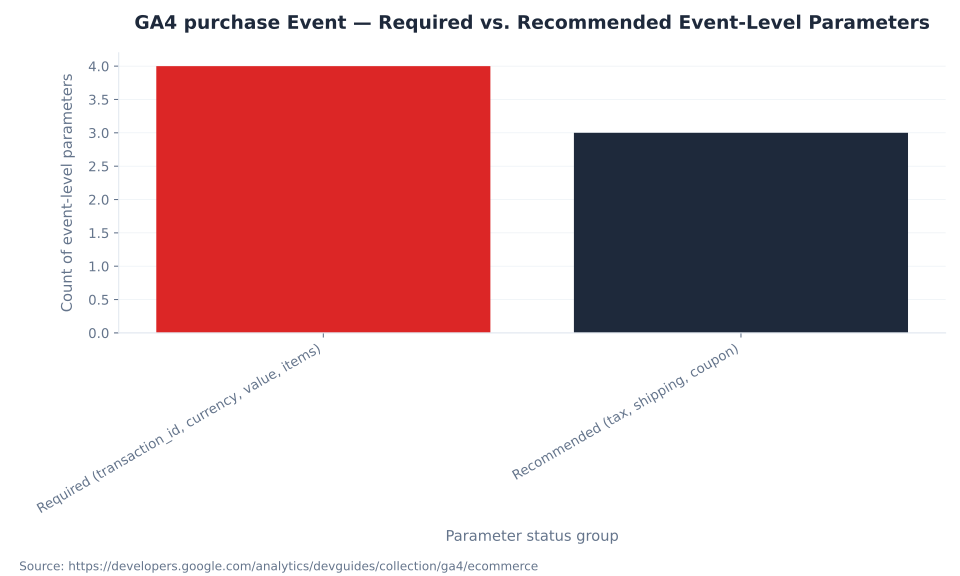
The purchase event is the most critical ecommerce event in GA4. Its event-level parameters determine whether revenue populates in Monetization reports and whether GA4 can deduplicate transactions. Four parameters are required; three are recommended. Missing any required parameter produces a specific, diagnosable failure mode.
| Parameter | Level | Status | What breaks if missing |
|---|---|---|---|
transaction_id | Event | Required | GA4 cannot deduplicate. Confirmation page refreshes double-count revenue. An empty-string transaction_id merges ALL transactions into one, collapsing all revenue data. |
currency | Event | Required when value is sent | GA4 cannot attribute revenue. Purchase revenue = 0. Must be ISO 4217 (e.g., "USD", "EUR") — a string, not a number. |
value | Event | Required for revenue | Purchase revenue metric = 0 or null. Revenue reports empty. |
items | Event | Required | Ecommerce purchases report empty. No item-level metrics. Funnel steps cannot populate. |
item_id or item_name | Item (in items) | Required (one of the two) | Item dropped from item-scoped reporting. |
price | Item | Required for item revenue | Item revenue = 0. Average item price metric empty. |
quantity | Item | Required for units sold | Defaults to 1; multi-unit orders undercount items purchased. |
tax | Event | Recommended | Not required; used for tax-inclusive revenue reconciliation. |
shipping | Event | Recommended | Not required; useful for shipping cost analysis. |
coupon | Event | Recommended | Not required; enables coupon code performance analysis at order level. |
Sources: GA4 developer ecommerce guide; Minimize duplicate key events (Analytics Help); Fix missing revenue data (Analytics Help)
The following gtag.js code shows a correctly structured purchase event. All four required event-level parameters are present. currency is at the event level, not inside the items array. price is per-unit (not line total), and transaction_id is a unique, dynamic order ID:
gtag('event', 'purchase', {
  transaction_id: 'ORD-20240601-001',  // unique per order
  value: 149.99,                         // numeric, no currency symbol
  currency: 'USD',                       // event-level, ISO 4217
  tax: 12.00,
  shipping: 9.99,
  items: [
    {
      item_id: 'SKU-123',
      item_name: 'Midnight Backpack',
      price: 89.99,                      // per-unit price
      quantity: 1,
      item_category: 'Bags'
    },
    {
      item_id: 'SKU-456',
      item_name: 'Leather Wallet',
      price: 59.99,
      quantity: 1,
      item_category: 'Accessories'
    }
  ]
});
MB Adv Agency's GA4 implementation audits consistently identify missing currency as the primary driver of zero purchase revenue on newly launched ecommerce properties. The parameter is easy to overlook because it is event-level — developers building from a product-catalog data structure naturally think of currency as belonging to the item — but GA4 ignores currency inside item objects entirely. Google's troubleshooting guide lists missing or malformed currency as the first cause to check when fixing missing revenue data.
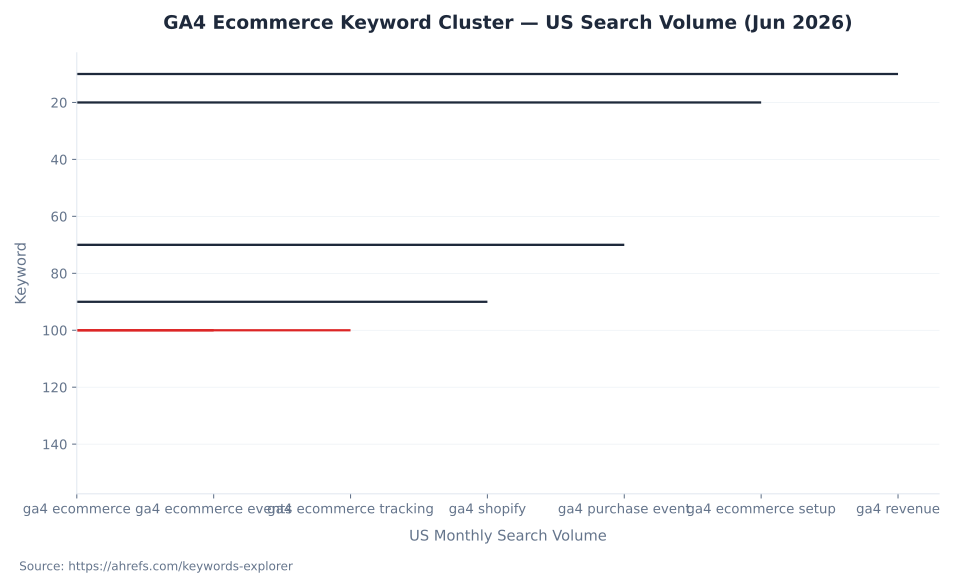
GA4 Ecommerce Keyword Cluster — US Search Volume (Jun 2026)
GA4 Revenue Metrics: Definitions and Distinctions
GA4 surfaces seven distinct revenue metrics in the Monetization reports. The most consequential distinction is between Purchase revenue and Total revenue — metrics that are numerically equal for pure ecommerce stores but diverge significantly for properties that also carry AdMob ad revenue or subscription billing. Anchoring dashboards on the wrong metric produces overstated ecommerce performance for media-and-commerce hybrid properties.
GA4 documentation defines the two metrics verbatim: Purchase revenue is "the total amount of revenue generated from ecommerce and in-app purchases." Total revenue is "the total amount of revenue generated from ecommerce purchases, in-app purchases, subscriptions, and advertisements, including AdMob revenue data, minus any refunds given." The distinction is invisible on a pure Shopify store with no AdMob integration — Purchase revenue and Total revenue will be numerically identical. On a media publisher running both a shop and display ads, Total revenue will exceed Purchase revenue by the value of AdMob earnings.
| Metric | Definition | Source parameter | Includes ad revenue? | Includes refunds? |
|---|---|---|---|---|
| Purchase revenue | Total from ecommerce and in-app purchases | value on purchase events | No | No (gross) |
| Total revenue | Purchase revenue + AdMob ad revenue + subscriptions − refunds | Multiple sources | Yes | Yes (net) |
| Item revenue | Revenue attributed at the item level: price × quantity | price × quantity in items | No | No |
| Average purchase revenue | Purchase revenue ÷ number of purchase events | Derived | No | No |
| Average purchase revenue per active user | Sum of purchase revenue per active user | Derived | No | No |
| Transactions | Count of purchase events deduplicated by transaction_id | transaction_id | No | No |
| Transactions per purchaser | Transactions ÷ purchasers | Derived | No | No |
Sources: Monetization overview report (Analytics Help); Ecommerce purchases report (Analytics Help); Average purchase revenue per active user (Analytics Help); Minimize duplicate key events (Analytics Help)
The ecommerce dashboard anchor is always Purchase revenue. Total revenue is the correct overall property monetization metric but it conflates ecommerce performance with ad and subscription revenue streams, making it unsuitable as a standalone ecommerce KPI. Analysts who export Total revenue from a mixed-monetization property and benchmark it against ecommerce-only targets will overstate performance by the value of AdMob earnings.
These metrics connect directly to GA4 key events and conversions: the purchase event, when marked as a key event, links purchase revenue figures to the advertising and acquisition reports. Revenue attribution at the session and user level flows from the same value and transaction_id parameters — implementing them correctly once serves both Monetization and Advertising reporting.
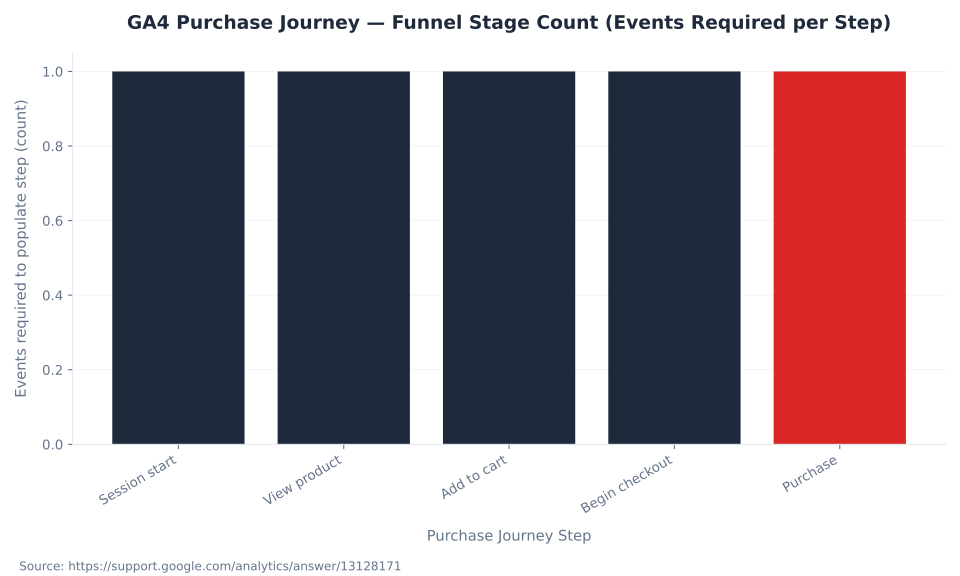
GA4 Purchase Journey — Funnel Stage Count (Events Required per Step)
GA4 Monetization Reports: Navigation and Required Events
GA4 surfaces four Monetization reports at Reports → Life cycle → Monetization. Each report requires a specific set of ecommerce events to produce meaningful data. Partial implementations generate incomplete reports without displaying an error — the most common diagnostic pitfall for new GA4 ecommerce setups. Full GA4 reports and Explorations coverage is in the sibling pillar; this section focuses on the Monetization-specific reports and their event dependencies.
| Report | Path in GA4 | What it shows | Required events for full data |
|---|---|---|---|
| Monetization overview | Reports → Life cycle → Monetization | Summary cards: total revenue, purchase revenue, total purchasers, first-time purchasers, average purchase revenue per active user | purchase (minimum) |
| Ecommerce purchases | Reports → Life cycle → Monetization → Ecommerce purchases | Item-level table: item name, items viewed, items added to cart, items purchased, item revenue | view_item, add_to_cart, purchase with full items array |
| Purchase journey | Reports → Life cycle → Monetization → Purchase journey | Closed 5-step funnel: Session start → View product → Add to cart → Begin checkout → Purchase; drop-off % at each step | view_item, add_to_cart, begin_checkout, purchase |
| Checkout journey | Reports → Life cycle → Monetization → Checkout journey | Closed 4-step funnel: Begin checkout → Add shipping → Add payment → Purchase; drop-off % at each step | begin_checkout, add_shipping_info, add_payment_info, purchase |
Sources: Monetization overview (Analytics Help); Ecommerce purchases report; Purchase journey report; Checkout journey report
The Purchase Journey operates as a closed funnel by default — users must complete each step sequentially to count in subsequent stages. The toggle to an open funnel view is available in the report interface. The Checkout Journey is always a closed funnel and cannot be customized or converted to open-funnel view.
Silent failure diagnosis: When required events are absent, funnel reports produce incomplete visualizations without displaying an error. If 100% drop-off appears at step 1 of the Purchase Journey for all users, the view_item event is not firing or its items array is malformed. If the Checkout Journey shows 100% drop-off at "Add shipping," the add_shipping_info event is missing. Ecommerce purchases report showing zero item views with nonzero purchases means view_item is absent.
For deeper cross-channel analysis beyond the Monetization reports, GA4's BigQuery export makes the full event stream — including all ecommerce event parameters and the complete items array — available for SQL-based analysis. The BigQuery schema stores items as a repeated record field, enabling item-level aggregations that the GA4 interface does not support natively.
GA4 purchase Event — Required vs. Recommended Event-Level Parameters
GA4 Ecommerce Setup: Platform Connection Methods
GA4 ecommerce tracking has six implementation paths, each with different event coverage, custom-parameter flexibility, and maintenance burden. Platform choice determines which path is available. For Shopify stores, the Google & YouTube Channel app is the fastest path to a working purchase event. For WooCommerce, a dataLayer plugin feeding GTM is the standard approach. For custom or headless platforms, direct gtag.js or the Measurement Protocol are the options.
| Method | Platform | How it works | Auto-covered events | Custom-parameter flexibility |
|---|---|---|---|---|
| Google & YouTube Channel app (Shopify Pixel) | Shopify | Install from Shopify App Store; connect GA4 property; Shopify fires events via server-side Shopify Pixel | view_item, add_to_cart, begin_checkout, add_payment_info, purchase | Limited; custom item params require GTM workaround |
| GTM4WP plugin + GTM | WooCommerce / WordPress | GTM4WP plugin populates dataLayer with GA4-compatible ecommerce objects; GTM reads and sends to GA4 | Full recommended set including checkout steps | High — any custom item parameter mappable in GTM |
| WooCommerce Datalayer plugin | WooCommerce / WordPress | WooCommerce official dataLayer plugin; GTM consumes the output | Standard event set; coverage parity with GTM4WP for most scenarios | Moderate; extend via WooCommerce hooks |
| Direct gtag.js | Any platform | Manually code gtag('event', ...) calls with full items array at each funnel step | Complete control; fire any event at any point | Full |
| GTM dataLayer push (custom) | Any platform without a native plugin | Developer pushes dataLayer events from frontend or backend; GTM GA4 tags consume them | Complete control | Full |
| Measurement Protocol (server-side) | Any platform | Server sends HTTP POST to GA4 endpoint with api_secret and measurement_id; bypasses browser | Best for: purchase backup, offline conversions, headless commerce | Full; no client-side device/geo context unless explicitly passed |
Sources: Shopify GA4 setup guide; Analytics Mania Shopify GA4 guide; GTM4WP GA4 setup; WooCommerce Datalayer plugin docs; Measurement Protocol — sending events
Shopify coverage gap: The Google & YouTube Channel app auto-fires five events: view_item, add_to_cart, begin_checkout, add_payment_info, and purchase. It does not cover view_item_list, select_item, view_cart, add_shipping_info, remove_from_cart, view_promotion, or select_promotion. These require a custom Shopify pixel, a third-party analytics app, or a GTM container with additional configuration.
Non-Shopify Plus checkout restriction: For stores not on Shopify Plus, checkout page tracking via GTM is restricted by Shopify. The Google & YouTube Channel app path is the recommended implementation for non-Plus stores requiring purchase tracking on the order confirmation page.
The GA4 data collection and server-side tagging pillar covers the Measurement Protocol in greater depth, including the EU data collection endpoint (region1.google-analytics.com) and the api_secret management workflow. The Measurement Protocol endpoint for web streams is: POST https://www.google-analytics.com/mp/collect?measurement_id=<ID>&api_secret=<SECRET>.
For agencies managing GA4 for PPC campaigns, the platform connection method affects conversion import quality. Shopify-native purchase events arriving via the Shopify Pixel carry the client_id and session context needed for Google Ads conversion import. Server-side Measurement Protocol events without a client_id cannot be attributed to specific ad clicks — a critical distinction when comparing platform-reported ROAS against GA4-reported revenue.
GA4 Ecommerce Purchase Journey: Event Sequence Map
The 14 recommended ecommerce events map to four funnel stages: Discovery, Product, Cart, and Checkout/Post-purchase. The event sequence below shows exactly which event feeds which GA4 funnel report step, in canonical order from the GA4 developer documentation. Each event fires at a specific moment in the customer journey and feeds a specific metric or report step — there is no overlap or substitution between events.
| Stage | Event | Fires on | GA4 report step |
|---|---|---|---|
| Discovery | view_item_list | Listing / category / search results page renders | Purchase Journey — discovery context; item list performance |
| Discovery | select_item | Click on a product card | Purchase Journey — list to PDP transition |
| Product | view_item | PDP loads | Purchase Journey step 2: View product |
| Product | add_to_wishlist | Save-for-later action | Custom funnel analysis; demand signals |
| Cart | add_to_cart | Add-to-cart button | Purchase Journey step 3: Add to cart |
| Cart | view_cart | Cart page or drawer renders | Checkout Journey entry baseline |
| Cart | remove_from_cart | Remove item action | Item abandonment analysis (not in standard funnel reports) |
| Checkout | begin_checkout | Proceed to checkout | Purchase Journey step 4 + Checkout Journey step 1 |
| Checkout | add_shipping_info | Advance past shipping step | Checkout Journey step 2: Add shipping |
| Checkout | add_payment_info | Advance past payment step | Checkout Journey step 3: Add payment |
| Purchase | purchase | Order confirmation page | Purchase Journey step 5 + Checkout Journey step 4 + Ecommerce purchases report |
| Post-purchase | refund | Refund processed (server-side) | Revenue reconciliation |
| Promotion | view_promotion | Internal promo (banner, hero) displayed | Promotion performance reporting |
| Promotion | select_promotion | User clicks internal promo | Promotion click-through reporting |
Sources: GA4 developer ecommerce guide; Purchase journey report; Checkout journey report
Minimum viable event set: For teams that cannot instrument all 14 events at launch, the four-event minimum for functional Monetization reports is: view_item, add_to_cart, begin_checkout, and purchase. This set populates the Purchase Journey end-to-end and the Ecommerce purchases report. The Checkout Journey additionally requires add_shipping_info and add_payment_info. Implement the four-event minimum first; add the remaining events in a second phase. GA4 does not backfill historical data — events missing before implementation cannot be reconstructed, so earlier is always better.
MB Adv Agency finds that implementations which skip view_item_list and select_item consistently produce an incomplete Purchase Journey report — the "Viewed product" drop-off step shows apparent 100% loss from "Sessions" because the discovery-context events that would show list-to-PDP movement are absent. This creates a false picture of extreme top-of-funnel abandonment that leads to incorrect UX prioritization. The actual issue is always missing event coverage, not user behavior.
Three Misconceptions That Break GA4 Ecommerce Tracking
Three beliefs about GA4 ecommerce tracking are widespread, technically plausible-sounding, and wrong in ways that silently corrupt revenue data. Each is diagnosable from a specific failure pattern in the Monetization reports.
Misconception 1: "Enabling Enhanced Measurement turns on ecommerce tracking."
Enhanced Measurement is documented at the GA4 data stream level and auto-fires: page views, scrolls, outbound clicks, site search, video engagement, and file downloads. None of those are ecommerce events. The GA4 developer documentation states explicitly: "Because these events require additional context to be meaningful, the events aren't sent automatically." Enabling Enhanced Measurement on a Shopify or WooCommerce store produces behavioral data alongside zero cart, checkout, or purchase data. The failure mode: Monetization reports show no data. The fix: implement ecommerce events via one of the six platform connection methods above. Enhanced Measurement is unrelated to ecommerce tracking.
Diagnostic: If your GA4 property has Enhanced Measurement enabled but zero data in Reports → Life cycle → Monetization → Purchase journey, ecommerce events are not implemented. Check GA4 data streams and confirm the ecommerce tracking method is configured separately from Enhanced Measurement.
Misconception 2: "Purchase revenue and Total revenue are the same metric."
For a WooCommerce store with no AdMob integration and no subscription billing, the numbers will match — but this is coincidence, not equivalence. The Monetization overview report surfaces both metrics side by side. For properties that also carry AdMob data, Total revenue exceeds Purchase revenue by the value of ad earnings. Analysts who export "Total revenue" from a mixed-monetization property and benchmark it against ecommerce targets will overstate ecommerce performance. The ecommerce metric is Purchase revenue. Total revenue is the overall property monetization metric. The distinction is not surfaced with a warning in GA4 — it requires deliberate metric selection in report configuration.
Misconception 3: "transaction_id is optional on the purchase event."
The parameter schema lists transaction_id as "recommended" in some GA4 documentation surfaces. The developer ecommerce guide text reads "Required for purchases and refunds." The deduplication guide is unambiguous: "You must add a transaction ID (such as an order confirmation number) to each ecommerce event to deduplicate transactions" and "Don't send an empty string as the transaction ID. Google Analytics will deduplicate all purchase events that have transaction_id=""."
In practice, omitting transaction_id or sending an empty string produces inflated purchase counts and revenue. A user who lands on the order confirmation page twice — via page refresh, browser back-navigation, or a duplicate tag firing — generates two purchase events. Without deduplication keyed to a unique order ID, both events count. MB Adv Agency's implementation reviews flag missing transaction_id as the primary driver of inflated purchase counts in GA4 properties for ecommerce clients — confirmation page refreshes and back-navigation double-fire the purchase event without deduplication, inflating transaction counts by 5–15% in stores with high mobile traffic where refresh rates are elevated.
Transaction ID deduplication applies to web streams only. App stream purchases require a different deduplication approach. An empty-string transaction_id is as dangerous as omitting it — GA4 merges all empty-string purchase events into a single transaction, collapsing all revenue data into one row.
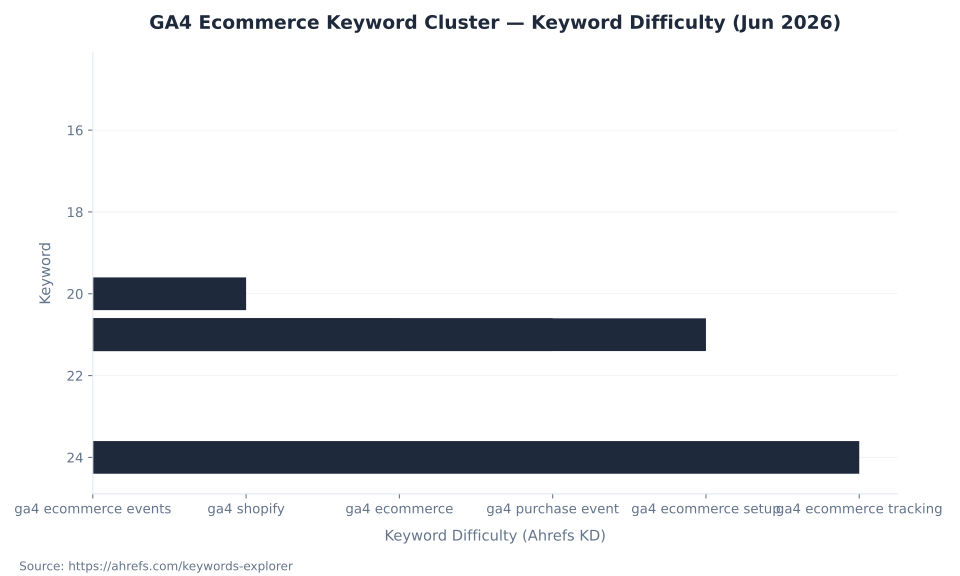
GA4 Ecommerce Keyword Cluster — Keyword Difficulty (Jun 2026)
Verifying GA4 Ecommerce Implementation with DebugView
GA4 DebugView (Admin → DebugView) provides real-time inspection of ecommerce events before production data is affected. Revenue appears in the Monetization reports after a standard processing delay of 24–48 hours. DebugView bypasses that delay and shows event parameters the moment they fire — the correct verification step after any ecommerce implementation or change.
To enable debug mode, either install the GA4 DebugView Chrome extension or append ?debug_mode=1 to the URL of the page being tested. In GA4, navigate to Admin → DebugView. The device running the test appears in the top panel within seconds of firing an event.
The five-step verification process for a purchase event:
Step 1 — Enable debug mode on the order confirmation page via the Chrome extension or ?debug_mode=1. Load the page in a browser with an active session (complete a test transaction or use a sandbox order ID).
Step 2 — Confirm the purchase event appears in the DebugView event stream. If it does not appear within 10 seconds, the event tag is not firing — check the GTM container preview, the gtag.js trigger conditions, or the Shopify Pixel connection status.
Step 3 — Verify event-level parameters: transaction_id is a unique, dynamic value (not hardcoded or empty); value is numeric and matches the expected order total; currency is the correct ISO 4217 code as a string.
Step 4 — Expand the items parameter in DebugView and confirm each item has item_id or item_name, price (numeric, per unit), and quantity. Verify currency does not appear inside any item object — if it does, it will have no effect and the event-level currency is likely missing.
Step 5 — Check revenue in Ecommerce purchases report after 24–48 hours: Reports → Life cycle → Monetization → Ecommerce purchases. If purchase revenue shows as 0 after that window, the fix missing revenue data guide lists the causes to check in order: missing currency, missing value, malformed currency format, and items with no item_id or item_name.
The GA4 engagement and user metrics — sessions, engaged sessions, engagement rate — provide the denominator context for Purchase Journey conversion rates. A Purchase Journey showing 8% session-to-purchase conversion means 8% of all sessions that started ended in a purchase event. Pairing that figure with engagement-rate segmentation (engaged sessions only) reveals whether low purchase rates reflect poor engagement or poor checkout UX. Both reports are in the Life cycle section; neither requires additional configuration beyond the standard GA4 property setup.
view_item + add_to_cart + begin_checkout + purchase populate Purchase Journey end-to-end and the Ecommerce purchases report. Add add_shipping_info and add_payment_info for Checkout Journey data.view_item_list, view_cart, and add_shipping_info — require a custom Shopify pixel or a third-party analytics app.Frequently Asked Questions: GA4 Ecommerce Tracking
Does enabling Enhanced Measurement in GA4 automatically track ecommerce?+
No. Enhanced Measurement covers exactly six event types: page views, scrolls, outbound clicks, site search, video engagement, and file downloads. It does not fire any ecommerce event — not add_to_cart, not begin_checkout, and not purchase.
The technical reason is that ecommerce events require a populated items array with product-level data drawn from the store's catalog. GA4 has no access to that catalog at the tag layer and cannot infer product IDs, names, prices, or quantities from page views. Google's developer documentation states: "Because these events require additional context to be meaningful, the events aren't sent automatically."
The diagnostic: if your GA4 Monetization reports show no data despite Enhanced Measurement being enabled, ecommerce events are not implemented. The fix requires one of six implementation methods — Shopify native connector, WooCommerce + GTM4WP, direct gtag.js, GTM custom dataLayer, or Measurement Protocol — none of which are part of Enhanced Measurement. (Source: GA4 developer ecommerce guide)
What is the GA4 items array and which parameters are required?+
The items array is the product-level parameter passed on every GA4 ecommerce event. Each element is an Item object containing parameters that describe one product in the interaction. The array accepts up to 200 items per event and each item supports up to 27 custom parameters beyond the prescribed fields.
Required parameters per item: at least one of item_id or item_name (both recommended). On the purchase event specifically, price and quantity are also required for item revenue and unit counts to populate in the Ecommerce purchases report. price is per-unit price — not the line total. Item revenue is calculated as price × quantity.
currency is an event-level parameter, not an item parameter — placing it inside item objects has no effect. The currency parameter belongs on the purchase event itself, where it enables GA4 to attribute revenue to the correct currency bucket. Missing currency at the event level results in zero purchase revenue in Monetization reports. (Source: GA4 developer ecommerce guide; Fix missing revenue data)
What is the difference between GA4 purchase revenue and total revenue?+
Purchase revenue is "the total amount of revenue generated from ecommerce and in-app purchases" — sourced from the value parameter on purchase events. It excludes ad revenue and subscriptions. It is gross (before refunds).
Total revenue is "the total amount of revenue generated from ecommerce purchases, in-app purchases, subscriptions, and advertisements, including AdMob revenue data, minus any refunds given." It is net (after refunds) and includes all monetization sources on the GA4 property.
For a pure Shopify or WooCommerce store with no AdMob integration and no subscription billing, Purchase revenue and Total revenue will be numerically identical. For a media property running both a shop and display ads, Total revenue exceeds Purchase revenue by the AdMob earnings. The correct ecommerce KPI is Purchase revenue. Total revenue is the overall property monetization figure and is not suitable as a standalone ecommerce benchmark. (Source: Monetization overview report, Analytics Help)
How does GA4 prevent duplicate purchase events?+
GA4 uses the transaction_id parameter on purchase events to deduplicate transactions on web streams. If multiple purchase events arrive from the same user with the same transaction_id, subsequent events are ignored. This requires passing a unique, dynamic order ID on every purchase event — typically the order confirmation number or a UUID generated at checkout completion.
The deduplication scope is web streams only — app stream purchases require a separate deduplication mechanism. For the deduplication to work, transaction_id must not be an empty string: Google Analytics will deduplicate all purchase events that have transaction_id="", collapsing all empty-string transactions into a single row and making revenue reconciliation impossible.
The calculation is simple: for a store processing 1,000 orders per month with a 10% mobile confirmation-page refresh rate, omitting transaction_id inflates purchase counts by 100 events per month and revenue by the average order value × 100. This affects both the Monetization reports and any Google Ads conversion import using the purchase event as the conversion action. (Source: Minimize duplicate key events with transaction IDs, Analytics Help)
Which GA4 ecommerce tracking method should I use for a Shopify store?+
The Google & YouTube Channel app (installed from the Shopify App Store) is the recommended starting point for most Shopify stores. It connects GA4 via the Shopify Pixel and auto-fires five standard ecommerce events: view_item, add_to_cart, begin_checkout, add_payment_info, and purchase. This is the fastest path to a working purchase event with no custom code.
The limitation: the app does not fire view_item_list, select_item, view_cart, add_shipping_info, remove_from_cart, view_promotion, or select_promotion. For full Purchase Journey and Checkout Journey data, those events require a custom Shopify pixel or a paid analytics app that extends the Shopify Pixel layer.
For Shopify Plus stores that need full checkout-step tracking, a GTM container can be injected into the checkout — a capability restricted for non-Plus stores by Shopify. Non-Plus stores use the Google Channel app as the primary path and accept the event coverage limitation. (Source: Analytics Mania Shopify GA4 guide; Shopify GA4 setup guide)
What is the Measurement Protocol and when should I use it for ecommerce?+
The GA4 Measurement Protocol is a server-to-server event sending mechanism. The server sends an HTTP POST request directly to the GA4 data collection endpoint — https://www.google-analytics.com/mp/collect?measurement_id=<ID>&api_secret=<SECRET> — with the event payload as JSON. Events bypass the browser entirely, which means they are not affected by ad blockers, JavaScript errors, or page abandonment before tag load.
Use cases where Measurement Protocol is the correct choice: (1) purchase confirmation backup — a server-side purchase event sent as a redundancy alongside the browser-side event, ensuring revenue is captured even if the confirmation page fails to load; (2) offline conversion import — recording purchases that completed via phone or in-person; (3) headless commerce platforms where there is no traditional browser page for a tag to fire on.
The limitation: Measurement Protocol events do not carry browser-generated context — device type, geographic location, and screen resolution are absent unless explicitly passed in the payload. Events also cannot generate a client_id — that must be extracted from the browser and passed server-side. For EU data collection, use the regional endpoint: region1.google-analytics.com. (Source: Measurement Protocol — sending events, Google Developers)
Data and methodology: Keyword volume and difficulty data sourced from Ahrefs Keywords Explorer, US, June 2026. All ecommerce event names, parameter schemas, revenue metric definitions, report structures, funnel step counts, and platform connection details sourced from Google Analytics official documentation and developer guides, verified against support.google.com and developers.google.com as of June 2026. Shopify integration event coverage sourced from Analytics Mania Shopify GA4 implementation guide (analyticsmania.com), cross-referenced against Shopify Help Center. WooCommerce dataLayer plugin coverage sourced from GTM4WP documentation and WooCommerce official Datalayer for WooCommerce documentation. No mbadv client performance benchmarks appear in this article — all quantitative data traces to a public source. Reviewed by MB Adv Agency, June 2026.

As a Google Ads expert, I bring proven expertise in optimizing advertising campaigns to maximize ROI.
I specialize in sharing advanced strategies and targeted tips to refine Google Ads campaign management.
Committed to staying ahead of the latest trends and algorithms, I ensure that my clients receive cutting-edge solutions.
My passion for digital marketing and my ability to interpret data for strategic insights enable me to offer high-level consulting that aims to exceed expectations.
Google Partner Agency
We're a certified Google Partner Agency, which means we don’t guess — we optimize withGoogle’s full toolkit and insider support.
Your campaigns get pro-level execution, backed by real expertise (not theory).

4.9 out of 5 from 670+ reviews on Fiverr.
That’s not luck, that’s performance.
Highly recommend Matteo to set up your server side tracking. He has a deep understanding of e-commerce tracking and will go above and beyond to make sure everything is set up correctly and working 100%. If you are scaling your store this set up is non-negotiable in my opinion and there isn't many people who have this much knowledge or put the effort in to get it right. Thanks again!

avorodesign.com
I can only recommend Matteo! He was very patient, professional and very knowledgeable about GA4, Consent Mode v2, and GDPR compliance. Communication was clear, and the setup was done professionally and efficiently. Highly recommend him for anyone needing reliable tracking implementation.

www.natureiki.life
Matteo shines in the realm of online professionals. His work is not only deep in data but also complemented by his proactive communication and cooperation, setting a new standard for freelancers. If you want someone who truly exceeds expectations, look no further. Highly recommended!

www.omanbeverlysmyth.com
Exceptional Service Beyond Expectations - Outstanding Service Impeccable depth, flawless delivery, and exceptional language fluency—this service exceeded all expectations. Highly recommended. Matteo truly ROCKS!!!

ium-paris.com
Top-notch, always highly value working with Matteo. An absolute Google Ads Genius. This is approximately the 8th time I have hired him and he's helped us get 6-7 ROAS. We are excited in continuing to improve our lead flow. Hire this guy if you need Google Ads help. Thanks Matteo!

www.dleeventgroup.com
I finally found the guy who can setup server side tracking and all the ecosystem properly. I definitely recommend Matteo. He is very responsive, kind and wants to dig into things. He configured GA4, Meta, Google Ads, Outbrain and google consent v2 with Cookiebot. Thanks Matteo.

inomega.fr
MB Adv delivered exceptional work with outstanding professionalism and lots of patience, taking time to see effects of changes made and not just do the work and submit it. The proactive communication and video summaries of the work completed made working with Matteo a pleasure, as he consistently went above and beyond. Highly recommended for web analytics projects! We are already working on another project.

www.withnellsensors.co.uk
Working with Matteo on my Google Ads was a game-changer. He's not just a strategist, he's a true partner. He understood my goals and tailored a campaign that perfectly reached my target audience. I'm grateful for his expertise and dedication.

dccargo.com
Click-driven mind
with plastic-brick obsession.
We build Google Ads campaigns with the same mindset we use to build tiny brick worlds: strategy, patience, and zero tolerance for wasted pieces.
Data is our blueprint. Growth is the only acceptable outcome.