
GA4 Engaged Sessions, Engagement Rate & Bounce Rate

3
criteria qualify a GA4 session as “engaged” — any single one suffices
Duration > 10 seconds | ≥1 key event | ≥2 pageviews — OR conditions, not AND
Source: Google Analytics Help — GA4 Engagement rate and bounce rate
What are GA4 engagement metrics?
GA4 measures sessions by quality, not starts. The introduction of the engaged session as the core unit cascades through every metric in the Engagement overview: engagement rate, bounce rate, and the default “Users” figure all derive from whether a session meets the engaged threshold. Analysts migrating from Universal Analytics find numbers that look different not because traffic changed, but because what counts as meaningful changed.
This guide covers every GA4 engagement and user metric in exact definition order — engaged sessions, engagement rate, bounce rate, average engagement time, sessions, active users, total users, new users, returning users, user lifetime value, and reporting identity — alongside a full how GA4 works reference and a comparison table against Universal Analytics. It absorbs six zombie pages from the GA4 prefix into a single canonical source.
Every number in this article traces to a cited Google Analytics Help document, Analytics Mania, Search Engine Land, or Google for Developers. No benchmark ranges have been fabricated. Where GA4-specific industry data does not yet exist — as is the case for engagement rate benchmarks — this guide says so explicitly rather than importing UA-era figures into a GA4 context. For context on Google Search Console metrics alongside GA4, pair this with the Search Console Performance report guide; the two tools measure different layers of performance.
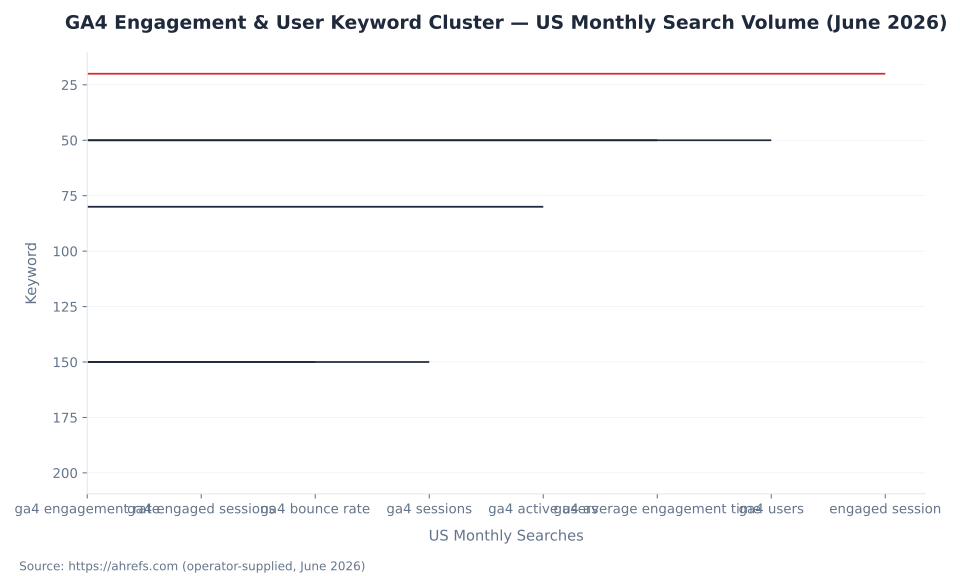
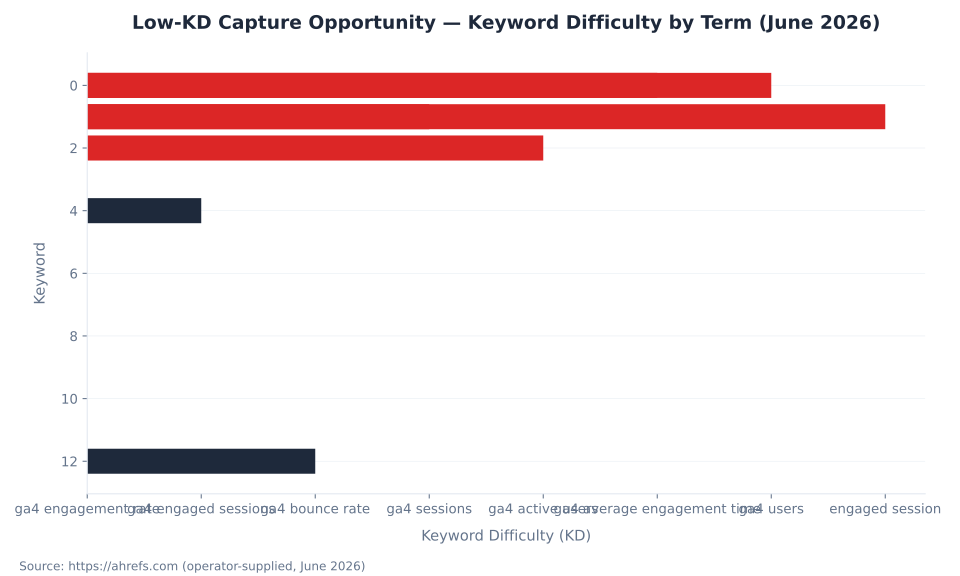
GA4 engagement metrics carry a cluster of 8 core keywords with combined US monthly volume of 850 searches — all at Keyword Difficulty ≤12, making this an accessible cluster for a site with modest authority. Source: Ahrefs, June 2026.
Understanding events and parameters in GA4 is a prerequisite for interpreting engagement metrics: key events are one of the three criteria that qualify a session as engaged, and Google Tag Manager is the most common mechanism for firing those events into GA4. For a PPC-specific interpretation of these metrics, see GA4 for PPC and lead generation.
Key takeaways
- Engaged sessions use OR logic. A session is engaged if it exceeds 10 seconds, contains ≥1 key event, or includes ≥2 pageviews — satisfying any one criterion qualifies it.
- The 10-second threshold is configurable. Adjust it up to 60 seconds per web data stream in GA4 Admin settings.
- Engagement rate + bounce rate always equal 100%. Bounce rate is 1 − engagement rate expressed as a percentage; they are arithmetic complements.
- GA4 bounce rate is not Universal Analytics bounce rate. UA measured single-page sessions; GA4 measures non-engaged sessions. Direct numerical comparison is invalid.
- “Users” in GA4 standard reports = active users. Total users (all visitors regardless of engagement) is a secondary metric not shown by default.
- Average engagement time tracks foreground focus, not wall-clock time. GA4 accumulates only the time a tab is in the active foreground, via the
engagement_time_msecparameter in milliseconds. - GA4 sessions do not reset at midnight or on UTM change. Both behaviors existed in Universal Analytics and explain session-count discrepancies between the two platforms.
- LTV window is fixed at 120 days. User Lifetime Value in GA4 measures revenue over the first 120 days from first session and requires
purchaseevents withvalueandcurrencyparameters.
10s
default engaged-session duration threshold (configurable to 60s per data stream)
20%
maximum expected discrepancy in user & session counts between GA4 and Universal Analytics
120d
fixed user lifetime value measurement window from first session
Sources: Google Analytics Help (engagement threshold); Google Analytics Help (UA vs GA4 discrepancy); Google Analytics Help (User lifetime)
Engaged sessions
A GA4 engaged session is a session that meets at least one of three criteria: the session lasted longer than 10 seconds (the default threshold), the session contained at least one key event (conversion), or the session included two or more pageviews or screenviews. These are OR conditions — satisfying any single criterion is sufficient for the session to be counted as engaged. Source: GA4 Engagement rate and bounce rate — Google Analytics Help.
| Criterion | Threshold | Configurable? | Example |
|---|---|---|---|
| Session duration | > 10 seconds (default) | Yes — up to 60 seconds, per data stream | User reads a blog post for 25 seconds, then closes the tab |
| Key event (conversion) | ≥ 1 key event in the session | No (key event definition is configurable, not the criterion) | User completes a contact form submission |
| Pageviews or screenviews | ≥ 2 in the session | No | User views the homepage, then clicks to the services page |
Source: GA4 Engagement rate and bounce rate — Google Analytics Help; Engagement overview report — Google Analytics Help
Configuring the engaged-session timer. The 10-second default is adjustable per web data stream: Admin → Data Streams → [web stream] → Configure tag settings → Show all → Adjust session timeout → “Adjust timer for engaged sessions.” The configurable range runs from the 10-second default up to a maximum of 60 seconds. Source: A Guide to Bounce Rate in Google Analytics 4 — Analytics Mania.
Important nuance — auto-collected events are excluded from the key-event criterion. The events first_visit, first_open, and session_start are excluded from the key-event criterion, even when those events are marked as key events in a property. A session triggered only by those three auto-collected events with no additional engagement is not engaged solely on that basis. Source: GA4 Engagement rate and bounce rate — Google Analytics Help.
Where engaged sessions appear in reports. Engaged sessions are the primary metric in the Engagement overview report (Reports → Engagement → Overview). The report also shows engaged sessions per user and average engagement time per session. In Explorations, engaged sessions are available as a standard metric across all exploration types. Source: Engagement overview report — Google Analytics Help.
MB Adv Agency configures the engagement timer at 20 seconds for B2B clients with long-form service pages — raising the threshold filters sessions where a user arrived, loaded the page, and left without genuine reading engagement. The default 10-second floor admits page loads that can include crawler or bot sessions on properties without bot filtering enabled.
Engaged sessions feed directly into the two headline engagement metrics: conversion tracking in GA4 depends on key events qualifying sessions, and both engagement rate and bounce rate are computed as ratios of engaged to total sessions. The section below covers those formulas in detail.
Engagement rate and bounce rate
Engagement rate is engaged sessions divided by total sessions, expressed as a percentage. Bounce rate is its arithmetic complement: 1 minus engagement rate, equivalent to non-engaged sessions divided by total sessions. The two always sum to 100%. Source: GA4 Engagement rate and bounce rate — Google Analytics Help.
| Metric | Definition | Formula / unit |
|---|---|---|
| Engaged sessions | Sessions meeting any one of the three OR criteria (duration > 10s, ≥1 key event, ≥2 pageviews) | Count |
| Engagement rate | Share of all sessions that were engaged | Engaged sessions ÷ total sessions × 100 |
| Bounce rate | Share of sessions that were NOT engaged | (1 − engagement rate) × 100 = non-engaged sessions ÷ total sessions × 100 |
| Average engagement time per session | Average foreground/focus time per session — tab in active view, measured in milliseconds via engagement_time_msec | Total engagement time ÷ total sessions |
| Average engagement time per user | Same foreground/focus time, per active user | Total engagement time ÷ total active users |
| Engaged sessions per user | Density of engaged sessions across the active user base | Engaged sessions ÷ active users |
Sources: GA4 Engagement rate and bounce rate — Google Analytics Help; User engagement — Google Analytics Help; Engagement overview report — Google Analytics Help
Engagement rate formula example. A property records 1,000 sessions in a week. Of those, 680 are engaged (duration > 10s, or key event, or ≥2 pageviews). Engagement rate = 680 ÷ 1,000 × 100 = 68%. Bounce rate = 100% − 68% = 32%. The arithmetic is straightforward; the analytical challenge is understanding what the threshold captures. A site that raises its engagement timer from 10 to 20 seconds will see its engagement rate fall and bounce rate rise for the same underlying traffic — because more sessions now fall below the threshold. The metric is internally consistent; it is the threshold that drives interpretation.
GA4 bounce rate and Universal Analytics bounce rate measure different things. UA bounce rate was the percentage of single-page sessions — sessions with exactly one pageview and no additional interactions, regardless of time spent. GA4 bounce rate is the percentage of non-engaged sessions: sessions where the user spent fewer than 10 seconds AND triggered no key event AND viewed fewer than 2 pages. A user who reads a 2,000-word article for four minutes and closes the tab registers as a bounce in UA (one pageview, no additional hit) but as an engaged session in GA4 (duration > 10 seconds). Direct numerical comparison between a site’s historical UA bounce rate and its GA4 bounce rate is invalid. Source: GA4 Engagement rate and bounce rate — Google Analytics Help; UA vs GA4 metrics: key differences — Search Engine Land.
No authoritative GA4-specific industry engagement rate benchmarks exist as of June 2026. The UA-era benchmarks (Chartbeat, CXL, Econsultancy: 26–70% bounce rate by sector) used the single-page session definition and are not applicable to GA4’s engagement-based definition. Do not use those ranges for GA4 context. Source: Analytics Mania — A Guide to Bounce Rate in GA4.
MB Adv Agency treats GA4 engagement rate — not bounce rate — as the primary reading-quality signal for content performance reviews. Given the definitional change makes bounce rate figures incomparable with UA historical data, framing performance against prior-period GA4 engagement rate (same definition, consistent threshold) yields a more honest benchmark than any UA-sourced figure.
Average engagement time
Average engagement time per session is the total time a browser tab or app screen spent in the active foreground, divided by total sessions. GA4 measures this in milliseconds via the engagement_time_msec parameter, accumulating it only while the tab is focused. Background tabs, idle windows, and time between navigations when the tab is inactive do not accumulate. The result is systematically shorter than Universal Analytics’ average session duration, which was wall-clock time from session start to last hit. Source: User engagement — Google Analytics Help.
How engagement_time_msec works. GA4 tracks foreground time in milliseconds and attaches the accumulated value to the next event collected in the session. For example, if a user spends 23 seconds reading a page before triggering a scroll event, the next collected event carries engagement_time_msec: 23341. This value is cumulative within the session. Source: engagement_time_msec parameter — Google Analytics Help.
Engaged sessions per user measures the density of engaged sessions across the active user base: engaged sessions divided by active users. A value above 1 means the average active user had more than one engaged session in the date range. The metric is available in the Engagement overview report and in Explorations. Source: Engagement overview report — Google Analytics Help.
Why average engagement time < average session duration. In Universal Analytics, average session duration was wall-clock time from the first hit to the last hit in a session. If a user opened a tab, walked away for 10 minutes, then returned, all of that elapsed time was included. GA4 excludes idle time entirely. For the same user behavior, GA4’s average engagement time will consistently show a lower number. Neither is “wrong” — they measure different things. Source: Comparing metrics: GA4 vs Universal Analytics — Google Analytics Help.
GA4 Engagement & User Keyword Cluster — US Monthly Search Volume (June 2026)
Sessions in GA4
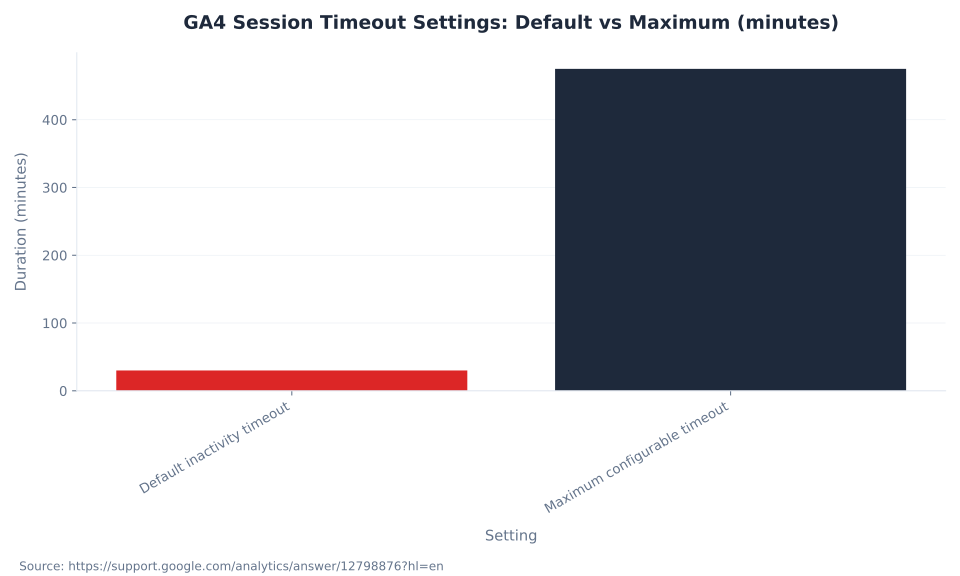
A GA4 session begins when the session_start event fires and ends after 30 minutes of inactivity (the default timeout). GA4 does not restart sessions at midnight or when campaign parameters change mid-session — two behaviors that existed in Universal Analytics. This changes how multi-channel paths appear and why GA4 session counts differ from UA historical data. Source: GA4 Session — Google Analytics Help.
| Behavior | GA4 | Universal Analytics |
|---|---|---|
| Session start trigger | session_start event (auto-collected); fires once per session | First hit of the session |
| Default inactivity timeout | 30 minutes | 30 minutes |
| Maximum configurable timeout | 7 hours 55 minutes | 4 hours |
| New session on UTM / campaign change? | No — attribution locked to session_start source | Yes — campaign source change forced a new session |
| New session at midnight? | No | Yes — calendar-day boundary reset the session |
| Session ID | ga_session_id (timestamp in seconds); ga_session_number (cumulative count per user) | Internal session counter per property |
Sources: GA4 Session — Google Analytics Help; About Analytics sessions — Google Analytics Help; How a UA session is defined — Google Analytics Help
Attribution implication of the no-UTM-new-session rule. A user who arrives via organic search and, 10 minutes later, clicks a paid ad in the same browser session stays in the original session. Attribution belongs to the session_start source — the organic click. In Universal Analytics, the paid click would have opened a new session and attributed any subsequent conversion to the paid campaign. GA4 session-level attribution uses first touch within the session, not last touch. This explains why GA4 and UA channel reports show different session and conversion distributions for the same historical traffic. Source: Comparing metrics: GA4 vs Universal Analytics — Google Analytics Help.
Configuring session timeout. The 30-minute default is adjustable in Admin → Data Streams → [web stream] → Configure tag settings → Show all → Adjust session timeout. The maximum is 7 hours 55 minutes. Extending the timeout is appropriate for applications or tools where users leave a tab open while actively working — a 30-minute idle period mid-task would otherwise split one logical work session into two. Events are fired via Google Tag Manager or the gtag.js tag; the session timeout applies to the data stream, not the tag implementation.
Engaged Session: Three OR Criteria (Schematic — criteria are equal alternatives, not ranked by frequency)

Active users and total users
In GA4 standard reports, the “Users” metric card shows active users — users who had an engaged session or whose first session falls in the date range. Total users, which counts every visitor regardless of engagement level, is a secondary metric not displayed by default. This is a direct change from Universal Analytics, where “Users” meant total visitors. The distinction explains the apparent user decline many analysts observe when comparing GA4 data against UA historical benchmarks. Source: Understand user metrics — Google Analytics Help.
| Metric | GA4 definition | Shown by default? |
|---|---|---|
| Active users | Users who had an engaged session OR whose first_visit / first_open event falls in the date range | Yes — shown as “Users” in most standard reports |
| Total users | All users who triggered any event in the date range, regardless of engagement level | No — must be added manually in custom reports or Explorations |
| New users | Users triggering first_visit (web) or first_open (app) in the date range | Yes — standard Acquisition reports |
| Returning users | Users who had at least one previous session prior to the current date range, regardless of whether that prior session was engaged | Yes — standard Acquisition reports |
Sources: Understand user metrics — Google Analytics Help; Total users vs Active users vs New users — Analytics Mania
New users and returning users are not mutually exclusive within a date range. A user who visits for the first time on Day 1 and returns on Day 2, with both days inside the selected date range, is counted in both New users and Returning users. Their sum exceeds Total users within that range. Source: Analytics Mania — Total users vs Active users vs New users.
Misconception: “Users” in GA4 reports equals UA’s “Users.” In Universal Analytics, “Users” was total users — everyone who visited, regardless of engagement. In GA4, “Users” in standard reports is active users. A property that sees a 15–20% “drop in users” when comparing GA4 data to UA data is likely seeing the active vs total distinction, not a genuine traffic decline. Add the Total users metric to a custom report or Exploration to compare apples to apples. Source: Understand user metrics — Google Analytics Help; Comparing metrics: GA4 vs Universal Analytics — Google Analytics Help.
GA4 Session Timeout Settings: Default vs Maximum (minutes)
User lifetime value and predictive metrics
GA4’s User Lifetime Value measures the average revenue generated by new users over their first 120 days from first session. The 120-day window is fixed and cannot be customized per property. LTV data populates only when the property records purchase events with both value and currency parameters; without those events, the User Lifetime Exploration template returns empty. Source: GA4 User lifetime — Google Analytics Help.
| Metric | Definition | Prerequisite |
|---|---|---|
| Average 120-day LTV | Average revenue generated per new user over their first 120 days from first session | purchase event with value + currency |
| LTV — percentiles (P10, P50, P80, P90) | Distribution of LTV across the user cohort; P50 = median LTV; P90 = exceeded by top 10% of users | Same as above |
| Purchase probability (7-day) | Probability an active user triggers a purchase key event in the next 7 days | ≥1,000 returning users triggering the predictive condition within a 7-day window over the preceding 28 days |
| Churn probability (7-day) | Probability an active user becomes inactive in the next 7 days | Same as purchase probability |
| Predicted revenue (28-day) | Expected revenue from purchase events in the next 28 days from active users | Same as purchase probability |
Sources: GA4 User lifetime — Google Analytics Help; GA4 Predictive metrics — Google Analytics Help
Predictive metrics threshold. To qualify, a GA4 property must have at least 1,000 returning users who triggered the relevant predictive condition (purchase or churn) AND at least 1,000 returning users who did not, within a 7-day period over the preceding 28 days. Predictions update once per day per eligible active user. If model quality falls below threshold, predictions stop updating until the data volume recovers. Source: GA4 Predictive metrics — Google Analytics Help.
LTV percentile data (P10, P50, P80, P90) is available in the User Lifetime exploration template. To access it: Reports → Explore → Template gallery → User Lifetime. The exploration uses a cohort-based structure grouping users by their first session date. For ecommerce tracking setup required to populate purchase events, see the ecommerce tracking guide.
Reporting identity and user deduplication
GA4’s reporting identity setting controls how users are counted across devices and sessions. Three modes are available in Admin → Property → Reporting identity. The choice affects user counts in reports but does not change how data is collected — it is a display-layer setting. Source: Reporting identity — Google Analytics Help.
| Mode | Identity signal priority | Cross-device dedup? | Data thresholds applied? |
|---|---|---|---|
| Blended (default) | User-ID → Device ID → Modelling fill-in | Yes — with modelled fill-in | Yes, when Google Signals is active |
| Observed | User-ID → Device ID (no modelling) | Yes — observed data only | Yes, when Google Signals is active |
| Device-Based | Device ID only (ignores User-ID and Google Signals) | No | No — maximum data availability |
Sources: Reporting identity — Google Analytics Help; Measure activity with User-ID — Google Analytics Help
What “no deduplication” means in practice. Without User-ID or Google Signals, the same person visiting on three different browsers or devices = three separate users in GA4. A user who switches from mobile Chrome to desktop Firefox to a tablet browser generates three device IDs and three user counts. Blended mode models across these gaps; Device-Based mode makes no attempt. The right choice depends on consent posture: Device-Based is the appropriate setting for consent-mode environments where persistent identifiers cannot be collected.
User-ID requirements. User-ID values must be unique per person (assigning the same ID to multiple users corrupts data), persistent across sessions, no longer than 256 characters, and set to null to clear on logout. User-ID also requires selection in the reporting identity Admin setting; implementing User-ID in the tag layer without enabling it in Admin has no effect on reports. Source: Measure activity with User-ID — Google Analytics Help.
MB Adv Agency enables User-ID for clients running gated products, loyalty portals, or logged-in SaaS applications — contexts where cross-device identity is commercially relevant and consent to use persistent identifiers is already obtained as part of account registration. For content-only sites without login infrastructure, Device-Based or Observed typically delivers sufficient analytical fidelity.
Cardinality and the (other) row
GA4 standard reports collapse low-volume dimension combinations into an “(other)” row when a report exceeds its cardinality limit of 50,000 distinct dimension values. Any dimension with more than 500 unique values per day is classified as high-cardinality. The (other) row contains real sessions, users, and events — it is not a data quality error. Source: GA4 Cardinality — Google Analytics Help.
| Method | Row limit | User metric type | Sampling? |
|---|---|---|---|
| Standard reports | 5,000 rows; 50,000 distinct dimension values before (other) collapse | Active users (±1.63% HyperLogLog++ at 95% confidence) | Possible at high volume |
| Explorations | Higher row limits; better for high-cardinality breakdowns | Active users | Possible at high volume |
| BigQuery export | No row limit — full event-level grain | Total users (distinct User IDs); no Active users computation | No — exact counts |
Sources: GA4 Cardinality — Google Analytics Help; About the (other) row — Google Analytics Help; BigQuery vs UI — Google for Developers
BigQuery export differences. GA4’s BigQuery export provides full-grain, unsampled event-level data with no (other) row grouping and exact session counts. Important distinctions: BigQuery user counts reflect Total users (distinct User IDs), not Active users; Google Signals deduplication present in the GA4 UI is absent from the BigQuery export; modelled consent-mode data is also absent. The GA4 UI uses HyperLogLog++ estimation at ±1.63% precision at 95% confidence for session counts. BigQuery provides exact counts. Source: Bridge the gap between the GA4 UI and BigQuery export — Google for Developers.
MB Adv Agency routes all high-cardinality user breakdowns — for example landing page by source by device, or city by content category — to Explorations or BigQuery rather than standard reports. Standard report totals in (other) are real traffic that cannot be further segmented in the UI; treating the visible rows as the full picture understates the actual traffic distribution.
Low-KD Capture Opportunity — Keyword Difficulty by Term (June 2026)
Using GA4 data to drive campaign decisions?
Engaged sessions and engagement rate are measurement inputs — what matters is what you do with them. MB Adv Agency works with analytics-literate clients to connect GA4 signals to paid and organic performance.
Get in touch →GA4 vs Universal Analytics: the full metric mapping
Google’s own comparison documentation states that analysts should expect discrepancies of up to 20% in user and session metrics between Universal Analytics and GA4, due to definitional differences and feature variations. The core shifts — engaged sessions replacing bounce-based quality measurement, active users replacing total users as the default, and sessions no longer resetting at midnight or on campaign parameter change — account for most of those discrepancies. Source: Comparing metrics: GA4 vs Universal Analytics — Google Analytics Help.
| UA metric | GA4 equivalent | Key difference |
|---|---|---|
| Sessions | Sessions | GA4: no midnight reset, no new session on UTM change. UA: both behaviors applied. |
| Bounce rate (single-page sessions %) | Bounce rate (non-engaged sessions %) | Completely different definition. UA = single-page sessions. GA4 = non-engaged sessions. Direct comparison invalid. |
| Average session duration (wall-clock) | Average engagement time per session | GA4 measures foreground/focus time via engagement_time_msec. UA measured wall-clock time start-to-last-hit. |
| Users (total visitors) | Total users (secondary metric) | GA4 standard “Users” = active users. UA “Users” = total users. Switch is a definitional change, not a traffic drop. |
| — (no equivalent) | Active users | New concept in GA4; requires engaged session or first_visit/first_open event |
| — (no equivalent) | Engaged sessions | New concept in GA4 |
| — (no equivalent) | Engagement rate | New concept in GA4; inverse of GA4 bounce rate |
| New users | New users | Same concept; GA4 triggers on first_visit (web) or first_open (app) |
| Returning users | Returning users | Same concept; GA4 definition includes any prior session regardless of whether it was engaged |
Sources: Comparing metrics: GA4 vs Universal Analytics — Google Analytics Help; UA vs GA4 metrics: key differences — Search Engine Land
Google states to expect discrepancies of up to 20% in user and session metrics between Universal Analytics and GA4. These discrepancies are definitional, not data quality issues. Source: Comparing metrics: GA4 vs Universal Analytics — Google Analytics Help.
For a deeper treatment of GA4’s measurement architecture relative to search performance, pair this guide with the Search Console Performance report guide. GA4 engagement rate measures on-site quality; the GSC glossary covers click-through rate and query performance upstream of the landing. The two tools answer different questions and should be read together, not as substitutes.
How to configure GA4 engagement settings
Two engagement-related settings affect how metrics are computed across the entire property: the engaged-session duration timer and the session inactivity timeout. Both live in Data Streams settings. Changing either setting takes effect for new sessions after the change; historical data already processed is not retroactively adjusted. Source: GA4 Engagement rate and bounce rate — Google Analytics Help; GA4 Session — Google Analytics Help.
Setting 1: Adjust the engaged-session timer (10 – 60 seconds)
- In GA4, navigate to Admin (gear icon, bottom left).
- Under Data collection and modification, click Data Streams.
- Select the web data stream for the property.
- Click Configure tag settings (under the Google tag section).
- Click Show all to expand the full list of settings.
- Click Adjust session timeout.
- Under “Adjust timer for engaged sessions,” change the value. Default: 10 seconds. Range: 10 to 60 seconds. Click Save.
Setting 2: Adjust the session inactivity timeout (30 min – 7h 55m)
- Follow steps 1–6 above (reach Adjust session timeout).
- Under “Set the duration of inactivity that ends a session,” adjust the hours and minutes. Default: 30 minutes. Maximum: 7 hours 55 minutes.
- Click Save. New sessions created after this save use the updated timeout.
Which properties benefit from a higher engagement timer? B2B sites with long-form service pages, deep-scroll content hubs, and SaaS documentation sites where a 10-second threshold includes users who loaded the page and immediately abandoned it. Raising the timer to 20 or 30 seconds narrows the “engaged” population to users who demonstrably read. Which benefit from a longer session timeout? Web applications and tools where users actively work across tabs — a project management app, an analytics dashboard — where 30 minutes of inactivity does not represent a genuine session end. Both settings require documentation in the property’s measurement plan; undocumented threshold changes make trend analysis across the change date unreliable. See GA4 data collection and privacy for the full data stream configuration reference.
Frequently asked questions: GA4 engagement and user metrics
Explore the full GA4 glossary
This pillar covers engagement and user metrics. For events, parameters, conversions, reports and Explorations, and BigQuery integration, see the full GA4 glossary.
Talk to us →Methodology
All metric definitions, thresholds, formulas, and behavioral rules in this article trace to primary Google documentation: GA4 Engagement rate and bounce rate, GA4 Session, Understand user metrics, GA4 User lifetime, Reporting identity, and GA4 Cardinality. Third-party verification sources: Analytics Mania (bounce rate), Google for Developers (BigQuery vs UI). Keyword data: Ahrefs, operator-supplied, June 2026. GSC data: 90-day window ending 2026-06-02. No mbadv client performance figures were used. No UA-era benchmark ranges were applied to GA4 contexts. Last updated: June 3, 2026. Reviewed by MB Adv Agency, June 2026.
For the complete list of GA4 topics covered by MB Adv Agency, see the full GA4 glossary.

As a Google Ads expert, I bring proven expertise in optimizing advertising campaigns to maximize ROI.
I specialize in sharing advanced strategies and targeted tips to refine Google Ads campaign management.
Committed to staying ahead of the latest trends and algorithms, I ensure that my clients receive cutting-edge solutions.
My passion for digital marketing and my ability to interpret data for strategic insights enable me to offer high-level consulting that aims to exceed expectations.
Google Partner Agency
We're a certified Google Partner Agency, which means we don’t guess — we optimize withGoogle’s full toolkit and insider support.
Your campaigns get pro-level execution, backed by real expertise (not theory).

4.9 out of 5 from 670+ reviews on Fiverr.
That’s not luck, that’s performance.
Highly recommend Matteo to set up your server side tracking. He has a deep understanding of e-commerce tracking and will go above and beyond to make sure everything is set up correctly and working 100%. If you are scaling your store this set up is non-negotiable in my opinion and there isn't many people who have this much knowledge or put the effort in to get it right. Thanks again!

avorodesign.com
I can only recommend Matteo! He was very patient, professional and very knowledgeable about GA4, Consent Mode v2, and GDPR compliance. Communication was clear, and the setup was done professionally and efficiently. Highly recommend him for anyone needing reliable tracking implementation.

www.natureiki.life
Matteo shines in the realm of online professionals. His work is not only deep in data but also complemented by his proactive communication and cooperation, setting a new standard for freelancers. If you want someone who truly exceeds expectations, look no further. Highly recommended!

www.omanbeverlysmyth.com
Exceptional Service Beyond Expectations - Outstanding Service Impeccable depth, flawless delivery, and exceptional language fluency—this service exceeded all expectations. Highly recommended. Matteo truly ROCKS!!!

ium-paris.com
Top-notch, always highly value working with Matteo. An absolute Google Ads Genius. This is approximately the 8th time I have hired him and he's helped us get 6-7 ROAS. We are excited in continuing to improve our lead flow. Hire this guy if you need Google Ads help. Thanks Matteo!

www.dleeventgroup.com
I finally found the guy who can setup server side tracking and all the ecosystem properly. I definitely recommend Matteo. He is very responsive, kind and wants to dig into things. He configured GA4, Meta, Google Ads, Outbrain and google consent v2 with Cookiebot. Thanks Matteo.

inomega.fr
MB Adv delivered exceptional work with outstanding professionalism and lots of patience, taking time to see effects of changes made and not just do the work and submit it. The proactive communication and video summaries of the work completed made working with Matteo a pleasure, as he consistently went above and beyond. Highly recommended for web analytics projects! We are already working on another project.

www.withnellsensors.co.uk
Working with Matteo on my Google Ads was a game-changer. He's not just a strategist, he's a true partner. He understood my goals and tailored a campaign that perfectly reached my target audience. I'm grateful for his expertise and dedication.

dccargo.com
Click-driven mind
with plastic-brick obsession.
We build Google Ads campaigns with the same mindset we use to build tiny brick worlds: strategy, patience, and zero tolerance for wasted pieces.
Data is our blueprint. Growth is the only acceptable outcome.