GA4 Reports and Explorations: The Complete Reference for Three Analysis Surfaces

GA4 Reports, Explorations, and Audiences: Three Distinct Analysis Surfaces
GA4 offers three separate analysis surfaces — standard Reports, Explorations, and Audiences — each with a different data architecture and a different job to do. Standard Reports query pre-aggregated tables and persist property-wide. Explorations query raw event-level data with user-defined segments and dimensions. Audiences define persistent cohorts that feed Google Ads and linked platforms for targeting. For background on GA4's overall architecture, see What is Google Analytics 4.
The most common mistake GA4 beginners make is treating Reports and Explorations as interchangeable — a different UI layered over the same data. They are architecturally distinct. Standard Reports in the Reports tab query pre-aggregated tables that GA4 computes continuously. These tables persist property-wide, are visible to all users with property access, and sampling rarely applies. Explorations in the Explore tab query the raw event stream directly, giving access to per-user sequence logic, multi-condition segments, and dimension combinations that standard Reports cannot produce. That flexibility has a cost: when an Exploration query spans more than 10 million events for a standard property, GA4 samples the data and scales results proportionally. The yellow warning icon in the Explorations canvas is easy to miss before sharing results.
Audiences — managed under Admin > Audiences — are a third distinct surface. An audience in GA4 is not a reporting segment. It is a persistent cohort with a configurable membership window of up to 540 days. Audiences can trigger events when users enter them via Audience Triggers, be applied as comparison dimensions in standard Reports, and sync directly to Google Ads, Display & Video 360, and Search Ads 360. Every row in an Exploration is powered by events — see GA4 Events & Parameters for how the underlying event data is structured before it reaches the Explorations canvas.
GA4 documents seven distinct reasons Reports and Explorations show different numbers on identical date ranges: sampling, data thresholding, case-sensitive filtering in Explorations, data retention limits, consent modeling, processing-time lag, and unsupported dimension/metric combinations. Data thresholding and Google Signals configuration directly affect what appears on both surfaces — see GA4 Data Collection & Privacy for how privacy settings interact with each surface.
Key Takeaways
- GA4 has three separate analysis surfaces with different data architectures: standard Reports (pre-aggregated, property-wide, rarely sampled), Explorations (raw event data, per-user by default, sampled above 10M events per query), and Audiences (persistent cohorts, activatable in ad platforms).
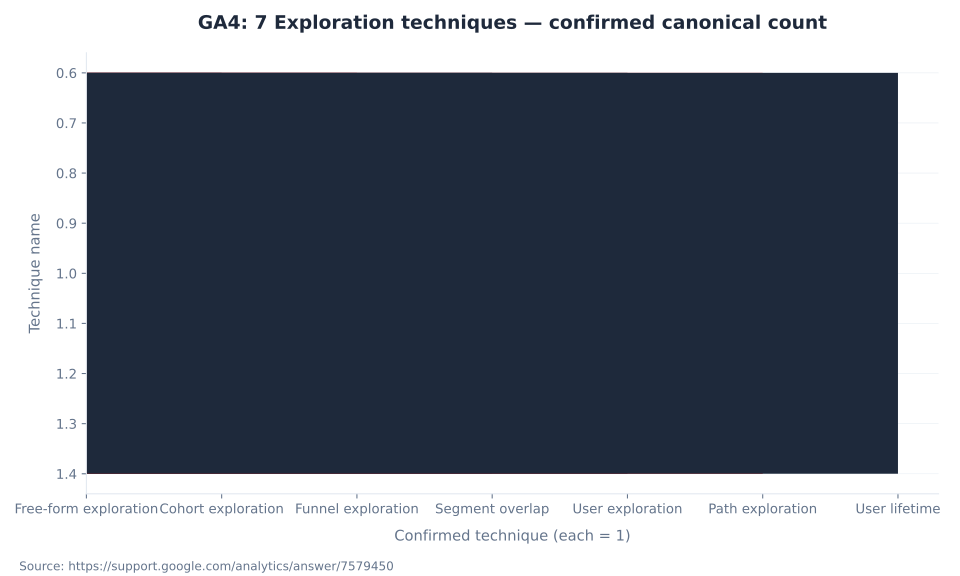
- The Explorations module contains exactly seven techniques: Free-form, Cohort, Funnel, Segment overlap, User exploration, Path exploration, and User lifetime.
- The (other) row can appear in both standard Reports and Explorations when a high-cardinality dimension exceeds the table row limit — it is not exclusive to standard Reports. Any dimension with more than 500 unique values per day is considered high cardinality.
- GA4 360 unsampled explorations use a 20,000-token daily quota per property with a 5,000-token maximum per query — the '300 tokens/day' figure in older blog posts is outdated and incorrect per current Google documentation.
- Predictive audiences require a hard eligibility gate: at least 1,000 returning users who triggered the relevant condition AND at least 1,000 who did not, in the prior 28 days over a 7-day window. If this gate is unmet, predictive audiences do not appear in the audience list.
- Exploration segments are scoped to the current exploration only and cannot be activated in ad platforms. Return to the Google Analytics 4 glossary hub for the full pillar index.
Standard Reports vs. Explorations: Data Architecture and Seven Documented Causes of Discrepancy
Standard Reports and Explorations query GA4 data in fundamentally different ways. Reports use pre-aggregated tables computed continuously — fast, property-wide, and sampling rarely applies. Explorations use raw event-level data, which unlocks segment logic and dimension combinations that Reports cannot produce, but introduces sampling above the 10-million-event-per-query threshold for standard properties.
Google documents exactly seven causes for discrepancies between the two surfaces (GA4 Data Differences Between Reports and Explorations, Google Analytics Help, 2026): (1) some dimensions/metrics available in Reports are unsupported in Explorations; (2) filtering is case-insensitive in Reports but case-sensitive in Explorations; (3) segments in Explorations exclude some metrics/dimensions that work in Report comparisons; (4) Explorations are limited by the property data retention setting (default 2 months; configurable to 14 months); (5) data thresholding applies on both surfaces when user counts are too low; (6) behavioral modeling differs when Consent Mode is active; (7) a processing-time lag affects queries within 48 hours of the current date. Before treating a discrepancy as a data quality issue, identify which of these seven causes applies.
Per-property limits also differ. Explorations are per-user by default — each analyst has their own exploration library. A property holds up to 200 individual explorations per user and 500 shared explorations, with up to 10 segments per exploration (GA4 Reporting Surfaces Comparison, Google Analytics Help, 2026). For teams needing shared, always-visible dashboards, Library-customized standard Reports are consistent and always unsampled. GSC Performance Reports and Search Analytics show the pre-click picture; GA4 Reports and Explorations show the post-click behavior — pair both surfaces for full-funnel measurement.
| Dimension | Standard Reports | Explorations |
|---|---|---|
| Data source | Pre-aggregated tables | Raw event-level data |
| Sampling | Rarely sampled for standard properties | Sampled when query exceeds 10M events (standard); up to 1B events (GA4 360) |
| (other) row | Can appear when table row limit is hit by high-cardinality dimensions | Can also appear via same row-limit mechanism — not exclusive to Reports |
| Persistence | Property-wide; visible to all users with Reports access | Per-user by default; 200 individual explorations/user; 500 shared/property |
| Segment support | Comparisons only (no sequence logic) | Full user/session/event segments with sequence logic; max 10 segments/exploration |
| Customization | Via Report Library (Editor role; changes publish property-wide) | Per exploration (individual user only) |
| Data thresholding | Applies when user count too low (privacy) | Same threshold logic applies on both surfaces |
| Best for | Recurring monitoring; shared dashboards; always-on metrics | Deep ad hoc analysis; funnel/path/cohort work; segment comparisons |
| Max historical reach | Up to 5 years | Limited by property data retention (default 2 months; configurable to 14 months) |
The Seven GA4 Exploration Techniques: Use Cases and Configuration Options
GA4's Explorations module contains exactly seven distinct techniques, each designed to answer a different analytical question. Free-form is the Swiss Army knife for ad hoc analysis. Funnel exploration diagnoses drop-off between defined steps. Path exploration maps the clickstream tree from any event forward or backward. The remaining four techniques — Cohort, Segment overlap, User lifetime, and User exploration — address retention, audience sizing, LTV, and individual-user debugging respectively.
The seven techniques are not equally applicable to every use case. Funnel explorations track progress toward key events and purchase milestones — see Conversions & Key Events in GA4 for how to configure those key events before building a funnel. Monetization reports and purchase-funnel explorations depend on correct ecommerce event implementation — see GA4 Ecommerce Tracking for the full event setup before running purchase-funnel explorations.
Free-form explorations support up to 20 dimensions per exploration and six visualization types: table, bar, scatter, line, pie, and geo. Path explorations are the only native way in the GA4 UI to perform clickstream tree analysis — a capability that does not exist in standard Reports at all. Starting from an endpoint and walking backward is the most effective use of Path exploration for diagnosing unexpected exit points (Analytics Mania: Path exploration in GA4, 2026).
| Technique | Primary question answered | Key configuration options | Best-fit scenario |
|---|---|---|---|
| Free-form | What does this dimension × metric breakdown look like? | Rows, columns, values; table / bar / scatter / line / pie / geo chart; up to 20 dimensions | Ad hoc analysis; custom pivot tables; any question not served by a default report |
| Cohort exploration | How do cohorts of users change over time? | Cohort inclusion criteria; granularity (day/week/month); metric tracked over time | Retention analysis; LTV by acquisition cohort; onboarding efficacy |
| Funnel exploration | How many users complete each step, and where do they drop off? | Up to 10 steps; open or closed funnel; elapsed time; segment comparisons | Purchase funnel; lead-gen form completion; onboarding flow analysis |
| Segment overlap | How much do two or three audience segments overlap? | Up to 3 user segments; Venn diagram output | Audience sizing; persona overlap; testing segment distinctiveness before ad activation |
| User exploration | What did a specific user do, in sequence? | Individual pseudonymous user ID; full event stream per session | QA / debug individual journeys; fraud investigation; support escalation |
| Path exploration | Where do users go before or after a specific page or event? | Start from event (forward) or end at event (backward); up to 10 steps | Clickstream discovery; unexpected exit diagnosis; UX flow analysis |
| User lifetime | What is the cumulative behavior and revenue of users over their full history? | Lifetime metrics: revenue, sessions, key events, session duration; optional cohort breakdown | E-commerce LTV; subscription churn analysis |
GA4 Sampling, Data Thresholds, and the (other) Row: What Each Is and How to Mitigate
GA4 has three separate data quality mechanisms that affect what you see in Reports and Explorations: sampling (a statistical estimation method), data thresholding (a privacy protection that withholds rows), and the (other) row (a cardinality management feature). They are distinct mechanisms with distinct triggers, distinct UI indicators, and distinct mitigation strategies. Conflating them is the most common source of misdiagnosed "data quality" issues.
Sampling and thresholding are often confused. Sampling applies when an Exploration query exceeds 10 million events for a standard property — GA4 estimates results by analyzing a representative subset of events and scaling up proportionally. The results remain in all rows; they are just scaled. Thresholding applies when user counts in a dimension row are too low to safely report without identifying an individual user — GA4 withholds that entire row entirely, not just scales it. Thresholding applies to both standard Reports and Explorations (GA4 About data thresholds, Google Analytics Help, 2026). It is triggered most often by demographic dimensions and narrow date ranges.
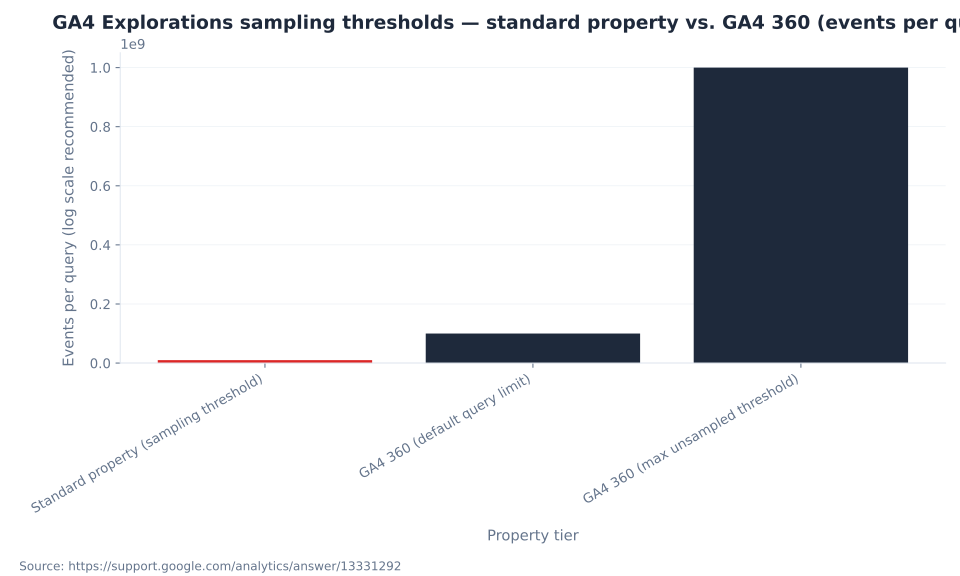
When an Exploration query crosses 10 million events for a standard GA4 property, GA4 samples the underlying data. The results are directionally accurate but not exact — conversion counts, funnel drop-off rates, and revenue figures can all be off by a meaningful margin. The yellow warning icon near the date range selector is easy to miss. Before sharing an Exploration result or making a budget decision based on funnel data, scan the canvas for the warning. Mitigation: (1) narrow the date range, (2) apply a filter to a specific source or page set, (3) cross-check a key figure against the equivalent standard Report, (4) for consistently high-volume properties, evaluate GA4 360 (queries up to 1B events; unsampled option at 20,000 tokens/day). MB Adv Agency checks this icon on every Exploration before sharing results with clients.
| Scenario | What happens | UI indicator | Mitigation |
|---|---|---|---|
| Standard Report, standard property | Pre-aggregated tables; sampling does not apply | No warning | Use standard Reports for unsampled baselines |
| Exploration, <10M events, standard property | Raw event data; no sampling | No warning | Default behavior; results are fully precise |
| Exploration, >10M events, standard property | Sampling applied; results are directionally accurate, not exact | Yellow warning icon in Explorations canvas | Narrow date range; apply source/page filter to reduce event count; cross-check totals in standard Report |
| Exploration, GA4 360 (default 100M threshold) | Higher query limit before sampling applies; can access up to 1B events per query | Yellow warning if query exceeds limit | Request higher-limit query for up to 1B events |
| Exploration, GA4 360 unsampled option | Unsampled results; 20,000 tokens/property/day, 5,000 tokens/query max, resets midnight Pacific | 'Request unsampled' option in canvas | Use unsampled option when precision is required; monitor token quota |
| Data thresholding (any surface) | Rows withheld when user count is too low — privacy protection, not sampling | 'Data thresholds applied' note on surface | Widen date range; disable Google Signals if demographic data is not needed |
| (other) row, standard Report | High-cardinality dimension hits row limit; least common values consolidated | Visible (other) row in table | Use Explorations for ad hoc row-level breakdown; reduce dimension cardinality |
| (other) row, Exploration | Same row-limit mechanism can apply for high-cardinality dimensions | Visible (other) row in Exploration table | Use BigQuery export for guaranteed full row-level access with no (other) consolidation |
The (other) row is not missing data — it is data rolled up because the table hit its row limit for a high-cardinality dimension. The (other) row can appear in both standard Reports and Explorations. A dimension with more than 500 unique values per day is high cardinality (GA4 Cardinality, Google Analytics Help, 2026). If (other) accounts for more than 5–10% of a key metric, investigate which dimension is driving cardinality. For guaranteed full row-level access with no (other) consolidation, use BigQuery export — see GA4 Integrations & BigQuery.
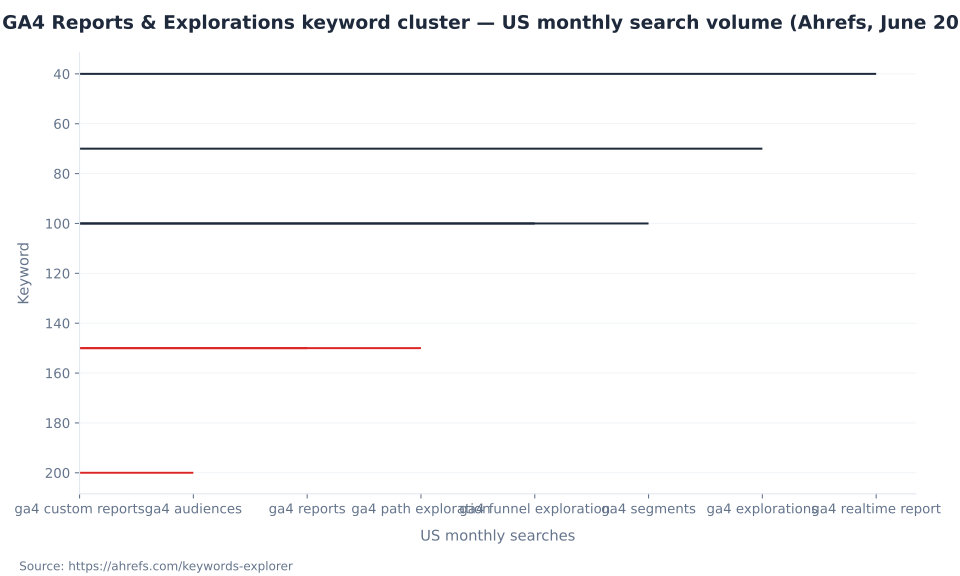
GA4 Reports & Explorations keyword cluster — US monthly search volume (Ahrefs, June 2026)
GA4 Audiences: Building Persistent Cohorts for Measurement and Ad Activation
An audience in GA4 is a persistent, property-wide cohort defined by conditions, sequences, and exclusions — and it is activated simultaneously for measurement and paid-media targeting. Audiences sync automatically to linked Google Ads, Display & Video 360, and Search Ads 360 accounts. The Audience Triggers mechanism, which fires an event when a user first enters an audience, is one of the most underused features in GA4 for tracking milestone behaviors.
Audience membership duration is configurable up to 540 days (18 months) after a user first qualifies. When "Reset on new activity" is enabled, the maximum drops to 14 months (GA4 Create, edit, and archive audiences, Google Analytics Help, 2026). This means a user who qualifies for an audience and then goes dormant stays in that audience for up to 18 months — an important consideration for remarketing list sizes and ad spend.
GA4 Suggested audiences provide pre-built templates for common audience types: Purchasers, Non-purchasers, 7-day inactive users, and others. These accelerate the setup of standard remarketing lists without requiring manual condition configuration (GA4 Suggested audiences, Google Analytics Help, 2026). Audiences built in GA4 flow directly into Google Ads campaigns — see GA4 for PPC & Lead Generation for how to activate audiences for RLSA and Performance Max targeting. MB Adv Agency uses Audience Triggers to mark milestone behaviors as key events when clients need to track actions that do not produce standard GA4 events — entering a "high-value user" audience fires an event that the standard tag cannot capture directly.
| Component | What it does | Notes |
|---|---|---|
| Conditions | Filter users by event, parameter, user property, or device/geo attribute | AND/OR logic; up to 10 conditions; 'at any point in time' option for event-based conditions |
| Sequences | Require conditions to occur in a specific order, within an optional time window | Supports 'directly followed by' or 'indirectly followed by' step logic |
| Exclusions | Remove users from an audience when a condition is met | Temporarily (for a defined period) or permanently |
| Membership duration | How long a user stays in the audience after first qualifying | Default varies by type; maximum 540 days (18 months); 14 months max when 'Reset on new activity' is enabled |
| Audience triggers | Fire an event when a user first enters (or re-enters) the audience | Triggered event can be marked as a key event / conversion |
| Suggested audiences | GA4-generated templates for common audience types | Examples: Purchasers, Non-purchasers, 7-day inactive users |
| Predictive audiences | Auto-created by ML when eligibility requirements are met | Requires ≥1,000 returning users meeting AND ≥1,000 not meeting the predictive condition in prior 28 days |
GA4 Explorations sampling thresholds — standard property vs. GA4 360 (events per query)
GA4 Predictive Audiences: ML-Driven Targeting for Google Ads
Predictive audiences in GA4 are automatically generated audience segments built on Google's ML models. Once a property meets the eligibility threshold, GA4 creates five predictive audience types without manual configuration and syncs them to linked advertising accounts. The eligibility threshold is a hard gate: at least 1,000 returning users who triggered the relevant condition AND at least 1,000 who did not, both measured within the prior 28 days over a 7-day window.
The five predictive audience types cover purchase probability (Likely 7-day purchasers), first-purchase probability, churn probability for purchasers, predicted top spenders, and app churn probability. Each uses a different underlying signal but the same 1,000/1,000 eligibility structure. For purchase-related predictions, the property must also send purchase or in_app_purchase events with value and currency parameters (GA4 Predictive metrics, Google Analytics Help, 2026). Properties that do not meet the threshold simply do not see these audiences in their audience list — there is no partial availability.
Once available, predictive audiences sync automatically to linked Google Ads accounts and update as new purchase and engagement signals arrive. MB Adv Agency connects GA4 predictive audiences to Google Ads Performance Max and RLSA campaigns for clients who have sufficient purchase event volume — the audiences provide a continuous, self-updating bid signal without requiring manual list management. See GA4 for PPC & Lead Generation for the full activation workflow.
| Predictive audience | Underlying metric | Eligibility requirement | What GA4 models |
|---|---|---|---|
| Likely 7-day purchasers | Purchase probability | ≥1,000 returning users triggered a purchase event AND ≥1,000 did NOT, in last 28 days | Probability of purchase in next 7 days |
| Likely 7-day churning purchasers | Churn probability (purchasers) | Same as purchase probability threshold | Probability a prior purchaser does not return in next 7 days |
| Likely first-time 7-day purchasers | First-purchase probability | Same as purchase probability threshold | Probability of first purchase in next 7 days |
| Predicted 28-day top spenders | Predicted revenue | Purchase events required; same 1,000/1,000 threshold | Expected revenue contribution in next 28 days |
| Likely 7-day churning users (app) | App churn probability | ≥1,000 returning users triggered user_engagement AND ≥1,000 did NOT, in last 28 days | Probability of app non-return in next 7 days |
GA4: 7 Exploration techniques — confirmed canonical count
Segments in GA4 Explorations: User, Session, and Event Scope
GA4 Explorations support three segment scopes — user, session, and event — each of which includes a different set of data when a condition is met. Choosing the wrong scope produces a valid-looking but analytically incorrect result. The most common error is applying a user segment when an event segment is needed, which inflates counts by including all of a user's behavior rather than only the specific events that match the condition.
A user segment includes all sessions and all events across the user's entire history — not just the sessions or events that triggered the qualifying condition. This is intentional and correct when the analytical question is "what does the total behavior of users who ever purchased look like?" A session segment includes all events within qualifying sessions — useful for analyzing what else happened within sessions that started from a specific source. An event segment includes only the specific events that match the criteria — correct for precise event-level counting (GA4 Segments, Google Analytics Help, 2026; Analytics Mania: GA4 Segments guide, 2026).
Segments in Explorations are distinct from Audiences. An Exploration segment exists only within the current exploration — it has no property-wide persistence and cannot be activated in ad platforms. An Audience in GA4 Admin is the persistent, activatable equivalent. For one-time diagnostic analysis, segments work well. For cohorts you need to reuse, share with teammates, or push to Google Ads, build an Audience instead. Every row in an Exploration is shaped by events — see GA4 Events & Parameters for how event parameters feed Exploration dimensions.
| Segment type | Scope | What is included when condition is met | Typical use case |
|---|---|---|---|
| User segment | All sessions and events for users who meet the criteria anywhere in their history | Entire user history across all sessions | Analyzing total behavior of a defined user type — e.g., all users who ever purchased |
| Session segment | Sessions — and all events within them — that meet the criteria | All events within qualifying sessions | Analyzing sessions that started from a specific source or contained a specific event |
| Event segment | Only the specific events that match the criteria | Only matching events; other events from the same session or user are excluded | Counting how many times a specific event fired under specific conditions |
Funnel and Path Explorations: Diagnostic Analysis for Purchase Funnels and UX Flows
Funnel exploration and Path exploration are the two highest-value Exploration techniques for diagnosing user drop-off and navigation patterns. Both are unavailable in standard Reports. Funnel exploration requires you to define the steps in advance — it answers "how many users completed each defined step?" Path exploration requires no predefined steps — it answers "where did users actually go from this event?" The right technique depends on whether you have a hypothesis or are discovering patterns.
Funnel explorations support up to 10 steps and two funnel modes: open (users can enter at any step in the sequence) and closed (users must complete steps in order). The closed funnel mode is stricter and shows lower completion numbers — it is the correct mode for measuring a purchase checkout flow where sequence matters. Funnel explorations support segment comparisons side by side, which is the most efficient way to compare the purchase funnel for new users vs. returning users, or paid traffic vs. organic (GA4 Funnel exploration, Google Analytics Help, 2026). Funnel explorations depend on key events configured correctly — see Conversions & Key Events in GA4 and GA4 Ecommerce Tracking before building a purchase funnel exploration.
Path explorations operate as clickstream trees: start from any event and visualize the next N events forward, or start from any event and walk backward to see what users did before it. This is the only native GA4 UI tool for this analysis (GA4 Path exploration, Google Analytics Help, 2026). The backward mode (ending node → earlier events) is the correct approach for diagnosing why users exit a specific page — the forward mode often produces noise because users split across many destinations. MB Adv Agency uses backward path explorations as the first diagnostic step when clients report an unexpected drop in conversions on a specific page — it reveals the event sequence that precedes the exit without requiring predefined hypotheses.
| Dimension | Funnel exploration | Path exploration |
|---|---|---|
| Core question | How many users complete each defined step, and where do they drop off? | Where do users go before or after a specific event or page? |
| Funnel type | Open (users can enter at any step) or closed (must complete steps in order) | Not applicable — clickstream tree, not a linear funnel |
| Max steps | 10 | 10 (forward or backward) |
| Direction | Always forward: step 1 → step N | Forward (from event) or backward (to event) |
| Segment comparison | Yes — compare two segments side by side | Yes — apply segment filter to restrict the tree |
| Sampling risk | Same as all Explorations: above 10M events for standard property | Same as all Explorations: above 10M events for standard property |
| Best for | Purchase funnel; lead-gen form completion; onboarding flow | UX discovery; unexpected exit investigation; clickstream pattern analysis |
Standard Reports: Default Navigation Structure and Report Library Customization
GA4's standard Reports are structured into two default collections: Life cycle (Acquisition, Engagement, Monetization, Retention) and User (Demographics, Tech). Two items always appear above the collections: the Reports snapshot (configurable overview cards) and Realtime. This default structure looks fixed, but every detail report is customizable via the Report Library (Admin > Library).
The Report Library allows users with Editor or Administrator roles to modify which metrics appear in any detail report, add secondary dimensions, change default chart types, and build entirely new detail reports from scratch. Library changes publish property-wide and persist across sessions — unlike Explorations, which are per-user. This means a standardized reporting template built once in the Library is immediately visible to every analyst on the property, with no sharing required and no risk of sampling (GA4 Report Library, Google Analytics Help, 2026). For the full GA4 architecture context, see What is Google Analytics 4. For how standard Reports relate to the broader analytics and SEO toolset, see What is Google Search Console — GSC covers pre-click data while GA4 Reports cover post-click behavior.
The metrics shown in standard Reports — engaged sessions, engagement rate, active users — are defined and explained in Engagement & User Metrics in GA4. For Core Web Vitals context alongside GA4 behavior data, GA4's CWV & Page Experience data in GSC provides the technical performance layer.
| Collection | Topic | Key reports included |
|---|---|---|
| Life cycle | Acquisition | User acquisition (first-visit source/medium); Traffic acquisition (session source/medium); Acquisition overview card |
| Life cycle | Engagement | Pages and screens; Events; Conversions; Engagement overview card |
| Life cycle | Monetization | Ecommerce purchases; In-app purchases; Publisher ads; Monetization overview card |
| Life cycle | Retention | New vs. returning users cohort chart; user lifetime value by cohort; Retention overview card |
| User | Demographics | Demographic details: age, gender, interests, location, language |
| User | Tech | Tech details: browser, OS, device category, screen resolution, app version |
| Always visible | Top of left nav | Reports snapshot (configurable overview cards); Realtime |
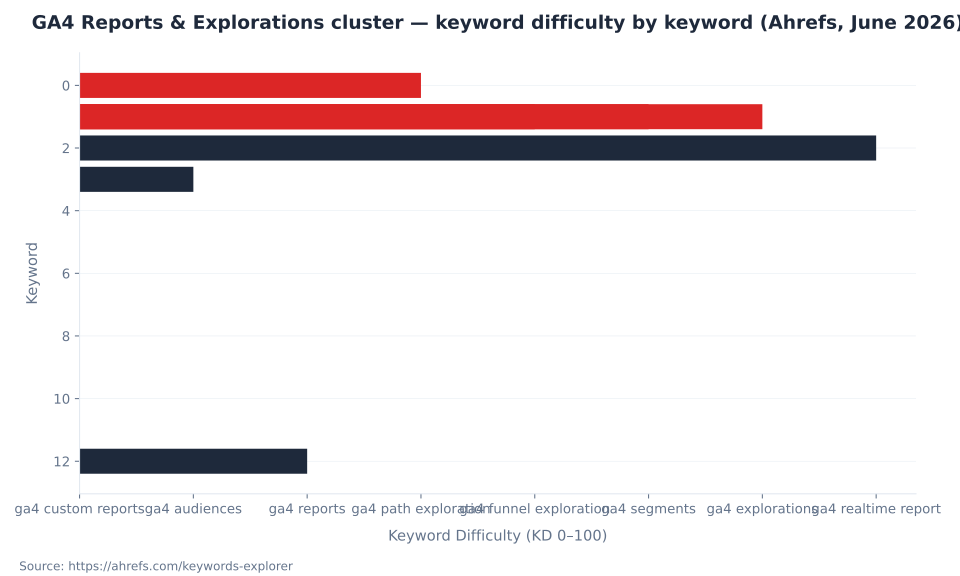
GA4 Reports & Explorations cluster — keyword difficulty by keyword (Ahrefs, June 2026)
Build a GA4 Explorations Template or Connect Audiences to Google Ads
GA4 Explorations surface the funnel data. Audiences push that data into Google Ads campaigns. MB Adv Agency handles both — from template setup to predictive audience activation.
Get in touch with MB Adv →The GA4 Realtime Report: Near-Real-Time Monitoring Within a Fixed 30-Minute Window
The GA4 Realtime report shows users who triggered any event in the last 30 minutes — not users currently active on a page. The 30-minute window is fixed and not configurable. This distinction matters because a user who loaded a page 28 minutes ago and has since closed their browser remains counted in the Realtime figure until the 30-minute window expires (GA4 Realtime report, Google Analytics Help, 2026).
Realtime surfaces active users broken down by source/medium/campaign, by page title or screen name, by event name, and by audience membership. It also displays a "last 5 minutes" active user count alongside the 30-minute figure. Realtime does not match the Active Users metric in standard Reports. Active Users in standard Reports counts users with at least one engaged session in the chosen date range. Realtime counts any user with any event in the past 30 minutes regardless of engagement status — a different metric by definition. The metrics in standard Reports are defined in Engagement & User Metrics in GA4.
The two correct use cases for Realtime are: (1) tag validation — fire a newly implemented tag and confirm the event appears in Realtime within seconds, which confirms the tag is firing and the event name is correct; (2) campaign launch monitoring — watch for early conversion signals in the first 30 minutes after a campaign send or launch. Realtime is not a substitute for standard Reports for trend analysis. The 30-minute window is a near-real-time snapshot, not a trend surface. If an apparent anomaly appears in Realtime, verify it in standard Reports over a longer date range before drawing conclusions.
The Realtime figure "X users in last 30 minutes" and the Active Users metric in standard Reports are not comparable. Active Users in Reports counts users with at least one engaged session in the date range. Realtime counts any user with any event in the past 30 minutes, regardless of engagement status. Neither figure is wrong — they measure different things. Do not use Realtime to estimate daily or weekly active user counts.
How to Build a Free-Form Exploration in GA4 (Step-by-Step)
A free-form exploration is the starting point for most ad hoc analysis in GA4. It functions as a pivot table with full control over which dimensions appear as rows and columns, which metrics appear as values, and what chart type renders the data. The six steps below take 10 minutes to complete for a new exploration — see What is Google Analytics 4 for the broader context of where Explorations fit in the property.
- Open the Explorations module. In the GA4 left navigation, click Explore. On the Explorations gallery page, click Blank to start a new free-form exploration from scratch, or select a pre-built template (GA4 Get started with Explorations, Google Analytics Help, 2026).
- Set the date range. In the Variables panel (left column), click the date range selector and choose the desired period. Shorter date ranges reduce the likelihood of triggering the 10-million-event sampling threshold. A yellow warning icon will appear in the canvas if sampling is active.
- Import dimensions and metrics. In the Variables panel, click + next to Dimensions to search and import the dimensions you need (e.g., Page path, Session source/medium, Device category). Click + next to Metrics to import the metrics (e.g., Active users, Sessions, Key events, Engagement rate). Dimensions and metrics must be imported into the Variables panel before being dragged into the canvas.
- Configure rows, columns, and values. In the Tab Settings panel (right column), drag imported dimensions into the Rows drop zone and optionally the Columns drop zone. Drag imported metrics into the Values drop zone. The canvas table updates immediately. Adjust the row count as needed (default 10; maximum 500 per tab).
- Add optional segments or filters. In the Variables panel, click + next to Segments to build or import a user, session, or event segment. Drag the segment into the Segment comparisons drop zone in Tab Settings to compare two segments side by side. Add a Filter in Tab Settings to restrict the canvas to specific dimension values without building a full segment.
- Check for sampling and share. If a yellow icon appears near the date range selector, the query is sampled — narrow the date range or cross-check a key metric in a standard Report for an unsampled baseline. To share the exploration with teammates, click the share icon in the upper-right of the Explorations canvas. Recipients receive a view-only copy; each person who needs to edit saves their own version.
Frequently Asked Questions: GA4 Reports and Explorations
If your team needs a GA4 Explorations template, a predictive audience setup for Google Ads, or a Report Library audit to standardize dashboards across multiple analysts — MB Adv Agency has the GA4 implementation experience to get it done.
Talk to MB Adv →Data and methodology: Keyword volume and difficulty data from Ahrefs, operator-supplied June 2026 (US monthly search volume). All GA4 surface descriptions, sampling thresholds, token quotas, exploration technique counts, audience membership limits, segment scope definitions, and predictive audience eligibility thresholds verified against live Google Analytics Help documentation (support.google.com/analytics), cross-checked with Analytics Mania reference guides. Corrections to the source brief are documented in the enrichment file (reports-and-explorations-enrichment.md): (other) row corrected to apply to both surfaces; GA4 360 token quota corrected to 20,000/day (5,000/query). No MB Adv client performance data is used; all numbers are third-party or Google-official. Reviewed by MB Adv Agency, June 2026.

As a Google Ads expert, I bring proven expertise in optimizing advertising campaigns to maximize ROI.
I specialize in sharing advanced strategies and targeted tips to refine Google Ads campaign management.
Committed to staying ahead of the latest trends and algorithms, I ensure that my clients receive cutting-edge solutions.
My passion for digital marketing and my ability to interpret data for strategic insights enable me to offer high-level consulting that aims to exceed expectations.
Google Partner Agency
We're a certified Google Partner Agency, which means we don’t guess — we optimize withGoogle’s full toolkit and insider support.
Your campaigns get pro-level execution, backed by real expertise (not theory).

4.9 out of 5 from 670+ reviews on Fiverr.
That’s not luck, that’s performance.
Highly recommend Matteo to set up your server side tracking. He has a deep understanding of e-commerce tracking and will go above and beyond to make sure everything is set up correctly and working 100%. If you are scaling your store this set up is non-negotiable in my opinion and there isn't many people who have this much knowledge or put the effort in to get it right. Thanks again!

avorodesign.com
I can only recommend Matteo! He was very patient, professional and very knowledgeable about GA4, Consent Mode v2, and GDPR compliance. Communication was clear, and the setup was done professionally and efficiently. Highly recommend him for anyone needing reliable tracking implementation.

www.natureiki.life
Matteo shines in the realm of online professionals. His work is not only deep in data but also complemented by his proactive communication and cooperation, setting a new standard for freelancers. If you want someone who truly exceeds expectations, look no further. Highly recommended!

www.omanbeverlysmyth.com
Exceptional Service Beyond Expectations - Outstanding Service Impeccable depth, flawless delivery, and exceptional language fluency—this service exceeded all expectations. Highly recommended. Matteo truly ROCKS!!!

ium-paris.com
Top-notch, always highly value working with Matteo. An absolute Google Ads Genius. This is approximately the 8th time I have hired him and he's helped us get 6-7 ROAS. We are excited in continuing to improve our lead flow. Hire this guy if you need Google Ads help. Thanks Matteo!

www.dleeventgroup.com
I finally found the guy who can setup server side tracking and all the ecosystem properly. I definitely recommend Matteo. He is very responsive, kind and wants to dig into things. He configured GA4, Meta, Google Ads, Outbrain and google consent v2 with Cookiebot. Thanks Matteo.

inomega.fr
MB Adv delivered exceptional work with outstanding professionalism and lots of patience, taking time to see effects of changes made and not just do the work and submit it. The proactive communication and video summaries of the work completed made working with Matteo a pleasure, as he consistently went above and beyond. Highly recommended for web analytics projects! We are already working on another project.

www.withnellsensors.co.uk
Working with Matteo on my Google Ads was a game-changer. He's not just a strategist, he's a true partner. He understood my goals and tailored a campaign that perfectly reached my target audience. I'm grateful for his expertise and dedication.

dccargo.com
Click-driven mind
with plastic-brick obsession.
We build Google Ads campaigns with the same mindset we use to build tiny brick worlds: strategy, patience, and zero tolerance for wasted pieces.
Data is our blueprint. Growth is the only acceptable outcome.