Server-Side GTM Implementation: GA4, Meta CAPI & Validation 2026
90 days
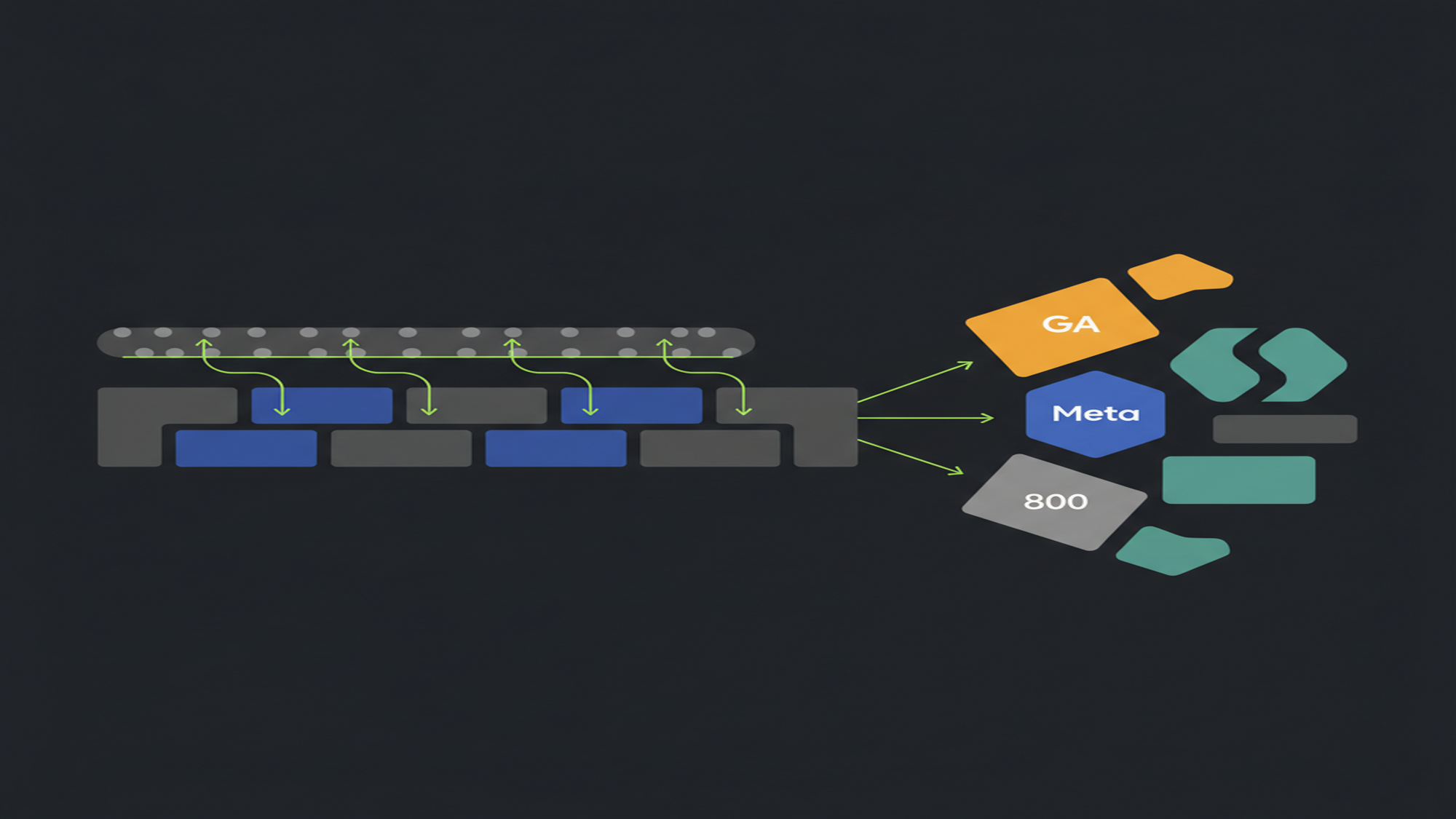
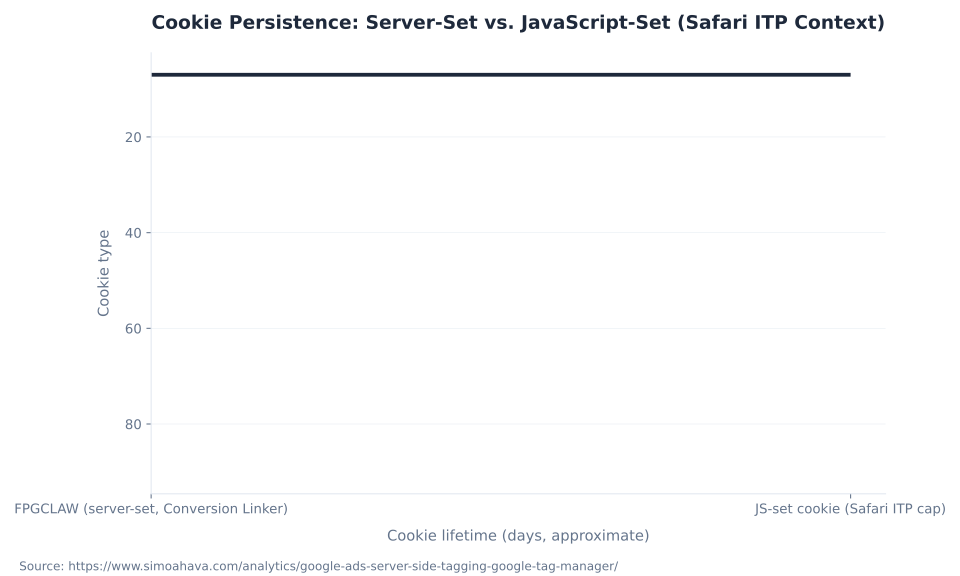
vs. 7: server-set FPGCLAW cookie lifetime versus the JavaScript-set equivalent under Safari ITP — the durability gap that makes server-side Google Ads conversion tracking worthwhile when a click ID is present.
Source: Simo Ahava · simoahava.com · Google Ads Server-Side Tagging, verified June 2026
What This Guide Covers — and What It Doesn't
This guide covers the configuration and validation layer of server-side Google Tag Manager: the server_container_url parameter that routes GA4 events through your server container, the GA4 client and GA4 server tag pair that process those events on the server side, Preview-mode validation across seven checkpoints, and third-party integrations for GA4, Meta Conversions API, Google Ads, and TikTok Events API.
For the infrastructure layer — what a server container is, provisioning on Cloud Run or a managed host like Stape, cost models, and the conceptual difference between clients, tags, and triggers in a server context — see Server-side tagging in GTM. For a decision framework on when server-side complexity is justified, see Server-side vs. client-side tagging. This guide assumes provisioning is complete and a custom subdomain is active.
This pillar absorbs three zombie pages: how to configure server-side GTM for GA4, how to validate data in a server container, and how to wire up third-party integrations. Those three topics are consolidated here into a single reference with data tables, a seven-step HowTo, and the misconfiguration patterns the shorter pages lacked.
The primary audience is the analytics engineer or senior GTM implementer who has completed provisioning and needs the configuration specifics: exactly where server_container_url goes, how the GA4 client and GA4 server tag interact, and the exact steps to confirm data flows through every link in the chain. The secondary audience is the agency analytics lead deciding which third-party platforms to extend into the server container and what each integration requires.
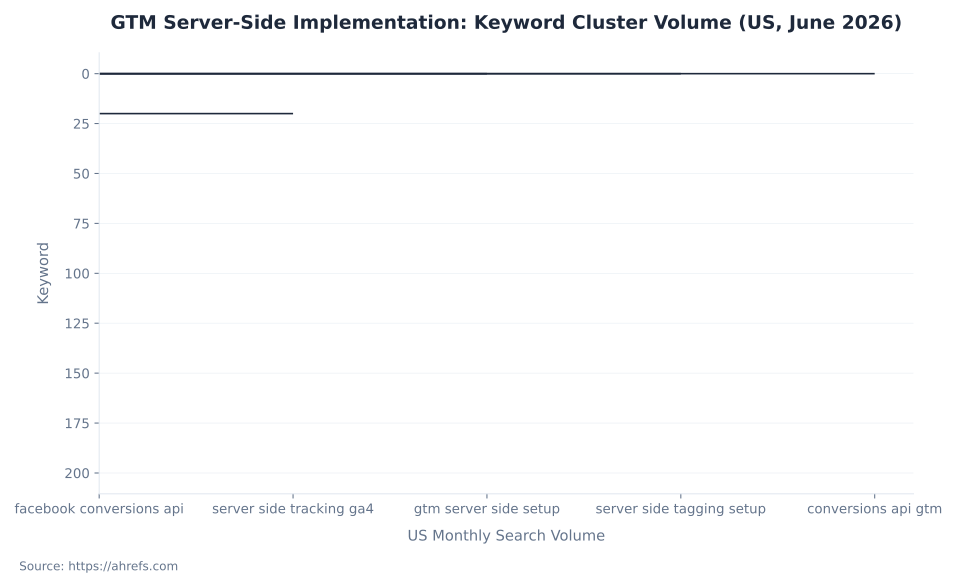
'Facebook conversions api' (200 US searches/month, KD 17 — Ahrefs, June 2026) is the head term for this cluster and the primary organic acquisition target. All other implementation keywords have near-zero US volume. This is a technically precise, low-volume niche: the audience is small, specialist, and high-intent. Browse all GTM concepts at the Google Tag Manager glossary hub.
The Four-Component GA4 Server-Side Chain
GA4 server-side routing depends on four components that operate in sequence. Skipping or misconfiguring any single component breaks the chain: events either bypass the server container entirely or reach it but never forward to GA4.
| Component | Where it lives | What it does | Configuration required |
|---|---|---|---|
| Client-side Google tag (gtag.js or GTM web container) | Browser | Fires GA4 measurement requests; routes them to your server container via server_container_url | Add server_container_url: 'https://data.yourdomain.com' to every GA4 event tag — or centralize in an Event Settings Variable |
| Server container | Your infrastructure (Cloud Run / Stape / App Engine) | Receives incoming HTTP requests at your custom subdomain; runs clients, tags, and triggers | Provisioned separately; custom domain mapped via DNS. See Server-side tagging in GTM |
| GA4 client | Server container | Identifies incoming GA4 Measurement Protocol requests on /collect, /g/collect, /j/collect; claims them; parses into the event data object | Pre-installed. Priority = 0 when only one GA4 client is present. Cookie identification: JavaScript Managed for initial setup |
| GA4 server tag | Server container | Reads the event data object; forwards events onward to Google Analytics collection endpoints | Create in server container; trigger: Client Name = GA4 (case-sensitive, exact string). Leave fields at defaults — tag inherits Measurement ID and parameters from the client |
The component separation is what makes the server container extensible. Once the GA4 client parses the incoming GA4 Measurement Protocol request into an event data object, every server tag — GA4, Meta CAPI, Google Ads, TikTok Events API — acts on that same parsed object independently. The request is parsed once; multiple tags act on the result in parallel.
Google's documentation states the relationship directly: 'GA4 clients and GA4 tags are designed to work together.' The GA4 client uses a claimRequest() mechanism — the first client matching the request wins it. With a single GA4 client, Priority = 0 is sufficient. The GA4 server tag trigger condition is Client Name equals GA4 (case-sensitive). The tag then inherits the Measurement ID and all event parameters from the client's event data object automatically — no manual field mapping is required.
The event data object is the server-side equivalent of the dataLayer: a structured, parsed representation of what the GA4 client received. See The data layer and enhanced measurement for how data flows from the browser's dataLayer into GA4 event parameters upstream of the server container.
MB Adv Agency treats the four-component model as the diagnostic framework for every server-side GTM audit. If data isn't appearing in GA4: start at the client-side tag (is server_container_url on every event tag?), then the server container (is the GA4 client claiming the request?), then the GA4 server tag (does the Tags tab in server Preview show it fired?), and finally GA4 itself (does DebugView confirm the event?).
| Keyword | US vol/mo | Global vol/mo | KD |
|---|---|---|---|
| facebook conversions api | 200 | 600 | 17 |
| server side tracking ga4 | 20 | 150 | — |
| gtm server side setup | 0 | 30 | — |
| server side tagging setup | 0 | 10 | — |
| conversions api gtm | 0 | 0 | — |
GA4 Client and GA4 Server Tag: Protocol Adapter and Forwarder
The GA4 client and GA4 server tag are separate components with separate roles and separate triggers. Understanding the split explains why adding a third-party server tag is straightforward once GA4 is working: the client does the protocol parsing once; the tags consume the result independently.
The GA4 client is a protocol adapter. It examines each incoming HTTP request's URL path — if the path matches /collect, /g/collect, or /j/collect — and if so, claims the request and parses the incoming parameters into a structured event data object: event name, page location, page referrer, custom event parameters, and full ecommerce items[] arrays. See GA4 events and parameters for how GA4 event parameters are structured upstream before they reach the server container.
The GA4 server tag is a forwarder. It reads the event data object the GA4 client produced and makes an outgoing HTTP request to Google Analytics' collection endpoints — sending the Measurement ID, event name, and all event parameters onward to GA4. It fires once per claimed event, triggered by the condition Client Name equals GA4.
A single incoming GA4 Measurement Protocol request gets parsed once by the GA4 client, and then any number of server tags can act on the resulting event data object in parallel. Meta CAPI, Google Ads Conversion Tracking, and TikTok Events API server tags each read from the same event data object without interfering with each other. The GA4 server-side event stream is also the input to BigQuery export — see GA4 integrations and BigQuery.
The server_container_url Parameter: One Wire, All Events
server_container_url is the single configuration change that routes GA4 measurement events from Google's collection servers to your server container. Its value is the full HTTPS URL of your server container's custom subdomain. It lives in the web GTM container, not in the server container.
| Item | Detail |
|---|---|
| Parameter name | server_container_url |
| Parameter value | Full HTTPS URL of your server container's custom subdomain — e.g., https://data.yourdomain.com |
| Where to set it | Web GTM: inside the Google tag (or GA4 config tag) → Configuration settings → Add parameter. Best practice: create an Event Settings Variable with this parameter and reference it in every GA4 event tag |
| What it does | Overrides GA4's default collection endpoint (https://www.google-analytics.com) and routes measurement hits to your server container instead |
| Scope | Must be present on every GA4 event tag that should route through the server container. The config tag alone is insufficient — individual event hits bypass the server container if the parameter is absent from event tags |
| Alternative parameter | transport_url — referenced in some older documentation. server_container_url is the current canonical form per developers.google.com/tag-platform (June 2026) |
| Content Security Policy | Add the server container URL to img-src, connect-src, and frame-src CSP directives. Omitting this causes silent request blocking — CORS or CSP violation messages appear in browser DevTools Console, not in GTM Preview |
Common misconception: Adding server_container_url to the GA4 config tag routes all events through the server container. This is not correct. In GTM, the config tag fires once to establish GA4 configuration; GA4 event tags fire for each individual event. If server_container_url is absent from event tags, the config hit goes to the server container — and every subsequent event (purchases, lead submissions, custom events) goes directly to Google's collection servers, bypassing the server container entirely.
The correct pattern: create an Event Settings Variable in the web GTM container, add server_container_url to it once, and reference that variable in every GA4 event tag. This gives a single source of truth — update the server container URL in one place and it propagates to all tags. Analytics Mania confirms this as the standard production pattern.
MB Adv Agency treats the Event Settings Variable approach as the minimum production configuration for server_container_url — not a best practice but a requirement. A config-tag-only deployment creates a partial server-side setup that produces measurement inconsistencies that are difficult to diagnose after production traffic is flowing.
A Content Security Policy on the website creates a secondary failure mode. GA4 measurement requests go to the server container URL — a domain the browser has not seen before. If the CSP doesn't include the server container URL in img-src, connect-src, and frame-src, the browser silently blocks the requests. The failure shows as CSP violation messages in DevTools Console, not as errors in GTM Preview.
Preview Mode Validation: Seven Checkpoints Across Three Tools
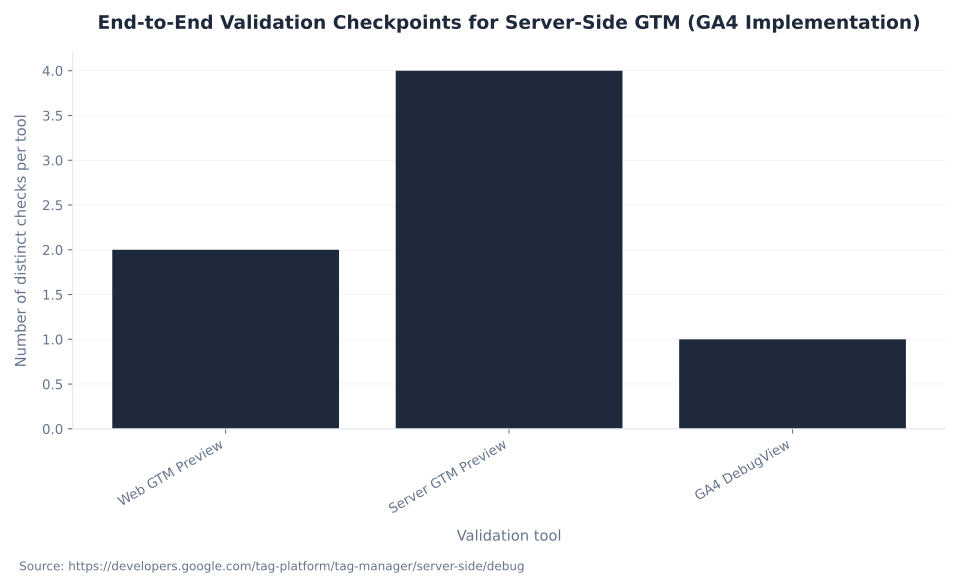
Validating a server-side GTM implementation requires coordinating three separate debuggers simultaneously. Each confirms a different link in the data chain. Running only server GTM Preview and stopping there leaves the most common failure modes undetected.
Web GTM Preview (Checkpoint 1–2): Confirm GA4 event tags fire in the browser. In the browser Network tab, filter for /collect requests — they should show your custom subdomain (data.yourdomain.com/collect), not www.google-analytics.com. If they still hit Google's domain, server_container_url is missing from those event tags.
Server GTM Preview (Checkpoints 3–6): Open the server container in Tag Manager and click Preview. In the same browser session, navigate to the page with GA4 events. The debugger has eight distinct panels (Table 3). The four critical checks: (3) incoming HTTP requests appear in the left panel; (4) the GA4 client claimed the request (Request tab → Client verification); (5) the GA4 server tag appears in the Tags tab under 'fired'; (6) the outgoing HTTP request section shows a 200 response from Google Analytics. See Google Developers debug documentation for the full panel reference.
GA4 DebugView (Checkpoint 7): Confirm events appear in Google Analytics itself, with correct event names and parameters. Activating DebugView for server-side events is not automatic — it requires an additional step covered in the next section.
| Panel / Tab | What it shows | What to look for |
|---|---|---|
| Left panel — Incoming HTTP requests | Chronological list of HTTP requests that arrived at the server container; events nested as sub-items | Verify GA4 measurement hits appear here. Missing requests indicate server_container_url is not routing to the server container |
| Request tab → Client verification | Which client claimed the incoming request | Confirm 'GA4' client is listed. If no client claimed it, check GA4 client path configuration |
| Request tab → Incoming HTTP request | Full parameters of the request as the server received it | Compare against browser Network tab. Parameter mismatch indicates data loss in transit |
| Request tab → Outgoing HTTP requests | All downstream requests sent by server tags; each shows tag name, request payload, and vendor response status | Verify GA4 server tag shows a 200 response. Check Meta CAPI or Google Ads tags for third-party debugging |
| Tags tab | Fired tags (with success/failure) and tags that didn't fire | Confirm GA4 server tag appears in the 'fired' list. A tag in 'didn't fire' indicates a trigger mismatch |
| Variables tab | All event-specific variables and their resolved values | Verify values match expected event data (e.g., event_name, page_location, currency) |
| Event Data tab | Complete event data object as parsed by the GA4 client | Server-side equivalent of the dataLayer — the source of truth for what all server tags can access |
| Console tab | Error messages from fired tags | Check for API authentication failures (invalid Pixel ID, expired access token) or endpoint errors |
Activating GA4 DebugView for Server-Side Events
GA4 DebugView behaves differently for server-side events than for client-side events. The standard GTM Preview mode activation does not always carry through. There are four methods; the correct choice depends on the environment and whether production events should be excluded from DebugView.
| Method | How it works | When to use | Caveats |
|---|---|---|---|
| GTM Preview mode (standard) | Activating GTM web container Preview automatically passes a debug signal that activates DebugView | Default first step; works for client-side GA4 tags routing through the server container | Requires GTM Preview to be active in the same browser session |
debug_mode event parameter | Add debug_mode: 1 (or true) as an event parameter on the GA4 server tag | When server-side events don't surface in DebugView despite appearing in server GTM Preview | Remove before publishing — events with this parameter appear in DebugView only, not standard reports |
| Augment Event transformation (scoped to Preview) | Add a server-side Augment Event transformation that sets x-ga-system_properties.dbg: 1 only when in Preview mode | Production-safe approach — enables DebugView only during active debug sessions | Requires familiarity with sGTM Transformations; available in server container Transformations section |
| Internal Traffic filter check | GA4's Internal Traffic data filter (Admin → Data settings → Data filters) can block DebugView for matching devices | When DebugView shows no events despite confirmed server tag firing and 200 response | Temporarily disable the Internal Traffic filter during testing; re-enable immediately after |
Common misconception: Seeing an event in server GTM Preview means GA4 received it — validation is complete. Server GTM Preview confirms the event arrived at the server container and the GA4 client claimed it. It does not confirm the GA4 server tag fired successfully, the outgoing request returned 200, or the event appeared in GA4. Full validation requires all three tools: web GTM Preview, server GTM Preview (Tags tab + Outgoing requests), and GA4 DebugView.
The internal traffic filter conflict is the most overlooked failure mode. GA4 creates a Data Filter for Internal Traffic in new properties automatically. If the filter is enabled and the testing device matches the internal traffic definition, DebugView shows no events even when the GA4 server tag is confirmed firing and returning 200. Temporarily disabling the filter during testing resolves this immediately.
The production-safe pattern is the Augment Event transformation. In the server container, create a Transformation (type: Augment Event) that adds x-ga-system_properties.dbg: 1 scoped to fire only when the container is in Preview mode. This prevents production GA4 events from routing to DebugView while allowing full event-level debugging during active sessions.
GTM Server-Side Implementation: Keyword Cluster Volume (US, June 2026)
Meta Conversions API via Server-Side GTM
'Facebook conversions api' (200 US monthly searches, KD 17) is the head term for this cluster. The Meta CAPI server tag sends a parallel conversion signal from your server directly to Meta's servers without any Facebook JavaScript running in the browser. This removes one of the heaviest third-party scripts from the browser load entirely.
Simo Ahava's documentation states it directly: 'You don't need to run any Facebook JavaScript in the web browser' when using the Meta CAPI server tag in GTM server-side. The Facebook Conversions API Tag template is available in the GTM Community Template Gallery. Required credentials: a Pixel ID and an API Access Token, both from Meta Events Manager. An optional Test Event Code enables validation without affecting live data.
The data flow from browser to Meta runs in five stages: (1) the browser fires a GA4 event and routes it via server_container_url to the server container; (2) the GA4 client claims the request and parses it into the event data object; (3) the GA4 server tag reads the event data object and forwards the event to Google Analytics; (4) simultaneously, the Meta CAPI server tag reads the same event data object; (5) the CAPI tag sends a parallel event to Meta's Conversions API endpoint — server-to-server, not browser-initiated.
The CAPI tag accepts three data categories. Standard event parameters: event_name, event_time (required in UNIX seconds), event_id, page_location, action_source. User data fields — email, phone, first/last name, city, country, ZIP, gender, date of birth — are SHA-256 hashed by the tag before transmission; pass raw values, the tag hashes them automatically. Commerce data: currency, value, transaction_id, content_ids, contents[]. For ecommerce events, the GA4 items[] array maps naturally to Meta's contents[] format — see GA4 ecommerce tracking for the upstream data structure.
Event deduplication is mandatory when running both the browser-side Facebook Pixel and the server-side CAPI tag in parallel. Meta receives the same event from two sources. The event_id parameter, identical across both sources for the same event instance, is the deduplication key. Meta's servers use it to identify and discard the duplicate signal. Generate event_id server-side or pass it as a GA4 event parameter from the dataLayer, then reference it in both the pixel and the CAPI tag configuration. See Meta for Developers — CAPI for GTM server-side for the official deduplication implementation guide.
Server Container Integration Types: Template Source by Platform (June 2026)
Google Ads Server-Side: Conversion Linker and the FPGCLAW Cookie
Server-side Google Ads conversion tracking extends the click ID's effective cookie lifetime from 7 days (JavaScript-set, under Safari ITP) to 90 days (server-set, first-party). The mechanism requires two separate server-side tags working in sequence: the Conversion Linker and the Google Ads Conversion Tracking tag.
The Conversion Linker tag has a mandatory All Pages trigger. On each incoming request, it does two things: sends a landing page beacon to Google Ads servers, and — when a gclid parameter is present in the incoming URL or existing Google Ads cookies are detected — writes the FPGCLAW cookie via a server-side Set-Cookie response header. Because this cookie is set by your server, browsers classify it as a first-party cookie. Under Safari's Intelligent Tracking Prevention, JavaScript-set cookies are capped at 7 days; server-set first-party cookies on a matching domain are not. The FPGCLAW cookie carries a 90-day expiration (Simo Ahava, Google Ads Server-Side Tagging).
When the Google Ads Conversion Tracking server tag fires and a valid click ID is available in FPGCLAW, the tag sends the conversion directly server-to-server to Google Ads, passing the Conversion ID, Conversion Label, and click ID in the gclaw parameter.
When no click ID is present in the request — for users who didn't click a Google Ad, or whose click ID expired — the Google Ads tag instructs the browser to initiate its own requests. This re-introduces the standard browser-based conversion attribution flow. This is not a misconfiguration: it reflects how Google Ads attribution currently works. The server-side path is a meaningful durability improvement for the click-ID-present case, not a complete elimination of browser-based attribution.
Configuring server-side Google Ads conversions requires: (1) add the Conversion Linker tag with an All Pages trigger; (2) create a Google Ads Conversion Tracking server tag with the Conversion ID and Conversion Label from Google Ads; (3) set the trigger to the specific GA4 key event that corresponds to the conversion action. The key events used here are defined in GA4 Admin — see GA4 conversions and key events. The FPGCLAW cookie and server-side attribution model are part of a broader measurement framework — see Google Ads conversion tracking and attribution.
End-to-End Validation Checkpoints for Server-Side GTM (GA4 Implementation)
TikTok Events API via Server-Side GTM
TikTok Events API via server-side GTM sends conversion signals server-to-server, making them unreachable by ad blockers and browser-based interception. The TikTok Events API template is available in the GTM Community Template Gallery.
Setup requires three steps: install the 'TikTok Events API' template from the Community Template Gallery; configure it with an Access Token from TikTok Events Manager; set a trigger (Client Name = GA4 or a specific event name). See TikTok for Business — Events API setup for GTM server-side for the official setup flow.
The event_id parameter for deduplication is auto-configured by TikTok's interactive setup — verify it is active before moving to production. When running both the TikTok Pixel and Events API in parallel, each event must carry a consistent event_id value in both sources for TikTok to deduplicate the duplicate signal correctly.
TikTok for Business reported that advertisers using both the TikTok Pixel and Events API together achieved a 15% improvement in CPA (TikTok for Business blog). This is TikTok's own reported figure for the combined pixel + Events API configuration — it is not an industry-independent benchmark.
User data fields (email, phone, external ID) should be SHA-256 hashed before transmission. TikTok recommends hashing; some fields are auto-hashed by the template. Commerce data fields accepted include: value, currency, content_ids, content_type, and quantity.
Third-Party Server-Side Tag Templates: Platform Reference
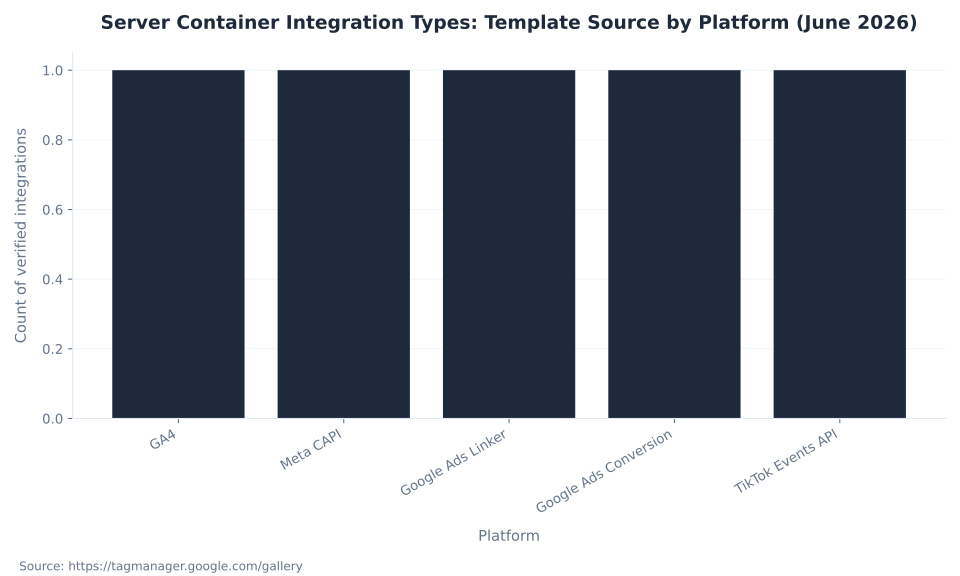
Five distinct server-side integration types are verified in a standard GTM server container setup. Three are pre-installed in every server container (GA4, Google Ads Conversion Linker, Google Ads Conversion Tracking). Two require installation from the Community Template Gallery (Meta CAPI, TikTok Events API).
| Platform | Template name | Template source | Credentials required | Deduplication needed? |
|---|---|---|---|---|
| GA4 | Google Analytics: GA4 | Pre-installed in every server container | Measurement ID (inherited from GA4 client by default) | No |
| Meta CAPI | Facebook Conversions API Tag | Community Template Gallery | Pixel ID + API Access Token (+ optional Test Event Code) | Yes — event_id must match browser pixel and CAPI for each event |
| Google Ads Conversion Linker | Conversion Linker | Pre-installed in server containers | None — reads existing gclid from incoming URL | N/A — must have All Pages trigger |
| Google Ads Conversion Tracking | Google Ads Conversion Tracking | Pre-installed in server containers | Conversion ID + Conversion Label from Google Ads | No — single source per conversion |
| TikTok Events API | TikTok Events API | Community Template Gallery | Access Token from TikTok Events Manager | Yes — event_id (auto-configured via interactive setup) |
Not all platforms have official server-side templates in the Community Template Gallery, and the Gallery's breadth is not equivalent to what is available for client-side web containers. Each integration above has a verified template source and verified credential requirements. Each carries platform-specific caveats: Meta requires explicit event deduplication when running both browser pixel and CAPI; Google Ads conversion attribution still partially depends on click ID availability; TikTok deduplication requires verification even when auto-configured.
Misconception: server-side GTM makes all third-party tags server-native automatically. Server containers have pre-installed GA4 and Google Ads clients; other platforms require additional setup. For Meta CAPI and TikTok Events API, you search the Community Template Gallery, add the template, configure credentials, and set an appropriate trigger. The Gallery is the authoritative source — check it for templates before building custom tag configurations.
Common Misconfigurations: Diagnosis and Fix
Six misconfiguration patterns account for the majority of failed or incomplete server-side GTM implementations. Four of the six are diagnosable without leaving GTM Preview. The remaining two require the browser Network tab or DevTools Console.
| Symptom | Likely cause | Diagnostic step | Fix |
|---|---|---|---|
| Events appear in web GTM Preview but not in server GTM Preview | server_container_url missing on event tags (present only on config tag) | Filter browser Network tab for /collect requests — verify they go to your subdomain, not www.google-analytics.com | Add server_container_url to every GA4 event tag, or use an Event Settings Variable |
| Events appear in server GTM Preview but not in GA4 DebugView | debug_mode signal not carried through to GA4 | Check Tags tab in server Preview — confirm GA4 tag fired and outgoing request shows 200 | Add debug_mode: 1 to GA4 server tag temporarily; check for Internal Traffic filter conflict |
| GA4 client does not claim the incoming request | Client Name trigger case mismatch, or client path misconfiguration | Server Preview → Request tab → Client verification: check which client (if any) claimed the request | Verify trigger condition is exactly GA4 (case-sensitive); confirm /collect, /g/collect, /j/collect paths are checked in client settings |
| Requests blocked by browser (400 / CORS errors in Network tab) | Content Security Policy restricting requests to server container domain | Open browser DevTools Console — look for CSP violation messages referencing your subdomain | Add server_container_url to img-src, connect-src, and frame-src in CSP headers |
| Safari cookie not extending lifetime as expected | Server container IP's first two octets don't match website server IP | Compare IPs — server container provider documentation confirms hosting region and IP range | Deploy server container in same cloud region as your website server; or accept the standard ITP 7-day limit applies |
| Events arrive at server but GA4 receives no data | GA4 server tag trigger not firing (trigger set to wrong event name or condition) | Tags tab in server Preview → confirm GA4 tag is in 'fired' list, not 'didn't fire' | Set trigger to Client Name = GA4 (fires on all GA4 client events) or verify the specific event name being tested |
The most important diagnostic tool is the browser Network tab filtered for /collect requests. A correct server-side implementation routes those requests to your custom subdomain (data.yourdomain.com/collect). Any /collect requests still going to www.google-analytics.com indicate event tags where server_container_url is absent.
The Safari ITP cookie-extension failure is the most counterintuitive. Server-set cookies on a first-party subdomain evade the 7-day cap — but only when the server container's IP address shares the first two octets with the website server's IP. Analytics Mania documents this as a known constraint: deploying the server container in the same cloud region and provider as the website server is required for cookie extension to function. When IPs don't match, Safari treats the cookie as a cross-site resource and applies the standard ITP cap.
MB Adv Agency structures server-side implementation audits against the six patterns in Table 5. The two most frequently encountered are the server_container_url omission on event tags and the GA4 server tag trigger mismatch — both are detectable within the first 10 minutes of a server GTM Preview session.
Cookie Persistence: Server-Set vs. JavaScript-Set (Safari ITP Context)
Server-side GTM implementation needs an audit or build?
MB Adv Agency validates and implements server-side GTM configurations — GA4 routing, Preview-mode audit, Meta CAPI wiring, and Google Ads server-side conversion setup.
Get an implementation audit →What Each Platform Receives: Data Fields and PII Handling
Every third-party server-side tag reads from the same event data object the GA4 client created. The differences between platforms are in which fields each tag accepts, how PII is handled before transmission, and whether deduplication is required.
| Platform | Event parameters accepted | User data accepted | Auto-hashing of PII? |
|---|---|---|---|
| GA4 (server tag) | All GA4 event parameters from the event data object (event_name, page_location, custom params, ecommerce) | user_id, user_properties | No — parameters pass through as-is; strip PII before it enters the server container |
| Meta CAPI | event_name, event_time (UNIX seconds), event_id, page_location, action_source | Email, phone, first/last name, city, country, ZIP, gender, date of birth | Yes — email, phone, and address fields are SHA-256 hashed by the tag before transmission |
| Google Ads Conversion Tracking | Conversion event name, transaction_id; value, currency (optional for dynamic conversion values) | Enhanced Conversions: email, phone, address (via user-provided data event tag) | Yes — Enhanced Conversions user data is hashed before leaving your server |
| TikTok Events API | Standard TikTok event names (ViewContent, AddToCart, Purchase, etc.); event_id for deduplication | Email, phone, external ID (hashed) | Partial — TikTok recommends SHA-256 hashing; some fields auto-hashed by the template |
PII Interception and Data Redaction in the Server Container
The server container is the correct place to intercept PII before it reaches any downstream vendor endpoint. This interception capability does not exist in a client-side-only setup, where all data goes directly from the browser to each vendor's collection endpoint.
GA4's client-side data redaction feature strips emails and credit card numbers from GA4 events in the browser — but it does not apply when data is sent to GA4 via Measurement Protocol from a server container (Analytics Mania). If an email address appears in a URL parameter or custom event parameter and reaches the server container, the GA4 server tag forwards it to GA4 unchanged. Strip or replace PII in the server container — via a Blocking Transformation — before any server tag forwards data onward.
The Meta CAPI tag and Google Ads Enhanced Conversions tag both auto-hash user data fields (email, phone, address) before transmission using SHA-256. That hashing applies only to the designated user data fields — fields explicitly configured as user data in the tag. PII placed in arbitrary custom event parameters does not get hashed by either tag. Never pass raw PII in generic custom event parameters and assume downstream tags will hash it.
For how GA4's data retention settings, consent mode signals, and data deletion requests interact with server-side collection, see GA4 data collection and privacy. Consent mode signals from the browser must be passed through and honored in server tag trigger conditions — the server container does not automatically respect browser consent state. See Consent Mode and privacy in GTM for the correct wiring pattern.
Server-side GTM does not replace Consent Mode. Consent state (granted or denied) still originates in the browser. Running a server container without consent-aware trigger conditions means conversion signals are sent to Google Ads or Meta for users who denied consent — a compliance risk, not a configuration improvement.
How to Configure GA4 Through a Server-Side GTM Container
These seven steps configure GA4 routing through a provisioned server container and validate the end-to-end data flow. Prerequisite: a server container provisioned via Cloud Run, Stape, or App Engine, with a custom subdomain active. See Server-side tagging in GTM for provisioning steps. Estimated time: 60 minutes for an implementer already familiar with GTM. Source: developers.google.com/tag-platform + Analytics Mania, verified June 2026.
Step 1: Confirm the GA4 client is configured in the server container
Open the server container in Tag Manager. Navigate to Clients. Confirm the GA4 client is present. In client settings: verify 'Default GA4 paths' is checked (activates on /collect, /g/collect, /j/collect). Set Priority to 0 when it is the only client. Set cookie identification to 'JavaScript Managed' for initial setup.
Step 2: Confirm the GA4 server tag exists with the correct trigger
In the server container, navigate to Tags. Confirm a GA4 tag exists (type: Google Analytics: GA4). Leave all fields at their defaults — the tag inherits the Measurement ID and parameters from the GA4 client automatically. Check the trigger: it must be a custom trigger firing when Client Name equals GA4 (exact string, case-sensitive). If the trigger doesn't exist, create it.
Step 3: Add server_container_url to every GA4 event tag in the web container
In web GTM, open each GA4 event tag and the Google tag (or GA4 config tag). In Configuration settings, add a new parameter: Name = server_container_url, Value = your server container's custom subdomain URL (e.g., https://data.yourdomain.com). Create an Event Settings Variable with this parameter and reference it in every GA4 tag.
Step 4: Validate in web GTM Preview
Enter GTM Preview mode in the web container. Browse to a page that fires GA4 events. In the browser Network tab, filter for /collect requests — they must go to your custom subdomain, not to www.google-analytics.com. If they still hit Google's domain, server_container_url is missing from those event tags.
Step 5: Validate in server GTM Preview
Open the server container in Tag Manager and click Preview. In the same browser session, browse to the page with GA4 events. In the server Preview left panel, verify incoming HTTP requests appear. Click one: confirm (a) the GA4 client claimed it, (b) incoming parameters match expectations, (c) the GA4 server tag appears in the Tags tab under 'fired', (d) the Outgoing HTTP requests section shows a 200 response from Google Analytics.
Step 6: Activate and validate in GA4 DebugView
In the GA4 server tag, temporarily add an event parameter: Name = debug_mode, Value = 1. Save but do not publish. Refresh in server Preview mode. Open GA4 → Admin → DebugView. Confirm events appear in the DebugView timeline with correct event names and parameters. Once validated, remove the debug_mode parameter and publish the server container.
Step 7: Publish and monitor
Publish both the web GTM container (with server_container_url on all GA4 tags) and the server container. Monitor GA4 Realtime reports and standard event reports for 24–48 hours to confirm event volumes match pre-server-side baselines. For how server-side collection affects GA4 key events and BigQuery export, confirm those reports after the monitoring window.
Frequently Asked Questions: Server-Side GTM Implementation
Ready to extend server-side GTM to GA4, Meta, and Google Ads?
Read the full Google Tag Manager overview, explore GA4 data collection and privacy, or contact MB Adv to discuss your server-side implementation.
Contact MB Adv →Methodology
This article draws exclusively from verified primary and secondary sources. Configuration mechanics (GA4 client paths, server_container_url canonical parameter name, GA4 server tag trigger condition, FPGCLAW cookie expiration, Preview mode panel reference) were verified against Google Developers server-side tagging documentation (June 2026). Event settings variable best practice and misconfiguration patterns sourced from Analytics Mania (Julius Fedorovicius). FPGCLAW cookie behavior and Meta CAPI data flow sourced from Simo Ahava's blog. TikTok 15% CPA figure attributed to TikTok for Business — not an independent benchmark. Keyword data from Ahrefs, operator-supplied June 2026. No MB Adv client metrics appear. Reviewed by MB Adv Agency, June 2026. Browse all GTM concepts at the Google Tag Manager glossary hub.

As a Google Ads expert, I bring proven expertise in optimizing advertising campaigns to maximize ROI.
I specialize in sharing advanced strategies and targeted tips to refine Google Ads campaign management.
Committed to staying ahead of the latest trends and algorithms, I ensure that my clients receive cutting-edge solutions.
My passion for digital marketing and my ability to interpret data for strategic insights enable me to offer high-level consulting that aims to exceed expectations.
Google Partner Agency
We're a certified Google Partner Agency, which means we don’t guess — we optimize withGoogle’s full toolkit and insider support.
Your campaigns get pro-level execution, backed by real expertise (not theory).

Click-driven mind
with plastic-brick obsession.
We build Google Ads campaigns with the same mindset we use to build tiny brick worlds: strategy, patience, and zero tolerance for wasted pieces.
Data is our blueprint. Growth is the only acceptable outcome.

4.9 out of 5 from 670+ reviews on Fiverr.
That’s not luck, that’s performance.
Highly recommend Matteo to set up your server side tracking. He has a deep understanding of e-commerce tracking and will go above and beyond to make sure everything is set up correctly and working 100%. If you are scaling your store this set up is non-negotiable in my opinion and there isn't many people who have this much knowledge or put the effort in to get it right. Thanks again!

avorodesign.com
I can only recommend Matteo! He was very patient, professional and very knowledgeable about GA4, Consent Mode v2, and GDPR compliance. Communication was clear, and the setup was done professionally and efficiently. Highly recommend him for anyone needing reliable tracking implementation.

www.natureiki.life
Matteo shines in the realm of online professionals. His work is not only deep in data but also complemented by his proactive communication and cooperation, setting a new standard for freelancers. If you want someone who truly exceeds expectations, look no further. Highly recommended!

www.omanbeverlysmyth.com
Exceptional Service Beyond Expectations - Outstanding Service Impeccable depth, flawless delivery, and exceptional language fluency—this service exceeded all expectations. Highly recommended. Matteo truly ROCKS!!!

ium-paris.com
Top-notch, always highly value working with Matteo. An absolute Google Ads Genius. This is approximately the 8th time I have hired him and he's helped us get 6-7 ROAS. We are excited in continuing to improve our lead flow. Hire this guy if you need Google Ads help. Thanks Matteo!

www.dleeventgroup.com
I finally found the guy who can setup server side tracking and all the ecosystem properly. I definitely recommend Matteo. He is very responsive, kind and wants to dig into things. He configured GA4, Meta, Google Ads, Outbrain and google consent v2 with Cookiebot. Thanks Matteo.

inomega.fr
MB Adv delivered exceptional work with outstanding professionalism and lots of patience, taking time to see effects of changes made and not just do the work and submit it. The proactive communication and video summaries of the work completed made working with Matteo a pleasure, as he consistently went above and beyond. Highly recommended for web analytics projects! We are already working on another project.

www.withnellsensors.co.uk
Working with Matteo on my Google Ads was a game-changer. He's not just a strategist, he's a true partner. He understood my goals and tailored a campaign that perfectly reached my target audience. I'm grateful for his expertise and dedication.

dccargo.com