What Is Google Tag Manager? Hierarchy, Container Types & Setup (2026)

36,000
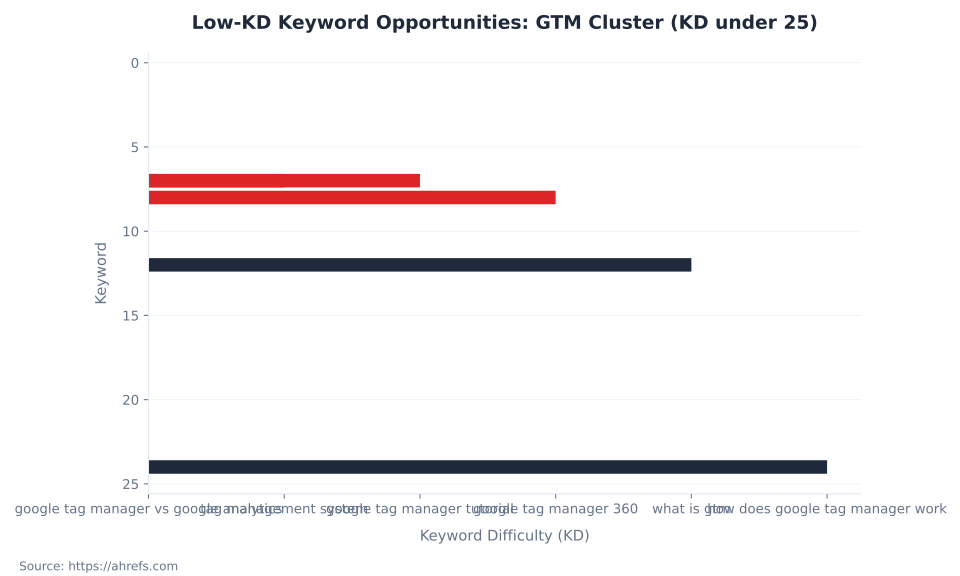
US monthly searches for “google tag manager” — KD 68, dominated by Google’s own help pages. Six terms in this cluster sit below KD 25, led by “google tag manager vs google analytics” at KD 1 and “tag management system” at KD 7.
Source: Ahrefs keyword data, June 2026
What Is Google Tag Manager?
Google Tag Manager (GTM) is a tag management system (TMS) that lets teams deploy, version, and manage marketing and analytics scripts on websites, apps, and servers without editing source code after the initial container snippet is installed. Browse the full concept reference at Google Tag Manager. GTM sits between your website and every tool that needs to run on it — measurement platforms, advertising pixels, analytics libraries — all managed through a single interface at tagmanager.google.com.
GTM is a deployment layer, not a measurement tool. Google Analytics 4 collects behavioral data. Google Ads measures conversions. The Meta Pixel attributes sessions. GTM delivers those scripts to your site. GTM’s job ends when it fires a tag. Whether that tag fires at the right moment, with the right parameters, into the right destination — that is measurement design, not tag management. The confusion between these two roles is the root cause of the most common GTM support question: “I set it up in GTM, so why isn’t my tracking working?”
GTM is a deployment layer, not a measurement tool. Installing the GTM web container snippet sends zero data to Google Analytics 4, Google Ads, or any other platform. Data flows only when a tag is created inside GTM, configured with the correct destination ID, assigned to a trigger, and published. Verify every new GTM installation with Preview mode before assuming tracking is active.
Before GTM, adding a tracking pixel required a developer to edit an HTML template, commit the change, and push a deployment — a cycle that took days or weeks per tag. With a GTM web container snippet installed once, every subsequent tag deployment — adding GA4, installing the LinkedIn Insight Tag, setting up a conversion pixel — publishes from the GTM interface with no code change and no developer sprint. The developer handoff for measurement collapses to a single installation event.
GTM’s core model has three components: tags, triggers, and variables. A tag is the script payload delivered to the browser or server — a GA4 Event tag, a Google Ads Conversion Tracking tag, a Custom HTML tag. A trigger defines when the tag fires: on a page view, a button click, a form submission, or a custom event pushed to the data layer. A variable is a reusable value — a page URL, a click class, a data layer variable — that tags and triggers reference. The full mechanics of that model are in Tags, Triggers, and Variables in GTM. This pillar covers the account structure, container types, and interface in which everything runs.
GTM handles Consent Mode natively: consent state variables inside the container control which tags fire based on user consent signals. The implementation is documented in Consent Mode and Privacy in GTM. The data layer — the JavaScript object that passes structured event data from your site into GTM tags — is covered in The Data Layer and Enhanced Measurement. For GA4 data collection rules that govern what GTM can send, see GA4 Data Collection and Privacy.
A tag management system (TMS) is software that centralizes tag deployment across a digital property without requiring source code changes per new tag. GTM is the dominant TMS by market presence: it is free, integrates natively with Google’s measurement stack, and has a template library covering the most common measurement and marketing vendors. “Tag management system” generates 1,000 global monthly searches at KD 7 (Ahrefs, June 2026) — a category-level term that describes what GTM does at the infrastructure level.
Key Takeaways
Five facts that orient every GTM implementation decision, from initial setup through ongoing governance.
- GTM is a deployment layer. Installing the snippet activates zero tracking. Tags must be created, triggered, and published inside GTM before any data flows to GA4, Google Ads, or any other destination.
- The hierarchy: Account → Container → Workspace → Version. One account per organization, one container per web property, 3 workspaces on the free tier (unlimited on GTM 360), unlimited version history. Source: Create an Account and Container — Tag Manager Help.
- Five container types exist. Web (the default for websites), Server, AMP, iOS, and Android. When a marketer says “set up GTM,” they mean the Web container.
- The Google tag is not GTM. “Google tag” is the rebranded name for gtag.js — renamed in 2023. GTM manages and deploys the Google tag. They operate at different layers of the same stack. Source: About the Google Tag.
- Running GTM and hardcoded gtag.js simultaneously for the same GA4 property causes double-counting. Migrate to one deployment method before going live. Source: GTM vs. gtag.js — Tag Manager Help.
GTM Keyword Demand: The Attainable Cluster
The “google tag manager” head term generates 36,000 US monthly searches (KD 68) and 302,000 globally. Both are dominated by Google’s own help pages and documentation hubs. The actionable cluster for this pillar is the six terms below KD 25 — where content can rank without competing directly against Google’s official properties. Source: Ahrefs, June 2026.
| Keyword | US vol/mo | Global vol/mo | KD |
|---|---|---|---|
| google tag manager | 36,000 | 302,000 | 68 |
| gtm | 12,000 | 165,000 | 64 |
| what is gtm | 2,900 | 6,700 | 12 |
| what is google tag manager | 1,500 | 3,900 | 62 |
| gtm container | 900 | 1,700 | 52 |
| tag management system | 350 | 1,000 | 7 |
| google tag manager vs google analytics | 350 | 900 | 1 |
| how does google tag manager work | 200 | 300 | 24 |
| google tag manager tutorial | 150 | 900 | 7 |
| google tag manager 360 | 60 | 100 | 8 |
KD 1 for “google tag manager vs google analytics” is the clearest signal in this cluster — 350 monthly US searches from readers actively confused about the distinction between a deployment layer and a measurement tool. That question is not a content strategy choice; answering it directly and early is the primary job of this pillar. The Google Analytics 4 glossary hub provides the GA4-side coverage this pillar cross-references.
GTM vs. Hardcoded gtag.js: When to Use Each
gtag.js is a JavaScript library hosted by Google that implements the Google tag — it sends measurement events to GA4, Google Ads, and Campaign Manager 360. GTM manages, versions, and deploys tags including gtag.js. The two operate at different layers of the same measurement stack and the choice between them determines the ongoing operational model for every tag change. Source: Set Up the Google Tag with gtag.js.
| Factor | Hardcoded gtag.js | Google Tag Manager |
|---|---|---|
| Deployment method | JS snippet added directly to page <head> by a developer | Single GTM snippet installed once; all subsequent tag changes via the GTM UI |
| Tag changes | Every tag change requires a code edit + deployment | Tag changes, new tags, and trigger edits publish without touching site code |
| Non-Google vendor tags | Not supported — gtag.js is Google-only | Supported — Meta Pixel, LinkedIn Insight Tag, Hotjar, Intercom, and hundreds more via templates |
| Version control / rollback | No built-in versioning — relies on the site’s git history | Built-in versioning; any previous container state republishable in seconds |
| Team governance | Code access required for any change | UI access only; role-based permissions (Viewer, Editor, Approver, Publisher, Admin) |
| Preview and debugging | No preview mode — changes go live when deployed | Preview mode tests tag changes before publishing. See Debugging, Testing, and Performance in GTM. |
| Server-side tagging | Not applicable — gtag.js is client-side only | Server container type available. See Server-Side Tagging in GTM. |
| When gtag.js alone is sufficient | Simple single-property GA4 setup, no third-party tags, no non-developer team members managing tags | — |
| When GTM is the right call | — | Multiple tags from multiple vendors; non-developer team managing measurement; version control required; conversion tracking at scale |
Double-counting warning. Running a GTM GA4 tag and a hardcoded gtag.js snippet simultaneously for the same GA4 Measurement ID causes double-counting — every pageview and event registers twice. The standard migration path: remove the hardcoded gtag.js snippet after the GTM GA4 tag is tested in Preview mode and published. The parallel-snippet issue — a legacy snippet left running after a GTM migration — is the single most common source of inflated session counts MB Adv Agency encounters during GA4 property audits.
For teams managing conversion tracking across multiple Google products alongside third-party measurement vendors, GTM is not optional — it is the only practical way to maintain tag governance without constant developer involvement. Source: GTAG vs. Google Tag Manager — Analytics Mania.
The GTM Account Hierarchy: Account → Container → Workspace → Version
GTM organizes everything inside a four-level hierarchy. Getting this structure right before implementation prevents the governance problems — “someone overwrote my changes,” “which version is live?” — that appear in every under-structured container. Source: Create an Account and Container; Workspaces — Tag Manager Help; Google Tag Manager Limits — Analytics Mania.
| Level | What it is | Key limits (free / 360) | Notes |
|---|---|---|---|
| Account | Top-level organizational unit, typically one per company or client | Up to 400 accounts per Google account | Billing, permissions, and notification settings are account-level. One account per organization is standard. |
| Container | A deployment unit scoped to a platform (web, server, AMP, iOS, Android). Holds all tags, triggers, and variables for that platform. | Up to 500 containers per GTM account; max size 200 KB | Container ID format: GTM-XXXXXXXX. One container per web property is the norm. |
| Workspace | A draft editing environment inside a container. Isolates in-progress changes from other team members’ work. | 3 workspaces (free — Default + 2 custom) / Unlimited (360) | Changes in one workspace do not affect others. Publishing removes the workspace; Default is recreated automatically. |
| Version | An immutable snapshot created each time a workspace is published | Unlimited version history | Versions are numbered sequentially. Rolling back means selecting a previous version and publishing it. Each version records who published, when, and workspace notes. |
| Environment | A publication target (Live, Staging, Development, or custom) | Free: Live + 2 custom / 360: additional environments | Lets teams publish the same container to different URLs (e.g., staging vs. production) without separate containers. |
The workspace model is GTM’s answer to concurrent team edits. The free tier’s 3 workspaces — Default plus two custom — cover most agency and in-house team structures when workflows are staged sequentially. MB Adv Agency’s experience with multi-team GTM containers shows that the workspace limit becomes a real constraint when three or more workstreams (in-house analytics, agency, and a third-party measurement vendor) need to operate concurrently in the same container without blocking each other. That is the primary organizational signal to evaluate GTM 360, not a performance requirement.
The server container type introduces a separate architecture from the web container — it runs in a cloud environment rather than in the user’s browser. The full treatment of that model is in Server-Side Tagging in GTM.
Five Container Types: What Each Is and Who Uses It
GTM has five container types, each scoped to a specific platform. When a marketer says “set up GTM,” they mean a Web container — the container type that manages JavaScript tags on a standard website. The other four serve specific technical or platform requirements and require separate setup from the web container. Source: Container Types — Tag Manager Help.
| Container type | Platform | Who uses it | What it does | Key constraint |
|---|---|---|---|---|
| Web | Standard websites and web apps | Marketing teams, analysts, agencies — the default for any website | Manages JavaScript-based tags in the browser. Loaded via the two-part GTM snippet (<script> head + <noscript> body). Full access to the DOM, cookies, and browser events. | Client-side: tags fire in the user’s browser. Subject to ad blockers and ITP/browser tracking restrictions. |
| Server | Cloud-hosted server environment (not a browser) | Organizations moving away from client-side for privacy, performance, or data quality reasons | Runs a tagging server that receives requests from the browser and forwards them to measurement endpoints. Does not fire JS in the user’s browser. | Requires a hosted server environment and additional infrastructure cost. See Server-Side Tagging in GTM. |
| AMP | Accelerated Mobile Pages | Publishers running AMP versions of articles | AMP strips most JavaScript, so the Web container cannot run. The AMP container uses AMP-specific tag templates that comply with AMP’s restrictions. | Limited tag template library — not all vendors support AMP templates. |
| iOS | iOS apps (via Firebase SDK) | Mobile app developers and analysts | Manages tags and configuration for iOS app measurement. Works with Firebase SDK and Firebase Remote Config for dynamic configuration. | Requires Firebase integration. |
| Android | Android apps (via Firebase SDK) | Mobile app developers and analysts | Same as iOS container, on Android. Firebase-based. Choose the standard “Android” type, not the legacy type, for forward compatibility. | Same Firebase dependency as iOS. |
The five types are not interchangeable. A Web container cannot run on AMP pages — AMP’s JavaScript restrictions block the standard GTM snippet. A Server container runs in a cloud environment rather than the user’s browser; the data flow architecture is different from client-side and warrants separate planning. Mobile app measurement via the iOS and Android containers depends on the Firebase SDK, not the web snippet — a different implementation path from web analytics. Understanding the full menu of container types clarifies the scope of what GTM manages at scale; The Data Layer and Enhanced Measurement covers how structured data passes into any container type from the site or app layer.
Google Tag Manager: Keyword Cluster US Search Volume (June 2026)

The GTM Interface: Nine Sections and What Each Does
The GTM container interface has nine named sections across the workspace and top navigation. Three sections — Tags, Triggers, and Variables — are the core implementation areas where tags are built and configured. The remaining six sections handle organization, governance, and container management. Source: Organize Your Containers — Tag Manager Help.
| Interface section | Location | What it contains | Primary user action |
|---|---|---|---|
| Overview | Workspace → Overview | Summary of recent workspace changes, unpublished modifications, quick links to Tags/Triggers/Variables | Review pending changes before publishing |
| Tags | Workspace → Tags | All tags in the current workspace. Each tag has a type (GA4 Event, Google Ads Conversion, Custom HTML, etc.), a trigger assignment, and firing options. | Create, edit, enable/disable tags |
| Triggers | Workspace → Triggers | All triggers. Each trigger defines when a tag fires: Page View, Click, Custom Event, Form Submission, etc. | Create conditions that determine tag firing |
| Variables | Workspace → Variables | Built-in variables (page URL, click element, form ID) and user-defined variables (Data Layer Variable, JavaScript Variable, Lookup Table, etc.) | Create reusable values that tags and triggers reference |
| Folders | Workspace → Folders | Organizational groupings for tags, triggers, and variables | Sort and label container contents (no functional effect on firing) |
| Templates | Workspace → Templates | Custom tag and variable templates, including those imported from the Community Template Gallery | Import third-party templates; create custom templates via the Template Editor |
| Versions | Top nav → Versions | Numbered history of all published container snapshots | Review, compare, or publish a previous version (rollback) |
| Admin | Top nav → Admin | Account settings, container settings, user permissions, environments, and the GTM install snippet | Manage access, install the container snippet, configure environments |
| Workspaces | Top nav → Workspaces | All active workspaces and their modification status | Switch between workspaces, create new workspaces, view who is editing what |
The Versions section is the rollback mechanism — selecting any previous version and publishing it restores the container to that exact state. The Admin section holds the container snippet code, which is the only place the GTM-XXXXXXXX container ID appears in the interface after initial setup. Preview mode — accessed via the debug icon in the workspace top bar — opens the full debugging workflow documented in Debugging, Testing, and Performance in GTM.
GTM Account Hierarchy: Key Numeric Limits per Level (Free Tier)

The Web Container Snippet: Two Parts, One Installation
The GTM web container snippet has two parts: a <script> block placed as high as possible in the <head> element, and a <noscript> fallback placed immediately after the opening <body> tag. Both must appear on every page the container manages. The container ID — formatted as GTM-XXXXXXXX — appears in both parts and identifies which container to serve from Google’s CDN. Source: Install a Web Container — Tag Manager Help.
| Snippet part | Where it goes | What it does | What happens if omitted |
|---|---|---|---|
| <script> (head portion) | As high as possible inside the <head> element — below any dataLayer declarations, otherwise as early as possible | Asynchronously loads the GTM container JavaScript from Google’s CDN (https://www.googletagmanager.com/gtm.js). Initializes the dataLayer array. Fires Page View and any triggers configured on container load. | Tags configured to fire on Page View or container load do not fire. This is the functional snippet — omitting it breaks all tags. |
| <noscript> (body fallback) | Immediately after the opening <body> tag on every page | Provides an <iframe> fallback for browsers with JavaScript disabled. Enables basic measurement for users with JS disabled. | Affects only users with JavaScript disabled. Omitting it has negligible practical impact for most implementations but is included as best practice. |
The container ID (GTM-XXXXXXXX) is visible in the page source to anyone who inspects it — it is not a secret credential. The head snippet is the only functionally required part; removing it disables all tag firing. CMS platforms including WordPress, Shopify, and Wix have native GTM integration fields or plugins that handle both snippet parts without direct template editing.
GTM Free vs. GTM 360: Workspace Limit Comparison
The Google Tag, gtag.js, and GTM: Three Distinct Layers
Three terms — Google tag, gtag.js, and Google Tag Manager — appear in Google’s documentation in ways that overlap without being equivalent. The 2023 rename of “global site tag (gtag.js)” to “Google tag” added another layer of naming confusion. The table below maps each concept to its function and its relationship to GTM. Source: About the Google Tag — Tag Manager Help.
| Concept | What it is | What it does | How it relates to GTM |
|---|---|---|---|
| gtag.js | A JavaScript library hosted by Google | Sends measurement events to Google’s collection endpoints (GA4, Google Ads, Campaign Manager 360). Powers the GA4 events and parameters taxonomy. | Loaded by GTM via the GA4 tag template, or deployed directly on the page as a hardcoded snippet. GTM replaces the need to hardcode gtag.js. |
| Google tag | The rebranded name for the former “global site tag (gtag.js)” — renamed by Google in 2023. All existing global site tags were automatically converted with no implementation change required. | A unified tag connected to multiple Google measurement destinations using a single tag ID. Was previously called the GA4 “Configuration tag” inside GTM before the 2023 rename. | Inside GTM, appears as the “Google tag” template. Configure through Google Ads conversion tracking where conversion measurement is the primary goal. |
| Google Tag Manager | A tag management system (TMS) | Manages, versions, and deploys tags — including the Google tag — on web, server, AMP, and mobile app platforms. Does not collect data itself. | GTM is the deployment layer. Tags are the payloads it delivers. If you use GTM, configure GA4 measurement through a GA4 tag in GTM, not through a separately hardcoded Google tag. |
| Connected site tag | A GTM feature that links a Google product (GA4, Google Ads) to your GTM container | Lets Google products send data through the GTM container without a dedicated GTM tag for that product. | Useful when GA4 is configured directly in the Google Analytics interface but GTM mediation for performance or consent reasons is still wanted. |
2023 rename callout. The GA4 “Configuration tag” inside GTM was renamed “Google tag” as part of the 2023 global site tag rebrand. Both refer to the same underlying gtag.js library. If your container still shows “Configuration tag,” it functions identically — the rename was a label change only. Source: support.google.com/tagmanager/answer/11994839.
GTM Free vs. GTM 360: When to Evaluate the Upgrade
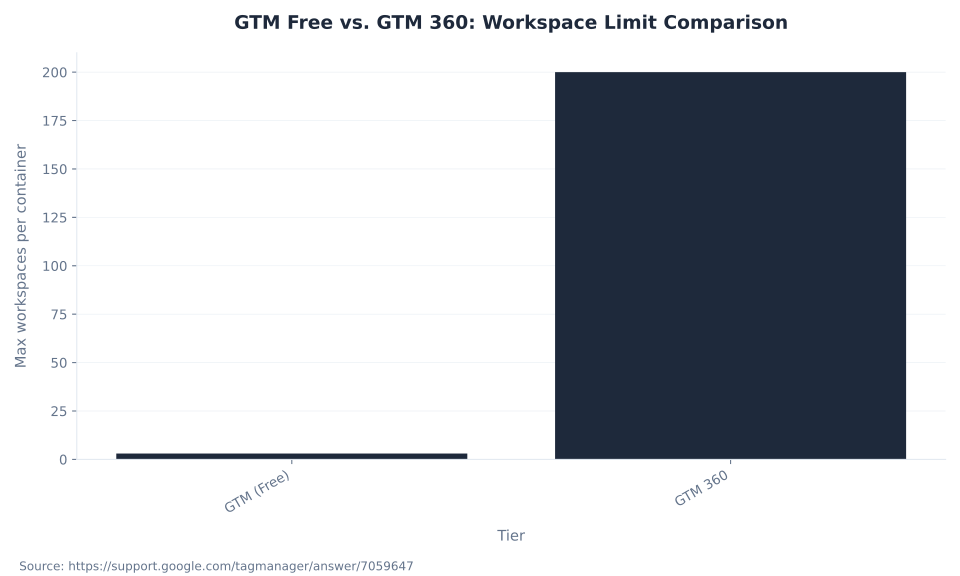
GTM 360 is a governance and SLA upgrade, not a performance upgrade. The container size cap (200 KB) and account/container counts are identical across tiers. The workspace limit — 3 on the free tier vs. unlimited on 360 — is the primary functional difference for most organizations. Source: About Google Tag Manager 360.
| Feature / Limit | GTM (Free) | GTM 360 |
|---|---|---|
| Workspaces per container | 3 (Default + 2 custom) | Unlimited |
| Approval workflow | Not available | Available — changes require sign-off before publishing |
| SLA | No SLA | SLA covering container serving and configuration interface availability |
| Support | Community forums | Dedicated support specialists |
| Container size limit | 200 KB | 200 KB (same) |
| Accounts per Google account | Up to 400 | Up to 400 (same) |
| Containers per GTM account | Up to 500 | Up to 500 (same) |
| Who it is for | Most mid-market implementations, agencies, in-house teams | Enterprise teams with governance requirements, multiple concurrent workflows, SLA dependency |
GTM 360 is purchased as part of the Google Marketing Platform enterprise tier; pricing is negotiated with Google’s sales team and is not publicly documented. The main trigger to evaluate 360: three or more teams (in-house + agency + analytics vendor) need to work concurrently in the same container, and a formal approval gate before any publish is a governance requirement. Most mid-market advertisers and agencies operate within the free-tier limits with workflow discipline — staging changes sequentially across the Default workspace and two custom workspaces. The 3-workspace limit is a workflow constraint, not a technical ceiling on what GTM can do.
The Community Template Gallery: What Google Guarantees and What It Does Not
The Community Template Gallery is a library of tag and variable templates browsable at tagmanager.google.com/gallery and directly within the GTM interface. Templates in the gallery are created by third-party developers. Google reviews them for basic safety requirements before listing — but explicitly “makes no promises or commitments about the performance, quality, or content of the templates provided by third parties.” Source: Community Template Gallery — Tag Manager Help.
| Attribute | Detail |
|---|---|
| Who creates templates | Third-party developers — not Google |
| Google’s role | Reviews templates for basic safety requirements before listing. Google “makes no promises or commitments about the performance, quality, or content of the templates provided by third parties.” (Direct quote from help page.) |
| Permission model | Each template requests specific permissions from the user — read DOM elements, write cookies, access network, fire pixels. GTM sandboxes template code to limit what it can access on the page. |
| Where to browse | tagmanager.google.com/gallery |
| Evaluation standard | Any template requesting broad permissions (reading DOM elements across the site, writing cookies, firing pixels to external endpoints) warrants review before being added to a production container. |
The permission model is how GTM sandboxes template code: each template requests a defined set of permissions (read DOM, write cookie, access network endpoint), and the user must review and accept those permissions before the template is added to the container. A template requesting broad network or cookie permissions without a clear use case for them signals a template to evaluate carefully. The consent implications of any third-party template that fires pixels or writes cookies should be reviewed against your Consent Mode configuration before deployment.
Low-KD Keyword Opportunities: GTM Cluster (KD under 25)
Need a GTM audit before a campaign launch?
MB Adv Agency audits GTM containers for broken tags, double-counting, missing triggers, and consent gaps — before a mis-fired tag costs you conversion data.
Contact MB Adv →How to Set Up a GTM Web Container: 7 Steps
Setting up a GTM web container takes 30 minutes for the initial account and container creation, snippet installation, and verification. Tag implementation is separate from setup. Sources: Create an Account and Container; Install a Web Container — verified June 2026.
Step 1: Sign in to Google Tag Manager. Go to tagmanager.google.com. Sign in with the Google account that will own the GTM account. If your organization uses Google Workspace, use the Workspace account associated with the client or property being instrumented.
Step 2: Create a GTM account. Click “Create account.” Enter an account name — typically your company or client name. Select your country. One account per organization is the standard structure. Avoid creating separate accounts per site; use containers within one account instead.
Step 3: Create a web container. Within the account setup flow, create a container. Enter a container name (typically the domain, e.g., example.com). Under “Target platform,” select Web. Click Create and accept the Terms of Service. The container ID (GTM-XXXXXXXX) appears immediately after creation.
Step 4: Copy the container snippet. GTM displays both snippet parts immediately after container creation. Copy both. The first (<script> block) goes as high as possible in the <head> element. The second (<noscript> block) goes immediately after the opening <body> tag. Both parts must appear on every page the container manages.
Step 5: Install the snippet on your website. Have a developer paste both snippet parts into the site’s HTML template. WordPress, Shopify, Wix, and most major CMS platforms have GTM integration plugins or native fields that handle the installation without template editing. Verify the container ID (GTM-XXXXXXXX) appears correctly in both parts.
Step 6: Verify installation with Preview mode. In the GTM interface, click Preview (the debug icon in the workspace top bar). Enter your website URL. GTM opens your site in a new tab with the Tag Assistant debugging panel. A correct installation shows “Tag Assistant Connected” and a “Container Loaded” event in the activity feed. If the container is not loading, check that both snippet parts are on the page and that no Content Security Policy (CSP) is blocking GTM’s CDN domain. The full debugging workflow is documented in Debugging, Testing, and Performance in GTM.
Step 7: Confirm with Google Tag Assistant (optional). The Tag Assistant Chrome extension (available at tagassistant.google.com) independently confirms that the GTM container is loading and shows which tags are firing on each page interaction. Use it as a second verification layer, especially on sites with complex CSP configurations or server-side rendering that interferes with standard snippet detection. Page load performance implications of the GTM snippet are reviewed in Core Web Vitals and Page Experience.
Four Misconceptions That Cause Real Tracking Gaps
These four misconceptions are the direct cause of the most common GTM implementation failures — each produces a gap between the tracking you believe is running and the data that is actually collected.
Misconception 1: GTM and Google Analytics are the same thing — installing GTM means analytics are set up.
Google Analytics 4 is a data collection and analysis platform. GTM is a tag management system — a deployment layer. Installing the GTM web container snippet installs the container loader only: a small JavaScript file that knows to look for published tags. Zero GA4 data flows until a GA4 tag is created inside GTM, configured with the correct Measurement ID, assigned to a trigger, and published. A site with only the GTM snippet installed sends no data to GA4. MB Adv Agency finds that this misconception is the most common reason new clients believe their analytics are running when they are not — the GTM snippet goes in during the site build, a GA4 tag is never created, and months of traffic go unmeasured. Source: GTM vs. gtag.js — Tag Manager Help.
Installing the GTM container snippet ≠ active analytics tracking. Tags must be created, configured, triggered, and published inside GTM before any data flows. Verify with Preview mode on every new implementation.
Misconception 2: Running GTM and hardcoded gtag.js at the same time for GA4 is fine.
Running both simultaneously for the same GA4 Measurement ID causes double-counting — every pageview and event registers twice in GA4. The scenario appears most often during a GTM migration that never fully completed: the GTM GA4 tag was deployed, but the legacy hardcoded gtag.js snippet was never removed from the HTML template. The fix is to choose one deployment method per measurement destination and remove the other. The standard path: remove the hardcoded gtag.js snippet after the GTM GA4 tag is tested in Preview mode and published. For GA4 data collection rules that govern what can be collected through either method, see GA4 Data Collection and Privacy. Source: GTM vs. gtag.js — Tag Manager Help.
Misconception 3: Publishing in GTM is instant and immediate for all users.
Publishing in GTM creates a new container version and propagates it to Google’s CDN. Propagation is not instantaneous — Google’s documentation notes changes take a few minutes to appear globally. More practically: GTM uses browser caching, so a user whose browser has already cached the previous container version continues running the old tags until the cache expires. This is why Preview mode exists — it forces the browser to load the unpublished workspace state, bypassing the cached published version. Testing in Preview mode before publishing is the standard workflow because published changes do not instantly reach all users. Source: Previewing and Debugging — Tag Manager Help.
Misconception 4: Community Template Gallery templates are official Google-certified integrations.
Templates in the Community Template Gallery are created and maintained by third-party developers, not by Google. Google reviews them for basic safety requirements before listing but “makes no promises or commitments about the performance, quality, or content of the templates provided by third parties” — a direct quote from Google’s own help page. Each template requests specific permissions: read DOM elements, write cookies, access network, fire pixels. A template with broad permissions should be evaluated before being added to a production container. Source: Community Template Gallery — Tag Manager Help.
Frequently Asked Questions
Answers to the questions that produce the most GTM implementation errors — and the most AI Overview citations.
Browse the complete GTM concept reference and all sibling pillars in this cluster.
Google Tag Manager Glossary →Methodology
This pillar draws on two absorbed zombie URLs (0 clicks, 3 impressions combined over 90 days, 2026-03-06–2026-06-04) and is a greenfield build on the /google-tag-manager/ prefix. Keyword data: Ahrefs, operator-supplied June 2026. All structural definitions, limits, and interface descriptions are sourced from Google Tag Manager Help pages and Google for Developers documentation, verified June 2026: support.google.com/tagmanager; developers.google.com/tag-platform/tag-manager. Supplementary limit verification: Analytics Mania — GTM Limits. No mbadv client metrics appear; MB Adv attributions are qualitative observations from agency practice. Reviewed by MB Adv Agency, June 2026.

As a Google Ads expert, I bring proven expertise in optimizing advertising campaigns to maximize ROI.
I specialize in sharing advanced strategies and targeted tips to refine Google Ads campaign management.
Committed to staying ahead of the latest trends and algorithms, I ensure that my clients receive cutting-edge solutions.
My passion for digital marketing and my ability to interpret data for strategic insights enable me to offer high-level consulting that aims to exceed expectations.
Google Partner Agency
We're a certified Google Partner Agency, which means we don’t guess — we optimize withGoogle’s full toolkit and insider support.
Your campaigns get pro-level execution, backed by real expertise (not theory).

Click-driven mind
with plastic-brick obsession.
We build Google Ads campaigns with the same mindset we use to build tiny brick worlds: strategy, patience, and zero tolerance for wasted pieces.
Data is our blueprint. Growth is the only acceptable outcome.

4.9 out of 5 from 670+ reviews on Fiverr.
That’s not luck, that’s performance.
Highly recommend Matteo to set up your server side tracking. He has a deep understanding of e-commerce tracking and will go above and beyond to make sure everything is set up correctly and working 100%. If you are scaling your store this set up is non-negotiable in my opinion and there isn't many people who have this much knowledge or put the effort in to get it right. Thanks again!

avorodesign.com
I can only recommend Matteo! He was very patient, professional and very knowledgeable about GA4, Consent Mode v2, and GDPR compliance. Communication was clear, and the setup was done professionally and efficiently. Highly recommend him for anyone needing reliable tracking implementation.

www.natureiki.life
Matteo shines in the realm of online professionals. His work is not only deep in data but also complemented by his proactive communication and cooperation, setting a new standard for freelancers. If you want someone who truly exceeds expectations, look no further. Highly recommended!

www.omanbeverlysmyth.com
Exceptional Service Beyond Expectations - Outstanding Service Impeccable depth, flawless delivery, and exceptional language fluency—this service exceeded all expectations. Highly recommended. Matteo truly ROCKS!!!

ium-paris.com
Top-notch, always highly value working with Matteo. An absolute Google Ads Genius. This is approximately the 8th time I have hired him and he's helped us get 6-7 ROAS. We are excited in continuing to improve our lead flow. Hire this guy if you need Google Ads help. Thanks Matteo!

www.dleeventgroup.com
I finally found the guy who can setup server side tracking and all the ecosystem properly. I definitely recommend Matteo. He is very responsive, kind and wants to dig into things. He configured GA4, Meta, Google Ads, Outbrain and google consent v2 with Cookiebot. Thanks Matteo.

inomega.fr
MB Adv delivered exceptional work with outstanding professionalism and lots of patience, taking time to see effects of changes made and not just do the work and submit it. The proactive communication and video summaries of the work completed made working with Matteo a pleasure, as he consistently went above and beyond. Highly recommended for web analytics projects! We are already working on another project.

www.withnellsensors.co.uk
Working with Matteo on my Google Ads was a game-changer. He's not just a strategist, he's a true partner. He understood my goals and tailored a campaign that perfectly reached my target audience. I'm grateful for his expertise and dedication.

dccargo.com