GTM Debugging, Testing & Performance: Tag Assistant Guide (2026)

7
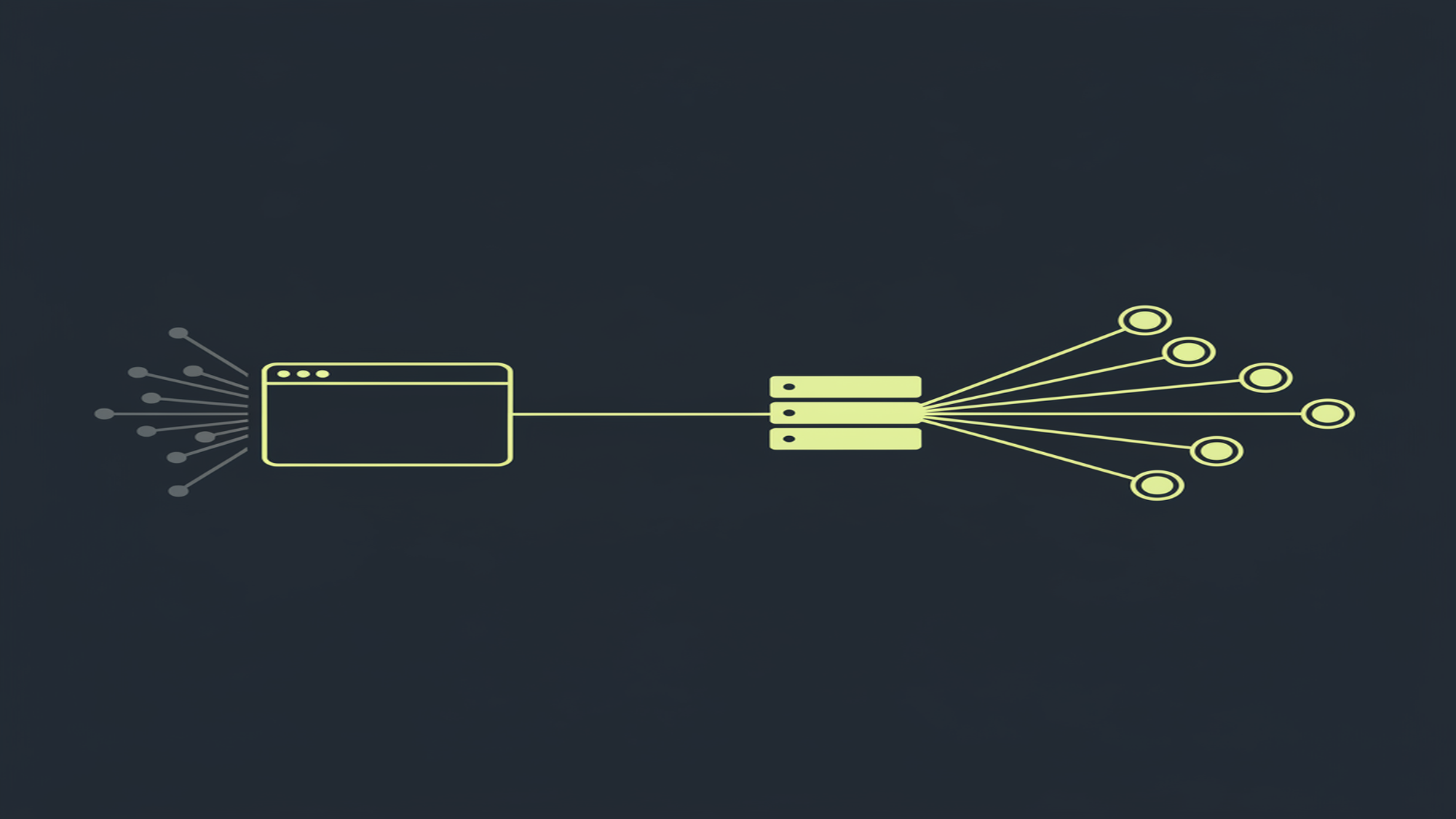
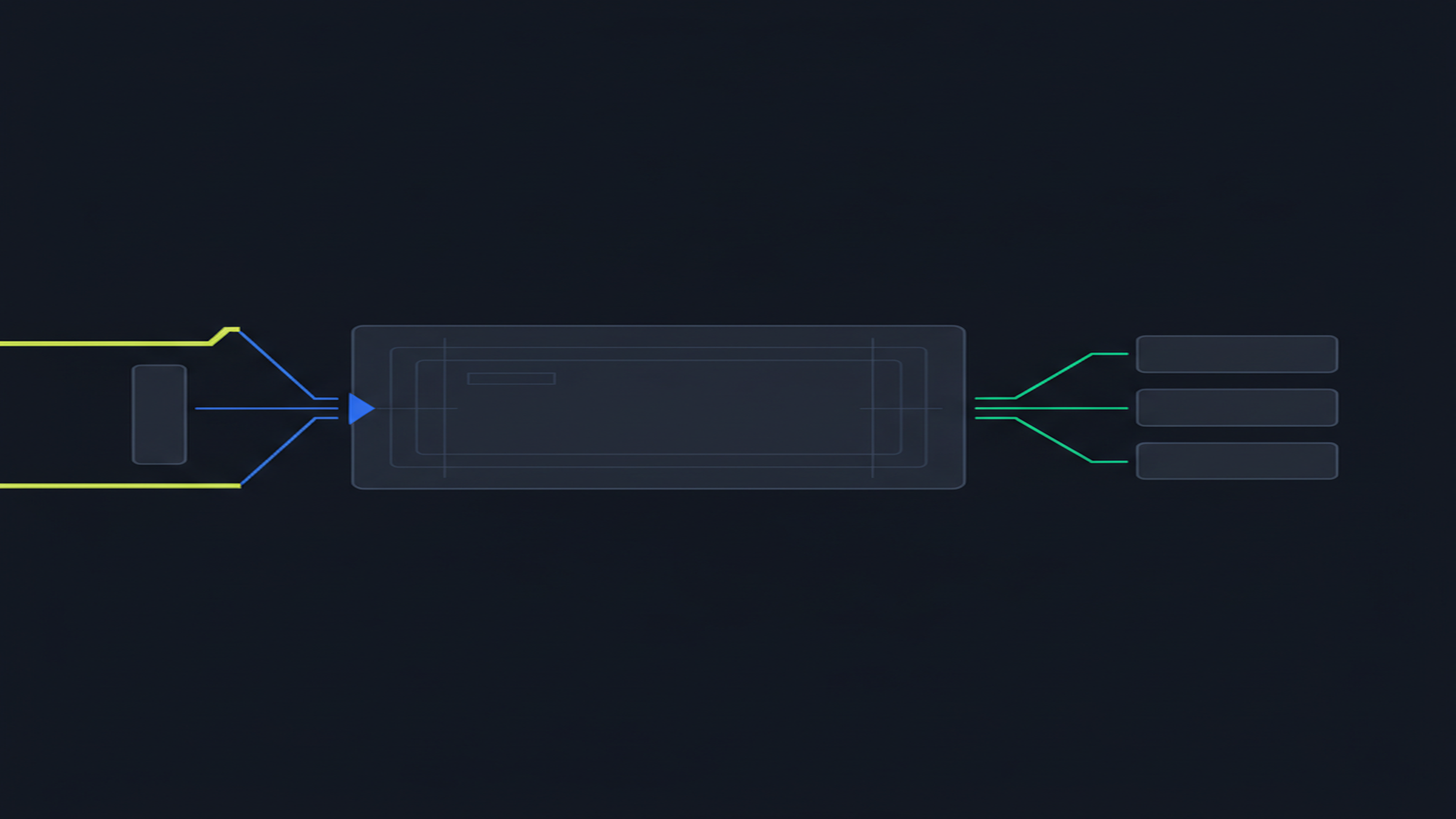
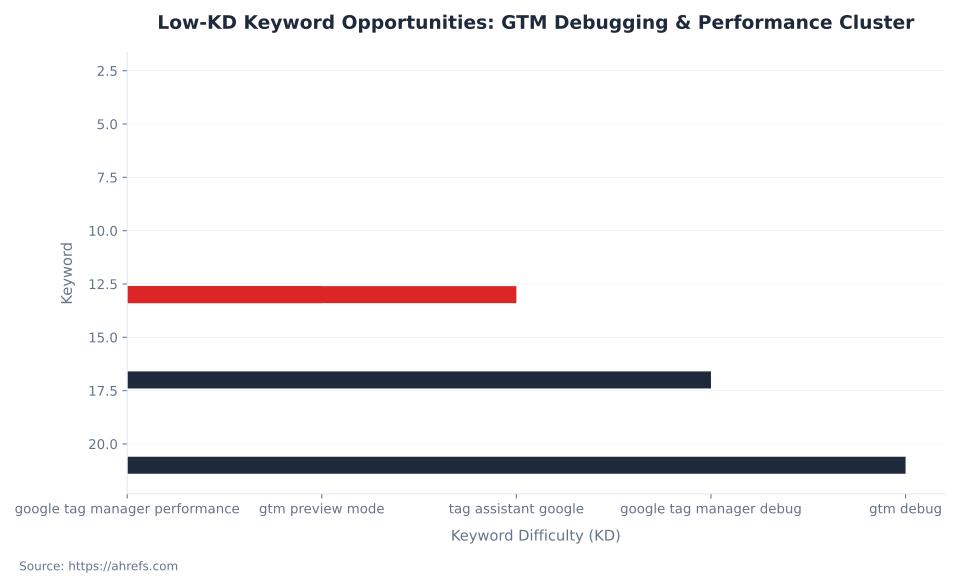
Distinct sections in the Tag Assistant debug interface — Event Timeline, Tags, Variables, Data Layer, Errors, Consent, and Output — each targeting a separate failure mode in GTM tag execution. Four low-KD keywords lead this cluster: “google tag manager performance” (KD 3), “gtm preview mode” (KD 13), “tag assistant google” (KD 13), “google tag manager debug” (KD 17).
Source: support.google.com/tagmanager/answer/15212503, verified June 2026; Ahrefs keyword data, June 2026
GTM Debug Mode: Tag Assistant Replaced the Embedded Pane
The original GTM “Preview and Debug” mode embedded a debug panel as an iframe at the bottom of the page. That pane no longer exists. The current system is Tag Assistant, a detached interface at tagassistant.google.com that GTM automatically launches when you click Preview (support.google.com/tagmanager/answer/6107056).
The architectural shift matters: the old iframe reset on every navigation. Tag Assistant persists the session across page loads, tracks all dataLayer.push() and gtag() calls chronologically, and shows Tags, Variables, Data Layer, and Errors data per selected event.
To connect: click Preview in GTM → Tag Assistant opens at tagassistant.google.com → enter your site URL → click Start. Your site opens with a “Tag Assistant Connected” badge in the bottom-right corner. If the badge does not appear, install the unified Tag Assistant Chrome extension, which replaced both Tag Assistant Legacy and Tag Assistant Companion (support.google.com/tagmanager/answer/16463290). The extension is required for multi-tab and cross-domain session continuity.
Simo Ahava documented that Tag Assistant uses a __TAG_ASSISTANT first-party cookie and gtm_debug=x URL parameter to maintain the session (simoahava.com). This replaced earlier third-party cookie reliance. For a full GTM orientation, see What is Google Tag Manager. The Google Tag Manager glossary hub covers the full GTM concept map.
Key Takeaways
Five facts that define correct GTM debugging and performance discipline.
- Tag Assistant replaced the embedded debug pane. The iframe-based Preview and Debug pane no longer exists. Tag Assistant is a detached interface at tagassistant.google.com. Any documentation describing “an embedded debug panel at the bottom of the page” describes a deprecated system.
- Tag Assistant confirms firing; GA4 DebugView confirms data arrival. Seeing a tag in “Fired” status does not confirm the data reached GA4, was not blocked by an ad blocker, or was not malformed. Both tools are required.
- Never debug against the Summary view. Summary shows the latest state across all events. Always select the specific event from the Event Timeline before reading Tags, Variables, Data Layer, Errors, or Consent tabs.
- GTM’s async snippet does not prevent performance impact. A container with eight standard tracking tags increased page load time by 3 seconds on Fast 3G, even with all tags loading asynchronously (Analytics Mania, 2026).
- There is no undo in GTM publishing. Publishing is live within seconds. Rollback via Versions tab takes under 60 seconds but is manual and public-facing until complete.
Keyword Cluster: Search Volume and Difficulty (US, June 2026)
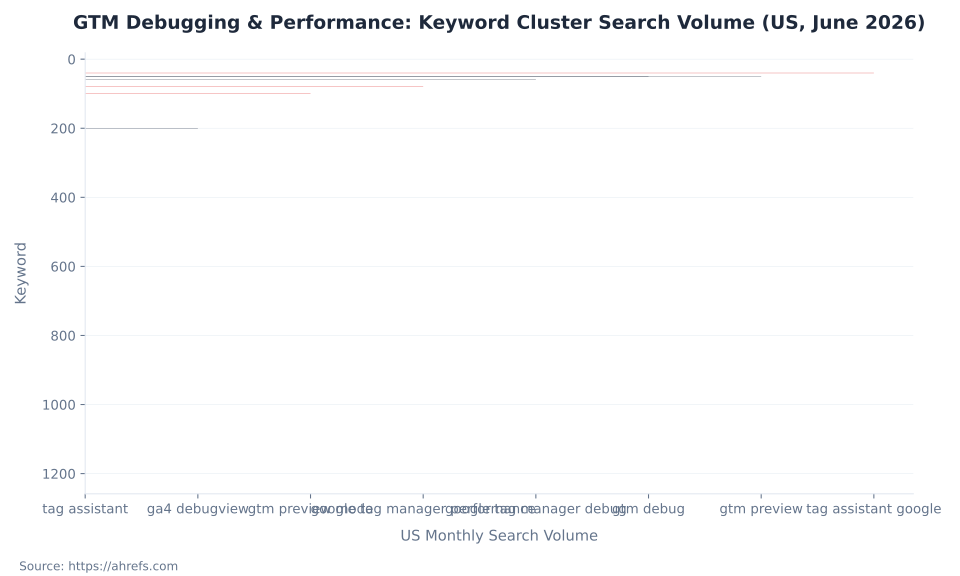
“Tag assistant” leads this cluster at 1,200 US monthly searches (KD 50) — dominated by Google’s own properties. The attainable SEO targets are four low-KD terms: “google tag manager performance” at KD 3, “gtm preview mode” and “tag assistant google” at KD 13, and “google tag manager debug” at KD 17. Source: Ahrefs, June 2026.
| Keyword | US Vol/mo | Global Vol/mo | KD |
|---|---|---|---|
| tag assistant | 1,200 | 11,000 | 50 |
| ga4 debugview | 200 | 700 | 24 |
| gtm preview mode | 100 | 450 | 13 |
| google tag manager performance | 80 | 90 | 3 |
| google tag manager debug | 60 | 200 | 17 |
| gtm debug | 50 | 150 | 21 |
| gtm preview | 50 | 350 | 39 |
| tag assistant google | 40 | 350 | 13 |
The two absorbed URLs had 0 clicks and 0 impressions in the 90-day GSC window. Every ranking outcome starts from zero. “Tag assistant” at KD 50 is a brand-signal term where Google’s own tool properties dominate; the KD 3–17 cluster is the near-term capture target.
From Embedded Iframe to Tag Assistant: What Changed and Why
GTM’s debugging interface underwent a fundamental architectural change. The original system embedded a debug panel as an iframe at the bottom of the page; the current system is a separate tab-based interface that follows the user across navigation. This matters: the old iframe reset on navigation, losing the event sequence. Tag Assistant persists every dataLayer.push() across page loads.
| Feature | Old Embedded Iframe (deprecated) | Current Tag Assistant |
|---|---|---|
| Location | Bottom of page (iframe overlay) | Separate tab: tagassistant.google.com |
| Session persistence | Tied to one page load; resets on navigation | Persists across page loads, including multi-step flows |
| Multi-tab debugging | No | Yes, via unified Chrome extension |
| Cross-domain debugging | No | Yes |
| Event timeline | Per-page only | Full chronological dataLayer.push() sequence across the session |
| Session mechanism | Third-party cookie (deprecated) | __TAG_ASSISTANT first-party cookie + gtm_debug=x URL parameter |
| Chrome extension | Tag Assistant Legacy (deprecated) | Unified Tag Assistant (not required for same-tab) |
One practical implication: the gtm_debug=x URL parameter is visible in the connected site tab’s address bar. Automated testing tools that strip URL parameters sever the Tag Assistant session. If the “Tag Assistant Connected” badge disappears during QA automation, a URL parameter strip is the first thing to check.
Tag Assistant Panel Guide: Seven Sections, Seven Failure Modes
Tag Assistant presents seven sections. Each addresses a distinct failure mode. Most debugging errors arise from using the wrong section for the question at hand, or from reading the Summary view instead of a specific event (support.google.com/tagmanager/answer/15212503; Analytics Mania, 2026).
The critical discipline: always select the specific event from the Event Timeline before reading any right-panel tab. The Summary view shows the latest resolved state across all events — not the state at the moment the event you are investigating fired. This is the most common source of “I can’t reproduce this” confusion in GTM debugging.
| Panel section | Location | What it shows | Primary diagnostic use |
|---|---|---|---|
| Event Timeline | Left sidebar | All dataLayer.push() and gtag() calls chronologically. Five default page-load events appear on every page: Consent Initialization → Initialization → Container Loaded → DOM Ready → Window Loaded. | Select the specific event to investigate. Never debug from Summary. |
| Tags (Fired / Not Fired) | Right panel — Tags tab | All tags evaluated for the selected event, grouped Fired vs. Not Fired. Clicking a tag shows trigger conditions with green checkmarks (met) or red X marks (unmet). | Identify which specific trigger condition failed. |
| Variables | Right panel — Variables tab | All variable values resolved at the moment of the selected event. | Verify variable resolved to expected value; identify undefined. |
| Data Layer | Right panel — Data Layer tab | The exact data pushed during the selected event and the running accumulated state. | Confirm the data a tag depends on exists in the data layer at the correct moment. |
| Errors | Right panel — Errors tab | Tag template failures with error details. Error counter shows a number only when issues exist. | Catch JavaScript errors in tag execution that cause silent failures rather than “Not Fired.” |
| Consent | Right panel — Consent tab | Consent state (granted/denied) per category if Consent Mode is implemented; errors if a tag reads consent before a default is set. | Diagnose Consent Mode issues; verify consent defaults fire before dependent tags. |
| Output | Tag Assistant side panel | Where hits were sent and the hit type, with expandable parameter detail. | Verify a network request left the browser before opening DevTools. |
For trigger types and variable resolution reference, see GTM tags, triggers, and variables. Many debug failures trace back to data layer push timing; see the data layer and enhanced measurement. The Consent tab is empty unless Consent Mode is configured; see Consent Mode and privacy in GTM.
GA4 DebugView: Completing the Validation Loop
Tag Assistant confirms that GTM executed the tag’s code. It does not confirm that Google Analytics 4 received well-formed data. The complete validation loop requires three steps: Tag Assistant, GA4 DebugView, and browser DevTools Network tab. Each step diagnoses a different class of failure (support.google.com/analytics/answer/7201382).
GA4 DebugView is at GA4 Admin → Data display → DebugView. It shows a 60-second rolling stream and a 30-minute aggregate timeline. When GTM Preview mode is active, Tag Assistant automatically sets debug_mode on GA4 hits from the session, routing them into DebugView without additional configuration. For ecommerce event validation, see GA4 ecommerce tracking. One silent failure mode: parameter values over 100 characters are truncated by GA4 without any error.
| Validation step | Tool | What it confirms | What it does NOT confirm |
|---|---|---|---|
| Step 1: Tag fired | GTM Tag Assistant (tagassistant.google.com) | Trigger condition was met; GTM executed the tag’s code; tag appears in Fired for the correct event. | Data reached GA4; parameters were parsed correctly; request was not blocked by ad blocker, CSP, or network error. |
| Step 2: Data received by GA4 | GA4 DebugView (GA4 Admin → Data display → DebugView) | GA4 received the event; parameters are present and readable in the 60-second stream and 30-minute aggregate. | Tag firing logic was correct; the validation here is downstream of GTM. |
| Step 3: Request succeeded | Browser DevTools → Network tab (filter: collect or g/collect) | HTTP request completed with 200 or 204 status; not blocked by ad blocker, firewall, or CSP. | Data was parsed correctly by GA4 (that is DebugView’s job). |
For the full GA4 events and parameters validation reference, see GA4 events and parameters. Browse all GA4 concepts at the Google Analytics 4 glossary hub.
GTM Debugging & Performance: Keyword Cluster Search Volume (US, June 2026)
Tag Not Firing: Diagnosing Common Errors in Tag Assistant
When a tag appears in “Not Fired,” four root causes account for the majority: the trigger condition was not met, the variable the trigger depends on resolved to undefined, a blocking trigger prevented firing, or the container version in Preview does not match production. Clicking the tag in the Not Fired group shows every trigger condition with a green checkmark or red X (analyticsmania.com/post/tag-in-google-tag-manager-is-not-firing/; support.google.com/tagassistant/answer/3207128).
After identifying which condition failed, move to the Variables tab for the same event. An undefined value locates the root cause: the data layer key was not pushed, a built-in variable group was not enabled, or a case sensitivity mismatch exists between the trigger and the data layer. GTM variable names and data layer keys are case-sensitive.
MB Adv Agency has found that the three-step validation loop — Tag Assistant, GA4 DebugView, and browser DevTools Network tab — catches failure classes that no single tool surfaces alone. Container audits at onboarding routinely identify tags appearing as “Fired” whose data never reached GA4, caused by ad blocker interference on the analyst’s test device. A clean browser profile resolves this class of false negative.
| Error symptom | Where to look first | Likely cause | Fix direction |
|---|---|---|---|
| Tag in “Not Fired” | Tags tab → click tag → trigger conditions | Trigger condition not met: wrong event name, variable resolves to undefined, regex mismatch, case sensitivity error. | Check Variables tab for the expected variable. Verify event name matches exactly what the data layer pushes. |
| Tag fired but data wrong in GA4 | GA4 DebugView → check parameter values | Variable resolved to wrong value: wrong selector, wrong data layer key. | Compare Variables tab value vs. expected. Check Data Layer tab for the correct key. |
| Tag fired on wrong event | Event Timeline → which event shows the tag Fired? | Trigger fires on “All Pages” or a broad condition instead of the specific custom event. | Narrow trigger to the specific event name. Verify in Data Layer tab. |
Variable resolves to undefined | Variables tab for the event where tag fires | Click variable group not enabled; data layer variable read before the push that sets it. | Enable built-in variable group (Variables → Configure). Check event ordering in Event Timeline. |
| Consent tab: “tag read consent before default set” | Consent tab | Consent Mode default fires after tags have already read consent state. | Move Consent Mode default to Consent Initialization. See Consent Mode and privacy in GTM. |
| Tag fires in Preview but not production | Workspace diff vs. published version | Container version mismatch: Preview uses draft; production uses last published. | Publish the container. Check for firing schedule end dates or environment-specific blocking triggers. |
| Tag fires multiple times per event | Event Timeline → count Fired occurrences | Tag assigned to “All Pages” AND a custom event trigger that fires on every page. | Audit all triggers on the tag. Remove duplicate conditions. |
For conversion tags, validate in GA4 conversions and key events that the event name is recognized. Where both GTM and a direct Google Ads tag fire for the same conversion, see conversion tracking and attribution for deduplication guidance. For additional error patterns, see Analytics Mania’s GTM debugging tips.
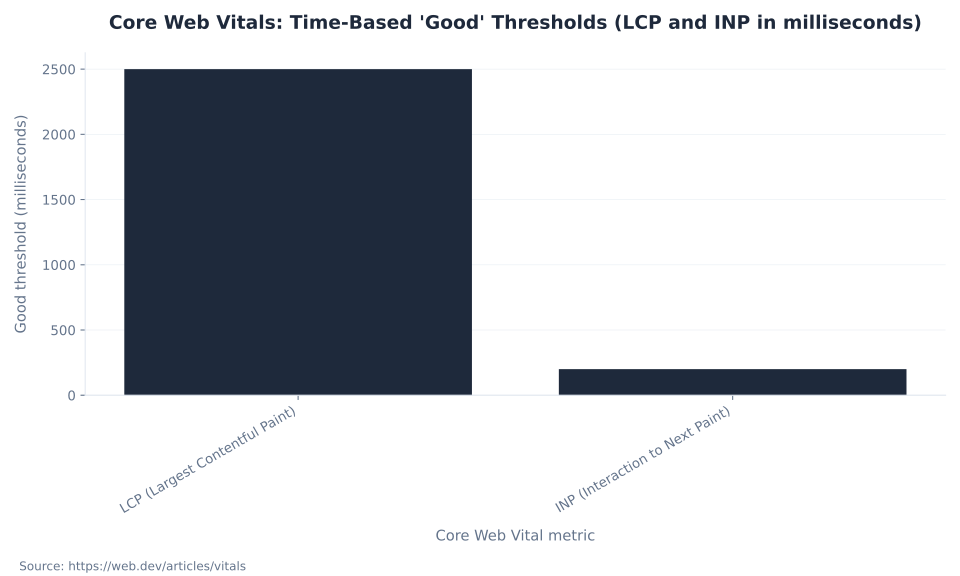
Core Web Vitals: Time-Based 'Good' Thresholds (LCP and INP in milliseconds)
GTM and Core Web Vitals: How Tags Affect LCP, INP, and CLS
GTM’s async snippet does not block rendering, but tags create three distinct pathways to Core Web Vitals degradation. The three current CWVs are LCP (good ≤ 2,500 ms), INP (good ≤ 200 ms), and CLS (good ≤ 0.1). All thresholds measured at the 75th percentile of real user page loads (web.dev/articles/vitals). INP replaced FID as a Core Web Vital in March 2024.
| Metric | “Good” threshold | “Needs Improvement” | “Poor” | GTM impact pathway | Primary mitigation |
|---|---|---|---|---|---|
| LCP (Largest Contentful Paint) | ≤ 2,500 ms | 2,500–4,000 ms | > 4,000 ms | Bandwidth contention: vendor scripts compete for network bandwidth with the LCP candidate resource during critical load. | Fire tags after Window Loaded; use Server-Side GTM; remove unused tags. |
| INP (Interaction to Next Paint) | ≤ 200 ms | 200–500 ms | > 500 ms | CPU contention: multiple tags executing on Window Loaded block the main thread when a user interacts simultaneously. | Reduce tag count; prefer native templates over Custom HTML; stagger non-critical tag execution. |
| CLS (Cumulative Layout Shift) | ≤ 0.1 | 0.1–0.25 | > 0.25 | DOM manipulation: tags inserting banners, overlays, or chat widgets after initial layout push other elements. | Avoid DOM insertions that shift element positions; replace DOM-manipulating Custom HTML with native templates. |
CWV scores affected by container load surface in Google Search Console. For CWV reporting and below-threshold page diagnosis, see Core Web Vitals and page experience in GSC. The SEO glossary covers how CWV scores feed into Google’s page experience signals. The CLS pathway is the most directly preventable: DOM-manipulating Custom HTML tags are the primary source.
Tag Assistant Debug Panel: Number of Distinct Sections
Tag Type Performance Risk: Image Pixels to DOM-Manipulating Custom HTML
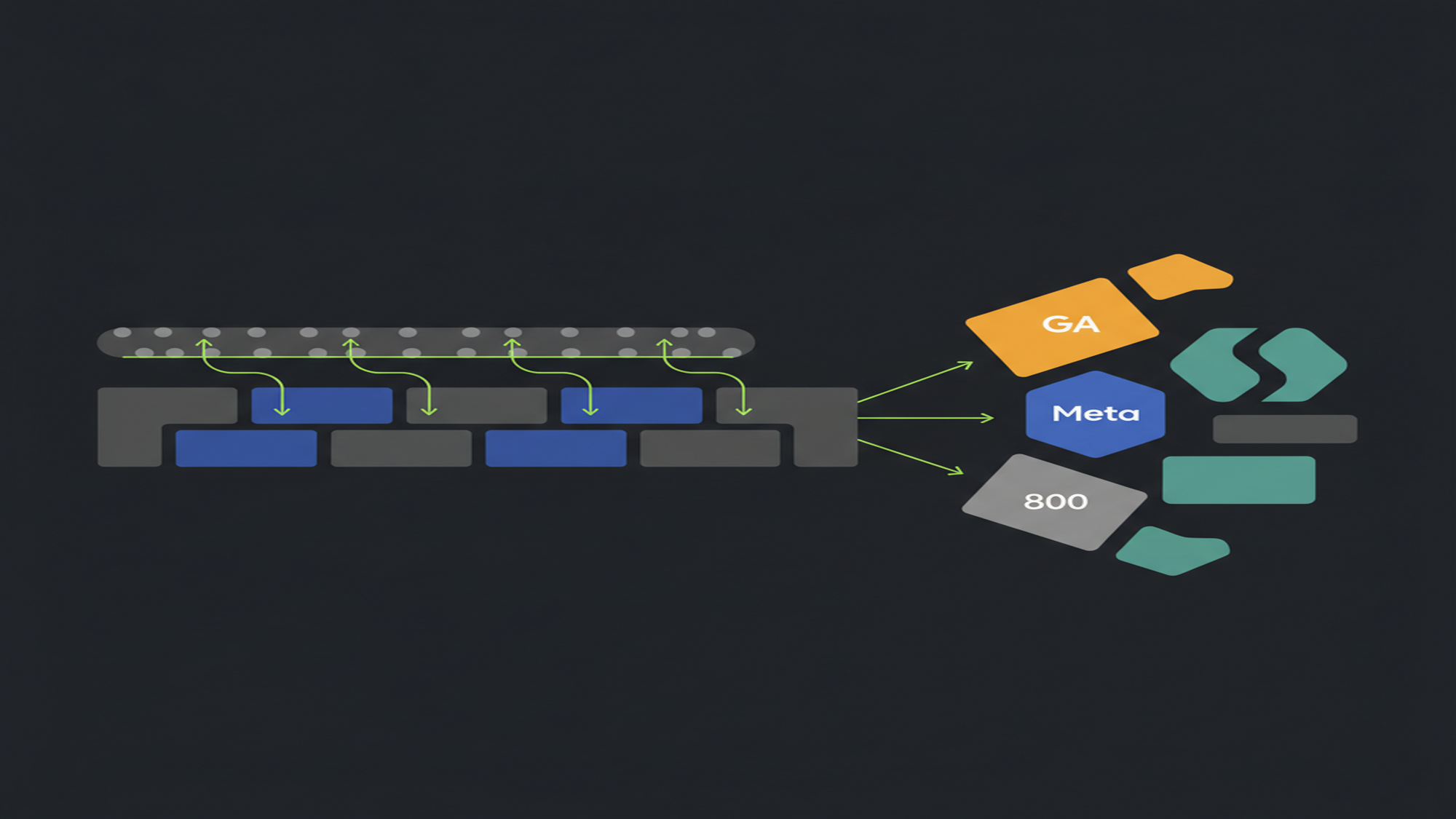
web.dev’s tag best practices documentation ranks tag types by performance risk: image pixels (lowest) to native templates (low–medium) to Custom HTML tags (medium to critical). Native templates are “much less likely to exhibit performance or security issues” than Custom HTML equivalents because they run in a sandboxed JavaScript API with restricted permissions (web.dev/articles/tag-best-practices). The GTM JavaScript library is ~33 KB compressed; container ceiling is 300 KB. Container size alone is not a reliable performance proxy — tag execution costs accumulate, not file size.
| Tag type | Performance risk | Why | Recommendation |
|---|---|---|---|
| Image pixel (tracking pixel) | Lowest | Fires an image request; no JavaScript execution; no DOM interaction. | Acceptable; fire after Window Loaded for non-critical pixels. |
| Native GTM tag template (gallery or community gallery) | Low–medium | Runs in a sandboxed environment with restricted APIs; limited DOM manipulation. | Prefer over Custom HTML for any vendor with a native template. |
| Custom HTML tag (lightweight) | Medium | Executes arbitrary JavaScript without sandboxing; no DOM manipulation if restricted to network calls. | Use only when no native template exists; avoid DOM queries in tag code. |
| Custom HTML tag (DOM-manipulating) | High | DOM insertions trigger layout recalculations and repaints; direct CLS and INP impact. Chat widgets, overlay banners, and A/B testing scripts fall here. | Replace with native template or refactor to remove DOM manipulation; fire after Window Loaded at minimum. |
Custom HTML using document.write | Critical | document.write in an async-loaded tag causes the browser to discard and re-parse the entire page. | Remove immediately. There is no safe use of document.write in an async GTM tag. |
MB Adv Agency’s container audits consistently identify abandoned tags from previous campaign periods as the primary source of unnecessary load. Removing unused tracking pixels, deprecated Custom HTML tags, and scripts from inactive platforms is the first action in every performance review — the only lever with zero tracking tradeoff.
For privacy and consent implications of tag loading, see GA4 data collection and privacy and Consent Mode and privacy in GTM.
GTM Performance Optimization: Seven Levers Ranked by Impact
Seven levers address GTM container performance. The first two — removing unused tags and delaying non-critical tags to Window Loaded — require no architectural changes and deliver the fastest results. Server-side GTM delivers the highest long-term impact but requires infrastructure investment.
| Lever | Impact level | What it does | Tradeoff |
|---|---|---|---|
| Remove abandoned and unused tags | High | Eliminates network requests, JavaScript execution, and CPU time for inactive vendor scripts. | Requires stakeholder sign-off before removal. |
| Delay non-critical tags to Window Loaded | Medium–High | Tags firing after visual completion reduce LCP and INP contention. Analytics Mania testing found 1.5-second delayed firing produced ~6 seconds of savings on Slow 3G “Fully Loaded” time. | Slightly delayed data capture for interactions in the first seconds of page load. |
| Replace Custom HTML with native templates | Medium–High | Sandboxed native templates reduce DOM manipulation risk and CLS/INP impact. The Tag Manager gallery covers most major platforms. | Requires auditing each Custom HTML tag for a native equivalent. |
| Custom timer (1–3s delay after load) | Medium | Staggering non-critical tags 1–3 seconds after Window Loaded reduces CPU contention further. | Delayed tracking window reduces attribution completeness for early-session interactions. |
| Server-Side GTM | High (long-term) | Moves vendor JavaScript off the client entirely; reduces script weight, CPU, and improves privacy posture. See server-side tagging in GTM. | Significant infrastructure cost and implementation complexity; ongoing sGTM hosting cost. |
| Consent-gated tag loading | Medium | Non-essential tags fire only after consent is granted; users who decline never load those scripts. | Coverage gaps vs. unconsented collection; modeling fills gaps. |
| Audit container size | Low (standalone) | GTM warns at 70% of the 300 KB container limit. Large size is a symptom of tag accumulation. | KB alone is not a reliable proxy — focus on tag type and firing frequency, not file size. |
For server-side migration context and implementation tradeoffs, see server-side tagging in GTM. For GA4 data pipeline implications, see GA4 integrations and BigQuery.
A container with eight standard tracking tags added 3 seconds on Fast 3G and 10 seconds on Slow 3G, even with all tags loading asynchronously (Analytics Mania, 2026). Async loading prevents render-blocking only.
GTM Publishing Workflow: Version Safety Before You Click Submit
Every time you click Submit and choose “Publish and Create Version,” GTM snapshots the current workspace and pushes it live within seconds. There is no staging buffer, no delayed propagation window, and no undo button (support.google.com/tagmanager/answer/6107163).
There is no undo in GTM publishing.
When you click Publish, the change is live within seconds. Tag Assistant Preview exists so you can validate completely before clicking Submit. Rollback via Versions tab takes under 60 seconds but is manual and public-facing until complete.
| Step | Action | Notes |
|---|---|---|
| 1. Edit in workspace | Make tag, trigger, and variable changes in the current workspace (draft state). | Multiple workspaces can run simultaneously. Avoid parallel edits to the same resource. |
| 2. Preview and validate | Click Preview → Tag Assistant launches; test all affected user flows. | Validate in Tag Assistant (tags fired) and GA4 DebugView (data received). Preview uses draft state, not the published version. |
| 3. Check workspace diff | Review “Workspace Changes” before submitting. | Confirm no unintended changes are included in the submission. |
| 4. Submit with version name | Click Submit → “Publish and Create Version” → add a version name. | Convention: [type]: [description] (e.g., feat: GA4 enhanced ecommerce or fix: duplicate purchase event). |
| 5. Publish (immediate) | Container goes live within seconds. | No staging buffer. The change is live immediately on all pages with the GTM snippet. |
| 6. Verify in production | Check GA4 real-time or DebugView on the live site. | Preview uses draft state; production validation requires a live session or manual debug_mode activation. |
| 7. Rollback if needed | Versions tab → select known-good version → “Set as Latest Version” → Submit. | Rollback takes under 60 seconds. GTM 360 adds an Approvals workflow before go-live; standard GTM does not. |
MB Adv Agency’s implementation checklist requires a descriptive version name and a Preview-validated baseline before every GTM publish. The naming convention — [type]: [description] — is faster to scan during a rollback than numeric-only version names. GTM 360 adds an Approvals workflow requiring a designated publisher before go-live; standard GTM does not have this gate.
Low-KD Keyword Opportunities: GTM Debugging & Performance Cluster
Your GTM container has tags firing wrong, firing silently wrong, or slowing the page.
MB Adv Agency runs container audits identifying broken tags, duplicate fires, abandoned scripts, and Custom HTML tags with native template replacements.
Get a GTM audit →The Async Snippet Myth: What GTM Actually Prevents
GTM’s installation snippet is asynchronous. This produces the widespread belief that GTM has no meaningful performance impact. That belief is wrong in practice.
An asynchronous script prevents render-blocking HTML parsing. It does not prevent the downloaded script from consuming network bandwidth, CPU time, and main-thread resources. An empty GTM container adds minimal latency. Each tag added introduces additional network requests, JavaScript execution, and main-thread contention.
Analytics Mania’s published testing: a container with eight standard tracking tags increased page load time by 3 seconds on Fast 3G and 10 seconds on Slow 3G, even with all tags asynchronous (analyticsmania.com/post/google-tag-manager-impact-on-page-speed-and-how-to-improve/). These numbers come from a specific experimental setup. The direction — more tags, more load time — is consistent.
The performance ceiling that matters is not the GTM library size (~33 KB compressed) or container size (ceiling 300 KB). The cost accumulates from the aggregate CPU and network demand of all tags running simultaneously, particularly those executing on DOM Ready and Window Loaded. If ten tags fire on Window Loaded and a user clicks at the same moment, the main thread is occupied and the click response is delayed, directly degrading INP.
web.dev states tag managers “can impact your Core Web Vitals by consuming resources needed for fast page loading and responsiveness” (web.dev/articles/tag-best-practices). The pathways are bandwidth (LCP), CPU contention (INP), and DOM manipulation (CLS).
How to Debug a GTM Tag from First Suspicion to Confirmed Fix
Nine steps from first sign of failure to a confirmed fix, validated in Tag Assistant and GA4 DebugView. Estimated time: 20 minutes for a standard single-tag diagnostic (Analytics Mania, 2026).
- Open Tag Assistant from GTM Preview mode. Click Preview in GTM workspace. Tag Assistant opens at tagassistant.google.com. Enter your site URL, click Start. Your site opens with a “Tag Assistant Connected” badge. If the badge does not appear, install the unified Tag Assistant Chrome extension.
- Reproduce the interaction. On the connected site, perform the exact action: visit the page, click the button, submit the form. Return to the Tag Assistant tab.
- Select the specific event from the Event Timeline. Click the event corresponding to your interaction (e.g.,
gtm.click,formSubmit,purchase). Do not use Summary — it shows the latest state, not the event-specific state. - Check Tags tab — Fired vs. Not Fired. If Not Fired, click the tag to see which trigger conditions failed (red X) vs. passed (green checkmark).
- Check Variables tab for the failing condition. Find the variable referenced in the failing trigger condition. If it shows
undefined, proceed to Step 6. For trigger-variable reference, see GTM tags, triggers, and variables. - Check Data Layer tab. Verify the data the variable depends on was pushed to the data layer at this event. If absent, the issue is upstream (page code or another tag). If the key exists but variable is still
undefined, check for a typo, case sensitivity mismatch, or missing built-in variable group. See the data layer and enhanced measurement. - Validate in GA4 DebugView (if tag fired). GA4 Admin → Data display → DebugView. Confirm the event and parameters in the 60-second stream. Values over 100 characters are truncated silently. See GA4 events and parameters.
- Confirm the network request succeeded. Browser DevTools → Network tab → filter by
collectorg/collect. A 200 or 204 status means the request succeeded. A blocked request indicates an ad blocker, firewall, or CSP issue invisible to both Tag Assistant and DebugView. - Fix, re-test in Preview, then publish with a version note. Apply the fix in the workspace. Repeat Steps 1–8. When validated, Submit → “Publish and Create Version” with a descriptive version name explaining what was fixed and why.
Frequently Asked Questions
Does seeing a tag in Tag Assistant mean the data reached GA4?
No. Tag Assistant confirms that GTM executed the tag’s code when the trigger condition was met. It does not confirm that GA4 received well-formed data. A GA4 event tag shows as “Fired” in Tag Assistant while simultaneously sending malformed parameters, using the wrong Measurement ID, or failing to reach GA4’s collection endpoint because of an ad blocker or network issue. The complete validation loop requires three steps: Tag Assistant (did the tag fire and what data did it send?), GA4 DebugView (did GA4 receive and parse the data correctly?), and the browser DevTools Network tab (did the HTTP request complete with 200 or 204 status?). Each step diagnoses a different class of failure. Tag Assistant failures show as “Not Fired” or wrong variable values. DebugView failures show as missing events or truncated parameters. Network failures show as blocked requests invisible to both Tag Assistant and DebugView.
Does GTM’s async loading mean tags have no performance impact on page speed?
No. GTM’s installation snippet is asynchronous, which prevents render-blocking HTML parsing. Asynchronous loading does not prevent tags from consuming bandwidth, CPU, and main-thread time. web.dev documents that tag managers “can impact your Core Web Vitals by consuming resources needed for fast page loading and responsiveness,” including bandwidth downloading the GTM library (~33 KB compressed) and CPU time evaluating all tag code. Analytics Mania testing found a container with eight standard tracking tags increased page load time by 3 seconds on Fast 3G and 10 seconds on Slow 3G, even with all tags loading asynchronously. INP (good threshold: ≤ 200 ms) is particularly sensitive: multiple tags executing on Window Loaded can block the main thread when a user interacts at the same moment. Asynchronous loading is a baseline protection, not a performance guarantee.
Should I use the Summary view in Tag Assistant to debug a problem?
No. The Summary view shows the latest resolved state across all events — not the state at the moment a specific event fired. Debugging against Summary means variable values and trigger states reflect whatever event was last processed, which is not necessarily the event connected to the tag being investigated. The correct approach: click the specific event from the left-side Event Timeline (for example, gtm.click, formSubmit, or purchase), then review the Tags, Variables, Data Layer, and Errors tabs for that event’s state at the moment it fired. Debugging against Summary is the most common source of “I can’t reproduce this” confusion in GTM debugging. Analytics Mania specifically flags this in their GTM debugging tips guide as the primary source of confusion. Every Tag Assistant diagnostic starts with selecting the correct event from the Event Timeline.
Can I undo a GTM publish?
No. When you click Publish, the change is live on your site within seconds. There is no staging buffer, no delayed propagation window, and no undo button. What GTM provides instead is version history: every published container state is archived in the Versions tab, and any previous version can be set live via “Set as Latest Version” → Submit. A rollback takes under 60 seconds and is fully reversible — but it is manual and public-facing until complete. GTM 360 adds an Approvals workflow requiring a designated publisher to approve submissions before go-live; standard GTM does not have this gate. The correct discipline is to test completely in Tag Assistant Preview mode and confirm in GA4 DebugView before clicking Submit. Once submitted, treat the published container as the source of truth until a deliberate rollback is executed through the Versions tab.
Why does a variable show the correct value in Preview mode but resolve to undefined in production?
Four causes account for most production-undefined failures. First: the trigger fires on a different event where the data layer key has not yet been pushed — Preview testing used a favorable interaction sequence that production does not replicate. Second: a built-in variable group (Clicks, Forms, Scroll Depth) was not enabled in Variables → Configure. These groups are disabled by default; enabling them in the workspace and publishing is required. Third: case sensitivity — GTM variable names and data layer keys are case-sensitive. “formSubmit” and “formsubmit” are different event names; “userId” and “userid” are different data layer keys. Fourth: the variable is a Click variable that resolves correctly on one element during Preview but fails in production on a different DOM element. Verify all four causes before investigating further.
How does GTM affect Core Web Vitals scores for LCP, INP, and CLS?
GTM’s async snippet does not block rendering, but tags create three distinct pathways to CWV degradation. For LCP (good threshold: ≤ 2,500 ms): bandwidth contention from tags downloading large vendor scripts competes with the LCP candidate resource during critical load, delaying its render. For INP (good threshold: ≤ 200 ms): CPU contention from multiple tags executing on Window Loaded delays interaction responses when a user acts simultaneously. For CLS (good threshold: ≤ 0.1): DOM-manipulating tags inserting banners, overlays, or chat widgets after initial layout calculation produce layout shifts. All thresholds are measured at the 75th percentile of real user page loads (web.dev/articles/vitals, June 2026). INP replaced First Input Delay (FID) as a Core Web Vital in March 2024. FID is no longer part of the CWV program.
GTM container audit before the next campaign launch?
If your GTM container needs a debugging audit or performance review, contact MB Adv for a container walkthrough.
Contact MB Adv →Methodology
This pillar consolidates two absorbed zombie URLs (“debugging-client-side-tags-in-gtm-a-step-by-step-guide” and “how-to-optimize-client-side-tagging-for-page-speed”) with 0 clicks and 0 impressions in the 90-day GSC window (2026-03-06 to 2026-06-04). All data traces to cited public sources: Google Tag Manager Help, Google Analytics Help, web.dev, Analytics Mania, and Simo Ahava’s blog. Analytics Mania test data (3-second Fast 3G / 10-second Slow 3G / ~6-second delayed-firing figures) are from published experiments, cited as directional evidence. CWV thresholds from web.dev/articles/vitals, verified June 2026. Keyword data from Ahrefs, operator-supplied June 2026. Reviewed by MB Adv Agency, June 2026.

As a Google Ads expert, I bring proven expertise in optimizing advertising campaigns to maximize ROI.
I specialize in sharing advanced strategies and targeted tips to refine Google Ads campaign management.
Committed to staying ahead of the latest trends and algorithms, I ensure that my clients receive cutting-edge solutions.
My passion for digital marketing and my ability to interpret data for strategic insights enable me to offer high-level consulting that aims to exceed expectations.
Google Partner Agency
We're a certified Google Partner Agency, which means we don’t guess — we optimize withGoogle’s full toolkit and insider support.
Your campaigns get pro-level execution, backed by real expertise (not theory).

Click-driven mind
with plastic-brick obsession.
We build Google Ads campaigns with the same mindset we use to build tiny brick worlds: strategy, patience, and zero tolerance for wasted pieces.
Data is our blueprint. Growth is the only acceptable outcome.

4.9 out of 5 from 670+ reviews on Fiverr.
That’s not luck, that’s performance.
Highly recommend Matteo to set up your server side tracking. He has a deep understanding of e-commerce tracking and will go above and beyond to make sure everything is set up correctly and working 100%. If you are scaling your store this set up is non-negotiable in my opinion and there isn't many people who have this much knowledge or put the effort in to get it right. Thanks again!

avorodesign.com
I can only recommend Matteo! He was very patient, professional and very knowledgeable about GA4, Consent Mode v2, and GDPR compliance. Communication was clear, and the setup was done professionally and efficiently. Highly recommend him for anyone needing reliable tracking implementation.

www.natureiki.life
Matteo shines in the realm of online professionals. His work is not only deep in data but also complemented by his proactive communication and cooperation, setting a new standard for freelancers. If you want someone who truly exceeds expectations, look no further. Highly recommended!

www.omanbeverlysmyth.com
Exceptional Service Beyond Expectations - Outstanding Service Impeccable depth, flawless delivery, and exceptional language fluency—this service exceeded all expectations. Highly recommended. Matteo truly ROCKS!!!

ium-paris.com
Top-notch, always highly value working with Matteo. An absolute Google Ads Genius. This is approximately the 8th time I have hired him and he's helped us get 6-7 ROAS. We are excited in continuing to improve our lead flow. Hire this guy if you need Google Ads help. Thanks Matteo!

www.dleeventgroup.com
I finally found the guy who can setup server side tracking and all the ecosystem properly. I definitely recommend Matteo. He is very responsive, kind and wants to dig into things. He configured GA4, Meta, Google Ads, Outbrain and google consent v2 with Cookiebot. Thanks Matteo.

inomega.fr
MB Adv delivered exceptional work with outstanding professionalism and lots of patience, taking time to see effects of changes made and not just do the work and submit it. The proactive communication and video summaries of the work completed made working with Matteo a pleasure, as he consistently went above and beyond. Highly recommended for web analytics projects! We are already working on another project.

www.withnellsensors.co.uk
Working with Matteo on my Google Ads was a game-changer. He's not just a strategist, he's a true partner. He understood my goals and tailored a campaign that perfectly reached my target audience. I'm grateful for his expertise and dedication.

dccargo.com