GTM Data Layer and GA4 Enhanced Measurement: 2026 Implementation Guide

10
GA4 enhanced measurement event names fire automatically — scroll, outbound clicks, video engagement, file downloads, form interactions — with zero GTM configuration required. GTM augments what GA4 tracks; GA4 Admin owns the toggle.
Source: Google Analytics Help · support.google.com/analytics/answer/9216061 · verified June 2026
What Is the GTM Data Layer?
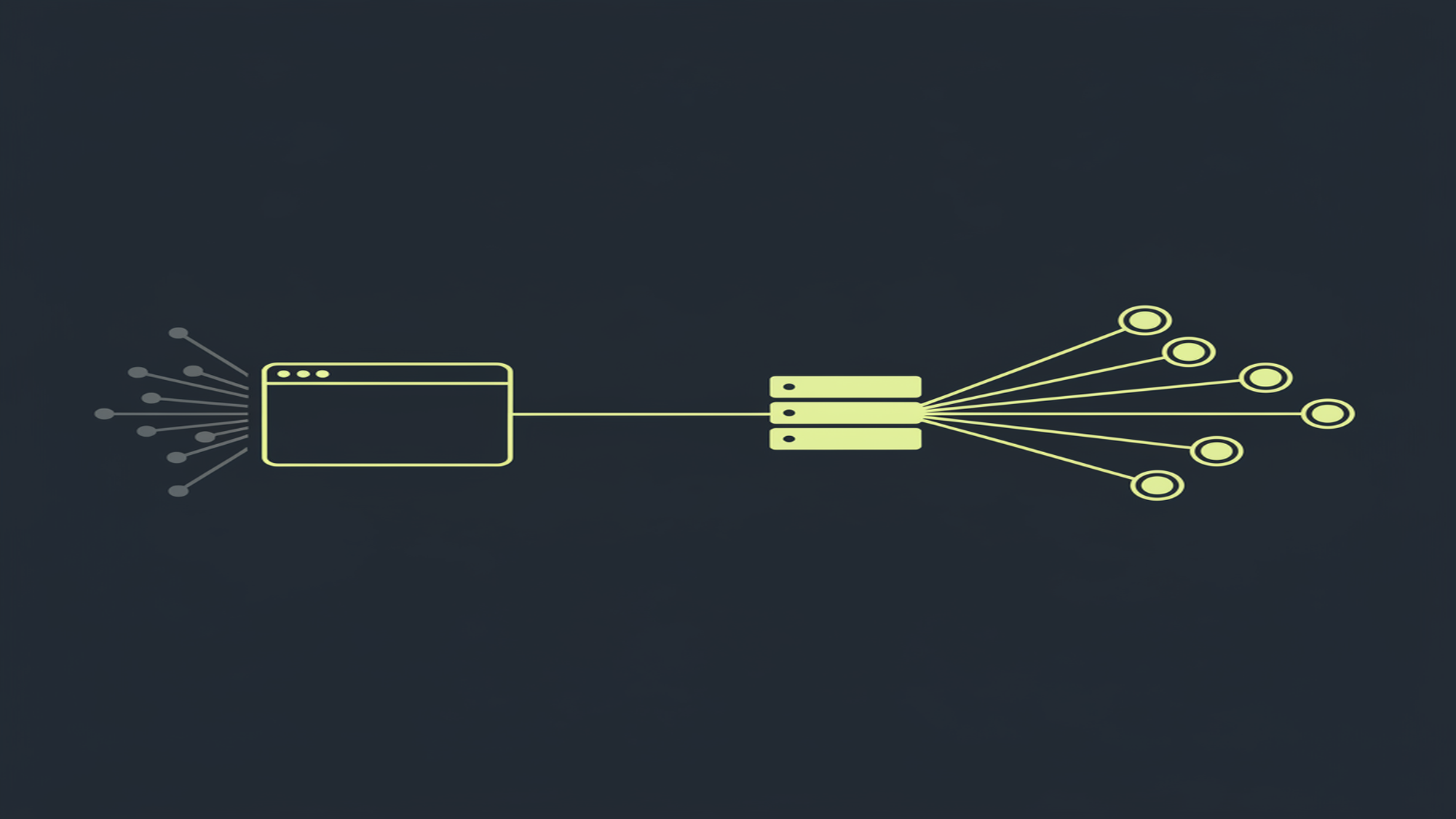
The GTM data layer is a JavaScript array — window.dataLayer — that acts as a FIFO (first-in, first-out) queue of key-value messages between a website and Google Tag Manager. It is not a GTM invention: the dataLayer array is a tool-agnostic JavaScript convention that both GTM and gtag.js share. Every dataLayer.push() call writes a message to that queue; GTM reads the queue sequentially and fires matching tags the moment it encounters a push containing an event key (Google Tag Platform, 2026).
Think of the data layer as infrastructure, not a feature. When you call window.dataLayer = window.dataLayer || []; and push key-value pairs, you write to a queue that GTM reads sequentially. Pushes that include an event key cause GTM to evaluate all registered Custom Event triggers against that name and fire matching tags immediately — before processing the next message in the queue. Pushes without an event key write data to GTM's internal state, making it available to Data Layer Variables in subsequently fired tags, but no tags fire automatically. For a complete picture of how tags, triggers, and variables consume data layer values, see Tags, Triggers, and Variables in GTM. For a full orientation to the GTM interface, see What Is Google Tag Manager.
Case sensitivity is absolute. GTM requires the array name dataLayer — camelCase, exactly. datalayer, DataLayer, and data_layer are entirely different JavaScript objects; GTM does not see them. One misplaced capital letter produces silent failures across every tag in the container (Google Tag Platform, 2026).
Data layer values persist for the current page load only. Values that must survive a navigation — userId, visitorSegment, pageType — must be re-pushed on every page, above the GTM snippet, on every load. On server-side GTM, the data layer concept shifts entirely: events arrive as HTTP requests, not JavaScript pushes. See GTM server-side implementation for how that architecture differs. Browse all GTM concepts at the Google Tag Manager glossary hub.
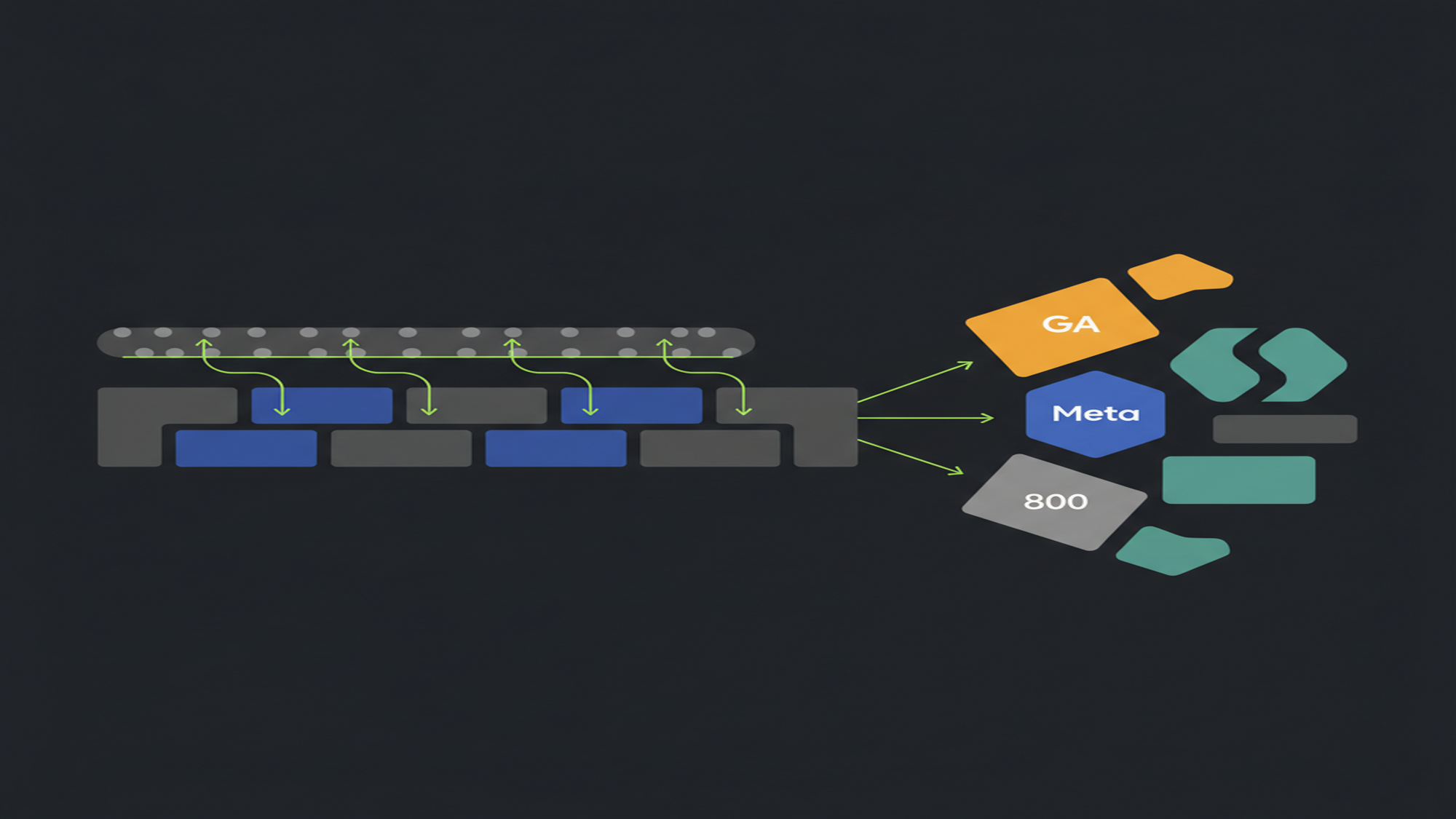
The data layer sits at the center of the GA4 measurement stack. When GTM fires a GA4 event tag, it reads parameters from Data Layer Variables and forwards them to Google Analytics 4. Understanding the data layer is a prerequisite for implementing GA4 events and parameters, GA4 ecommerce tracking, and GA4 conversions and key events. All GA4 data collection decisions — including consent and privacy — feed through this same data layer; see GA4 data collection and privacy for that context.
Key Takeaways
- The data layer is not a GTM feature.
window.dataLayeris a JavaScript convention shared by GTM and gtag.js. Both systems use the same array; who processes the pushes determines the behavior. - Initialization order is non-negotiable.
window.dataLayer = window.dataLayer || [];plus all context pushes must appear above the GTM container snippet in<head>. Variables pushed after the snippet are not available to container-load tags. - The
eventkey is the only Custom Event trigger mechanism. Pushing data without aneventkey stores values in GTM's state but fires no tags. Theeventkey is the trip wire — without it, nothing fires. - Version 2 Data Layer Variables merge recursively. For GA4 ecommerce, this causes second-event contamination. Fix: push
{ecommerce: null}before every ecommerce event. For ecommerce DLVs, use Version 1. - Enhanced measurement belongs to GA4, not GTM. The 10 auto-tracked event types are toggled at GA4 Admin → Data streams → Enhanced measurement. GTM has no control over this setting. GTM augments; GA4 owns.
- Wrong ecommerce key names produce silent failures.
order_idinstead oftransaction_id,totalinstead ofvalue— GA4 accepts the push, DebugView shows no error, and the Ecommerce purchases report stays empty.
10
distinct event names fired by GA4 enhanced measurement — zero GTM config required
Google Analytics Help, June 2026
KD 1
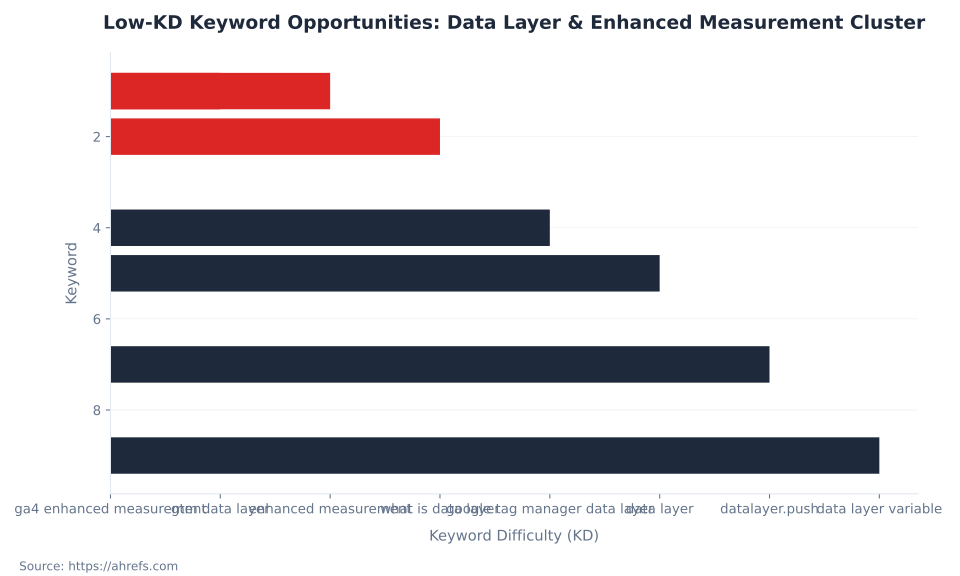
Ahrefs difficulty for "gtm data layer" and "ga4 enhanced measurement" — lowest-KD cluster terms
Ahrefs, June 2026
500
US monthly searches for "data layer" — cluster head term, KD 5, June 2026
Ahrefs, June 2026
How dataLayer.push() Works
dataLayer.push() is the method that writes key-value messages to the data layer queue. Its most important behavior: when a push includes an event key, GTM evaluates all registered Custom Event triggers against that event name and fires matching tags immediately — before processing the next message in the queue. Without the event key, GTM reads the data into its state but fires nothing (Google Tag Platform, 2026).
The FIFO processing order makes push sequencing critical. A push that sets context variables — userId, pageCategory, accountTier — must land in the array before the push that fires the event tag that needs those variables. Context pushes go above the GTM snippet in <head>; event pushes go inline with user interactions — button clicks, form submissions, checkout steps. The six primary dataLayer.push() patterns are shown in Table 2 below (Analytics Mania, 2026).
| Pattern | Code example | What it does in GTM |
|---|---|---|
| Context push (no event) | dataLayer.push({'pageCategory': 'blog', 'authorId': 'u-4892'}); | Stores values in the data layer state. Available to Data Layer Variables in any subsequently fired tag. Does not trigger any tags by itself. |
| Event push (no data) | dataLayer.push({'event': 'cta_clicked'}); | Fires all Custom Event triggers listening for cta_clicked. Any needed data must already be in the data layer state. |
| Event push with data | dataLayer.push({'event': 'form_submit', 'formId': 'contact-us', 'formName': 'Contact Us'}); | Fires the trigger and makes formId and formName available to Data Layer Variables in the tags that fire on that event. |
| Ecommerce clear + push | dataLayer.push({ecommerce: null}); then the ecommerce event push | Clears previous ecommerce state before pushing a new ecommerce event — prevents version 2 recursive merge contamination across events on the same page. |
| Context above GTM snippet | Push before the GTM <script> block in <head> | Values are available on the gtm.js (container load) event and all subsequent events. Required for userId, visitor segment, or page-type data to be present at container load. |
| Inline event push | <button onclick="dataLayer.push({'event': 'btn_clicked'})">Click</button> | Fires the trigger on user interaction. Acceptable for simple cases; production implementations use GTM Click triggers to decouple tracking logic from markup. |
Source: Google Tag Platform; Tag Manager Help · verified June 2026
The inline event push pattern — attaching dataLayer.push() to an HTML element's onclick attribute — works for simple, low-volume cases. For production implementations with multiple event types, GTM's built-in Click, Form, and Scroll Depth triggers reduce coupling between tracking logic and markup, making the implementation easier to audit. Validate every push with GTM Preview mode before publishing — see Debugging and Testing in GTM for the Preview mode and DebugView workflow.
The event key in a push must match the Custom Event trigger's Event Name field exactly — case-sensitive. add_to_cart and Add_To_Cart are different strings. GTM evaluates the match with string equality unless the trigger is set to use a regex. The safest pattern: snake_case event names matching exactly between push and trigger. GA4's own recommended event names (from the four-tier event taxonomy) use snake_case — see GA4 events and parameters for the full taxonomy (Google Tag Platform, 2026).
The GTM Data Layer at a Glance: Core Concepts
Seven core concepts define how the GTM data layer behaves. Misunderstanding any one of them — especially initialization order, the role of the event key, and case sensitivity — produces implementation failures that are difficult to diagnose because they produce no JavaScript errors. The data layer fails silently, and tags simply do not fire (Google Tag Platform, 2026).
| Concept | What it is | Key rule |
|---|---|---|
dataLayer array | A JavaScript array on window — a FIFO queue of key-value messages between the website and GTM | Only one dataLayer object is supported per page. Overwriting with window.dataLayer = [] causes tags to fail. |
window.dataLayer = window.dataLayer || []; | The initialization statement — creates the array if it does not exist yet, leaves existing values intact if it does | Must appear above the GTM container snippet. If placed after the snippet, any context pushes already processed by GTM are lost. |
dataLayer.push({key: value}) | The method to add key-value data to the array | Does not overwrite previous keys by default (version 2 merging). Use dataLayer.push({ecommerce: null}) to explicitly clear before an ecommerce event push. |
event key | The special key that triggers GTM Custom Event trigger listeners | Pushing {event: 'my_event'} causes GTM to evaluate all Custom Event triggers named my_event and fire matching tags immediately. Without event, GTM reads data but fires nothing automatically. |
| Processing order | FIFO — messages are processed in push order | Tags that fire on a Custom Event trigger fire before the next message in the queue is processed. Context pushes placed before the GTM snippet are available to all container-load tags. |
| Persistence | Data layer values persist for the current page load only | For values that must survive a page navigation, re-push them on every page above the GTM snippet. |
| Case sensitivity | dataLayer (camelCase) is the required array name | datalayer, DataLayer, data_layer are different objects — GTM sees none of them. |
Source: Google Tag Platform Developers; Simo Ahava · verified June 2026
The initialization rule deserves a direct statement: window.dataLayer = window.dataLayer || []; must appear in <head> before the GTM snippet. Not after. Not at the bottom of the page. Before. The GTM container snippet, when it loads, immediately processes any messages already in the queue. Context pushes placed after the snippet miss the container-load event and are not visible to tags that fire on gtm.js (Google Tag Platform, 2026; Simo Ahava, 2026).
MB Adv Agency has found that teams who initialize the data layer after the GTM snippet consistently report missing userId and page-type variables in their GA4 reports, despite those variables being pushed correctly — they simply arrive too late for the container-load tags to read them. The fix is always the same: move the initialization and context pushes above the GTM snippet in <head>. This is the most common data layer initialization error in client implementations.
The data layer's persistence behavior — values survive only until the next page load — means any variable that needs to be present on every page must be re-pushed on every page. Single-page applications (SPAs) face an additional challenge: because the page does not reload on navigation, the data layer accumulates state across route changes. SPA implementations need explicit data layer resets or careful event-scoping to prevent stale context from contaminating subsequent virtual pageview tags.
GA4 Enhanced Measurement: What It Tracks Automatically
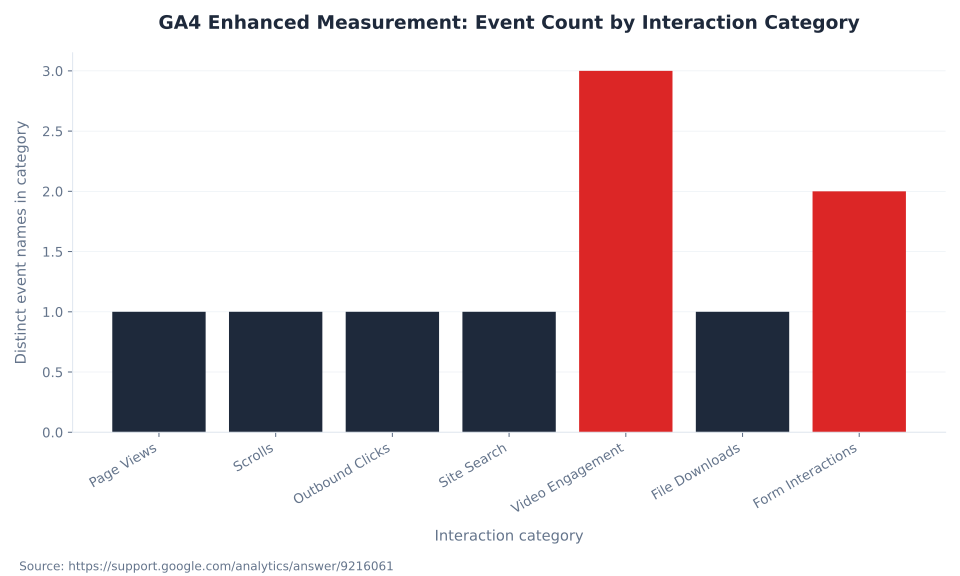
GA4 enhanced measurement is a GA4 feature — not a GTM feature — that automatically collects 10 distinct event names across 7 interaction categories without any tag configuration in GTM. The toggle that controls all of it lives at GA4 Admin → Data streams → [stream name] → Enhanced measurement. Each individual category within enhanced measurement has its own sub-toggle at the same location (Google Analytics Help, 2026).
The 7 categories are: Page Views, Scrolls, Outbound Clicks, Site Search, Video Engagement (3 events: video_start, video_progress, video_complete), File Downloads, and Form Interactions (2 events: form_start, form_submit). Every event in Table 5 is owned by GA4. GTM does not fire these events; GA4's measurement code fires them when the conditions in the trigger column are met.
| Event name | When it fires | Key auto-collected parameters | Who controls it | Key caveats |
|---|---|---|---|---|
page_view | On page load or SPA history state change (pushState/popState/replaceState) | page_location, page_referrer, page_title | GA4 — cannot be disabled when enhanced measurement is on | Risks double-counting with GTM-fired page_view tags. Also fires on virtual pageviews for SPAs. |
scroll | When user reaches 90% vertical depth — once per page, per session | percent_scrolled (value: 90) | GA4 toggle | Only the 90% threshold. No 25/50/75% milestones. GTM Scroll Depth trigger required for additional checkpoints. |
click | When user clicks a link leaving the current domain (outbound only) | link_classes, link_domain, link_id, link_text, link_url, outbound: true | GA4 toggle | Intra-domain clicks do not fire this event. Business domains must be registered in GA4 Tagging Settings. |
view_search_results | When a page loads with a recognized query parameter in the URL | search_term | GA4 toggle + configurable query params | Default params: q, s, search, query, keyword. Custom params added in GA4 settings — not GTM. |
video_start | When a YouTube embedded video begins playback | video_current_time, video_duration, video_percent, video_provider, video_title, video_url, visible | GA4 toggle | YouTube iframes only, with ?enablejsapi=1. Does not fire for Vimeo, self-hosted <video>, or other players. |
video_progress | At 10%, 25%, 50%, and 75% of YouTube video watch time | Same as video_start plus current video_percent | GA4 toggle | Requires video_start to have fired. YouTube only. |
video_complete | When YouTube video reaches 100% watch time | Same as video_start | GA4 toggle | Does not fire if user closes the tab before the video ends. YouTube only. |
file_download | When user clicks a link to a file with a qualifying extension | file_extension, file_name, link_classes, link_id, link_text, link_url | GA4 toggle + configurable extensions | Default extensions: pdf, xlsx, docx, txt, csv, zip, rar, 7z, exe, ppt, pptx, mp3, wav, ogg, mp4, mov, avi. Configurable in GA4 settings. |
form_start | First user interaction with a form field | form_id, form_name, form_destination | GA4 toggle | Does not fire on fully custom form implementations. Double-fire risk when third-party scripts intercept form events. |
form_submit | Native form submit event | form_id, form_name, form_destination | GA4 toggle | Does not fire for AJAX-based form submissions that suppress the native submit event. GTM Form Submit trigger required for those. |
Source: Google Analytics Help, enhanced measurement documentation · verified June 2026
Three enhanced measurement behaviors require attention in implementations that also use GTM. First, page_view fires automatically and cannot be disabled when enhanced measurement is on — if GTM also fires a page_view tag, both events arrive in GA4 and the Pageviews metric doubles. The solution: disable either the GTM-fired page_view tag or the enhanced measurement page_view sub-toggle, not both. Second, scroll fires only at 90% scroll depth, once per session. If scroll depth milestones at 25%, 50%, or 75% are required for funnel analysis, GTM's Scroll Depth trigger is the implementation path — fire a custom scroll_milestone GA4 event with the percentage as a parameter. Third, form_submit fires only for native form submit events — not for AJAX-based submissions. Modern form frameworks — React Hook Form, Formik, custom fetch-based submission — suppress the native submit event. GTM's Form Submit trigger is the required path for those.
MB Adv Agency has found that enhanced measurement's form_submit event fails silently on AJAX-based forms — the most common form pattern on modern web frameworks — and that GTM's Form Submit trigger combined with a Custom Event push is the correct solution in virtually all such implementations. The symptom is always the same: enhanced measurement is toggled on in GA4, the form fires in DebugView for native-submit test cases, but real production submissions never appear. Developers need to implement a dataLayer.push({event: 'form_submitted'}) inside the AJAX callback's success handler and wire a GTM Custom Event trigger to that event name.
Data Layer & Enhanced Measurement: Keyword Cluster Search Volume (US, June 2026)

Data Layer Variable: Version 1 vs. Version 2
GTM's Data Layer Variable type has two interpretation modes for dot notation, and choosing the wrong one for ecommerce implementations produces a data quality failure that is difficult to detect. Version 2 is the default. Version 1 exists for a specific purpose: GA4 ecommerce tracking with multiple event pushes on the same page (Tag Manager Help, 2026).
| Attribute | Version 1 | Version 2 |
|---|---|---|
| Default | No | Yes — new Data Layer Variable definitions default to Version 2 |
| Dot notation behavior | Dots are literal characters. a.b.c looks for a root-level key literally named "a.b.c" | Dots are path separators. ecommerce.transaction.revenue traverses three levels of nesting |
| Nested object access | Not supported natively | Supported — reads arbitrarily deep nested values |
| Array index access | Not supported | Supported — use dot notation: items.0.item_name, not bracket notation items[0].item_name |
| Push merging behavior | Subsequent pushes with the same key overwrite the previous value completely | Subsequent pushes with the same key are recursively merged — new properties added, existing primitives overwritten, nested objects merged further |
| Primary use case | GA4 ecommerce: ensures each ecommerce event push cleanly replaces the previous push's data without residual contamination | Standard DLV reads — user properties, page metadata, form values, custom parameters |
| When to choose it | When a data layer key is pushed multiple times per page and clean overwrites are required (ecommerce items[], ecommerce wrapper) | In 99% of non-ecommerce DLV configurations. Dot-notation path access to nested objects is the reason to use it. |
Source: Tag Manager Help; Simo Ahava; Analytics Mania · verified June 2026
Version 2's recursive merge behavior is correct for 99% of data layer variable reads. When you push {userId: 'u-4892'} and then push {pageCategory: 'blog'}, Version 2 merges them into a single state: {userId: 'u-4892', pageCategory: 'blog'}. Both values are available to subsequent tags. This is the expected behavior for user properties, page metadata, and form values where keys are distinct and accumulation is correct (Simo Ahava, 2026).
The problem surfaces with GA4 ecommerce events. When multiple ecommerce events fire on the same page — view_item followed by add_to_cart, or add_to_cart followed by begin_checkout — both pushes include an ecommerce key. With Version 2, the second push's ecommerce object merges recursively with the first push's ecommerce state rather than replacing it. The items[] array from the first push accumulates alongside the items from the second push. The add_to_cart event's tag reads contaminated data — products from the view_item event mixed with the intended add_to_cart products. GA4 receives incorrect item arrays (Analytics Mania, 2026).
Standard ecommerce pattern: Push dataLayer.push({ecommerce: null}); immediately before every GA4 ecommerce event push. This explicit null assignment clears the previous ecommerce state from the data layer before the new event's data is written. For the Data Layer Variables that read ecommerce.* keys, use Version 1 — each push overwrites the ecommerce key cleanly, with no recursive accumulation across events on the same page.
Array index access in Version 2 uses dot notation — not bracket notation. To read the first item's name from an items[] array, the DLV path is items.0.item_name, not items[0].item_name. Bracket notation is not supported. This is documented behavior but frequently misapplied by developers familiar with JavaScript array access syntax (Analytics Mania, 2026).
GA4 Enhanced Measurement: Event Count by Interaction Category
GA4 Ecommerce Data Layer Schema
GA4 ecommerce tracking uses a strict items[] array schema pushed via dataLayer.push(). Key names must match exactly — GA4 applies the schema contract silently at its end. Wrong key names produce pushes that fire without error in GTM Preview mode, pass through DebugView without error messages on the incorrect keys, and produce empty Ecommerce reports. There is no real-time schema validation between the push and the GA4 event tag firing (Google Analytics Developers, 2026).
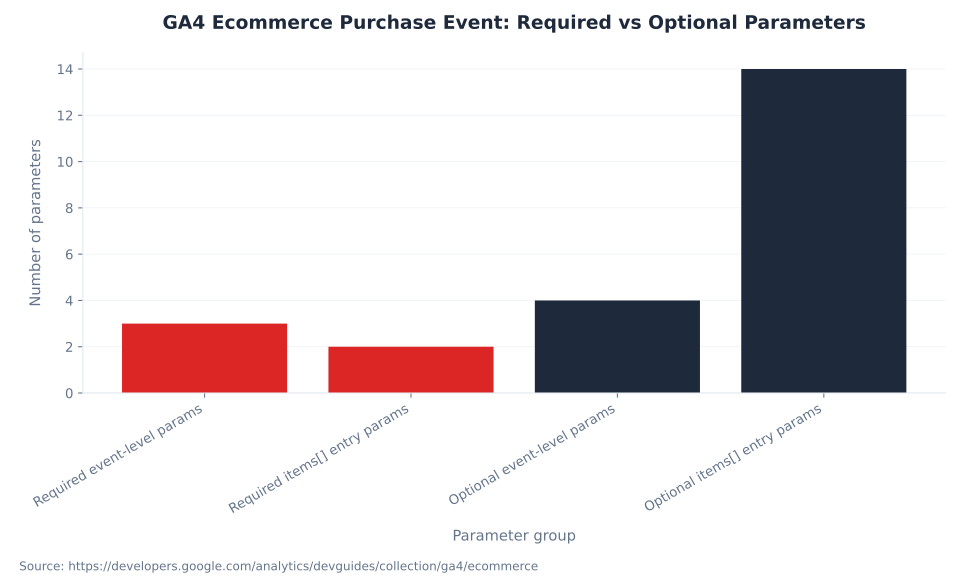
The purchase event is the most consequential: three required event-level parameters — transaction_id, currency, and value — must all be present. Google's documentation is explicit: "Set currency at the event level when sending value (revenue) data." A purchase event missing transaction_id does not appear in the Ecommerce purchases report. Revenue stays at zero. The full event list is in Table 6 below.
| Event | Required event-level params | Required items[] entry params | What breaks without them |
|---|---|---|---|
view_item | currency, value, items[] | item_id or item_name | Product detail views report stays empty |
add_to_cart | currency, value, items[] | item_id or item_name | Cart addition metrics absent from Ecommerce funnel |
remove_from_cart | currency, value, items[] | item_id or item_name | Cart removal metrics absent |
view_cart | currency, value, items[] | item_id or item_name | Cart view metrics absent |
begin_checkout | currency, value, items[] | item_id or item_name | Checkout funnel entry absent |
add_payment_info | currency, value, items[], payment_type | item_id or item_name | Payment method data absent |
purchase | transaction_id, currency, value, items[] | item_id or item_name | Ecommerce purchases report stays empty — the most critical failure; no revenue populates |
refund | transaction_id, currency, value | item_id or item_name (partial refunds) | Refund reporting absent |
view_promotion | items[] | item_id or item_name, promotion_id or promotion_name | Promotion impression metrics absent |
select_promotion | items[] | item_id or item_name, promotion_id or promotion_name | Promotion click metrics absent |
Source: Google Analytics Developers, GA4 ecommerce guide · verified June 2026. The items[] array supports up to 200 entries per event; each entry supports up to 27 custom parameters in addition to the named fields.
The four most common wrong key names — and their consequences: (1) order_id instead of transaction_id → purchase report stays empty; (2) product_id instead of item_id → items not attributed to products in the Ecommerce report; (3) total instead of value → revenue not populated; (4) name instead of item_name → product name absent from item attribution. Every one of these fails silently.
The items[] array supports up to 200 item entries per event. Each item entry supports: item_id, item_name, item_brand, item_category through item_category5, item_variant, price, quantity, discount, coupon, affiliation, index, item_list_id, item_list_name, and up to 27 custom parameters per entry. The full GA4 ecommerce items schema and funnel event sequence are covered in the GA4 ecommerce tracking pillar. For ecommerce conversion measurement and attribution, see GA4 conversions and key events. For product-level data that feeds both GA4 ecommerce events and Shopping campaigns, see the Google Merchant Center glossary.
GTM's role in ecommerce tracking is to read the ecommerce object from the data layer and forward it to GA4. When configuring a GA4 Event tag in GTM for a purchase event, navigate to More settings → Ecommerce → Send Ecommerce data → Data Layer. GTM reads the entire ecommerce object from the data layer and sends it as the event's ecommerce payload. No individual Data Layer Variables are needed for the standard ecommerce parameters — the tag reads the whole ecommerce object automatically. For conversion tracking overlap with Google Ads, see conversion tracking and attribution — the data layer feeds both GA4 ecommerce and Google Ads conversion tags.
GA4 Ecommerce Purchase Event: Required vs Optional Parameters
GTM Data Layer vs. gtag.js: Same Array, Different Processing
GTM and gtag.js share the same window.dataLayer array — a fact that surprises developers who assume the data layer is a GTM-only concept. Both systems initialize and use the array; what differs is who processes the messages in it. GTM listens for pushes and fires tags based on Triggers; gtag.js processes pushes for its own measurement commands. Neither system is aware of the other's processing logic (Google Tag Platform, 2026).
| Attribute | GTM data layer | gtag.js data layer |
|---|---|---|
| Array used | window.dataLayer | window.dataLayer — the same array |
| Initialization | window.dataLayer = window.dataLayer || []; then the GTM container snippet | window.dataLayer = window.dataLayer || []; function gtag(){dataLayer.push(arguments);}; |
| Who processes it | GTM container reads the queue; fires Tags based on Triggers; variables read from the state | gtag.js processes pushes for its own measurement commands; does not evaluate GTM Triggers |
| Event syntax | {event: "event_name"} triggers Custom Event Triggers | gtag("event", "event_name", {params}) — a wrapper that pushes to dataLayer in a format GTM Triggers do not evaluate the same way |
| Coexistence risk | If both GTM and gtag.js fire GA4 event tags for the same user action, duplicate hits arrive in GA4 | Same risk from the other direction — a developer adding a gtag('event', ...) call on a GTM-managed page sends duplicates |
| Server-side GTM | Client-side dataLayer is transformed into a server-side event by the web container's client; sGTM does not read window.dataLayer directly | gtag.js sends HTTP requests to the sGTM endpoint — no shared window.dataLayer in the server context |
| Renaming the array | Possible by editing the container snippet parameter | Possible via l= query parameter on the gtag.js load URL — all subsequent calls must also use the renamed variable |
Source: Google Tag Platform · verified June 2026
The coexistence risk is real. If a site runs both GTM (with a GA4 event tag) and a gtag.js snippet (with its own GA4 configuration), both systems fire events to GA4 for the same user actions. The result: duplicate hits in GA4, inflated event counts, and broken conversion tracking. The standard resolution: choose one measurement path and remove the other. Most implementations where GTM is present should remove the standalone gtag.js snippet and let GTM fire all GA4 tags. If gtag.js must remain (e.g., it was added by a CMS or third-party platform), disable the GTM-fired GA4 configuration tag and let gtag.js own the GA4 connection.
MB Adv Agency has found that duplicate GA4 events — often surfaced as event counts that are exactly double what's expected — are caused by coexisting GTM and gtag.js GA4 configurations on over half of the implementations we audit that have both installed. The diagnosis is straightforward: open GTM Preview, fire a conversion event, and check whether two GA4 tags fire for the same trigger. If they do, one needs to be disabled. The Google Analytics 4 glossary hub covers the full GA4 concept landscape for reference. For BigQuery export and analytics data pipelines that sit downstream of this measurement stack, see GA4 integrations and BigQuery.
Common Data Layer Implementation Errors and Fixes
Data layer failures produce no JavaScript errors in the browser console — tags fail silently, variables return undefined, and GA4 reports show gaps. Table 7 documents the eight most common implementation errors encountered in GTM data layer audits, their symptoms, root causes, and the specific fixes that resolve them (Analytics Mania, 2026).
| Error | Symptom | Root cause | Fix |
|---|---|---|---|
| Data layer initialized after GTM snippet | Context variables (userId, pageType) absent from container-load tags | window.dataLayer = window.dataLayer || [] and pre-push appear below the GTM <script> block in the HTML | Move initialization and context pushes above the GTM snippet in <head> |
| Wrong variable name case | Data Layer Variable returns undefined | GTM is case-sensitive: datalayer, DataLayer, data_layer are different objects | Use exactly dataLayer (camelCase) everywhere |
| Version 2 DLV for ecommerce without clearing | Second ecommerce event contains merged data from first | Version 2 recursive merge accumulates items[] across pushes on the same page | Push {ecommerce: null} before every ecommerce event push; use Version 1 DLV for ecommerce keys |
| Wrong ecommerce key names | GA4 Ecommerce purchases report stays empty | order_id instead of transaction_id, product_id instead of item_id, total instead of value | Match the exact key names from the GA4 ecommerce schema; validate in GA4 DebugView |
Missing event key on push | Data lands in data layer but no tag fires | Push contains only data keys — no event key to trigger a Custom Event trigger | Add 'event': 'your_event_name' to the push and create a matching Custom Event trigger in GTM |
| Ecommerce push arrives after GTM tag fires | Tag fires with empty ecommerce object | Async data fetch (cart API call) resolves after page load; push happens too late | Trigger the push inside the async callback's resolution handler, not at DOM-ready |
| Literal dot in key name with Version 2 DLV | DLV reads wrong nested path | Key is named "product.id" (literal dot) but Version 2 interprets it as a nested path traversal | Rename the key to productId (no dot), or use a Custom JavaScript variable, or switch the DLV to Version 1 |
| GTM trying to disable enhanced measurement | Enhanced measurement events continue firing despite GTM config changes | GTM has no mechanism to toggle enhanced measurement | Disable the specific enhanced measurement sub-toggle in GA4 Admin → Data streams → Enhanced measurement |
Source: Google Tag Platform; Analytics Mania · verified June 2026
The GTM-trying-to-disable-enhanced-measurement error in the table is worth expanding: this is the most persistent misconception in combined GTM + GA4 implementations. When a developer or analyst wants to stop enhanced measurement's scroll event from firing, they look in GTM for a scroll setting — and find none. There is no setting in GTM for this. The correct action: navigate to GA4 Admin → Data streams → [stream name] → Enhanced measurement → scroll sub-toggle → off. The toggle is in GA4, not GTM.
For diagnosing data layer issues in real time, GTM's Preview mode is the primary tool. It shows every data layer message pushed during a session, the state of all variables at each point in the event queue, and which tags fired (and on which triggers). Combined with GA4's DebugView (GA4 Admin → DebugView), every push and its parameters are visible in near-real time. See Debugging and Testing in GTM for the complete Preview + DebugView workflow. For CWV and page performance data that sits alongside your analytics implementation, see Core Web Vitals and Page Experience in GSC.
How to Push a GA4 Purchase Event via the GTM Data Layer
Pushing a GA4 purchase event through the data layer requires seven steps: initializing the data layer, clearing the ecommerce object, pushing the event with the correct schema, configuring a Custom Event trigger in GTM, setting up a GA4 Event tag with ecommerce data enabled, validating in Preview and DebugView, and publishing the container. Each step is verified against Google Analytics Developers ecommerce documentation, June 2026.
- 1. Initialize the data layer above the GTM snippet. Ensure
window.dataLayer = window.dataLayer || [];appears in<head>before the GTM container snippet. Any page-level context needed at container load —userId,pageType— must be pushed immediately after initialization, also before the GTM snippet. This is the correct initialization sequence: init, context push, GTM snippet. - 2. Clear the ecommerce object before the purchase push. On the order confirmation page, push a clear before any ecommerce data to prevent contamination from earlier ecommerce events (e.g.,
add_to_cartorbegin_checkouton the same page):window.dataLayer.push({ecommerce: null}); - 3. Push the purchase event with the required schema. Immediately after the clear, push the purchase event:
window.dataLayer.push({event: 'purchase', ecommerce: {transaction_id: 'T_12345', value: 72.05, currency: 'USD', tax: 3.60, shipping: 5.99, items: [{item_id: 'SKU_12345', item_name: 'Product Name', price: 29.99, quantity: 2}]}});. The key namestransaction_id(notorder_id),value(nottotal), anditem_id(notproduct_id) must match exactly. - 4. Create a Custom Event trigger in GTM. GTM → Triggers → New → Custom Event. Set the Event Name to
purchase(matching theeventkey in the push exactly, case-sensitive). Set trigger to fire on All Custom Events. - 5. Configure a GA4 Event tag in GTM. GTM → Tags → New → Google Analytics: GA4 Event. Select your Google tag configuration. Set Event Name to
purchase. Under More settings → Ecommerce: enable "Send Ecommerce data" and select "Data Layer" as the source. Assign the Custom Event trigger from Step 4. - 6. Validate in GTM Preview mode and GA4 DebugView. Enter GTM Preview mode. Complete a test purchase (or fire the push via browser console). In GTM Preview: confirm the
purchaseCustom Event fires, confirm the ecommerce object is visible in the data layer panel with correct keys. In GA4 → Admin → DebugView: confirmpurchaseevent appears with correcttransaction_id,currency,value, anditems[]. If the event appears in DebugView without the ecommerce parameters, the "Send Ecommerce data" option in the tag is not set to "Data Layer". - 7. Publish the GTM container and monitor. Publish the container version. Monitor the GA4 Ecommerce purchases report (Monetization → Ecommerce purchases) over the next 24–48 hours to confirm purchases are populating. If the report stays empty after purchases fire in DebugView, recheck that
transaction_id,currency, andvalueare all present and correctly named in the push.
For the complete GA4 ecommerce funnel event sequence — from view_item_list through purchase — and the full items[] parameter schema, see GA4 ecommerce tracking. For automating data extraction from the GA4 and GSC APIs, see GSC API and automation for the GSC side and GA4 integrations and BigQuery for the GA4 side.
Low-KD Keyword Opportunities: Data Layer & Enhanced Measurement Cluster
Data layer not behaving as expected?
A structured audit of your GTM container, data layer initialization sequence, and GA4 ecommerce schema catches silent failures before they persist in your reporting.
Book a GTM Audit →Enhanced Measurement Ownership: What GTM Controls vs. What GA4 Controls
This is the most consistently misunderstood aspect of the GA4 and GTM relationship. Enhanced measurement — the scroll tracking, outbound click tracking, site search, video engagement, file download tracking, and form interaction tracking that fires automatically — is configured in GA4's Admin interface, not in GTM. The toggle lives at GA4 Admin → Data streams → [stream name] → Enhanced measurement. No GTM tags, triggers, or variables control it (Google Analytics Help, 2026).
Enhanced measurement is configured in GA4, not GTM. The scroll tracking, outbound click tracking, video tracking, file download tracking, and form tracking that enhanced measurement provides are toggled at GA4 Admin → Data streams → [stream name] → Enhanced measurement. GTM has no setting for these. GTM augments enhanced measurement — adding scroll milestones at 25%, 50%, 75% via a Scroll Depth trigger — or overrides it when enhanced measurement fails (e.g., firing a custom form event via GTM when enhanced measurement's form_submit doesn't fire for AJAX forms). But GTM does not control the enhanced measurement toggle.
GTM's role relative to enhanced measurement is augmentation and gap-filling. Enhanced measurement gives you a baseline of behavioral signals for free — scroll engagement (90% only), outbound link clicks, YouTube video engagement, standard form interactions, file downloads. GTM fills the gaps that enhanced measurement cannot cover: granular scroll milestones (25%, 50%, 75%), AJAX form submissions, non-YouTube video players (Vimeo, self-hosted <video>), JavaScript-delivered file downloads (where no <a> href link is clicked), and any custom interactions specific to your application.
Four misconceptions about the GTM data layer and enhanced measurement recur across implementations:
- 1. "The data layer is a GTM feature — you don't need it if you use gtag.js." The
dataLayerarray is a JavaScript convention, not a GTM invention. gtag.js initializeswindow.dataLayerand pushes its own configuration commands viagtag()— which is itself a wrapper that callsdataLayer.push(arguments). The data layer is not optional; it is the transport mechanism for both systems. - 2. "I can push the data layer after the GTM snippet and it will still work for the initial pageview." Order matters. The GTM container snippet fires when it loads. Context variables pushed after the snippet —
userId,pageType,visitorSegment— are not available to tags that fire on thegtm.jscontainer-load event. The correct pattern: init, context push, GTM snippet. In that order, always. - 3. "GTM controls GA4 enhanced measurement — I can turn off scroll tracking in GTM." GTM has no toggle for enhanced measurement events. The scroll tracking sub-toggle is at GA4 Admin → Data streams → Enhanced measurement → Scrolls. Not in GTM. Not anywhere in the GTM interface.
- 4. "Data Layer Variable version 2 works fine for all ecommerce pushes." Version 2's recursive merging behavior becomes a problem when multiple ecommerce events fire on the same page and share the
ecommercekey. For ecommerce keys pushed multiple times per page, use Version 1 and push{ecommerce: null}before each ecommerce event.
For broader GA4 data collection context — including Consent Mode v2 (mandatory for EEA advertisers since March 2024) and how the data layer interacts with consent signaling — see GA4 data collection and privacy. For GSC integration and how search performance data connects to the analytics stack, see What Is Google Search Console. Browse all GA4 concepts at the Google Analytics 4 glossary hub.
Data Layer Implementation Checklist
Initialization
init statement, context push, GTM snippet — in that order, in <head>. Never after the snippet.
Case sensitivity
dataLayer — camelCase, exactly. Not datalayer. Not DataLayer.
Ecommerce null clear
Push {ecommerce: null} before every ecommerce event push to prevent Version 2 recursive merge contamination.
Event key match
The event value in your push must match the Custom Event trigger's Event Name exactly — case-sensitive string equality.
GA4 ecommerce key names
transaction_id, value, item_id, item_name — not order_id, total, product_id, name.
Enhanced measurement toggle
GA4 Admin → Data streams → Enhanced measurement. Not in GTM. Not anywhere in GTM.
Frequently Asked Questions: Data Layer and Enhanced Measurement
Planning a GA4 migration or analytics relaunch?
A structured data layer audit before you cut over prevents the silent failures — wrong key names, late initializations, ecommerce merge contamination — that take weeks to surface in reporting.
Contact MB Adv →Methodology
This pillar draws from Google's official Tag Manager and Analytics developer documentation, Simo Ahava's data layer implementation research, and Analytics Mania's GTM implementation guides, all verified June 2026. Keyword and search volume data is from Ahrefs, operator-supplied June 2026. The two absorbed URLs — using-data-layers-with-client-side-tags-in-gtm and client-side-tagging-for-enhanced-measurement — had 0 clicks and 0 impressions in the 90-day GSC window (2026-03-06 to 2026-06-04); their GSC data is not cited as a benchmark. No MB Adv client metrics are used. Reviewed by MB Adv Agency, June 2026.

As a Google Ads expert, I bring proven expertise in optimizing advertising campaigns to maximize ROI.
I specialize in sharing advanced strategies and targeted tips to refine Google Ads campaign management.
Committed to staying ahead of the latest trends and algorithms, I ensure that my clients receive cutting-edge solutions.
My passion for digital marketing and my ability to interpret data for strategic insights enable me to offer high-level consulting that aims to exceed expectations.
Google Partner Agency
We're a certified Google Partner Agency, which means we don’t guess — we optimize withGoogle’s full toolkit and insider support.
Your campaigns get pro-level execution, backed by real expertise (not theory).

Click-driven mind
with plastic-brick obsession.
We build Google Ads campaigns with the same mindset we use to build tiny brick worlds: strategy, patience, and zero tolerance for wasted pieces.
Data is our blueprint. Growth is the only acceptable outcome.

4.9 out of 5 from 670+ reviews on Fiverr.
That’s not luck, that’s performance.
Highly recommend Matteo to set up your server side tracking. He has a deep understanding of e-commerce tracking and will go above and beyond to make sure everything is set up correctly and working 100%. If you are scaling your store this set up is non-negotiable in my opinion and there isn't many people who have this much knowledge or put the effort in to get it right. Thanks again!

avorodesign.com
I can only recommend Matteo! He was very patient, professional and very knowledgeable about GA4, Consent Mode v2, and GDPR compliance. Communication was clear, and the setup was done professionally and efficiently. Highly recommend him for anyone needing reliable tracking implementation.

www.natureiki.life
Matteo shines in the realm of online professionals. His work is not only deep in data but also complemented by his proactive communication and cooperation, setting a new standard for freelancers. If you want someone who truly exceeds expectations, look no further. Highly recommended!

www.omanbeverlysmyth.com
Exceptional Service Beyond Expectations - Outstanding Service Impeccable depth, flawless delivery, and exceptional language fluency—this service exceeded all expectations. Highly recommended. Matteo truly ROCKS!!!

ium-paris.com
Top-notch, always highly value working with Matteo. An absolute Google Ads Genius. This is approximately the 8th time I have hired him and he's helped us get 6-7 ROAS. We are excited in continuing to improve our lead flow. Hire this guy if you need Google Ads help. Thanks Matteo!

www.dleeventgroup.com
I finally found the guy who can setup server side tracking and all the ecosystem properly. I definitely recommend Matteo. He is very responsive, kind and wants to dig into things. He configured GA4, Meta, Google Ads, Outbrain and google consent v2 with Cookiebot. Thanks Matteo.

inomega.fr
MB Adv delivered exceptional work with outstanding professionalism and lots of patience, taking time to see effects of changes made and not just do the work and submit it. The proactive communication and video summaries of the work completed made working with Matteo a pleasure, as he consistently went above and beyond. Highly recommended for web analytics projects! We are already working on another project.

www.withnellsensors.co.uk
Working with Matteo on my Google Ads was a game-changer. He's not just a strategist, he's a true partner. He understood my goals and tailored a campaign that perfectly reached my target audience. I'm grateful for his expertise and dedication.

dccargo.com