Server-Side Tagging (sGTM): Architecture, Cost & Setup Guide 2026
2 yrs
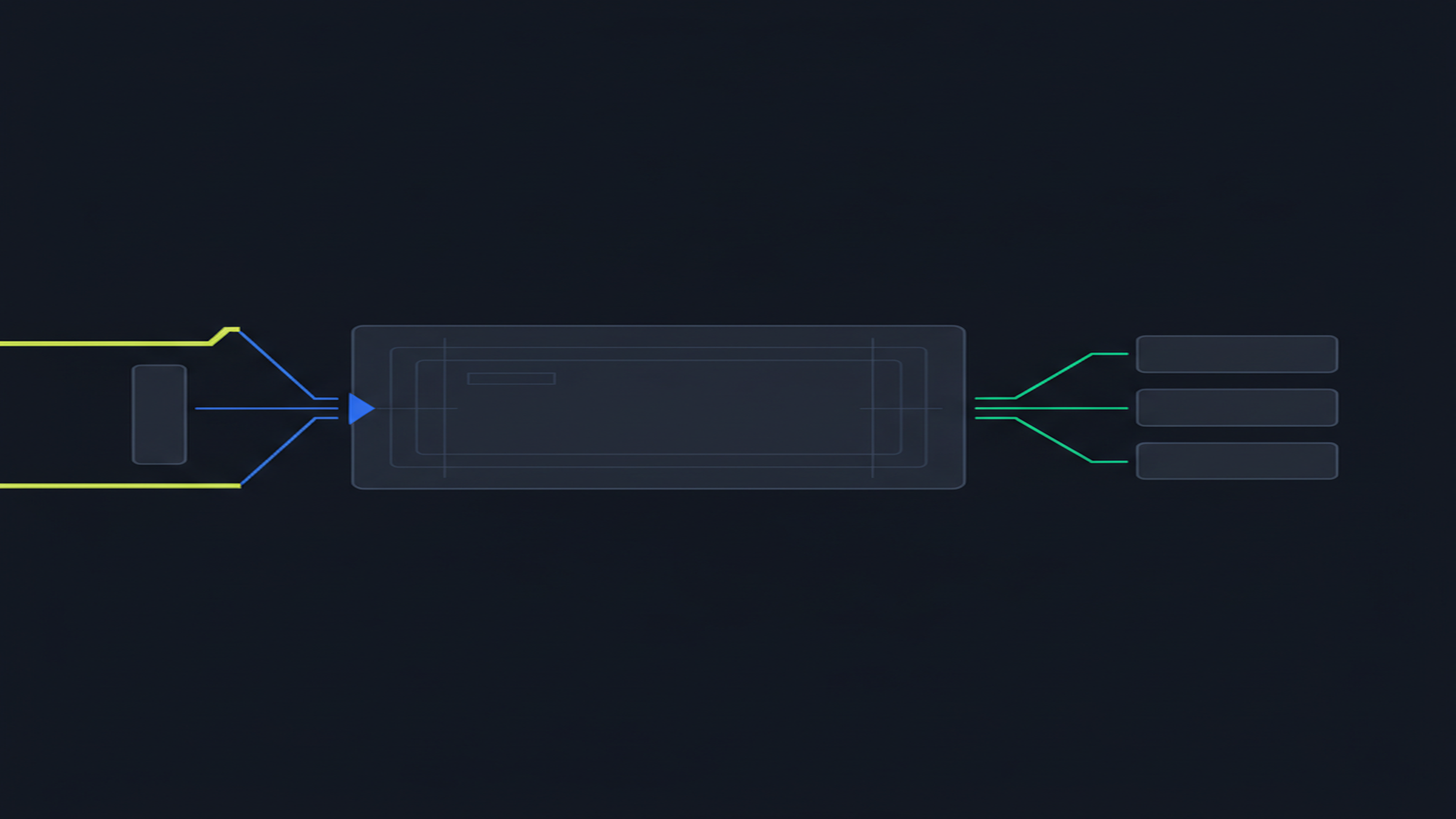
Server-set cookies from sGTM persist for up to 2 years — versus 7 days under Safari’s Intelligent Tracking Prevention for JavaScript-set cookies. The gap determines whether returning visitors stitch correctly across sessions or register as new users after day eight.
Source: Analytics Mania · simoahava.com/privacy/first-party-cookies-webkit-revisited/ · June 2026
What Is Server-Side Tagging (sGTM)?
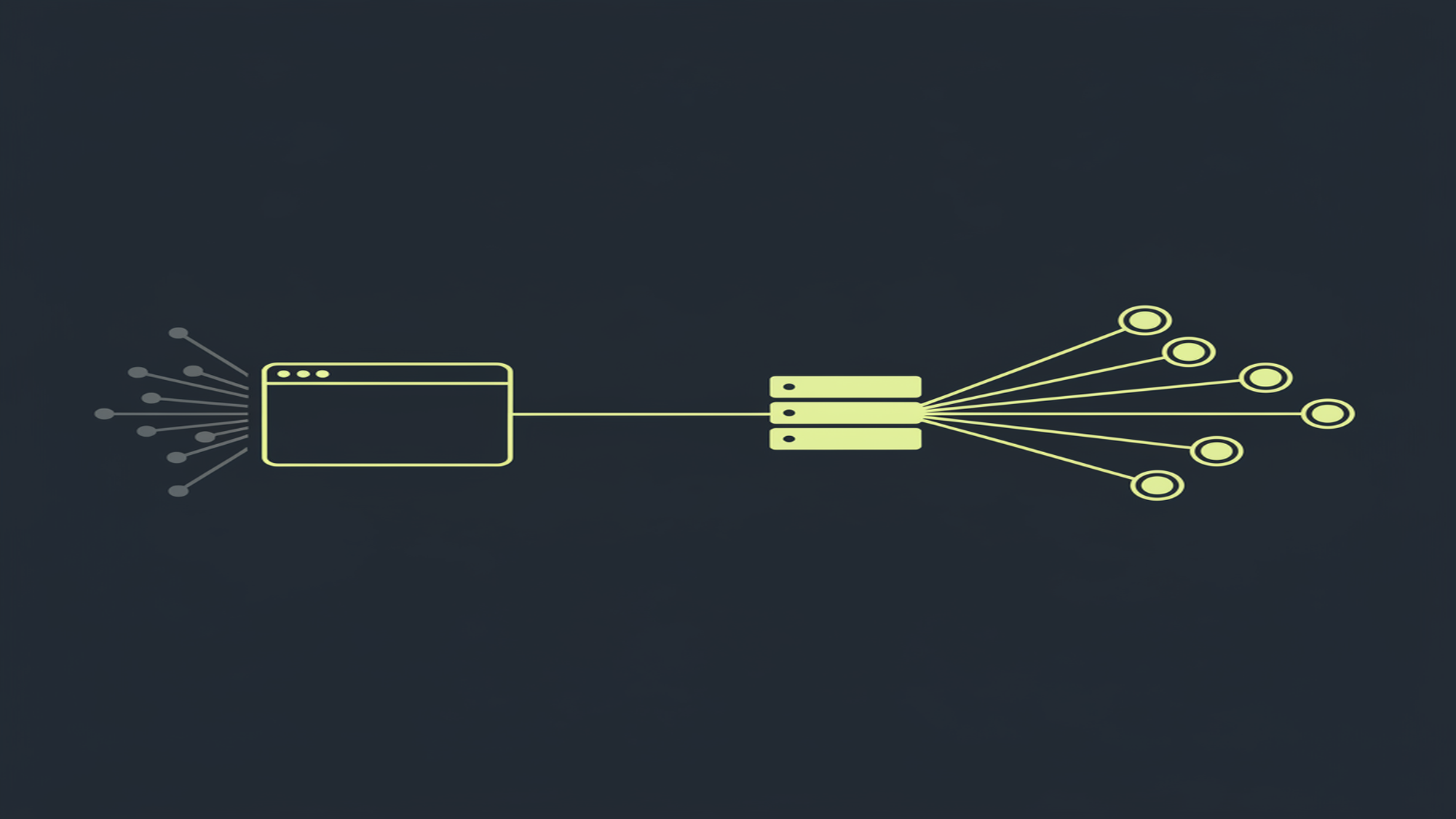
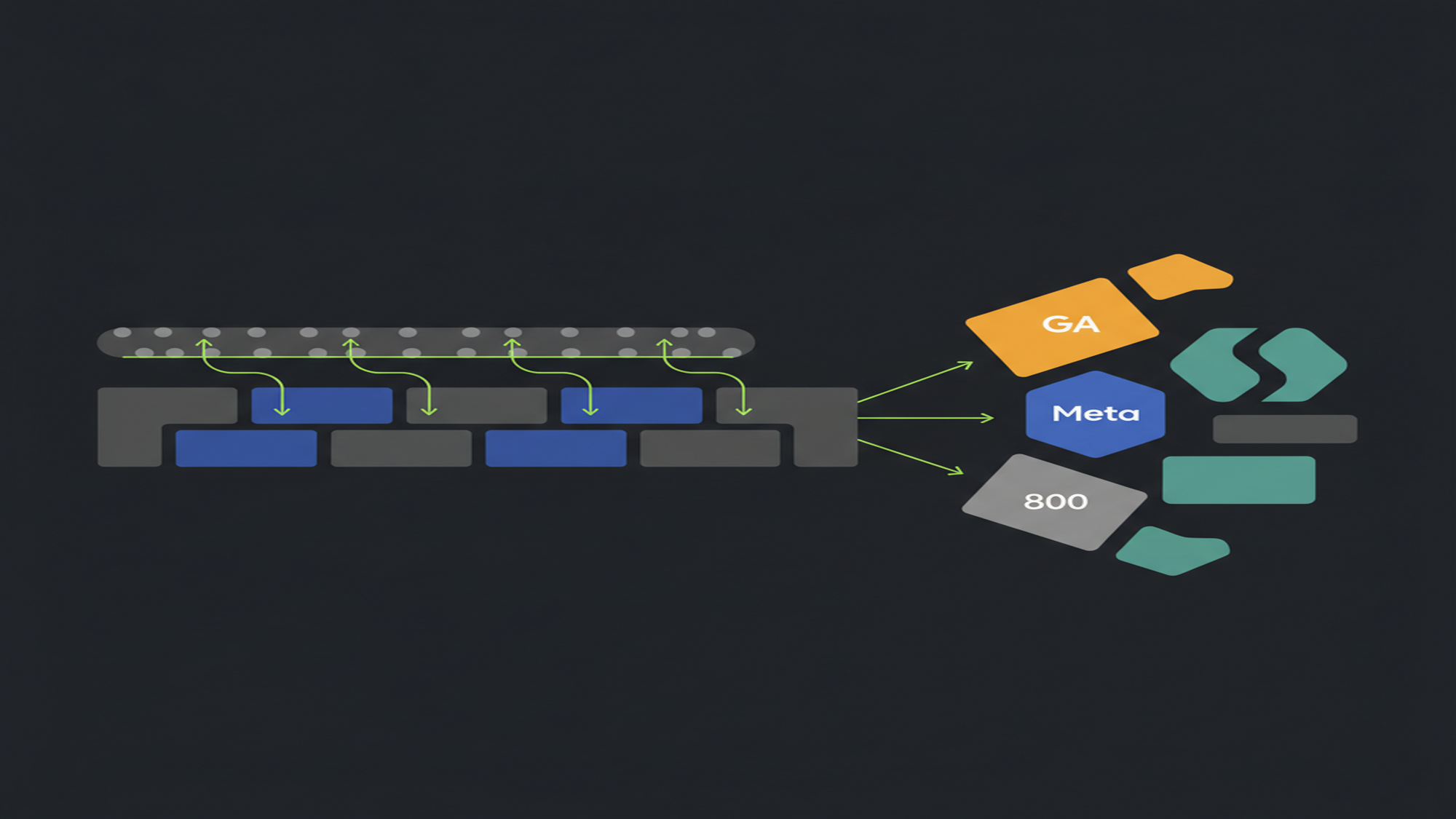
Server-side tagging (sGTM) moves tag execution off the user’s browser and onto a cloud server you control. Instead of the browser sending separate requests to ten different vendor endpoints — Google Analytics, Google Ads, Meta, LinkedIn — it routes a single HTTPS request to your server. That server intercepts the data, processes it, and distributes it to each vendor endpoint. The browser is no longer the execution environment for vendor JavaScript. The server is.
The server component is a separate container type within Google Tag Manager — not a configuration of standard GTM. Standard GTM (the web container) fires JavaScript tags in the browser; the server container fires server tags inside a Google Cloud Run service. Both containers coexist in every production sGTM setup. The web container sends data to the server container; the server container processes and routes it downstream.
Three capabilities drive sGTM adoption:
- Ad-blocker resilience. Browser extensions maintain blocklists of known vendor domains (
google-analytics.com,facebook.com). Requests to your custom server subdomain (e.g.,metrics.example.com) are not on those lists. - Cookie persistence under ITP. Safari’s Intelligent Tracking Prevention caps JavaScript-set cookies at 7 days. Server-set cookies on your own domain are not subject to that cap — they persist for up to 2 years, restoring accurate user stitching for returning visitors.
- Payload control. Vendor JavaScript in the browser can access device data and form fields you did not intend to share. Processing data server-side lets you strip, hash, or redact parameters before any vendor endpoint receives them.
sGTM requires Google Cloud Platform infrastructure: a Cloud Run service, a GCP billing account, and — for the full benefit set — a custom subdomain mapped to the tagging server. The minimum viable production deployment costs ~$90/month in Cloud Run compute. For GA4 implementations where data quality, Safari cookie persistence, or consent enforcement at the infrastructure layer are requirements, that cost is justified. Where none of those apply, client-side GTM is the correct choice.
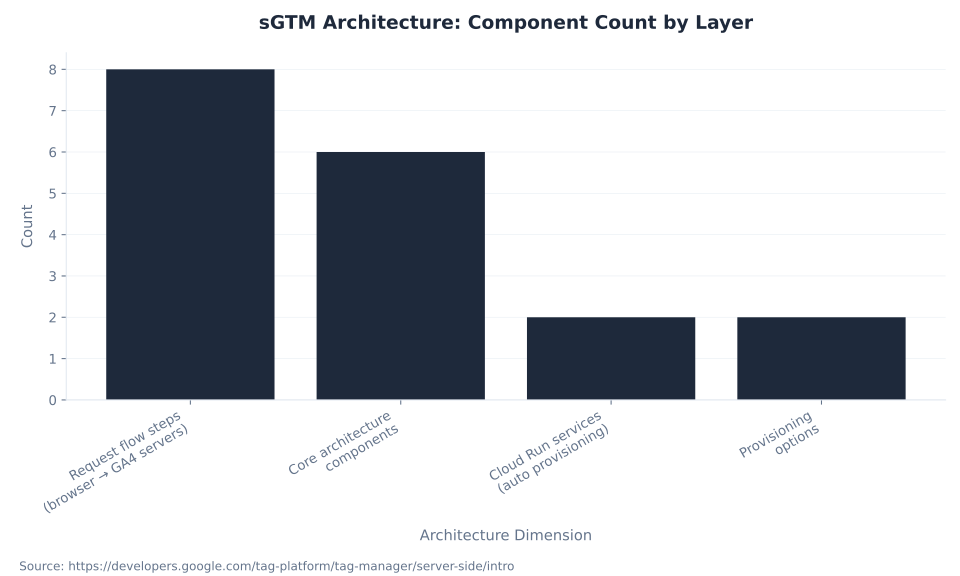
Eight components form the sGTM architecture. The server container is the GTM container type that runs on a server. The tagging server is the live Cloud Run instance executing it. Clients are protocol adapters that inspect and claim incoming requests in priority order — without a claiming client, no tags fire. The pre-installed GA4 client claims GA4 Measurement Protocol requests and also proxies the GA4 JavaScript library from your server domain. Server tags operate against the event data object produced by the claiming client and forward processed data to vendor endpoints. The server_container_url parameter in the web container’s Google tag is the wire that redirects GA4 measurement hits from Google’s servers to your tagging server. A first-party subdomain — your own domain mapped via A/AAAA DNS records — is what gives the tagging server first-party context. The preview server is a separate Cloud Run service that handles debug sessions only.
| Concept | What it is | Role in sGTM architecture |
|---|---|---|
| Server container | A GTM container type that runs on a server, not in a browser | Workspace where you configure clients, server tags, and variables. Distinct from the web container. |
| Tagging server | The live Cloud Run instance executing the server container | Receives incoming HTTP requests from the browser, runs client and tag logic, sends data to vendor endpoints. |
| Client | A protocol adapter inside the server container | Inspects requests in priority order, claims those it recognizes, transforms them into a standardized event data object. Without a claiming client, no server tags fire. |
| GA4 client | Pre-installed client claiming GA4 Measurement Protocol requests | Intercepts /collect, /g/collect, /j/collect paths; parses parameters into event data; also proxies the GA4 JavaScript library from your server domain. Pre-installed in all new server containers. |
| Server tag | A tag firing inside the server container against event data | Sends processed data to vendor endpoints (e.g., GA4 server tag → Google Analytics servers). Fires based on server-side triggers and variables. |
server_container_url / transport_url | A Google tag configuration parameter in the web container | Redirects GA4 Measurement Protocol hits from Google’s servers to the tagging server. The mechanism that activates sGTM from the web container. |
| First-party subdomain | A custom subdomain on your own domain (e.g., metrics.example.com) mapped to the tagging server | Gives the tagging server first-party context: server-set cookies outside ITP’s 7-day cap, reduced ad-blocker exposure. Requires A/AAAA DNS records — not CNAME. |
| Preview server | A separate Cloud Run service created alongside the production tagging server | Handles the sGTM preview/debug session. Does not receive production traffic. Fixed at 0 minimum / 1 maximum instance. |
Source: Introduction to Server-Side Tagging — Google Tag Platform (verified June 2026).
The sGTM Architecture: Clients, Event Data, and the GA4 Client’s Dual Role
The GA4 client is the critical component in most sGTM implementations. It is a protocol adapter — not a pass-through relay. When a GA4 Measurement Protocol request arrives at the tagging server, the GA4 client claims it, parses the raw HTTP request parameters, and produces a normalized event data object: client_id, session_id, ip_override, event name, and all event parameters. Server tags and triggers operate against this event data object, not against the raw HTTP request.
The GA4 client has two distinct roles that most implementation guides omit:
- Event interceptor. Claims and parses GA4 Measurement Protocol requests hitting the
/g/collect(and/collect,/j/collect) path. Transforms them into the normalized event data object that all server tags share. - Library proxy. Serves the GA4 JavaScript library (
gtag.js) from your tagging server domain rather than Google’s CDN. This keeps the library load in a first-party context, separate from the collection request routing.
Clients operate sequentially by priority. Each client inspects the incoming HTTP request and either claims it — signaling that it recognizes the format and will handle it — or passes to the next client in the queue. If no client claims a request, the server container returns a response but fires no tags. This client-first architecture is what makes sGTM extensible: third-party clients (e.g., for Shopify’s Liquid event format or custom Measurement Protocol payloads) can be added to the server container to handle non-GA4 traffic. For GA4 events and parameters flowing through the GA4 client, the event data object schema determines which fields are available to server-side variables.
For the step-by-step implementation — configuring the GA4 server tag, server-side triggers, and variable setup — see Server-side implementation in GTM.
| Step | What happens | Where |
|---|---|---|
| 1. Page loads | Browser loads web container (client-side GTM). Google tag reads server_container_url parameter. | User’s browser |
| 2. Event fires | GA4 event fires in the web container. Google tag routes the Measurement Protocol request to the tagging server URL instead of Google’s servers. | Browser → HTTPS to metrics.example.com |
| 3. Server receives request | The Cloud Run service running the server container receives the HTTP request. | Cloud Run (Google Cloud) |
| 4. Client claims request | Clients evaluate in priority order. GA4 client detects the /g/collect path and claims the request. | Server container |
| 5. Event data object created | GA4 client parses request parameters into a standardized object: client_id, session_id, ip_override, event name, all parameters. | Server container |
| 6. Tags evaluate and fire | Server tags evaluate triggers against the event data object. Matched tags fire, transforming and forwarding data to vendor endpoints. | Server container |
| 7. Data reaches GA4 servers | GA4 server tag sends outgoing HTTP request to Google Analytics collection endpoints with processed event data. | Cloud Run → Google Analytics servers |
| 8. Response returns to browser | Tagging server returns a response to the browser. GA4 client includes Set-Cookie headers to set server-side cookies. | Cloud Run → user’s browser |
Source: Configuring GA4 Data Stream with Server-Side Tagging — Google Tag Platform; Introduction to Server-Side Tagging (verified June 2026).
sGTM Keyword Cluster: Search Demand and KD Context (US, June 2026)
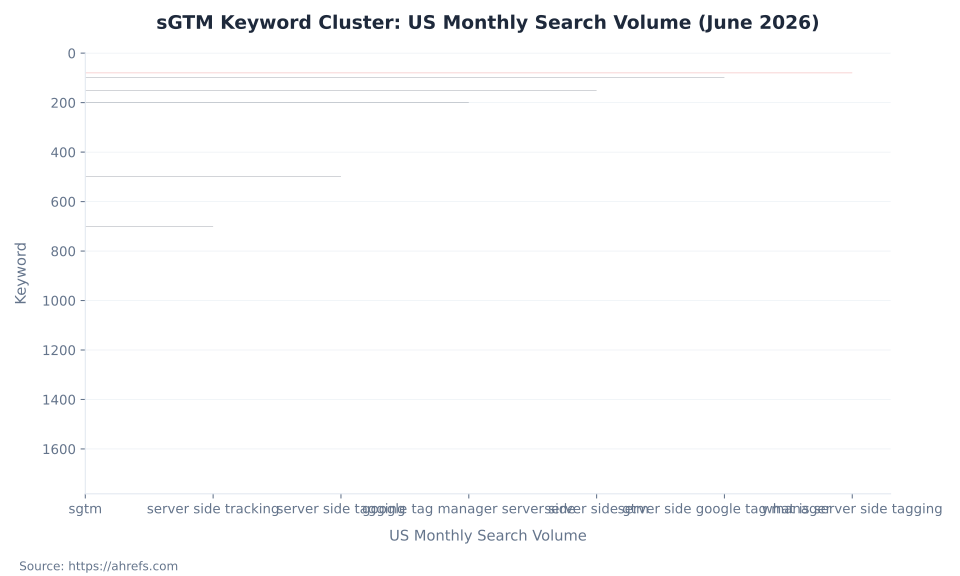
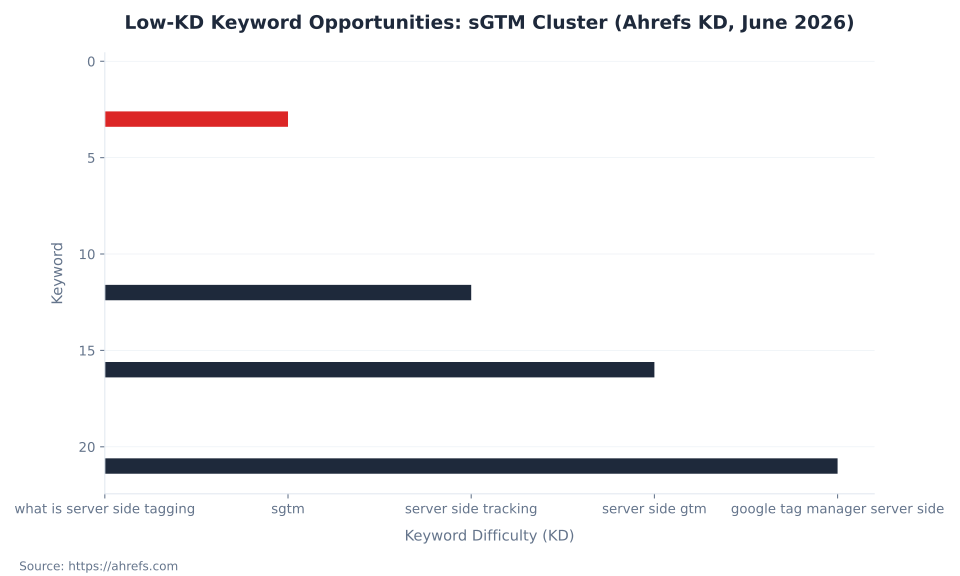
The primary low-KD capture targets in this cluster are “sgtm” (US 1,700/month, KD 3) and “what is server side tagging” (US 80/month, KD 1). The head term “server side tagging” carries 500 US monthly searches at KD 33 — attainable but competitive. “Server container” (KD 45) is dominated by Docker containerization content and is not a reliable GTM traffic source.
The total cluster has 3,780 US monthly searches and 29,120 global searches across the nine tracked keywords. The practitioner audience searching these terms skews toward implementation-capable specialists and agency consultants — not casual browsers. CPC data confirms commercial intent: “server side tracking” and “server side tagging” each carry $8.00 CPC (USD), indicating willingness to pay for tools or services in this space. Source: Ahrefs keyword data, operator-supplied June 2026.
| Keyword | US vol/mo | Global vol/mo | KD | Notes |
|---|---|---|---|---|
| sgtm | 1,700 | 20,000 | 3 | Primary low-KD target. Parent topic: sgtm. |
| server side tracking | 700 | 4,400 | 12 | Attainable mid-funnel. |
| server side tagging | 500 | 2,200 | 33 | Head term; competitive. |
| google tag manager server side | 200 | 1,000 | 21 | Attainable mid-funnel. |
| server side gtm | 150 | 1,100 | 16 | Attainable mid-funnel. |
| server side google tag manager | 100 | 250 | 26 | Secondary target. |
| what is server side tagging | 80 | 150 | 1 | Primary low-KD target. Definitional. |
| server container | 40 | 150 | 45 | High KD; parent topic is Docker, not GTM. |
| server side tagging cost | 10 | 20 | — | No KD data; cost intent is high. |
Source: Ahrefs keyword data, operator-supplied June 2026. “Server side tagging cost” has no KD or CPC data in the Ahrefs export; stated as a gap rather than estimated.
Client-Side vs. Server-Side GTM: What Actually Changes
The architectural difference between client-side and server-side GTM is the execution environment. Client-side GTM runs JavaScript in the user’s browser. Server-side GTM runs tag logic in a Cloud Run service you control. Every downstream difference — ad-blocker resilience, ITP cookie behavior, payload control, infrastructure cost — is a consequence of that single architectural shift.
The most common misconception about this comparison is that sGTM replaces client-side GTM. It does not. In every production sGTM setup, the web container still fires in the browser and still manages the Google tag that sends data to the tagging server. sGTM is a processing layer inserted between the browser and vendor endpoints, not a replacement for the browser-side container. For a direct assessment of when each approach is appropriate for a specific implementation, see Server-side vs. client-side tagging in GTM.
| Dimension | Client-side GTM | Server-side GTM (sGTM) |
|---|---|---|
| Tag execution environment | User’s browser (JavaScript) | Cloud server (Google Cloud Run) |
| Who sends data to vendors | Browser — each vendor gets a direct request from the user’s device | Tagging server — sends on behalf of the browser after processing |
| Data exposed to browser | Yes — vendor scripts run in browser, can access DOM, form fields, device data | No — raw event data goes to the server; vendors receive only what you explicitly forward |
| Ad-blocker vulnerability | High — vendor domains on common blocklists | Lower — requests route to your custom subdomain, typically not on blocklists |
_ga cookie duration (Safari/ITP) | 7 days maximum (JavaScript-set; ITP restriction) | Up to 2 years (server-set via Set-Cookie header) — IP-range caveat applies |
| PII / payload control | Limited — vendor scripts access parameters independently | Precise — strip, hash, or block parameters before forwarding |
| Consent enforcement | Browser-side consent mode; vendor scripts still load | Server container can conditionally fire tags based on consent signals in the request |
| Infrastructure cost | None (hosted by Google) | Required: ~$45/instance/month on Cloud Run; 2 instances minimum for production (~$90/mo baseline) |
| Setup complexity | Low — GTM interface; no cloud infrastructure | High — GCP project, Cloud Run, custom domain, load balancer, DNS configuration |
| Web container required? | Yes (it is the only container) | Yes — hybrid model; web container still fires on page; sGTM is the processing layer |
Sources: Google Tag Platform — Introduction to Server-Side Tagging; Analytics Mania — GTM Server-Side Tagging: The Guide (verified June 2026).
Seven Benefits of Server-Side Tagging (and Their Real Caveats)
sGTM delivers seven distinct benefits — but each has a caveat that implementation guides routinely omit. Ad-blocker resilience is real but not absolute. Cookie persistence under ITP applies only when the tagging server is on your domain via A/AAAA records with matching IP range. PII control is possible but requires deliberate configuration. Understanding the benefit-caveat pairs prevents the overselling that leads to post-implementation disappointment.
Ad-blocker resilience is the benefit most commonly cited and most commonly overstated. A custom subdomain on your own domain (e.g., metrics.example.com) is not on the blocklists maintained by uBlock Origin, EasyList, or similar extensions. Requests to that subdomain pass through for most users. However, some sophisticated blocking extensions pattern-match on request payloads and common parameter names (client_id, tid, cid). Simo Ahava’s documentation notes that sGTM endpoints are “not currently targeted by blocklists” but explicitly flags this as a potential circumvention vector. The accurate claim: sGTM substantially reduces tracking loss from common ad blockers. Not: it eliminates it. Source: Simo Ahava — Server-Side Tagging in Google Tag Manager.
MB Adv Agency has found that the server-set cookie benefit is the most measurable improvement for e-commerce implementations on mixed-browser environments. Clients with substantial Safari traffic see the most direct impact on new-vs-returning classification accuracy — the accuracy of that classification propagates through every audience segment, LTV model, and retargeting pool that depends on it. For how sGTM changes GA4’s data collection model and privacy posture, and for how consent signals integrate at the infrastructure layer, see Consent Mode and privacy in GTM.
| Benefit | The problem it solves | How sGTM addresses it | Caveat |
|---|---|---|---|
| Ad-blocker resilience | Browser extensions block requests to known vendor domains | Requests route through your custom subdomain, not on common blocklists | Sophisticated extensions pattern-match on request payloads; not guaranteed for all blockers |
| ITP/Safari cookie persistence | Safari ITP expires JavaScript-set cookies after 7 days, breaking user stitching | sGTM sets _ga via Set-Cookie HTTP header; server-set cookies persist up to 2 years | Requires matching IP first two octets between tagging server and web server; A/AAAA DNS (not CNAME) required |
| First-party context for GA4 library | GA4’s gtag.js loads from Google’s CDN (a third-party domain) | GA4 client proxies the library from your tagging server domain | Only when a custom first-party subdomain is properly mapped |
| PII/payload control | Vendor JavaScript in the browser can access device data and form fields | Clients and server-side logic strip, hash, or conditionally drop parameters before forwarding | Requires custom implementation; not automatic out of the box |
| Consent enforcement at infrastructure layer | Consent mode signals browser-side behavior but does not prevent vendor script loading | Server container conditionally fires tags or drops parameters based on consent signals in the request | Consent signal must be passed in the incoming request; implementation complexity is high |
| Reduced browser payload | Multiple vendor scripts load in the browser, degrading page speed | Consolidates to fewer client-side scripts; processing moves server-side | Not a complete front-end performance substitute; hybrid setup still loads the web container |
| Payload trimming for downstream vendors | Vendors receive more user data than necessary (browser metadata, device fingerprint parameters) | Server container forwards only the parameters you configure in the server tag | Requires deliberate per-vendor configuration in server tag setup |
Sources: Analytics Mania — Benefits of Server-Side Tagging; Simo Ahava — Server-Side Tagging in Google Tag Manager; Google Tag Platform — Introduction to Server-Side Tagging (verified June 2026).
First-Party Domain Setup: Why .run.app Is Not First-Party
Setting server_container_url to your tagging server URL redirects browser requests to the server container. Whether those requests are treated as first-party depends entirely on which URL you use. The default Cloud Run URL (.a.run.app) is a third-party domain. First-party context requires a custom subdomain on your own domain, correctly mapped via A/AAAA DNS records — a distinct step from provisioning.
There are three distinct states, not a binary “first-party or not.” The CNAME vs. A/AAAA distinction is load-bearing and frequently omitted in implementation guides. CNAME-based subdomain mapping is subject to Safari ITP’s CNAME-cloaking detection. ITP identifies when a CNAME resolves to a third-party IP and applies the same 7-day cap as it would to JavaScript-set cookies. A/AAAA records correctly establish first-party context because the IP address resolves directly to your infrastructure. Source: Simo Ahava — Expiration Cap Removed From JavaScript Cookies in WebKit.
MB Adv Agency has found that the CNAME-vs-A/AAAA distinction is the most common technical error in sGTM first-party subdomain implementations. A CNAME-based setup appears to function correctly in most browsers and passes basic testing in most browsers — but it does not provide the ITP exemption that A/AAAA records deliver for Safari users.
A second caveat that is almost always omitted: the ITP exemption for server-set cookies requires that the tagging server and the web server share the same first two IP address octets. If they do not match — for example, if the tagging server is on a GCP IP range and the web server is on a different CDN — ITP still applies the restriction despite A/AAAA mapping. This caveat means the full 2-year cookie duration requires both the correct DNS record type and matching IP ranges. For how server-set cookie accuracy affects GA4 conversions and key events, accurate user stitching is a prerequisite for reliable attribution.
| Configuration | Ad-blocker resilience | _ga cookie duration (Safari/ITP) | First-party context |
|---|---|---|---|
Default .run.app URL | Partial — .run.app is a known third-party domain pattern | Not ITP-exempt — 7-day cap still applies | No |
| Custom subdomain via CNAME | Improved — requests go to your domain | Subject to ITP CNAME-cloaking detection — Simo Ahava documents CNAME-based mapping as “vulnerable” | No — CNAME is detected by ITP’s CNAME-cloaking |
| Custom subdomain via A/AAAA DNS records | Best — requests go to your own domain, not third-party | Up to 2 years (server-set via Set-Cookie header) — requires matching IP range first two octets | Yes, when IP-range caveat is met |
Source: Simo Ahava — Expiration Cap Removed From JavaScript Cookies in WebKit; Analytics Mania — Benefits of Server-Side Tagging (verified June 2026).
sGTM Keyword Cluster: US Monthly Search Volume (June 2026)
sGTM Infrastructure Cost: What You’re Actually Paying For
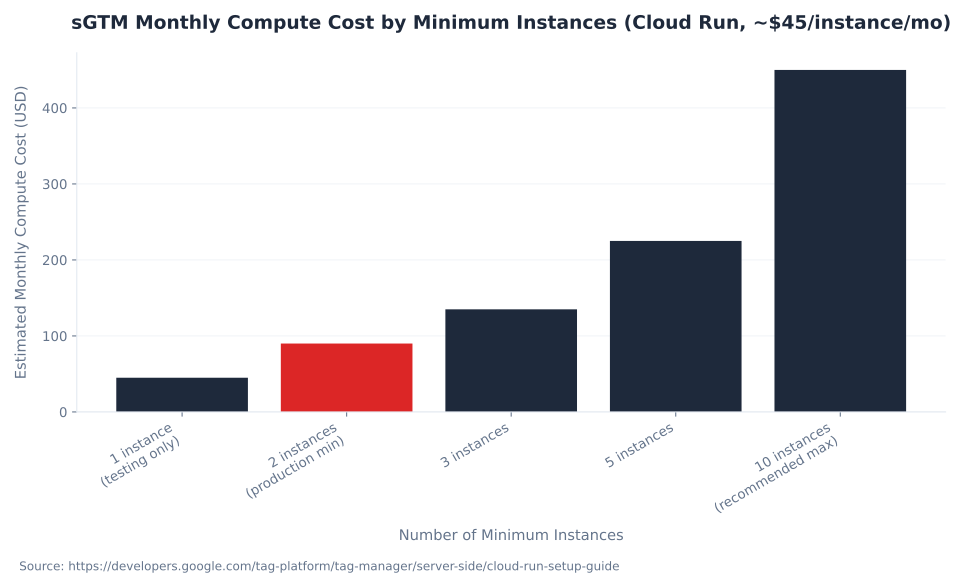
sGTM is not free in production. The automatic provisioning step creates a testing configuration — single instance, zero minimum — that Google’s own documentation explicitly states is unsuitable for production traffic. A production-grade setup requires a minimum of two Cloud Run instances to reduce data-loss risk during server events. At ~$45/instance/month (1 vCPU / 512 MB, CPU always allocated), the minimum viable production cost is ~$90/month before GCP egress and logging fees.
The planning guide at developers.google.com/tag-platform/learn/sst-fundamentals/7-planning-infrastructure states ~$50/instance/month for computation alone — a slightly different figure from the same range. Both are current Google documentation. The setup guide ($45/instance) is the lower-bound estimate. The $90/month production floor assumes exactly two instances at minimum. At 10 maximum instances (Google’s recommended ceiling), worst-case compute cost is $450/month — before egress and logging fees. The actual cost for a high-traffic deployment running 5–8 average instances sits materially above $90/month.
sGTM is not free in production.
The automatic provisioning step creates a testing configuration only. A production-grade setup requires a minimum of 2 Cloud Run instances (~$90/month baseline, 1 vCPU / 512 MB, CPU always allocated). Use the Google Cloud Pricing Calculator — which opens with a pre-configured sGTM estimate — to verify current pricing before publishing. Source: Google Cloud Run setup guide for sGTM, June 2026.
MB Adv Agency has found that the $90/month production floor is consistently underestimated in sGTM scoping conversations. Once GCP egress fees, Cloud Logging charges, and incremental autoscaling costs during peak traffic periods are factored in, the real monthly cost for high-traffic deployments is materially higher. For implementations where sGTM serves as the measurement infrastructure for conversion tracking and attribution, the cost justification requires mapping the infrastructure spend against the data-quality value it delivers.
| Cost component | Impact level | How it works | Notes |
|---|---|---|---|
| Compute — minimum instances | High (fixed baseline) | Cloud Run with CPU always allocated charges for instances even when idle. At 1 vCPU / 512 MB memory: ~$45/instance/month (USD). | Minimum instances setting determines the fixed monthly floor. 0 minimum = free at idle but data-loss risk during cold starts. 2 minimum = ~$90/month baseline — recommended for production. |
| Compute — autoscale instances | Medium (variable) | Cloud Run provisions additional instances as traffic spikes. Max instances (recommended: 10) caps worst-case spend. | At 2–10 autoscaling instances the setup handles ~35–350 requests/second depending on tag complexity. Cost incurred only while additional instances are active. |
| Network egress | Moderate (fluctuates) | Outgoing HTTP requests from Cloud Run to vendor endpoints (GA4 servers, ad platforms) incur GCP egress fees. | Volume-dependent. Cloud Logging for request logs also incurs charges above GCP’s free tier. |
| Custom domain / load balancer | Low (near-fixed) | Requires a global static IP and a Google-managed SSL certificate (free). Load balancer + serverless NEG required for custom domain mapping. | One-time setup cost; low ongoing cost. Static IP: ~$0.01/day when not attached to a load balancer; free once attached. |
| Storage / Cloud Logging | Low (variable) | Cloud Logging captures request logs. GCP includes a free tier; charges apply above that volume. | Controllable by configuring log retention and exclusion filters. |
Sources: Set Up Server-Side Tagging with Cloud Run — Google Tag Platform; Planning Infrastructure Requirements and Costs — Google; Cloud Run With Server-Side Tagging in GTM — Simo Ahava (verified June 2026). GCP pricing changes; verify current rates at cloud.google.com/products/calculator before scoping.
sGTM Monthly Compute Cost by Minimum Instances (Cloud Run, ~$45/instance/mo)
Provisioning Options: Automatic vs. Manual — What Each Creates
Two paths exist for provisioning the sGTM server container: automatic provisioning (via the GTM interface) and manual provisioning (via GCP console or CLI). The distinction matters because automatic provisioning creates a testing configuration only — unsuitable for production traffic. Google’s documentation at developers.google.com/tag-platform/learn/sst-fundamentals/4-sst-setup-container states this explicitly. Every production sGTM implementation requires a follow-up manual configuration step.
Automatic provisioning creates two Cloud Run services in us-central1: server-side-tagging (the production service) and server-side-tagging-preview (the preview/debug service). The production service is created with a testing configuration: single instance, zero minimum instances. This means the service scales to zero when idle — cold starts occur during low-traffic periods, and production data can be lost during startup latency. For production, the minimum instance count must be set to 2 before routing live traffic.
Manual provisioning via the GCP console or CLI deploys a single Cloud Run service using the gcr.io/cloud-tagging-10302018/gtm-cloud-image:stable image. All parameters — region, CPU, memory, minimum instances, maximum instances — are set during configuration. For multi-region setups (e.g., separate Cloud Run services in us-central1 and europe-west1), manual provisioning is required. Automatic provisioning fixes the region to us-central1 with no post-deployment change option.
| Dimension | Automatic provisioning (via GTM) | Manual provisioning (via GCP console / CLI) |
|---|---|---|
| How | GTM creates a GCP project and deploys a Cloud Run service. Click “Automatically provision tagging server” in container creation. | Deploy via Google Cloud console, CLI, or Docker. Image: gcr.io/cloud-tagging-10302018/gtm-cloud-image:stable. |
| What it deploys | Two Cloud Run services: server-side-tagging (production) + server-side-tagging-preview | Single service per manual deployment; you configure all parameters. |
| Default region | us-central1 (fixed; changing requires a new service) | Configurable — any Cloud Run region |
| Instance settings | Testing configuration: single instance, 0 minimum. Not suitable for production traffic. Google’s documentation explicitly states this. | Configurable — set min/max instances, vCPU, memory to production specs. |
| Suitable for | Testing and initial exploration only | Production deployments, multi-region setups, custom scaling requirements |
| GCP billing required | Yes — billing account needed even for testing | Yes |
| Custom domain | Separate step after provisioning; Cloud Run domain mapping or load balancer | Separate step; same Cloud Run domain mapping process |
| Production cost | Near-zero at testing config (0 min instances, low traffic) | Determined by your min/max instance configuration |
Sources: Setting Up a New Server Container — Google Tag Platform; Set Up Server-Side Tagging with Cloud Run; Cloud Run With Server-Side Tagging in GTM — Simo Ahava (verified June 2026).
sGTM Architecture: Component Count by Layer
Debugging sGTM: Server Container Preview Mode
The server container has its own preview mode, separate from the web container’s. Activating Preview in the server container routes debug traffic to the preview server — a separate Cloud Run service created during provisioning — without affecting the production tagging server. The debug panel provides nine distinct inspection points across the full request/response lifecycle. For validation workflows across both web and server containers in combination, see Debugging, testing, and performance in GTM.
The preview session connects through a cookie. When GTM Preview launches, it sets a cookie on the tagging server domain. Subsequent browser requests to the tagging server include this cookie; the server routes them to the preview server for inspection. The production tagging server continues receiving non-debug traffic normally. This isolation means debug traffic does not contaminate production data.
The most important distinction between server container preview and web container preview is event bundling. GA4 bundles multiple events into single /g/collect requests. In web container preview, each event appears as a separate entry. In server container preview, multiple events appear as child items under a single top-level request entry. Inspecting the Outgoing HTTP Requests box in the Request tab confirms that the GA4 server tag correctly forwarded the event to Google Analytics servers with the expected parameters — this is the definitive validation that data reached GA4.
| Debugging capability | What it shows | How to access |
|---|---|---|
| Incoming requests (left panel) | All HTTP requests received by the tagging server, with child events parsed by the claiming client (e.g., page_view, add_to_cart subitems under a single /g/collect request) | Activate Preview in the server container; events appear automatically as browser traffic hits the tagging server URL |
| Request tab | Claiming client identity; incoming HTTP request headers and body; outgoing HTTP requests to vendor endpoints | Click a request in left panel → Request tab |
| Tags tab | Which tags fired vs. not fired; success/failure status per tag | Click a request → Tags tab |
| Variables tab | All event variables, their types, and resolved values | Click a request → Variables tab |
| Event data tab | Complete event data object as parsed by the claiming client — the full parameter set available to tags | Click a request → Event data tab |
| Console tab | Errors from tag execution with source and message | Click a request → Console tab |
| Outgoing HTTP request inspection | Headers, body, and response status code sent to GA4 or other vendor endpoints — confirming data arrived correctly | Click “Outgoing HTTP Requests” box in the Request tab |
| Health check | Confirms tagging server is live and reachable; returns ok if operational | Append /healthy to the server container URL |
| GA4 event bundling | GA4 bundles multiple events in single requests; multiple events appear under one top-level request entry in the left panel | Visible in the left panel hierarchy — expand the top-level request entry |
Sources: Preview and Debug Server Containers — Google Tag Platform (verified June 2026).
Two Lighter-Weight Alternatives: Google Tag Gateway and First-Party Mode
Two alternatives to full sGTM serve teams whose primary goal is routing GA4 and Google Ads traffic through their own domain without Cloud Run infrastructure cost: Google Tag Gateway and First-Party Mode. Neither matches sGTM’s full capability set, but both eliminate the ~$90/month production cost and significant setup complexity.
Google Tag Gateway is a free routing option that maps GA4 and Google Ads requests through a path on your own domain (e.g., yoursite.com/gtag/) via a CDN or load balancer configuration. It does not require a server container, Cloud Run, or a GCP billing account. The trade-off: Google Tag Gateway does not extend _ga cookie lifespans in the way server-set cookies do, and it does not block sophisticated browser extensions that pattern-match on request payloads. It also does not enable payload manipulation, conditional tag logic, or multi-vendor routing. For teams whose only requirement is routing GA4 traffic through their own domain to reduce blocklist exposure, Google Tag Gateway is the correct starting point. Source: Analytics Mania — Google Tag Gateway.
First-Party Mode (FPM) is a Google tags feature in public beta (as of June 2026) that routes Google tag requests through a subfolder on your domain (e.g., yoursite.com/metrics/) via a CDN or load balancer, without a server container. Unlike sGTM, FPM does not enable selective data stripping, conditional tag blocking, or complex data pipeline logic. sGTM and FPM can be combined: FPM handles Google tag library serving while sGTM handles event routing and processing. Source: Simo Ahava — First-Party Mode for Google Tags.
sGTM is the appropriate choice when the full benefit set is needed: server-set cookie persistence, payload control, multi-vendor routing, and consent enforcement at the infrastructure layer. Google Tag Gateway and FPM are the appropriate starting points when domain-routing alone is the requirement and infrastructure cost is a blocker. For the full concept reference, browse the Google Analytics 4 glossary hub and the Google Tag Manager glossary.
Four sGTM Misconceptions That Cause Real Implementation Errors
These four misconceptions drive the most common sGTM implementation failures — each produces a gap between what you believe the setup delivers and what is actually running. Each is directly refuted by published documentation.
Misconception 1: “Server-side GTM bypasses ad blockers completely — your tracking will be undetectable.”
Partly false. A custom subdomain on your own domain is not on the blocklists maintained by uBlock Origin, EasyList, or similar extensions. Requests to that subdomain pass through for most users. However, some blocking extensions pattern-match on request payloads and common parameter names rather than solely on domain. Simo Ahava explicitly recommends transparency about data collection rather than treating blocker evasion as the primary use case. Additionally, Google Tag Gateway offers some of the same domain-routing benefits for GA4 and Google Ads without the sGTM hosting cost, but does not match sGTM’s breadth of blocker coverage. The accurate claim: sGTM substantially reduces tracking loss from most common ad blockers. Source: Simo Ahava — Server-Side Tagging in Google Tag Manager.
Misconception 2: “sGTM is free or near-free to run in production.”
False. The automatic provisioning step creates a testing configuration — one instance at zero minimum instances. Google’s documentation explicitly states this is unsuitable for production. A production-grade setup requires a minimum of two instances to reduce data-loss risk. At ~$45/instance/month (1 vCPU / 512 MB, CPU always allocated), the minimum viable production cost is ~$90/month before GCP egress and logging fees. At 2–10 autoscaling instances handling 35–350 requests/second, costs scale with traffic. Source: Google Cloud Run setup guide for sGTM.
Misconception 3: “sGTM replaces client-side GTM — you can remove the web container.”
False. sGTM is an intermediary layer, not a replacement for the web container. The web container still fires on every page, still manages the Google tag, and still sets the server_container_url parameter that redirects measurement traffic to the tagging server. Most production sGTM setups retain client-side GTM for: (a) managing the tag that sends data to the server container; (b) firing any tags that require browser context (personalization scripts needing DOM access); (c) running the preview mode that initiates the debug session. For GA4 ecommerce tracking implementations, the data layer still fires in the browser and is still captured by the web container before being forwarded to sGTM.
Misconception 4: “Setting server_container_url automatically gives me a first-party setup.”
Partially false. Setting server_container_url redirects browser requests to the server container — correct. Whether those requests are first-party depends on which URL you use. The default .a.run.app URL is a third-party domain. First-party context requires a custom subdomain on your own domain via A/AAAA DNS records (not CNAME), a load balancer, and an SSL certificate. CNAME-based mapping is subject to ITP’s CNAME-cloaking detection. The first-party subdomain setup is a distinct step after provisioning. For how this affects GA4 integrations and BigQuery data pipelines, server-set cookie accuracy propagates into every downstream dataset.
Low-KD Keyword Opportunities: sGTM Cluster (Ahrefs KD, June 2026)
Need a server-side architecture assessment?
MB Adv Agency evaluates whether sGTM is the right fit for your measurement stack — infrastructure cost, data-quality gaps, consent requirements, and Cloud Run configuration — before you commit to GCP billing.
Contact MB Adv →The server_container_url Parameter: The Wire That Activates sGTM
The server_container_url parameter is the single configuration change that activates sGTM from the web container. It is a Google tag configuration parameter — set in the web container’s Google tag under Configuration settings — with the value set to the tagging server URL (e.g., https://metrics.example.com). Once set, the GA4 tag in the web container routes all Measurement Protocol hits to the tagging server instead of to Google’s collection endpoints.
The parameter appears under two names in Google’s documentation. server_container_url is the current canonical name in the Google tag configuration UI and in sGTM Fundamentals documentation. transport_url is used in older documentation and in some SDK contexts. Both refer to the same configuration. The 2023 rename of the “GA4 Configuration tag” to “Google tag” shifted the configuration surface — if implementation guides reference “GA4 Configuration tag” settings, they predate that rename and should be treated as legacy documentation. Source: Google Tag Platform — Introduction to Server-Side Tagging.
Without this parameter, GA4 events in your web container route directly to Google's collection servers. sGTM is provisioned and running, but the web container has no instruction to send data to it. The tagging server receives no traffic. Setting the parameter is the activation step.
The URL used for this parameter determines whether you achieve first-party context. The default Cloud Run URL (.a.run.app) is a third-party domain. Browser requests to it are treated as third-party, ad-blocker rules for the .run.app domain pattern apply, and ITP’s 7-day cap on JavaScript-set cookies is not lifted by server-set cookies from that domain. The parameter’s value must be a custom subdomain on your own domain — mapped via A/AAAA DNS records — to achieve the full first-party benefit set. Setting the URL is step one; the custom domain configuration is the step that determines whether the URL delivers first-party context. For the step-by-step path from provisioning to custom domain, see Server-side implementation in GTM.
How to Set Up Server-Side GTM on Cloud Run with a First-Party Subdomain (8 Steps)
Setting up a production sGTM instance with a custom first-party subdomain takes ~3 hours for a practitioner with GCP familiarity; longer for first-time GCP users. Steps are verified against Google’s documentation (developers.google.com/tag-platform/tag-manager/server-side/cloud-run-setup-guide) as of June 2026.
Step 1: Create a server container in Google Tag Manager. In GTM, click Create Container → name it → select “Server” as the container type. Choose “Automatically provision tagging server” to create the initial Cloud Run services. A GCP billing account is required. This step creates two Cloud Run services: server-side-tagging and server-side-tagging-preview in us-central1.
Step 2: Confirm automatic provisioning created two Cloud Run services. In your GCP project’s Cloud Run console, verify both services appear. The automatically provisioned production service uses a testing configuration (single instance, 0 minimum). Do not route production traffic to it yet.
Step 3: Update Cloud Run instance settings for production. In GCP Cloud Run, edit the server-side-tagging service: set minimum instances to 2 (recommended); set maximum instances to 10; confirm CPU allocation is “Always on.” Set a billing alert in Cloud Billing to cap unexpected charges. Expected cost: ~$45/instance/month × minimum instances = $90/month baseline.
Step 4: Reserve a static IP and create an HTTPS load balancer. In GCP, reserve a global static IP address. Create an HTTPS load balancer with: a frontend using HTTPS on port 443 bound to the reserved IP; a Google-managed SSL certificate for your custom subdomain (e.g., metrics.example.com); a backend using a serverless Network Endpoint Group (NEG) pointing to the server-side-tagging Cloud Run service.
Step 5: Configure DNS using A/AAAA records — not CNAME. In your DNS provider, create an A record pointing metrics.example.com to the reserved static IP. Do not use a CNAME record — CNAME-based mapping is subject to Safari ITP’s CNAME-cloaking detection and does not provide the ITP exemption for server-set cookies. A/AAAA records correctly establish first-party context.
Step 6: Update the server container URL in GTM. In GTM → server container → Admin → Container Settings: update the Server Container URL field from the default .run.app URL to https://metrics.example.com. This ensures the tagging server identifies itself by your custom domain for outgoing response headers and cookie setting.
Step 7: Set server_container_url in the web container’s Google tag. In your web container, open the Google tag → Configuration → Configuration settings: add a parameter named server_container_url with value https://metrics.example.com. This redirects all GA4 Measurement Protocol hits from Google’s servers to your tagging server. Publish the web container.
Step 8: Validate in server container Preview mode. Activate Preview in the server container. Browse the production site in the same browser. In the server container debug panel: confirm the GA4 client is claiming incoming requests; verify event names and parameters in the Event Data tab; check the Outgoing HTTP Requests box to confirm data is forwarding to GA4 servers with correct parameters. Append /healthy to the tagging server URL to confirm the Cloud Run service is operational. For the complete validation and testing workflow, see Debugging, testing, and performance in GTM.
Frequently Asked Questions
Answers to the sGTM questions that produce the most implementation errors — and the most AI Overview citations.
Does server-side GTM completely block ad blockers from blocking tracking?
No. A custom subdomain on your own domain (e.g., metrics.example.com) is not on the blocklists maintained by uBlock Origin, EasyList, or similar extensions. Requests to that subdomain pass through for most users running standard blocking extensions.
However, some sophisticated blocking extensions pattern-match on request payloads and common parameter names (client_id, tid, cid) rather than solely on domain. Simo Ahava’s documentation notes that sGTM endpoints are “not currently targeted by blocklists” but explicitly flags this as a potential circumvention vector and recommends transparency about data collection rather than treating blocker evasion as the primary use case.
Google Tag Gateway offers some of the same domain-routing benefits for GA4 and Google Ads without the sGTM hosting cost, but does not match sGTM’s breadth of blocker coverage. The accurate claim: sGTM substantially reduces tracking loss from most common ad blockers. It does not eliminate that loss entirely for all users. Source: Simo Ahava — Server-Side Tagging in Google Tag Manager; Analytics Mania — Google Tag Gateway (June 2026).
Is sGTM free to run in production?
No. The automatic provisioning step in GTM creates a testing configuration: one Cloud Run instance at zero minimum instances. Google’s documentation explicitly states this is unsuitable for production workloads because the instance scales to zero when idle, causing cold starts and data loss.
A production-grade sGTM setup requires a minimum of two Cloud Run instances to reduce data-loss risk. At ~$45/instance/month (1 vCPU / 512 MB memory, CPU always allocated), the minimum viable production cost is ~$90/month in compute fees. The planning guide states ~$50/instance/month for computation alone — both figures are from current Google documentation.
Add GCP egress fees for outgoing requests to vendor endpoints and Cloud Logging charges above the free tier. At 2–10 autoscaling instances handling 35–350 requests/second, total costs scale with traffic. The Google Cloud Pricing Calculator opens with a pre-configured sGTM estimate and is the recommended tool for current cost validation before scoping. GCP pricing changes; verify before publishing.
Does server-side GTM replace client-side GTM?
No. sGTM is a processing layer inserted between the browser and vendor endpoints — not a replacement for the web container. In every production sGTM setup, the web container (client-side GTM) still fires on every page, still manages the Google tag, and still sets the server_container_url parameter that redirects measurement traffic to the tagging server.
Most production sGTM implementations retain client-side GTM for three reasons: (a) managing the Google tag that sends data to the server container; (b) firing any tags that must execute in the browser context — personalization scripts needing DOM access, for example; (c) running the web container preview mode that can be used in conjunction with the server container debug session.
Fully replacing client-side GTM would require moving all tag logic to the server container and is not the recommended or typical pattern. The typical architecture is hybrid: client-side GTM for browser-bound tag orchestration, sGTM for server-bound data processing and vendor routing. Source: Analytics Mania — GTM Server-Side Tagging: The Guide.
Does setting server_container_url automatically give me a first-party setup?
No. Setting server_container_url redirects browser requests from Google’s collection servers to your tagging server — that part is correct. Whether those requests are treated as first-party depends entirely on which URL you use as the value.
The default Cloud Run URL (.a.run.app) is a third-party domain. Requests to it are treated as third-party by browsers. ITP’s 7-day cap on JavaScript-set cookies is not lifted by server-set cookies from a third-party domain. Ad-blocker patterns for .run.app domain formats apply.
To achieve first-party context, you must map a custom subdomain on your own domain (e.g., metrics.example.com) to the Cloud Run service using A/AAAA DNS records — not CNAME. CNAME-based mapping is subject to ITP’s CNAME-cloaking detection. The custom domain setup requires a load balancer, a Google-managed SSL certificate, and a serverless Network Endpoint Group (NEG). That configuration is a distinct step after provisioning, not a consequence of setting server_container_url alone. Source: Simo Ahava — Expiration Cap Removed From JavaScript Cookies in WebKit.
What is the difference between the GA4 client and a server tag in sGTM?
They operate at different stages of the request lifecycle. The GA4 client is a protocol adapter that runs first. It inspects the incoming HTTP request, claims it if the request matches the GA4 Measurement Protocol format (/g/collect, /collect, /j/collect paths), and transforms the raw request parameters into a normalized event data object: client_id, session_id, ip_override, event name, all event parameters. Without a client claiming the request, no tags fire.
A server tag runs after the client has claimed and normalized the request. It operates against the event data object produced by the claiming client and performs outbound actions — typically sending processed data to vendor endpoints. The GA4 server tag, for example, takes the event data object and forwards a Measurement Protocol hit to Google Analytics servers.
The GA4 client also has a second role: proxying the GA4 JavaScript library (gtag.js) from your tagging server domain rather than Google’s CDN. This library-proxy function is separate from its event-interception function. For more on how GA4 events flow through this architecture, see GA4 events and parameters.
How does sGTM affect the _ga cookie duration under Safari’s ITP?
Safari's Intelligent Tracking Prevention caps JavaScript-set cookies at 7 days. The _ga cookie, when set via JavaScript (as standard client-side GA4 does), expires after 7 days under ITP. When a user returns to your site after day seven, GA4 sees them as a new user. This breaks new-vs-returning classification, session stitching across visits, and any metric that depends on returning user identification.
sGTM resolves this by setting the _ga cookie via an HTTP Set-Cookie response header rather than via JavaScript. Server-set cookies on your own first-party subdomain are not subject to ITP’s 7-day cap and persist for up to 2 years (730 days). Source: Analytics Mania — Benefits of Server-Side Tagging.
Two caveats apply. First, the ITP exemption requires A/AAAA DNS records for the custom subdomain — CNAME-based mapping is subject to ITP’s CNAME-cloaking detection. Second, the exemption requires the tagging server and web server to share the same first two IP address octets. If they differ, ITP applies the restriction despite A/AAAA mapping. Source: Simo Ahava — Expiration Cap Removed From JavaScript Cookies in WebKit.
Browse all GTM concepts, sibling pillars, and implementation references in the complete glossary cluster.
Google Tag Manager Glossary →Methodology
This pillar was produced using Ahrefs keyword data (operator-supplied, June 2026); Google Tag Platform documentation (developers.google.com/tag-platform) verified June 2026; Simo Ahava’s blog (simoahava.com) verified June 2026; and Analytics Mania (analyticsmania.com) verified June 2026. No mbadv client data, revenue figures, or fabricated benchmarks are present. All numeric claims trace to a cited source URL. GSC impression data for the three absorbed URLs was not used as a benchmark (zombie network, 0 clicks across 90 days). Cost figures were verified against live Google documentation; GCP pricing changes and must be re-verified at cloud.google.com/products/calculator before publishing. Reviewed by MB Adv Agency, June 2026. Browse the complete concept reference at the Google Tag Manager glossary.

As a Google Ads expert, I bring proven expertise in optimizing advertising campaigns to maximize ROI.
I specialize in sharing advanced strategies and targeted tips to refine Google Ads campaign management.
Committed to staying ahead of the latest trends and algorithms, I ensure that my clients receive cutting-edge solutions.
My passion for digital marketing and my ability to interpret data for strategic insights enable me to offer high-level consulting that aims to exceed expectations.
Google Partner Agency
We're a certified Google Partner Agency, which means we don’t guess — we optimize withGoogle’s full toolkit and insider support.
Your campaigns get pro-level execution, backed by real expertise (not theory).

Click-driven mind
with plastic-brick obsession.
We build Google Ads campaigns with the same mindset we use to build tiny brick worlds: strategy, patience, and zero tolerance for wasted pieces.
Data is our blueprint. Growth is the only acceptable outcome.

4.9 out of 5 from 670+ reviews on Fiverr.
That’s not luck, that’s performance.
Highly recommend Matteo to set up your server side tracking. He has a deep understanding of e-commerce tracking and will go above and beyond to make sure everything is set up correctly and working 100%. If you are scaling your store this set up is non-negotiable in my opinion and there isn't many people who have this much knowledge or put the effort in to get it right. Thanks again!

avorodesign.com
I can only recommend Matteo! He was very patient, professional and very knowledgeable about GA4, Consent Mode v2, and GDPR compliance. Communication was clear, and the setup was done professionally and efficiently. Highly recommend him for anyone needing reliable tracking implementation.

www.natureiki.life
Matteo shines in the realm of online professionals. His work is not only deep in data but also complemented by his proactive communication and cooperation, setting a new standard for freelancers. If you want someone who truly exceeds expectations, look no further. Highly recommended!

www.omanbeverlysmyth.com
Exceptional Service Beyond Expectations - Outstanding Service Impeccable depth, flawless delivery, and exceptional language fluency—this service exceeded all expectations. Highly recommended. Matteo truly ROCKS!!!

ium-paris.com
Top-notch, always highly value working with Matteo. An absolute Google Ads Genius. This is approximately the 8th time I have hired him and he's helped us get 6-7 ROAS. We are excited in continuing to improve our lead flow. Hire this guy if you need Google Ads help. Thanks Matteo!

www.dleeventgroup.com
I finally found the guy who can setup server side tracking and all the ecosystem properly. I definitely recommend Matteo. He is very responsive, kind and wants to dig into things. He configured GA4, Meta, Google Ads, Outbrain and google consent v2 with Cookiebot. Thanks Matteo.

inomega.fr
MB Adv delivered exceptional work with outstanding professionalism and lots of patience, taking time to see effects of changes made and not just do the work and submit it. The proactive communication and video summaries of the work completed made working with Matteo a pleasure, as he consistently went above and beyond. Highly recommended for web analytics projects! We are already working on another project.

www.withnellsensors.co.uk
Working with Matteo on my Google Ads was a game-changer. He's not just a strategist, he's a true partner. He understood my goals and tailored a campaign that perfectly reached my target audience. I'm grateful for his expertise and dedication.

dccargo.com