GTM Tags, Triggers, and Variables: The Complete Reference (2026)
16
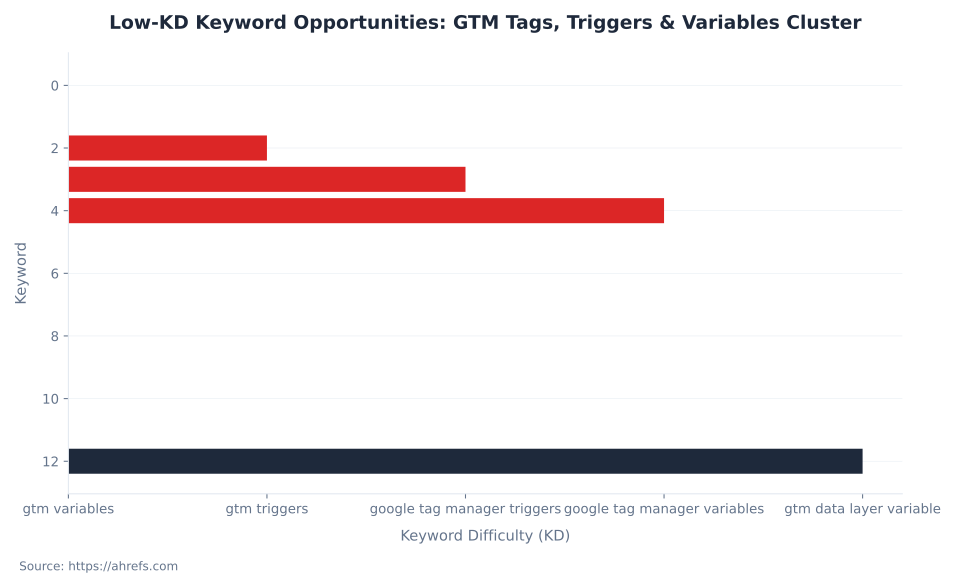
GTM trigger types in web containers as of June 2026 — 5 page-load lifecycle moments, click, form, engagement, and data-layer signals. Four low-KD keywords anchor this pillar: “gtm variables” (KD 0), “gtm triggers” (KD 2), “google tag manager triggers” (KD 3), “google tag manager variables” (KD 4).
Source: Google Tag Manager Help, June 2026; Ahrefs keyword data, June 2026
The GTM Container Execution Loop: How Tags, Triggers, and Variables Work Together
Tags, triggers, and variables are not three independent systems in Google Tag Manager. They form a single execution cycle: a browser event fires, GTM evaluates all active trigger conditions against current variable values, tags whose triggers match execute, and those tags push new events to the data layer — which the container processes next, in queue order. Browse every concept at the Google Tag Manager glossary hub. For a container-architecture orientation, start with What Is Google Tag Manager.
A tag sends data to a third-party system (GA4, Google Ads, a pixel) or executes arbitrary code. A trigger is a listener that evaluates browser events — page loads, clicks, data layer pushes, scroll milestones — and fires tags when conditions match. A variable is a named value resolved at runtime: built-in variables capture browser context (the URL of a clicked link, the depth of a scroll, the ID of a form), while user-defined variables read from the data layer, the DOM, cookies, or JavaScript globals.
A tag that is not firing can be broken at exactly three points. The trigger is not matching because variable values at fire time are not what you expect. The tag has been deduped by a firing option — once per page already fired. The variable reads the wrong value because the DOM was not built yet. All three failure modes look identical in the network tab: no outbound request, no error. Understanding the loop is prerequisite to diagnosing GTM reliably (Google Tag Manager: About Triggers).
Built-in variables must be explicitly enabled.
GTM does not activate built-in variables when you create a trigger that depends on them. A trigger condition referencing a disabled variable evaluates against undefined and silently never matches. Enable the full variable set for each trigger category before configuring filter conditions.
The Custom Event trigger and the Data Layer Variable are the connective tissue between your pages and GTM. When an interaction occurs, a developer pushes a structured message to the data layer; the Custom Event trigger catches it; tags send the event downstream. The Custom Event trigger and Data Layer Variable only work when pages push structured data — see The Data Layer and Enhanced Measurement for the complete reference. On the server side, the tag/trigger/variable model is replaced by a client-request/tag model — see Server-Side Tagging.
Key Takeaways
Five facts that define correct GTM implementation before touching a single configuration setting.
- There are 16 trigger types in GTM web containers. Five cover the page-view load lifecycle (Consent Initialization through Window Loaded); two handle clicks; four handle user engagement; five handle specialized signals (Custom Event, Timer, History Change, JavaScript Error, Trigger Group). Source: Google Tag Manager Help, verified June 2026.
- Built-in variables are off by default. GTM does not activate them when you create a trigger that depends on them. A disabled variable evaluates to
undefinedand trigger conditions never match — silently, with no error output. Enable the full category set before setting filter conditions. - The Google tag replaced the GA4 Configuration tag in September 2023. It uses a Tag ID, routes to multiple Google products from one tag, and stores configuration as key-value pairs. Auto-migration ran at time of container publish. Containers never published after the migration date still show the old tag type in older versions.
- Tag firing priority is a start-order hint, not an execution guarantee. GTM executes tags asynchronously. A priority-10 Custom HTML tag making a network request completes after a priority-1 synchronous JS tag. Use tag sequencing for hard dependencies.
- A GTM Custom Event trigger and a GA4 custom event are different things. The trigger fires on
dataLayer.push({'event': 'name'})— a data-layer routing signal inside GTM's container execution model. The GA4 custom event is a GA4 data model concept. They often appear together but live at different layers.
Keyword Cluster: Search Volume and Difficulty (US, June 2026)
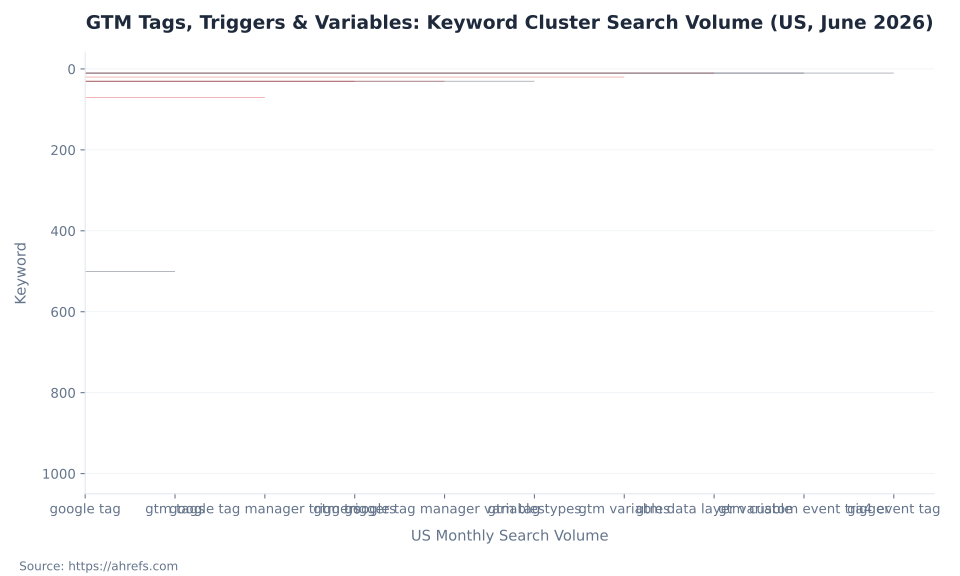
The “google tag” and “gtm tags” head terms carry high volume but Keyword Difficulty scores of 85 and 74 — dominated by Google’s own properties. The attainable ranking targets are four low-KD terms: “gtm variables” (KD 0), “gtm triggers” (KD 2), “google tag manager triggers” (KD 3), and “google tag manager variables” (KD 4). Both absorbed zombie URLs had 0 clicks and 0 impressions in the 90-day GSC window; every rank this pillar earns is incremental. Source: Ahrefs, operator-supplied June 2026.
| Keyword | US Vol/mo | Global Vol/mo | KD |
|---|---|---|---|
| google tag | 1,000 | 10,000 | 85 |
| gtm tags | 500 | 700 | 74 |
| google tag manager triggers | 70 | 150 | 3 |
| gtm triggers | 30 | 100 | 2 |
| google tag manager variables | 30 | 80 | 4 |
| gtm tag types | 30 | 40 | — |
| gtm variables | 20 | 60 | 0 |
| gtm data layer variable | 10 | 30 | 12 |
| gtm custom event trigger | 10 | 20 | — |
| ga4 event tag | 10 | 20 | — |
Page View Trigger Types: Five Moments in the Browser Load Lifecycle
GTM provides five page-view trigger types that fire in a fixed sequential order on every page navigation. Choosing the wrong one is the single most common GTM implementation error. The Consent Initialization trigger fires before everything else — it exists so consent management platform tags can set user consent state before any data-collection tag runs. For the full consent tag implementation reference, see Consent Mode and Privacy. Source: Google Tag Manager: Page View Triggers, verified June 2026.
| Trigger type | When it fires | Primary use case | Key caveat |
|---|---|---|---|
| Consent Initialization | First — before all other triggers | Consent Management Platform tags; setting default consent states | Only for consent-setting tags. Data-collection tags attached here fire before consent is established. |
| Initialization | Second — after Consent Init, before Page View | Early-loading JavaScript libraries, customer data platforms, feature flag systems | Not consent-related. For infrastructure that must initialize before data-collection triggers. |
| Page View | Third — as the browser begins loading the page response | Immediate page impression tracking where DOM content is not needed | DOM is not yet built. Tags that read DOM elements (e.g., product name from an H1) return null. Use DOM Ready instead. |
| DOM Ready | Fourth — after the full HTML is parsed into the DOM | Tags that read DOM element values, form fields, or inject into the page structure | Images, iframes, and external scripts are still loading. Not suitable for YouTube Video triggers, which require the IFrame API. |
| Window Loaded | Fifth (last) — after all resources complete | Tags requiring full page-load completion; YouTube Video triggers; heavy third-party scripts | Slowest trigger type. Adds measurable latency if used unnecessarily. Reserve for tags that genuinely depend on all resources being available. |
Firing a tag on Page View that attempts to read a DOM element returns null or throws a reference error. Firing on Window Loaded when immediate data is needed adds unnecessary latency to every impression. The distinction matters most for consent compliance — consent-state tags belong on Consent Initialization, never on Page View — and for GA4 page view tags, which belong on Page View or DOM Ready. Validating that all five fire at the correct moment is the purpose of GTM Preview mode — see Debugging, Testing, and Performance for the full debugger workflow.
All 16 GTM Trigger Types: Complete Catalog for Web Containers
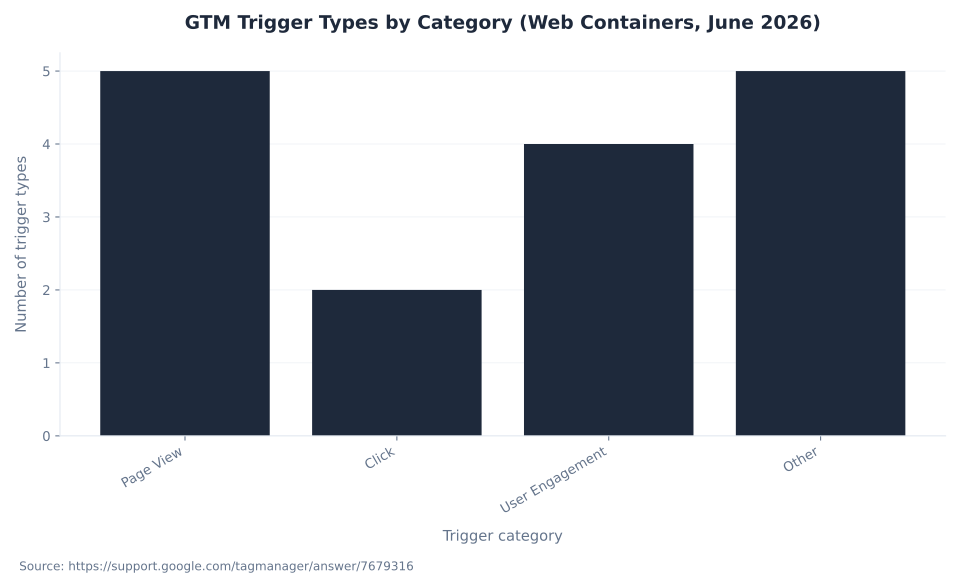
GTM web containers offer 16 trigger types organized into four categories: Page View (5), Click (2), User Engagement (4), and Other (5). Every trigger evaluates one or more filter conditions against variable values at the moment its browser event fires. Source: Google Tag Manager: About Triggers, verified June 2026.
| Category | Trigger type | Fires when… | Key built-in variables populated | Configuration notes |
|---|---|---|---|---|
| Page View | Consent Initialization | Before any other trigger on every page | — | For consent-setting tags only. |
| Page View | Initialization | After Consent Init, before Page View | — | Infrastructure / early-init tags only. |
| Page View | Page View | Browser begins loading the page | Page URL, Page Hostname, Page Path, Referrer | DOM not yet built. |
| Page View | DOM Ready | HTML parsed; DOM available | Page URL, Page Path | External resources still loading. |
| Page View | Window Loaded | All resources complete | Page URL | Slowest trigger; reserve for resource-dependent tags. |
| Click | All Elements | Any DOM element is clicked | Click Element, Click Classes, Click ID, Click Target, Click URL, Click Text | Broad — scope with filter conditions (e.g., Click URL contains /checkout). |
| Click | Just Links | An <a> element is clicked | Click URL, Click Text, Click Element | “Wait for Tags” delays navigation. “Check Validation” fires only on valid links. |
| User Engagement | Form Submission | Native HTML submit event fires | Form Element, Form Classes, Form ID, Form Target, Form Text, Form URL | Does NOT fire on AJAX form submissions. Use a Custom Event trigger via dataLayer.push() for AJAX forms. |
| User Engagement | Element Visibility | A matched element enters the viewport | Percent Visible, On-Screen Duration | Selection: CSS Selector or Element ID. Min % visible: default 50%. Enable “Observe DOM Changes” for dynamically injected elements. Fire frequency: once per page / element / every time. Source: GTM Help. |
| User Engagement | Scroll Depth | User scrolls past a configured threshold | Scroll Depth Threshold, Scroll Depth Units, Scroll Direction | Thresholds in % or pixels; comma-separated list (e.g., 25,50,75,100). Fires once per threshold per page — does not reset on scroll-back. |
| User Engagement | YouTube Video | A YouTube iframe video event occurs | Video Current Time, Video Duration, Video Percent, Video Provider, Video Status, Video Title, Video URL, Video Visible | Trackable events: Start, Complete, Pause, Seeking, Buffering, Progress. Requires YouTube IFrame API. Each milestone fires once — skipping past does not re-trigger. |
| Other | Timer | Configured interval elapses | — | Interval in ms; optional fire-count limit. Event name defaults to gtm.timer. Used to measure time-on-page engagement. |
| Other | History Change | URL fragment changes or HTML5 pushState / popState fires | History Source, New History Fragment, New History State, Old History Fragment, Old History State | Essential for virtual pageview tracking in single-page applications. Does not fire on full page loads. |
| Other | JavaScript Error | Uncaught JavaScript error occurs | Error Message, Error URL, Error Line | Fires on window.onerror. Does not catch errors in iframes or unhandled promise rejections by default. |
| Other | Custom Event | A matching event key is pushed to dataLayer | Event (the event name string) | Matches on the exact string value of the event key in a dataLayer.push() call. Completely separate from GA4 event taxonomy. Regex matching supported. Source: GTM Help. |
| Other | Trigger Group | All selected triggers have fired at least once on the page | — | Two or more triggers must all fire before the group trigger fires. Useful for compound conditions (e.g., scrolled to 50% AND spent 30 seconds on page). Source: GTM Help. |
MB Adv Agency has found that the majority of GTM implementation issues on client containers trace to two silent failures: an unconfigured built-in variable that leaves a trigger condition permanently evaluating against undefined, or a Custom Event trigger whose event name string does not match the dataLayer.push() call exactly — often a trailing space, a capitalization mismatch, or a typo introduced when the developer hand-codes the push. Both failures produce the same symptom: the tag never fires, no error appears, and Preview mode shows the trigger as never matched.
Built-In Variables: The Activation Requirement That Silently Breaks Triggers
GTM’s built-in variables — covering page data, clicks, forms, scroll depth, video, history, and visibility — must be individually enabled in Variables → Configure (Built-In Variables) before any trigger condition or tag parameter can read them. They are not automatically activated when you create a trigger that depends on them. A trigger condition referencing a disabled variable evaluates against undefined, which never matches any operator, and silently never fires. There is no error message, no DebugView warning, and no console output. Source: Google Tag Manager: Built-In Variables, verified June 2026.
Silent failure: built-in variables not enabled
If you configure a Scroll Depth trigger but Scroll Depth Threshold, Scroll Depth Units, and Scroll Direction are not enabled, your trigger conditions evaluate against undefined — and silently never fire. MB Adv Agency recommends enabling the full built-in variable set for each trigger category as the first step in any new container build, not reactively when a trigger fails.
| Category | Variable names | Enable requirement | Typical use |
|---|---|---|---|
| Pages | Page Hostname, Page Path, Page URL, Referrer | Must be enabled individually | Trigger filters (fire only on /checkout); tag parameters (send Page URL to GA4) |
| Utilities | Container ID, Container Version, Environment Name, Event, HTML ID, Random Number, Analytics Client ID, Analytics Session ID, Analytics Session Number | Must be enabled individually | Debugging (Container ID in tag names); deduplication (Random Number); session data (Client ID, Session Number) |
| Errors | Error Message, Error URL, Error Line, Debug Mode | Must be enabled individually | JavaScript Error trigger variables; Debug Mode enables conditional tag behavior in Preview only |
| Clicks | Click Element, Click Classes, Click ID, Click Target, Click URL, Click Text | Must be enabled; required for any Click trigger filter to evaluate | Filter click triggers by URL, class, or text; send click data as GA4 event parameters |
| Forms | Form Classes, Form Element, Form ID, Form Target, Form Text, Form URL | Must be enabled; required for Form Submission trigger filters | Identify which form was submitted; send form name as a GA4 event parameter |
| History | History Source, New History Fragment, New History State, Old History Fragment, Old History State | Must be enabled | SPA virtual pageview tracking via History Change trigger |
| Videos | Video Current Time, Video Duration, Video Percent, Video Provider, Video Status, Video Title, Video URL, Video Visible | Must be enabled; required for YouTube Video trigger | Send video engagement data as GA4 event parameters (maps directly to GA4’s video_ parameters) |
| Scroll | Scroll Depth Threshold, Scroll Depth Units, Scroll Direction | Must be enabled; required for Scroll Depth trigger | Send scroll depth values as GA4 event parameters (e.g., percent_scrolled ← Scroll Depth Threshold) |
| Visibility | Percent Visible, On-Screen Duration | Must be enabled; required for Element Visibility trigger | Track what percentage of a CTA or content section is visible and for how long |
Built-in variables from the Clicks, Forms, Scroll, Videos, and Visibility categories feed directly into GA4 event parameters when wired correctly — Click URL becomes a link-click parameter, Scroll Depth Threshold becomes percent_scrolled. Those parameters must then be registered as custom dimensions in GA4 before appearing in standard reports. See GA4 Events and Parameters for the full registration workflow. For the page-performance implications of Window Loaded trigger timing, see Core Web Vitals and Page Experience.
GTM Tags, Triggers & Variables: Keyword Cluster Search Volume (US, June 2026)
User-Defined Variable Types: 18 Options for Web Containers
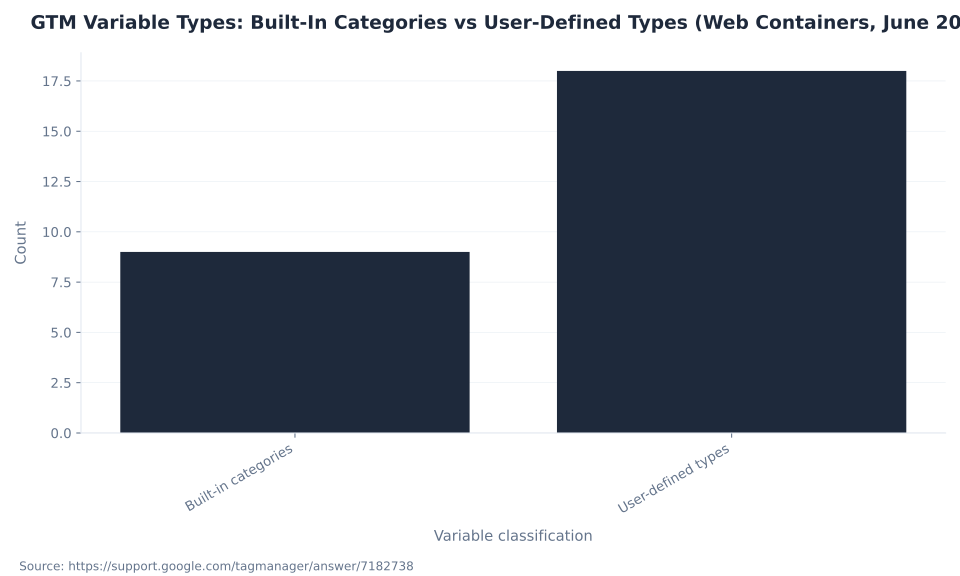
User-defined variables are created by the GTM user and read from page context, the data layer, cookies, JavaScript globals, or compute values via custom logic. GTM web containers support 18 distinct user-defined variable types as of June 2026. The two Google Tag variable types — Configuration Settings and Event Settings — were added in September 2023 concurrent with the GA4 Configuration tag migration. Source: Google Tag Manager: User-Defined Variables, verified June 2026.
| Variable type | Category | What it does | Common use case |
|---|---|---|---|
| Data Layer Variable | Page Variables | Reads a key from the dataLayer object; supports dot notation for nested keys | Pulling product ID, user type, or page category from a structured data layer push |
| Constant | Utilities | Returns a fixed string or number you define | GA4 Measurement ID, GA4 stream URL, environment-specific configuration values |
| Custom JavaScript | Page Variables | Executes a JavaScript function (must return a value) and returns the result | Complex logic: reading cookies, string manipulation, conditional values not expressible as simple lookups |
| DOM Element | Page Elements | Returns the text or attribute value of a DOM element located by CSS selector or element ID | Reading a product price, SKU, or page title from a visible element on the page |
| HTTP Referrer | Navigation | Returns the value of document.referrer (full URL or a component) | Identifying traffic source for landing page logic |
| JavaScript Variable | Page Variables | Reads a global JavaScript variable from the page's window scope | Accessing values a site already exposes globally (e.g., window.dataLayer[0].userId) |
| Lookup Table | Utilities | Maps one variable's value to another using a predefined table of input→output pairs | Mapping page path prefixes to brand names; campaign IDs to human-readable labels |
| RegEx Table | Utilities | Maps variable values to outputs using regular expression pattern matching (evaluated top-to-bottom) | Extracting product category from URL path patterns; normalizing inconsistent values |
| URL | Navigation | Parses the current page URL and returns a specific component (protocol, hostname, path, query, fragment, or a specific query parameter) | Extracting UTM parameters or subdomain values from the page URL |
| 1st-Party Cookie | Page Variables | Returns the value of a named first-party cookie | Reading user tier or A/B test bucket from a cookie |
| Auto-Event Variable | Page Elements | Captures a property of the element that triggered a click or form event (text, attribute, URL, classes, ID, target, parent) | Sending the clicked button's text or a link's href as a GA4 event parameter |
| Element Visibility | Page Elements | Reports whether a specific DOM element is visible and what percentage is in view | Checking if a CTA or content block is in the viewport before firing a tag |
| Google Tag: Configuration Settings | Utilities | Defines a reusable set of configuration-level parameters for Google tags (e.g., send_page_view, server_container_url) | Standardizing Google tag configuration across a container; routing to a server-side container |
| Google Tag: Event Settings | Utilities | Defines a reusable set of event-level parameters applied to all GA4 Event tags that reference it | Sending user_id or page_type consistently across all GA4 events without repeating the parameter on each tag |
| Container ID | Container Data | Returns the container's public GTM ID (e.g., GTM-XKCD11) | Debugging; identifying which container fired in multi-container setups |
| Container Version Number | Container Data | Returns the preview or live container version number as a string | Version-aware tag behavior; debugging |
| Random Number | Utilities | Returns a random integer between 0 and 2,147,483,647 | Sampling: fire a tag only 10% of the time by testing Random Number less than 214,748,365 |
| Debug Mode | Utilities | Returns true in GTM Preview mode, false in live | Suppress analytics calls in Preview; fire debug alerts only in debug mode |
The Data Layer Variable is the most frequently used user-defined type in production analytics containers. Its dot-notation support — entering ecommerce.purchase.transaction_id to read a nested key — means a single data layer push with a structured payload can feed dozens of variables without additional JavaScript. The Custom Event trigger and Data Layer Variable only work when pages push structured data — see The Data Layer and Enhanced Measurement for push structure requirements and the Enhanced Measurement overlap considerations. For server-side containers, the Google Tag: Configuration Settings variable is used to set the server_container_url parameter, routing tags to a server-side endpoint — see Server-Side Tagging.
GTM Trigger Types by Category (Web Containers, June 2026)
GTM Tag Types: Native Templates and the Community Gallery
GTM provides 7 native (Google-built) tag templates for web containers as of June 2026: Google tag, GA4 Event, Google Ads Conversion Tracking, Google Ads Remarketing, Conversion Linker, Custom HTML, and Custom Image. The Community Template Gallery extends this catalog with sandboxed third-party templates. Source: Google Tag Manager: Supported Tags; Set Up Google Analytics in Tag Manager, verified June 2026.
| Tag type | What it does | When to use | Key notes |
|---|---|---|---|
| Google tag | Loads and configures Google products (GA4, Google Ads) on page load. Replaced the GA4 Configuration tag in September 2023. Uses a Tag ID. | One per destination product per container. Required before GA4 Event tags can send data. | Fires via its own built-in trigger on page load. Config parameters are key-value pairs, not UI toggles. Existing GA4 Config tags were auto-migrated at time of publish. |
| GA4 Event tag | Sends a named event with parameters to the GA4 property configured by the Google tag. | Every interaction to track in GA4 (form submission, file download, video start, purchase). | Requires a Google tag configured with the same Tag ID. Event name must follow GA4 naming rules. Parameters must be registered as custom dimensions to appear in reports. See GA4 Events and Parameters. |
| Google Ads Conversion Tracking | Records a conversion in Google Ads when a user completes a defined action. | Thank-you pages, post-form-submit, purchase confirmation — any conversion event for Ads attribution. | Requires Conversion ID and Conversion Label from the Google Ads UI. Pair with the Conversion Linker tag. See Conversion Tracking and Attribution and GA4 Conversions and Key Events. |
| Google Ads Remarketing | Adds users to Google Ads audience lists for remarketing campaigns. | Site-wide or on specific page types to build targeted remarketing audiences. | Requires a Google Ads Conversion ID. Works alongside the Conversion Linker. Also supports GA4 audience imports via GA4 Integrations. |
| Conversion Linker | Preserves click ID information (gclid, gclsrc) in first-party cookies to enable conversion attribution across page loads. | Deploy site-wide on all pages. | Without this tag, conversion attribution breaks when users navigate from an ad landing page to a conversion page. Fire on all page views, unconditionally. |
| Custom HTML | Executes arbitrary HTML and JavaScript. | Third-party tags not available as native or Gallery templates; one-off tracking scripts. | No sandbox. Full JavaScript access. For tag sequencing, Custom HTML tags must call gtm.onHtmlSuccess() / gtm.onHtmlFailure() manually — omitting this blocks any primary tag indefinitely. |
| Custom Image | Fires a pixel-based tracking request (an image request to a URL). | Tags for systems that only support pixel/image-based tracking with JavaScript disabled. | URL-based; no JavaScript execution. Variables in the URL must render to supported types. |
| Community Template Gallery | Third-party tag templates maintained by vendors and the GTM community, sandboxed unlike Custom HTML. | Any third-party platform that has published a GTM template (Meta Pixel, LinkedIn Insight, Hotjar, etc.). | Templates run in a sandbox and cannot access arbitrary DOM APIs — more secure than Custom HTML but with API limitations. Browse at tagmanager.google.com/gallery. |
The GA4 Event tag and Google tag together replace what was previously a single GA4 Configuration tag. The split gives the Google tag responsibility for loading GA4 (setting cookies, sending page view if configured) and gives the GA4 Event tag responsibility for every named event. This architecture means you wire one Google tag per GA4 property, then create as many GA4 Event tags as you have distinct interactions to track. For e-commerce tracking, the GA4 Event tag carries the full ecommerce data layer object as an event parameter — see GA4 Ecommerce Tracking for the schema. For data privacy implications of which tags you deploy and what data they send, see GA4 Data Collection and Privacy.
GTM Variable Types: Built-In Categories vs User-Defined Types (Web Containers, June 2026)
Tag Firing Options: Unlimited, Once per Page, and Once per Event
Every GTM tag has a firing option that controls how many times it executes when its trigger fires. The default is Unlimited. Choosing the correct option prevents duplicate data collection and accidental tag suppression. Source: Google Tag Manager: Tag Firing Options; Analytics Mania: Firing Options Guide, verified June 2026.
| Firing option | What it does | Default? | When to use | Caution |
|---|---|---|---|---|
| Unlimited | Tag fires every time its trigger conditions are met, with no cap. | Yes | Data-collection tags that must fire for every matching event: every scroll threshold, every element visibility event, every click on a tracked element. | Produces duplicate data if the trigger fires more broadly than intended. Pair with tight filter conditions. |
| Once per event | Tag fires only once per trigger event instance, even if the same trigger event recurs on the page. | No | Preventing duplicate sends when the same event fires multiple times (e.g., a click trigger on a button a user clicks repeatedly). | If the trigger fires multiple times and you need each occurrence, use Unlimited instead. |
| Once per page | Tag fires at most once per page load, regardless of how many times its trigger fires. | No | Loading a JavaScript library or initializing a third-party SDK exactly once per page, even if the trigger fires multiple times. | Resets on each full page load. SPA virtual page navigations are not treated as new page loads unless the container is configured to handle them via History Change triggers. |
Critical interaction with tag sequencing: When a tag serves as both an independent tag and a setup tag in a sequence, set its firing option to Unlimited. If set to Once per Page, the deduplication fires in the first role and the tag never runs in the second. This is a verified production failure mode documented by Simo Ahava in Understanding Tag Sequencing in GTM. For data consent considerations — specifically, which firing option to combine with Consent Initialization — see GA4 Data Collection and Privacy.
Tag Sequencing and Firing Priority: Execution Dependencies vs Start-Order Hints
Tag sequencing creates an explicit execution dependency between tags: a setup tag must fire and complete before the primary tag executes, and a cleanup tag fires after the primary tag completes. This is the correct tool for hard execution dependencies. Firing priority (a numeric field on each tag, default 0) determines only the order in which GTM begins executing tags sharing the same trigger — it does not guarantee completion order. Sources: Google Tag Manager: Tag Sequencing; Google Tag Manager: Prioritization, verified June 2026.
| Concept | How it works | Limitation | Best for |
|---|---|---|---|
| Firing priority (numeric) | Each tag has an optional numeric priority (default: 0). Higher number → GTM starts that tag's execution first among tags sharing a trigger. Accepts positive and negative integers. | Tags execute asynchronously — start order does not guarantee completion order. A priority-10 Custom HTML tag making a network request completes after a priority-1 synchronous JS tag. | Rough ordering of non-dependent tags on a shared trigger; not for hard dependencies. |
| Setup tag (sequencing) | A designated tag that must fire and complete (or explicitly fail) before the primary tag executes. Configured on the primary tag under Advanced settings. Optional: block primary tag if setup tag fails. | Triggers assigned to the setup tag are ignored when it runs in the setup role — it fires on the primary tag's trigger only. Custom HTML setup tags must call gtm.onHtmlSuccess() or gtm.onHtmlFailure() to signal completion; omitting this call leaves the primary tag permanently blocked. | Loading a dependency (consent check, library initialization) before a tracking tag. |
| Cleanup tag (sequencing) | A designated tag that fires after the primary tag completes. | Same Custom HTML callback requirement as setup tags. | Post-tracking cleanup: clearing data layer values, firing a confirmation pixel after a primary event tag. |
| Firing option interaction | When a tag serves as both an independent tag and a setup tag, set its firing option to Unlimited so it is not deduped when firing in both roles. | — | Tags used in multiple sequences or fired independently and as a setup tag. |
The most common tag sequencing failure in production is a Custom HTML setup tag that does not call gtm.onHtmlSuccess(). The primary tag waits indefinitely; no network request fires; GTM Preview shows the setup tag as fired — making it appear the primary tag is the broken component. The fix is one line at the end of the Custom HTML script. MB Adv Agency has found this to be the most frequently misconfigured sequencing pattern in container audits: the callback requirement is not surfaced prominently in the GTM UI and is easy to miss in vendor-provided Custom HTML snippets. Full callback mechanics are documented by Simo Ahava at Understanding Tag Sequencing in GTM.
Custom Event Trigger: Data Layer Routing, Not GA4 Taxonomy
The GTM Custom Event trigger fires when a specific string value appears under the event key in a dataLayer.push() call. It has nothing to do with GA4's custom event taxonomy. This distinction causes a large category of broken tracking when implementers configure a GA4 Event tag expecting it to fire on GA4's custom events, rather than wiring it to a Custom Event trigger that catches the data layer push. Source: Google Tag Manager: Custom Event Trigger, verified June 2026.
Disambiguation: GTM Custom Event trigger vs GA4 custom event
- A GTM Custom Event trigger fires when
dataLayer.push({'event': 'some_name'})is called. It is a routing mechanism inside GTM's container execution model. - A GA4 custom event is a GA4 data model concept — an event outside GA4's automatically collected, enhanced measurement, and recommended event taxonomies.
- The two often appear together (push → catch → send), but they live at different layers. The trigger fires based on the data layer message; the GA4 event name is configured inside the GA4 Event tag.
Any tag type can be attached to a Custom Event trigger: GA4 Event, Google Ads Conversion, Custom HTML, or Community Gallery tags. The trigger is routing logic; what happens downstream is determined by the tag. Regex matching is supported in the Event Name field, allowing a single trigger to catch multiple related event names (e.g., form_.* to match any push whose event name starts with “form_”). For the underlying data layer mechanics that make Custom Event triggers work, see The Data Layer and Enhanced Measurement.
Two additional trigger types warrant production notes. The Element Visibility trigger has a configuration option — “Observe DOM Changes” — that is the most-missed setting for SPA and dynamic content scenarios. If the target element is injected after the initial page load and this option is off, the trigger evaluates the DOM at load time, finds no element, and never fires — silently. Enable it whenever the tracked element is rendered asynchronously (Element Visibility Trigger). The Form Submission trigger listens only for the native HTML submit event. Forms that submit via AJAX do not fire the native submit event — the correct approach is a dataLayer.push() in the AJAX success callback, caught by a Custom Event trigger.
Low-KD Keyword Opportunities: GTM Tags, Triggers & Variables Cluster
GTM container audit before your next campaign launch?
MB Adv Agency audits GTM containers for broken triggers, unconfigured built-in variables, double-counted events, missing Conversion Linker tags, and consent gaps — before a mis-fired tag costs you conversion data.
Request a container audit →The Google Tag: What Changed in September 2023
In September 2023, Google automatically migrated all existing GA4 Configuration tags in GTM containers to the new Google tag format at time of container publish. The Google tag is not a renamed GA4 Configuration tag — it is a structurally different multi-destination tag that uses a Tag ID (not a Measurement ID) and can route to GA4, Google Ads, and other Google products from a single tag. Sources: Google Tag Manager: Google Tag Announcement; Simo Ahava: The Google Tag Template in GTM, verified June 2026.
What changed structurally:
- Tag ID replaces Measurement ID. The Google tag uses a Tag ID (format:
G-XXXXXXXXXXfor GA4, orAW-XXXXXXXXXXfor Google Ads) rather than a Measurement ID alone. A single Tag ID can route configuration to multiple Google products. - Configuration parameters are now key-value pairs. The old GA4 Configuration tag had UI toggles for settings like
send_page_view. The Google tag stores all configuration parameters as a key-value list — more flexible but less discoverable for implementers accustomed to the toggle interface. - Google Tag: Configuration Settings and Event Settings variable types were added. These user-defined variable types allow reusable configuration and event parameter sets to be defined once and referenced across multiple Google tags, avoiding parameter duplication. See The Data Layer and Enhanced Measurement for how these interact with data layer pushes.
- Auto-migration ran at time of publish. Containers that were never published after the migration date still show the old GA4 Configuration tag type in their older container versions. Previewing in a migrated workspace shows the new Google tag. If a container was set up before September 2023 and never published afterward, the old tag type remains.
The Google tag is also the configuration layer for server-side tagging deployments, where the server_container_url parameter routes tag data to a server-side GTM container rather than directly to Google's endpoints. For the full server-side architecture, see Server-Side Tagging. For how the Google tag interacts with GA4 property setup, see What Is Google Analytics 4. The GA4 Glossary hub covers the full GA4 concept library at Google Analytics 4 glossary.
How to Implement a GA4 Custom Event in GTM Using a Custom Event Trigger
This is the most common GTM implementation task: push a data layer event from a page interaction, catch it in GTM with a Custom Event trigger, send it to GA4 with a GA4 Event tag, and validate the setup in Preview mode and DebugView. Estimated time: 60 minutes for a standard web implementation including validation. Source: Google Tag Manager: Set Up Google Analytics, verified June 2026.
- Confirm the Google tag is configured. In your GTM container, verify a Google tag is present and configured with your GA4 property's Tag ID (
G-XXXXXXXXXX). This tag must fire on all pages before any GA4 Event tag can send data. If it is missing, create one, set it to fire on the All Pages (Page View) trigger, and publish before proceeding. Containers set up before September 2023 and subsequently published will show the Google tag; containers never published after that date show the older GA4 Configuration tag. - Push the event to the data layer on your page. Have your developer add a
dataLayer.push()call at the moment the interaction occurs:dataLayer.push({ 'event': 'pdf_downloaded', 'document_type': 'case_study', 'document_title': 'Q2 Performance Report' });Theeventkey is the string the Custom Event trigger will match on. The other keys become data layer variables available as tag parameters. - Enable relevant built-in variables. In GTM → Variables → Configure (Built-In Variables), enable any variables needed for the trigger filter or tag. For this custom event flow, enable the Event variable (Utilities category) at minimum. If scoping the trigger by page, enable Page URL.
- Create Data Layer Variables for the event parameters. In GTM → Variables → New → Variable Type: Data Layer Variable. Set the variable name to
dlv - document_typeand the Data Layer Variable Name todocument_type. Repeat fordocument_title. These will be referenced in the tag's event parameters. - Create the Custom Event trigger. In GTM → Triggers → New → Trigger Type: Custom Event. Set the Event Name to the exact string from Step 2:
pdf_downloaded. Set “This trigger fires on” to All Custom Events, or add a filter condition to scope it (e.g., Page URL matches a specific path). Save. - Create the GA4 Event tag. In GTM → Tags → New → Tag Type: Google Analytics: GA4 Event. Select your Google tag as the Configuration Tag. Set the Event Name to
pdf_downloaded(following GA4 naming rules: snake_case, ≤40 characters, no reserved prefixes). In Event Parameters, add:document_type→{dlv - document_type}anddocument_title→{dlv - document_title}. Set Triggering to the Custom Event trigger from Step 5. Save. - Register custom dimensions in GA4 before publishing. In GA4 Admin → Property → Custom definitions → Create custom dimension: Name “Document Type”, Scope “Event”, Parameter name
document_type. Repeat fordocument_title. This step must be done before data is collected — parameters sent before registration are not retroactively visible in reports. See GA4 Events and Parameters for the full registration workflow and the quota limits on custom definitions. - Validate in GTM Preview mode and GA4 DebugView. Click Preview in GTM. Navigate to the page that triggers the
dataLayer.push(). In the GTM debugger, confirm the Custom Event trigger fired and the GA4 Event tag executed. Open GA4 → Admin → DebugView to confirmpdf_downloadedappears with the correct parameter values. Check for truncation on long string values (GA4 standard properties have a 100-character limit on parameter values). See Debugging, Testing, and Performance for the full Preview mode workflow. - Publish the container. Submit and publish the GTM container version with a descriptive version name. Allow up to 48 hours for custom dimensions to appear in standard GA4 reports. Check GA4 Admin → Custom definitions → Quota information to confirm you have not exhausted the custom definition slots for your property type.
Frequently Asked Questions
Does a GTM Custom Event trigger fire when a GA4 custom event fires?
No — and this confusion drives a large category of broken tracking. In GTM, a Custom Event trigger fires when a specific string value is pushed to the dataLayer under the event key: dataLayer.push({'event': 'video_complete'}). It has no connection to GA4's custom event taxonomy. The GA4 Event tag attached to that Custom Event trigger is what sends the named event to GA4. The trigger fires on the data layer message; the tag determines what goes to GA4.
You can attach any tag type to a Custom Event trigger: a GA4 Event tag, a Google Ads Conversion tag, a Meta Pixel tag, or a Custom HTML tag. GTM triggers are routing logic within the container execution model. GA4 event names are configured inside the GA4 Event tag. The two layers are independent: the same Custom Event trigger can fire a GA4 Event tag, a Google Ads Conversion tag, and a Custom HTML tag simultaneously. Source: Google Tag Manager: Custom Event Trigger.
Does tag firing priority guarantee execution order in GTM?
No. Tag firing priority (a numeric field on each tag, default 0) determines the order in which GTM begins executing tags that share a trigger. Higher numeric values start first. But GTM executes tags asynchronously: a priority-10 Custom HTML tag that makes a network request starts first but completes after a priority-1 tag that runs synchronous JavaScript.
For hard execution-order guarantees, use tag sequencing. Configure a setup tag that must complete (or explicitly fail) before the primary tag fires. Tag sequencing uses onSuccess/onFailure callbacks to enforce the dependency at the completion level, not just at the start level. For Custom HTML tags acting as setup tags, the developer must manually call gtm.onHtmlSuccess() or gtm.onHtmlFailure() at the end of the script — omitting this call leaves the primary tag permanently blocked. Sources: GTM: Prioritization; GTM: Tag Sequencing.
Does GTM's Form Submission trigger fire on AJAX form submissions?
No. GTM's Form Submission trigger listens for the native HTML submit event. Forms that submit via AJAX (fetching a URL in JavaScript without navigating the page) do not fire the native submit event — they dispatch a custom function. The GTM trigger never fires.
The correct approach for AJAX forms: have the developer push a dataLayer.push({'event': 'form_submitted'}) call inside the AJAX success callback, then use a Custom Event trigger in GTM to catch it. The “Wait for Tags” and “Check Validation” options on the Form Submission trigger apply only to native submit-based forms. Additionally, enable the Form built-in variable category (Form Element, Form ID, Form URL, etc.) before adding filter conditions to Form Submission triggers — disabled variables evaluate against undefined and conditions never match. Source: Google Tag Manager: Form Submission Trigger.
Are GTM built-in variables available by default without any configuration?
No. Built-in variables in GTM must be individually enabled in Variables → Configure (Built-In Variables). If a trigger condition references a built-in variable that has not been enabled — for example, “Click URL contains /checkout” when Click URL is not enabled — the condition evaluates against an empty value and never matches. There is no error message, no warning in Preview mode, and no console output. The trigger simply does not fire.
The standard workflow for any new container build: enable the full set of built-in variables for every trigger category you plan to use — Clicks, Forms, Scroll, Videos, Visibility, History, Errors — before creating any triggers. Enabling variables that you end up not using has no performance cost. The performance cost of debugging a trigger that silently never fires because a variable was not enabled is significant. Source: Google Tag Manager: Built-In Variables.
What is the difference between the Once per Page and Once per Event firing options?
Once per Page fires the tag at most once per page load, regardless of how many times its trigger fires. It resets on each full page load. Once per Event fires the tag once per trigger event instance — it prevents duplicate sends when the same event recurs on a page, but it does not cap across page loads. Unlimited (the default) fires every time the trigger conditions are met, with no cap.
The practical difference: a scroll depth trigger with three thresholds (25%, 50%, 75%) fires three events per page. With Unlimited, the tag fires three times. With Once per Page, it fires once. With Once per Event, it fires once per threshold (same as Unlimited in this case, since each threshold is a distinct event instance). For JavaScript library initialization, Once per Page is correct. For a click tracker on a repeatedly-clickable element where you want each click, Unlimited is correct. One caution: in SPAs, “Once per Page” does not reset on virtual page navigations unless the container is explicitly configured to treat them as page reloads. Source: GTM: Tag Firing Options.
When should I use a GTM Trigger Group?
Use a Trigger Group when you need all of two or more distinct trigger types to have fired at least once on the page before a tag executes. The Trigger Group fires only after every trigger in the group has matched. A common use case: fire a tag only when a user has scrolled to 50% depth AND a specific element has become visible AND the page has been loaded for at least 30 seconds (Timer trigger). Without a Trigger Group, you would need complex custom JavaScript to coordinate these independently firing triggers.
The Trigger Group trigger itself has no built-in variables of its own — the variables available come from the individual triggers within the group. Each constituent trigger still requires its built-in variables to be enabled in Variables → Configure. Source: Google Tag Manager: Trigger Group. For compound engagement tracking that feeds into GA4, see GA4 Events and Parameters and the Google Tag Manager glossary hub.
If your GTM container needs a full trigger and variable audit before a campaign launch
MB Adv Agency reviews trigger configurations, built-in variable activation, firing options, and tag sequencing for analytics clients. →
Contact MB Adv →Methodology
This pillar absorbs two zombie URLs (types-of-triggers-in-client-side-gtm; variables-in-client-side-gtm-how-they-work) that recorded 0 clicks and 0 impressions over the 90-day GSC window (2026-03-06–2026-06-04). The GTM pillar network is a pure zombie network — every rank earned by this article is incremental. All structural definitions, trigger type counts (16), variable type counts (built-in: 9 categories; user-defined: 18 types), and tag type descriptions are sourced from Google Tag Manager Help pages (About Triggers, Built-In Variables, User-Defined Variables, Supported Tags), supplemented by Simo Ahava's GTM technical references and Analytics Mania, all verified June 2026. Keyword data: Ahrefs, operator-supplied June 2026. No mbadv client metrics are cited. Reviewed by MB Adv Agency, June 2026.

As a Google Ads expert, I bring proven expertise in optimizing advertising campaigns to maximize ROI.
I specialize in sharing advanced strategies and targeted tips to refine Google Ads campaign management.
Committed to staying ahead of the latest trends and algorithms, I ensure that my clients receive cutting-edge solutions.
My passion for digital marketing and my ability to interpret data for strategic insights enable me to offer high-level consulting that aims to exceed expectations.
Google Partner Agency
We're a certified Google Partner Agency, which means we don’t guess — we optimize withGoogle’s full toolkit and insider support.
Your campaigns get pro-level execution, backed by real expertise (not theory).

Click-driven mind
with plastic-brick obsession.
We build Google Ads campaigns with the same mindset we use to build tiny brick worlds: strategy, patience, and zero tolerance for wasted pieces.
Data is our blueprint. Growth is the only acceptable outcome.

4.9 out of 5 from 670+ reviews on Fiverr.
That’s not luck, that’s performance.
Highly recommend Matteo to set up your server side tracking. He has a deep understanding of e-commerce tracking and will go above and beyond to make sure everything is set up correctly and working 100%. If you are scaling your store this set up is non-negotiable in my opinion and there isn't many people who have this much knowledge or put the effort in to get it right. Thanks again!

avorodesign.com
I can only recommend Matteo! He was very patient, professional and very knowledgeable about GA4, Consent Mode v2, and GDPR compliance. Communication was clear, and the setup was done professionally and efficiently. Highly recommend him for anyone needing reliable tracking implementation.

www.natureiki.life
Matteo shines in the realm of online professionals. His work is not only deep in data but also complemented by his proactive communication and cooperation, setting a new standard for freelancers. If you want someone who truly exceeds expectations, look no further. Highly recommended!

www.omanbeverlysmyth.com
Exceptional Service Beyond Expectations - Outstanding Service Impeccable depth, flawless delivery, and exceptional language fluency—this service exceeded all expectations. Highly recommended. Matteo truly ROCKS!!!

ium-paris.com
Top-notch, always highly value working with Matteo. An absolute Google Ads Genius. This is approximately the 8th time I have hired him and he's helped us get 6-7 ROAS. We are excited in continuing to improve our lead flow. Hire this guy if you need Google Ads help. Thanks Matteo!

www.dleeventgroup.com
I finally found the guy who can setup server side tracking and all the ecosystem properly. I definitely recommend Matteo. He is very responsive, kind and wants to dig into things. He configured GA4, Meta, Google Ads, Outbrain and google consent v2 with Cookiebot. Thanks Matteo.

inomega.fr
MB Adv delivered exceptional work with outstanding professionalism and lots of patience, taking time to see effects of changes made and not just do the work and submit it. The proactive communication and video summaries of the work completed made working with Matteo a pleasure, as he consistently went above and beyond. Highly recommended for web analytics projects! We are already working on another project.

www.withnellsensors.co.uk
Working with Matteo on my Google Ads was a game-changer. He's not just a strategist, he's a true partner. He understood my goals and tailored a campaign that perfectly reached my target audience. I'm grateful for his expertise and dedication.

dccargo.com